Get started with Joinways: from sign-up to your first quote
Create your account, answer the three onboarding questions, follow the getting started guide and send a first quote.
Aggiornato il
Your inquiries arrive by email, through booking platforms and from your website. Handling them in a shared mailbox costs time and dates. Joinways reads these inquiries for you, files them in "Inquiries" and helps you answer them, from the first quote to the signed event.
This guide follows a new venue's path: create the account, answer the three onboarding questions, follow the getting started guide, then send a first quote. Plan about ten minutes. If a teammate invited you, go straight to the section "You were invited to a workspace".
What you'll learn
- Create your account with Google, Microsoft or a code sent by email.
- Answer the three onboarding screens: you, your venue, your inquiries address.
- Understand what Joinways sets up for you based on your venue type.
- Follow the three-step getting started guide.
- Send a first quote with your legal details.
- Join an existing workspace when you are invited.
Prerequisites
- A work email address. If it is hosted by Google or Microsoft 365, signing in takes one click.
- The email address your clients write to (contact@, events@…), and ideally access to sign in to it.
- Your venue's website: Joinways reads its name, address and rooms there.
- No credit card: the Pro trial lasts 30 days, with no commitment.
1. Create your account
Open the Joinways sign-up page. It shows "Create your account" and reminds you: "30 days of Pro, free. No credit card required."
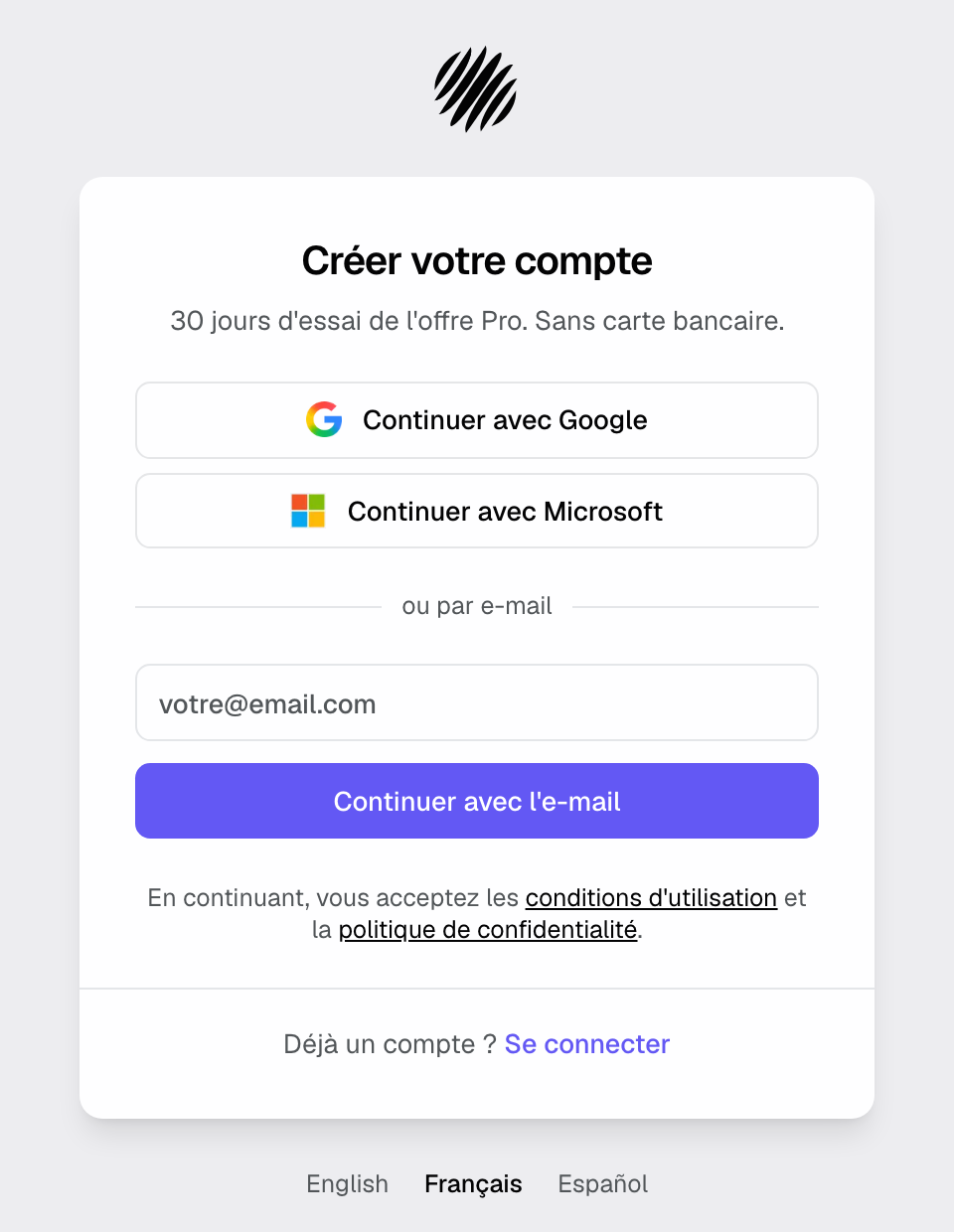
- Click "Continue with Google" or "Continue with Microsoft" if your address is hosted by one of them. If your browser is already signed in to Google, a small Google window may also offer to continue with that account.
- Otherwise, type your address under "or with your email" and click "Continue with email". If the address is hosted by Google or Microsoft 365, Joinways detects it and offers the matching button: "Your address is with Google: one click, no code to copy."
- With email, a 6-digit code is sent to you. Type it: it is checked as soon as you enter the sixth digit. The "Open Gmail" or "Open Outlook" button opens your mailbox in a new tab.
A typo in the domain ("gmial.con") is flagged with a "Did you mean …?" suggestion. The sign-in page also works for a first visit: "New to Joinways? Continuing creates your account." When you come back, the button of the method you used last carries a "Last used" badge.
2. Answer the three questions
Onboarding fits on three screens, with a "Step 1 of 3" bar at the top. You can go back at any time.
Who are you?
Enter your "First name" and "Last name". "Your role at the venue" is optional. If you signed up with Google or Microsoft and your name is known, this screen is skipped: the next screen shows "You are Marie Dupont" with an "Edit" link to go back, and your role is asked on the final screen.
Your venue
- Enter your "Website" address and click "Analyze". Joinways reads the home page and fills in the name, the address and the venue type. You can fill in the fields while it reads.
- Check the "Rooms found on your website" and remove the ones you don't rent out. They become your venue's spaces.
- If the website shows several venues, pick the ones to import under "Pick the venues to import", complete those that need details, then click "Import N venue(s)".
- Check the "Venue type", "Country", "Currency" and "Timezone", then click "Continue".
The "Venue name" also names your workspace. A social network page can't be read: enter the venue's website or fill in the fields by hand.
Which address do your clients write to?
Type the address that receives your inquiries, directly or from the platforms. Joinways looks up who hosts it:
- Google or Microsoft: click "Connect this address" and accept the access in the provider's window. Your last three months of inquiries are brought in, already sorted by platform.
- Shared address, group or alias: click "I can't sign into this address". Joinways walks you through setting up forwarding, in about two minutes. Forwarding only brings in new emails.
- Other provider: the same step-by-step help is shown.
Joinways reads your emails to spot inquiries. It sends nothing, deletes nothing, and the mailbox can be disconnected at any time from the settings. An "Also bring in the bookings of your calendar" line lets you import a Google or Outlook calendar as well.
No access right now? Under "Not now?", choose "I don't have the access" or "I'll look around first".
3. What Joinways prepares for you
You only answer three questions. The rest is set from what Joinways knows about your venue:
- Event types: you are not asked for them. Joinways infers them from your inquiries of the last twelve months, otherwise from your website, otherwise from your venue type, and offers them first when you create an event. No type is hidden.
- BEO: a seminar room, a coworking space or a conference center gets a default study-day program. The client form starts with questions that fit (seminar, wedding or meal), and "Included at the venue" suggestions are offered. Everything can be changed in the venue settings.
- "New inquiry" alert: it is turned on at the end of onboarding, by email and in Joinways.
- Country defaults: currency, time zone and the language of the terms follow the venue's country.
The final screen shows "Everything is ready for" followed by your venue's name, and what happens next. Under "Who else answers the requests?", invite up to 5 colleagues: people "Seen in your recent emails" are suggested. Then click "Open my requests".
If you chose "I'll look around first", the button becomes "See the examples" and you land on example events, with their quotes and tasks. With no mailbox connected, you land in "Inquiries" with the getting started guide open.
4. Follow the getting started guide
The "Getting started" guide opens from the card at the bottom of the sidebar, which shows the next action. It has three steps:
- "Receive your inquiries": connect your inquiries mailbox with "Connect my mailbox". Once connected, the step lists the inquiries found, unanswered upcoming ones first, and their split by platform. With forwarding, it waits for the next inquiry and offers "Bring back the history" if the mailbox can be connected directly.
- "Reply as a team": connect your own address to reply in the client's thread, and invite your colleagues with "Invite". This step is optional: a venue run by one person still completes the guide.
- "Your first quote": add your rooms, menus and services to the catalog, complete the venue details, then click "Prepare this quote" on the example event or your latest event. Nothing is sent.
The "Discover" tab shows what comes next: planning and holds, BEO, quote follow-ups, online signature, Chrome extension and reports. When the three steps are done, the guide shows your figures for the last 30 days, or what is already running if you received fewer than five inquiries, then leaves the sidebar.
5. Send your first quote
Your legal details (company name, address, VAT number) are not asked during onboarding. They are asked the first time you send a quote, if the venue has no billing profile yet.
- Prepare the quote from the event, picking from your catalog.
- Click "Send". The "Add your legal details before sending" window opens.
- Click "Add my legal details" to enter them. "Send anyway" sends the quote marked "No billing profile configured".
You can also enter them ahead of time from the guide, with "Add them now".
Example data
As long as no inquiry arrives, Joinways creates example events with their quotes and tasks. They are not attached to any venue and block no date. They archive themselves at your first real inquiry or your first real event.
To remove them sooner, click "Remove the demo" in the "Demo data" banner on the "Events" page. An example you completed is kept.
You were invited to a workspace
A teammate invited you: open the link in the invitation email and sign in with the invited address. You join the workspace without going through onboarding. Your own getting started guide is shown during your first 30 days:
- "Your address": connect your mailbox to reply from your own address, then "Write my signature". Your personal emails are not shared.
- "Your profile": "Add a photo", and choose your notifications (event assigned, mention, client email on one of your events, message in a discussion).
- "Answer an inquiry": open a waiting inquiry, see the events assigned to you, and install the Chrome extension if the workspace receives platform inquiries. This step doesn't appear for roles that don't handle inquiries.
Example: a winery that hosts seminars
Marc runs a winery. He signs up with his Microsoft 365 account: the "Who are you?" screen is skipped. He enters his website, Joinways finds the reception hall and the cellar, then notices that his events@ address is a shared mailbox. Marc sets up forwarding in two minutes and clicks "Open my requests".
Since his winery mostly hosts seminars, his BEOs start with a seminar-oriented client form. In the guide, he adds four items to the catalog and prepares a quote for the first seminar that came in. When he sends it, Joinways asks for his company name and VAT number: he enters them once, and every later quote carries them.
Troubleshooting
The 6-digit code doesn't arrive
Cause: the email went to spam, or the address has a typo. Solution: check your spam folder, check the address with "Change", then resend the code once the countdown ends.
Google sign-in fails inside a social network app
Cause: Google blocks sign-in in an app's built-in browser. Solution: open the page in Safari or Chrome, or get a code by email.
My venue's website isn't read
Cause: the site doesn't respond, or you entered a social network page. Solution: check the address, click "Read again", or fill in the fields by hand.
"Your Microsoft organization blocks this rule. Follow the manual steps."
Cause: Microsoft 365 blocks forwarding to an outside address until an administrator allows it. Solution: click "Connect the mailbox directly", or ask your Microsoft 365 administrator to allow forwarding.
No inquiry shows up after onboarding
Cause: forwarding isn't finished, or the last three months are still being brought in. Solution: open the getting started guide. The "Receive your inquiries" step shows the mailbox status and offers to finish the setup.
Frequently asked questions
Do I need to set everything up before I start?
No. An inquiries mailbox and your venue are enough. The catalog, the team and the legal details are completed from the guide, when you need them.
What happens at the end of the 30-day trial?
Nothing is charged or deleted. Without a subscription, the workspace moves to the Free plan. See Plans, pricing and subscription.
Does Joinways answer my clients for me?
No. Joinways reads and sorts incoming emails. Replies and quotes go out when you send them.
Can I finish onboarding later?
Yes. If you leave the page, you pick up at the screen you were on. Once the workspace is open, everything can be changed in "Settings".
Can I use Joinways on my phone?
Yes. See The Joinways mobile app.
See also
Provalo sulle tue prossime richieste per 30 giorni, senza carta.