Connect your business email (contact@, info@…)
Connect the address your clients use, mailbox, Google Group or distribution list: the wizard asks what it is and guides you.
Aggiornato il
Your business address (contact@, info@, events@…) is the one your clients know: most inquiries arrive there, platform ones included. Until it is connected to Joinways, those inquiries stay in your mail.
The "Inquiries mailbox" card connects this address in two minutes. The wizard does not ask how to plug it in, but what it is: a mailbox with its own password connects directly; a Google Group or a distribution list takes Joinways as a member; other cases use forwarding.
What you'll learn
- Add your address and answer the wizard's question.
- Connect a mailbox directly, or add Joinways to a group or a list.
- Set up forwarding and test it.
- Read an address's statuses and reconnect it.
Prerequisites
- An owner or admin role in the Joinways workspace.
- Access to the address: its password for a direct connection, or the rights to edit the group, the list or the forwarding. Otherwise, the wizard lets you send the steps to whoever manages your email.
1. Add your address
Go to "Settings" > "Integrations", "Sources" tab. Click the "Inquiries mailbox" card, or "Add another address" if an address is already connected.
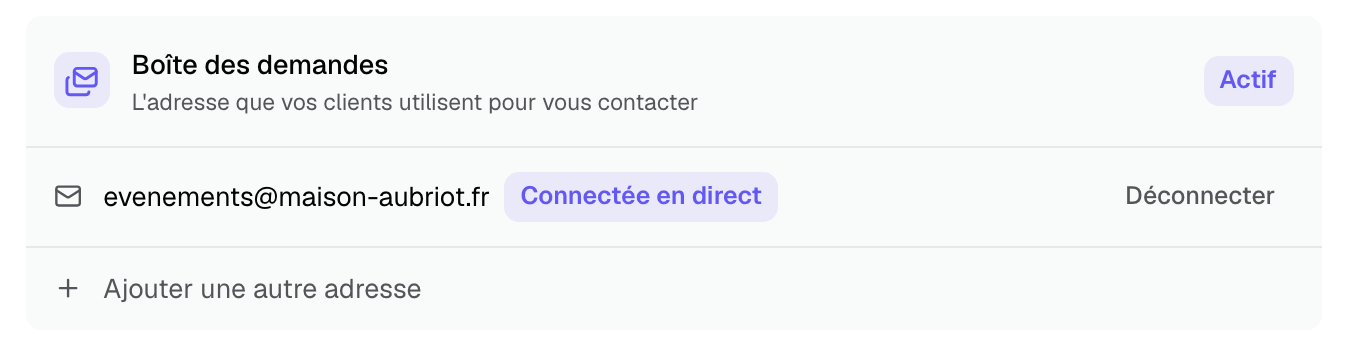
Enter the address your clients use, then click "Continue". Joinways checks who hosts the address: if it is Google or Microsoft, the wizard asks its question; otherwise it goes straight to forwarding.
2. Tell the wizard what the address is
The screen asks "How do you open" followed by your address:
- "Connect Gmail directly" (or Outlook): the address has its own password. Sign in to that mailbox in the Google or Microsoft window; inquiries arrive right away, nothing to set up or verify. For a Microsoft 365 shared mailbox, sign in with your own account that has access to it.
- "It is a Google Group" or "It is a distribution list": the address delivers each email to several people and has no password. Joinways becomes a member of the group or list; the wizard guides you, about 2 minutes.
- "Another case, an alias for instance: set up forwarding": for everything else.
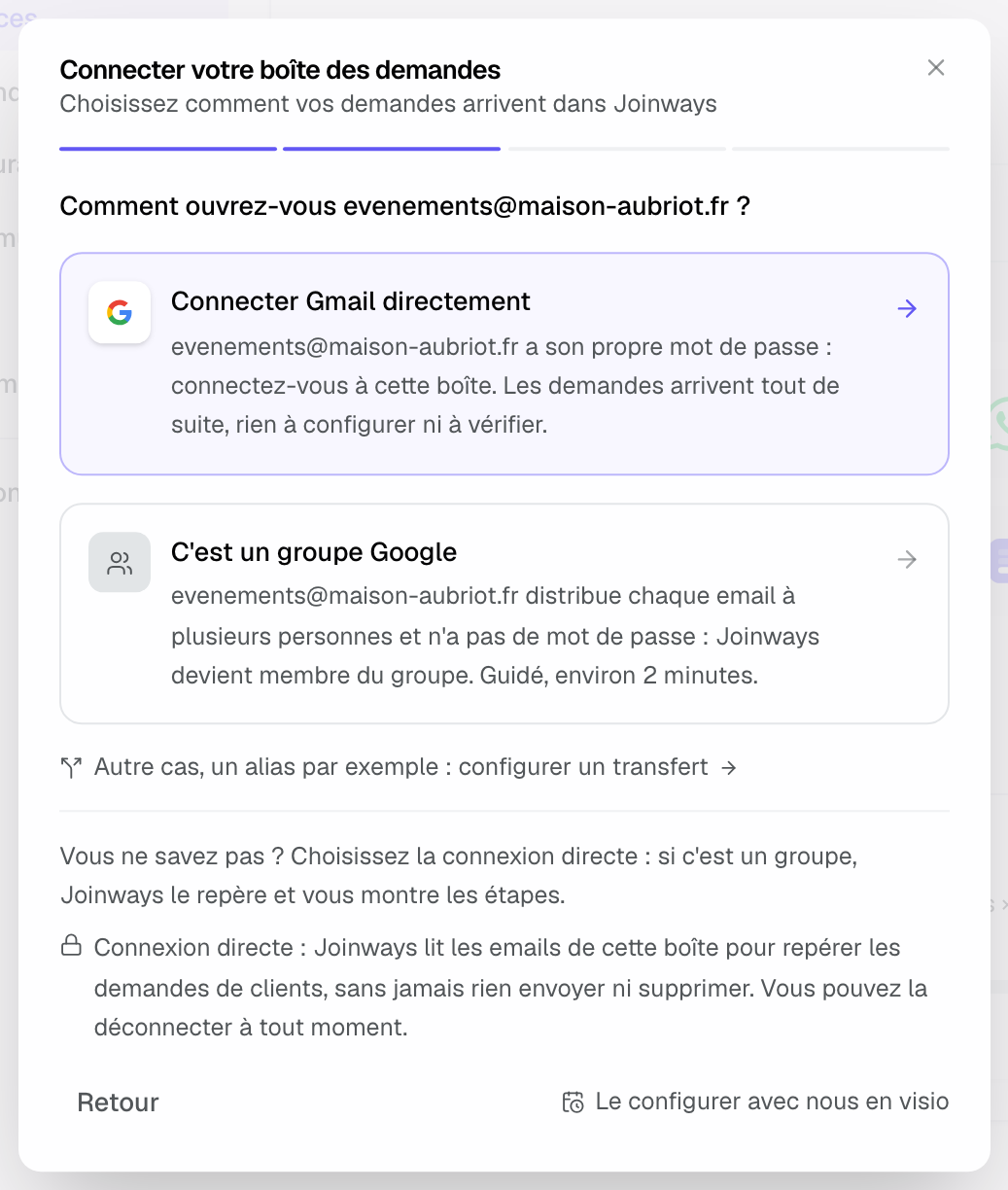
Not sure? Pick the direct connection: if the address is a group, Joinways spots it when you come back from signing in and shows you the group steps. A group already spotted in the emails the workspace received opens those steps directly.
A directly connected address shows "Connected directly". Joinways also picks up the inquiries received over the last 90 days, and checks every hour that no email from the mailbox was missed.
3. Group, list or forwarding: follow the steps
For a group, a list or forwarding, the wizard shows your Joinways address (in the form inbound-…@in.joinways.app) and the steps to follow. When the provider is recognized, a "Steps for Google Workspace" line (or for Microsoft) replaces the mail provider tabs, with "Not Google?" to bring them back.
- Google Group: allow external members, let "Anyone on the web" post, add the Joinways address as a member and check it receives "Each email". No routing rule: it never applies to a group.
- Microsoft distribution list: in the Exchange admin center, create a mail contact for Joinways and add it to the list.
- Gmail, Outlook or other forwarding: add the Joinways address as a destination and keep a copy in your mailbox. With Gmail, ignore the "confirmation code": the wizard shows "Approve the forwarding" a few seconds later.
- Outlook and Microsoft 365: "Set up automatically with Microsoft" creates the forwarding rule for you, after signing in to the address's account.
Someone else manages your email? "Copy the steps to send them to whoever manages your email" copies the Joinways address, the steps and the links, ready to paste into an email.
4. Test
Once the steps are done, click "Test the forwarding" (or "Test the reception" for a group). Joinways sends a test email to your address and checks that it comes back; the screen updates by itself, usually in under a minute. If nothing comes back, "Send another test" runs the check again.
An address's statuses
- "Connected directly": the mailbox is linked by direct connection.
- "Verified": a forwarded or distributed email has arrived.
- "Setup to finish": no email has arrived yet; click to reopen the steps where you left off.
- "1 click left to approve": you still need to click "Approve the forwarding" (Gmail).
- "Blocked by your organization": Microsoft 365 blocks external forwarding.
- "To reconnect": Google or Microsoft cut the direct connection; click "Reconnect".
The card's badge only shows "Active" when an address really receives; otherwise it says what is left to do.
Good to know: disconnecting a directly connected mailbox asks for confirmation, because new inquiries sent to that address stop arriving at once. Inquiries already received stay.
Example: a contact@ Google Group
Le Loft du Canal receives its inquiries at contact@leloftducanal.fr, a Google Group. The manager opens the "Inquiries mailbox" card, enters the address and picks "It is a Google Group". She is not an administrator: she clicks "Copy the steps to send them to whoever manages your email" and sends them to her IT provider. Once Joinways is added to the group, "Test the reception" turns green in under a minute.
Troubleshooting
The test does not arrive
Cause: the forwarding rule is not active, Joinways is not a member of the group, or the Gmail forwarding was not approved. Solution: check the steps, then click "Send another test".
"Blocked by your organization" (Microsoft 365)
Cause: the organization blocks automatic external forwarding. Solution: use "Connect Outlook directly", which reads the mailbox without forwarding anything, or ask an administrator to allow forwarding in Microsoft Defender.
The direct connection refuses my address
Cause: the connected account cannot read the address you entered, often because it is a group or a list. Solution: follow the group steps the wizard shows, or ask for full access to the shared mailbox.
The address shows "To reconnect"
Cause: Google or Microsoft withdrew the authorization (password change, organization rule). Solution: click "Reconnect"; the same connection resumes.
Frequently asked questions
Are my emails moved out of my mailbox?
No. Your mailbox keeps receiving everything; Joinways reads the mailbox or receives a copy, without sending or deleting anything.
Can I connect several addresses?
Yes, with "Add another address". Each has its own method and verification.
What happens if I remove a forwarding address?
Joinways stops processing its emails: any that still arrive are set aside, then deleted after 30 days. Also turn off the forwarding in your mail settings.
How is this different from "My mailbox"?
The "Inquiries mailbox" brings inquiries into "Inquiries". "My mailbox" connects your personal mailbox to send and file your conversations on events; it does not create inquiries. See Manage your email connections.
See also
Provalo sulle tue prossime richieste per 30 giorni, senza carta.