Invite and manage your team
Invite colleagues with the right role, choose each person's venues and manage access over time.
Aggiornato il
When several people work together, everyone needs to know what they can do and which files are theirs. In Joinways, you invite colleagues by email, choose their role, and limit the venues they see if needed.
The number of teammates doesn't change your bill: Joinways charges per venue, not per user.
What you'll learn
- Invite teammates with the right role.
- Choose which venues each teammate sees.
- Answer requests to join the workspace.
- Change a role, transfer ownership or remove access.
Prerequisites
- Be an "Owner" or "Admin" of the workspace: only they open "Settings" > "Teammates". Other roles see a screen that says so.
- Any plan, Free included: the number of teammates is unlimited.
1. Invite teammates
- Open "Settings" > "Teammates" and click "Invite teammates".
- Enter the person's "Email", "First Name" and "Last Name", then choose their "Role". "Member" is the default.
- "Add another teammate" adds a row to invite several people at once.
- Click "Send Invites". Each person gets an email to join the workspace; the invitation is valid for 14 days.
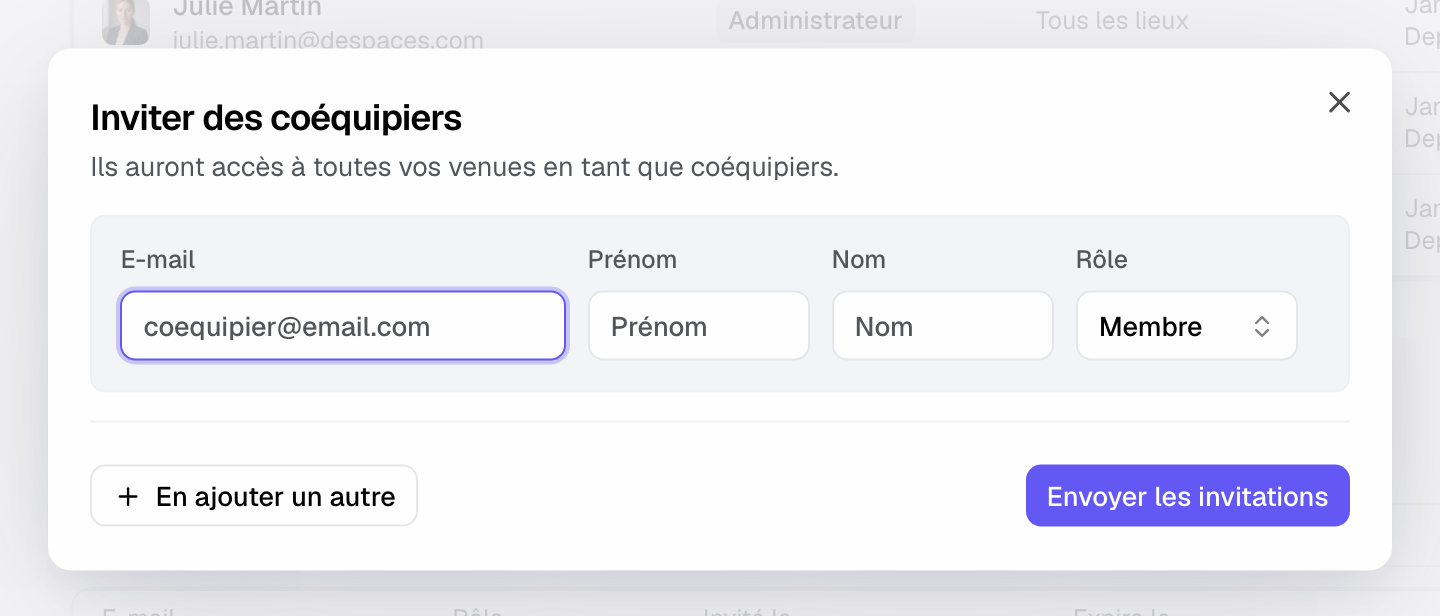
An invited teammate gets every venue, including those created later, until you limit them (step 3). When they arrive, they follow their own getting-started guide: their mailbox and signature, their photo and notifications, then a first inquiry.
2. Choose the right role
The role decides what the person can do across the whole workspace. There is no per-venue role.
- "Owner": everything, including the subscription, deleting the workspace and bank accounts. There is only one, marked "Primary Owner" in the list; it changes through an ownership transfer.
- "Admin": all the day-to-day work, plus the team, settings, integrations and automations.
- "Member": requests, quotes, events and the venues' BEO settings. No other settings.
- "Operations": planning, run of show, spaces, staff, tasks and the venues' BEO settings. No requests, quotes or revenue.
- "Read-only": sees everything, changes nothing. A banner at the top of the screen says so.
A teammate without settings rights keeps the "Settings" entry in the sidebar: it opens their personal settings (profile, notifications, mailbox).
3. Choose each teammate's venues
The teammate list shows each person's role, venues and activity (last sign-in or "Never signed in", and join date).
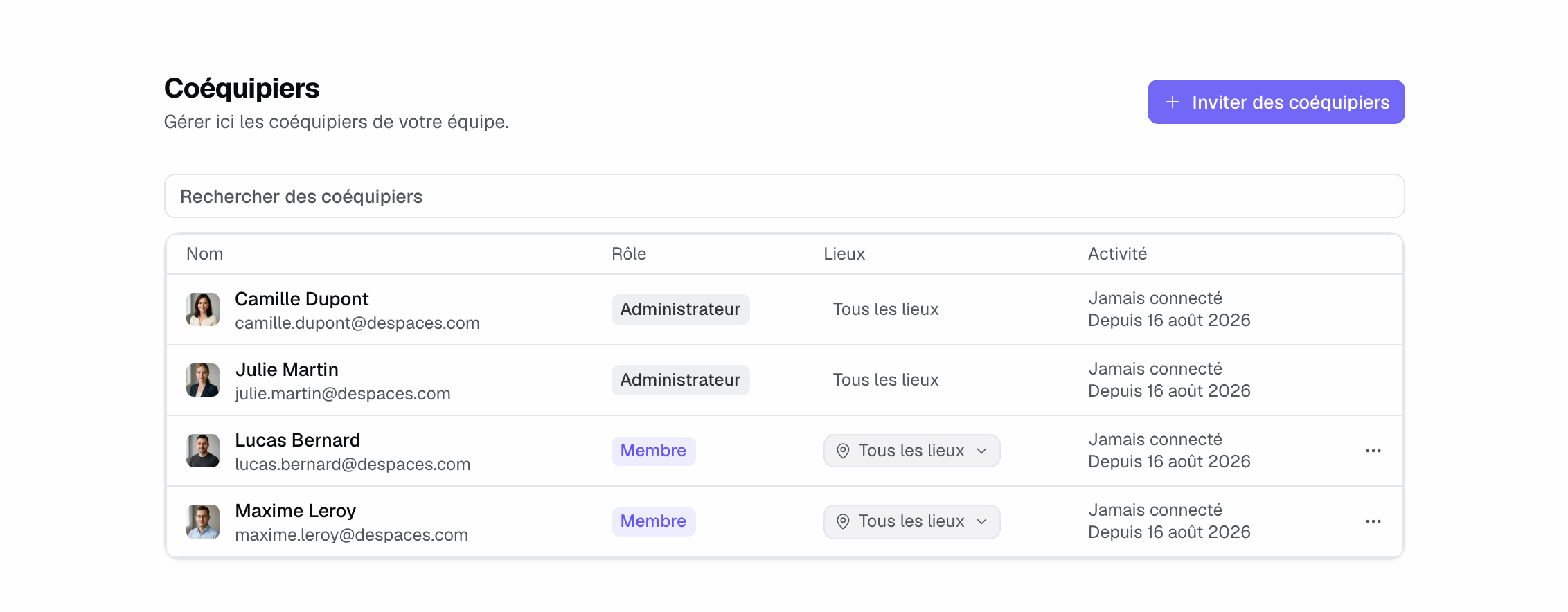
- In the "Venues" column, click the teammate's button, or choose "Accessible venues" in their "⋯" menu.
- Choose "All venues" (including those created later) or "Some venues", then tick the venues you want.
- Click "Save".
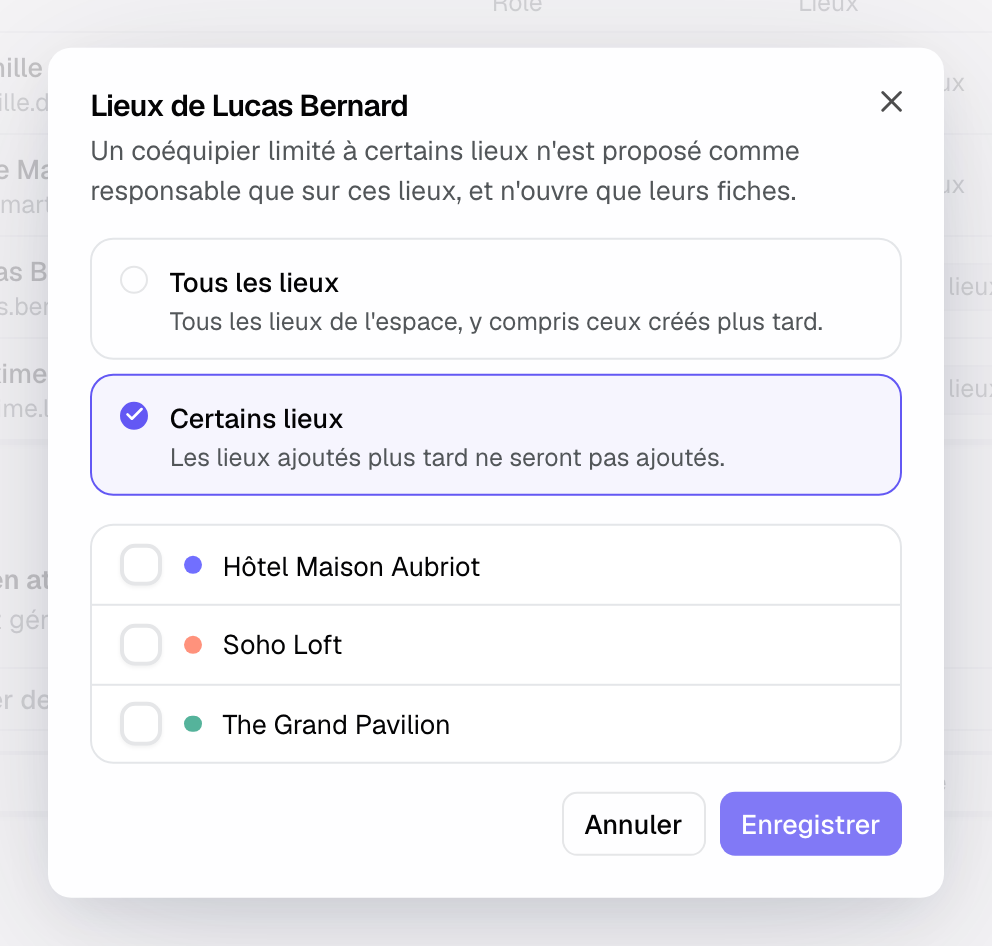
A teammate limited to some venues is offered as event owner only on those venues, and can only open their settings pages. Owners and admins always access every venue: they can't be limited.
4. Follow invitations and requests
Below the list, "Pending Invites" shows invitations not yet accepted. In an invitation's menu:
- "Renew Invitation" extends it by 14 days, without resending the email.
- "Remove Invitation" cancels it. To resend the email, remove it and invite the person again.
When someone signs up with the same email domain as your team, or connects a mailbox already linked to your workspace, Joinways offers them "Ask to join" instead of creating a second workspace. Owners get the request by email, and it shows up in "Requests to join": pick the "Role", then "Approve" or "Decline".
5. Change a role or remove access
Open a teammate's "⋯" menu:
- "Update Role": the change applies right away.
- "Edit Teammate" (primary owner only): first and last name.
- "Transfer Ownership" (primary owner only): enter the verification code sent by email, then confirm with "Transfer Ownership". You become an admin: you keep the team, settings and integrations, but no longer the subscription or deleting the workspace.
- "Remove from Account": the person loses access to the workspace immediately.
6. Share out the files
The role says what someone can do; the owner says who handles a file. On each event, set the "Owner" as soon as the inquiry becomes an event. The events list can be filtered by owner, and follow-ups no longer depend on anyone's memory. See Tasks and follow-up.
Example: extra help for the season
A wedding estate with a reception hall and a wine cellar hires a salesperson for the summer. The admin invites her as "Member" and limits her venues to the reception hall. The head chef is invited as "Operations": he sees the planning and BEOs, without the quotes. In September, "Remove from Account" ends the salesperson's access; her events stay in the workspace.
Troubleshooting
The invited person didn't get the email
Cause: mistyped address or email filtered as spam. Solution: check the address in "Pending Invites" and ask them to look in their spam folder. Otherwise, "Remove Invitation" and invite them again: a new email goes out.
Your role can't invite teammates with that role
Cause: you can't give a role higher than your own. Solution: pick another role, or ask the owner to send the invitation.
I can't limit a teammate's venues
Cause: they are an "Owner" or "Admin"; those roles always see every venue. Solution: change their role first if access must be limited.
A teammate can't reach a settings page
Cause: the page is reserved for owners and admins. Solution: an admin makes the change, or changes their role with "Update Role".
Frequently asked questions
How many teammates can I invite?
As many as you need, on every plan. Joinways charges per venue: one more teammate costs nothing.
Can someone have a different role per venue?
No. The role applies to the whole workspace; only the list of visible venues is set per person, in the "Venues" column.
What happens to a removed person's files?
They stay in the workspace. Reassign their events to another "Owner" so follow-ups keep going.
How do I resend an invitation?
"Renew Invitation" only extends it. To resend the email, choose "Remove Invitation" and invite the person again.
See also
Provalo sulle tue prossime richieste per 30 giorni, senza carta.