Understanding Inquiries
All your inquiries in one place, already read by AI: read a card, filter the list and decide with one key.
Aggiornato il
A venue gets inquiries from everywhere at once: the contact@ mailbox, Instagram, WhatsApp, the website form, Kactus or Naboo. When each one lives in its own tool, nobody knows which one is waiting for an answer, and the best inquiry of the week can sit for three days.
"Inquiries" brings everything into one list. Each inquiry arrives already read by AI: the card says what is being asked (type, headcount, date, budget), the detail view shows the original message next to the extracted data, and each decision takes one key.
What you'll learn
- Read a card in the list and its badges.
- Sort with the "To process", "Converted" and "Rejected" tabs, and filter.
- Read the detail of an inquiry and its "Extracted data".
- Decide with one key: convert, reject, reply, undo.
- Understand the statuses of an inquiry.
Prerequisites
- At least one source connected in "Settings" > "Integrations", "Sources" tab: the "Inquiries mailbox" (your contact@), Instagram, WhatsApp Business, Aircall, an "Inquiry form" or the "Chrome extension". See Connect your business email.
- A role that can handle inquiries. A read-only role sees inquiries but cannot convert or reject them.
1. Open Inquiries
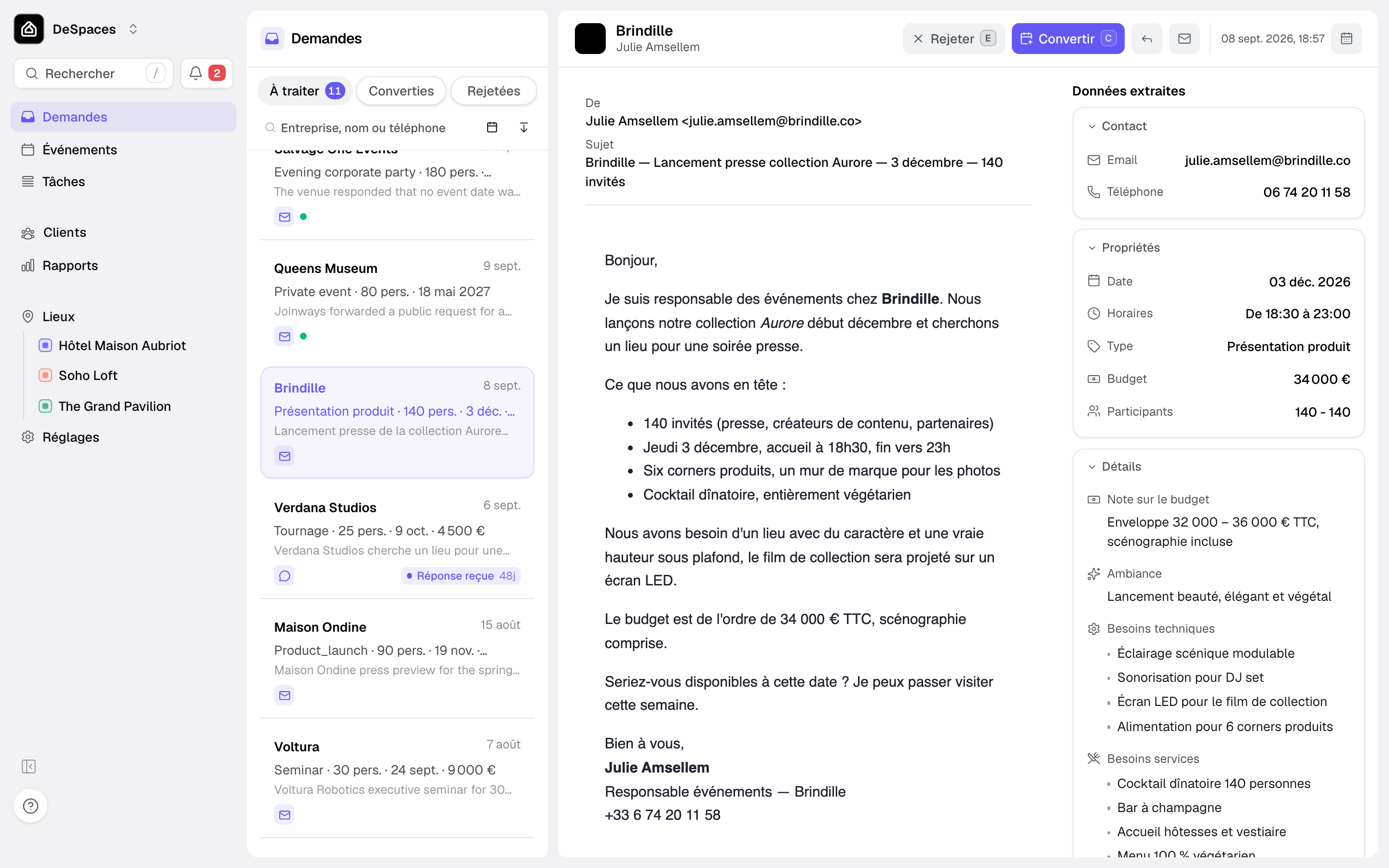
Click "Inquiries" in the sidebar. The number next to it counts the inquiries in the "To process" tab. The screen reads left to right: the list, the original message, then the "Extracted data" panel.
2. Read a card in the list
Each card fits on three lines, so you can sort without opening anything:
- The name: the client's company, or else their name, with the date received on the right. A purple dot marks an unread inquiry.
- What is being asked: the extracted facts, in the order type · people · date · budget, for example "Product launch · 140 ppl · Dec 3 · €34,000". A missing fact is left out. Without extraction, the email subject is shown instead; it stays available as a tooltip.
- The preview: the start of the inquiry summary.
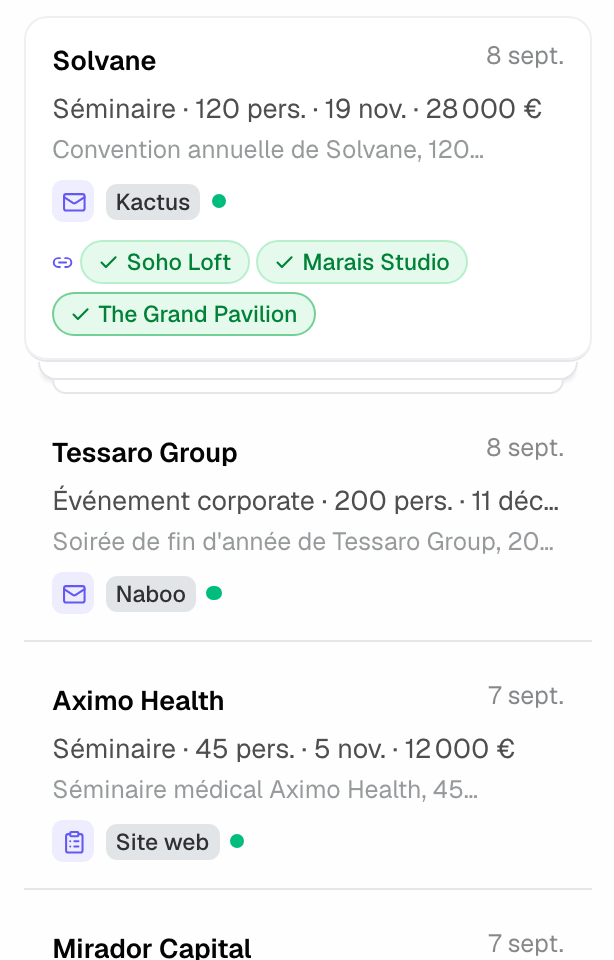
At the bottom of the card, the channel icon (email, Instagram, WhatsApp, call, form) and, for a platform, its name as a badge ("Kactus", "Naboo", "Website"…). The card only shows a status when it tells you something: "Replied" with the time elapsed, "Reply received" in purple when the client has answered, or the reason for a rejection. An inquiry to process has no pill: the tab already says so.
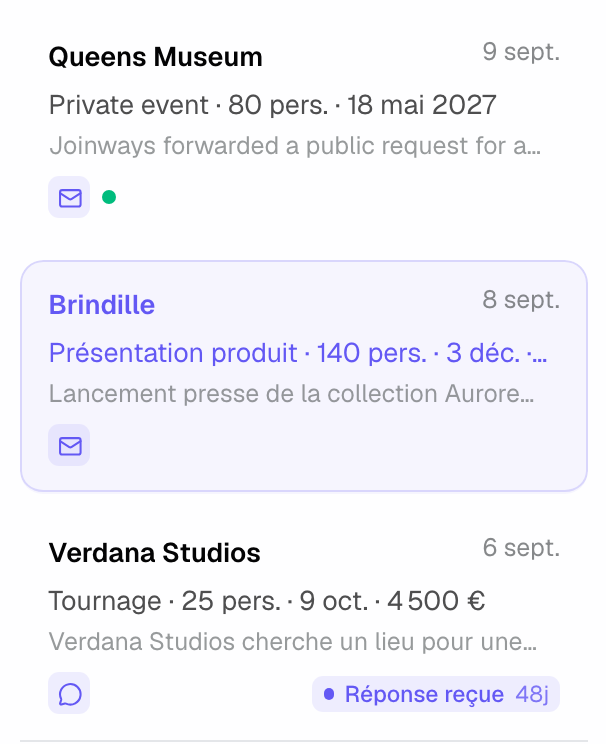
Other badges can appear: "Transferred" (the platform passed the inquiry from one of your venues to another), "Follow-up" (the client sent the same request again), the duplicate badge when the same request exists elsewhere in Joinways, and "Locked" beyond the Free plan quota. An inquiry sent to several of your venues is shown as a stack, with one chip per venue.
3. Sort with tabs and filters
Three tabs split the list:
- "To process": inquiries waiting for a decision, including those you have replied to ("Replied" status). Its counter matches the one in the sidebar.
- "Converted": inquiries that became an event.
- "Rejected": inquiries set aside, which "Restore" puts back in the queue.
Under the tabs, the search ("Company, name or phone"), the "Date range" received and the source filter ("Filter by source") narrow the list; a platform filter appears once you receive platform inquiries. The list stays sorted by date received, newest first.
Your filters are kept in the page address. Closing a record opened from Inquiries takes you back to the same filtered list, and a copied link opens the same view for a colleague.
4. Read the detail of an inquiry
The header shows the client company's logo when it is known (or else its initials), with the contact's name below, then the actions. In the middle, the message as it was received. On the right, the "Extracted data" panel groups what AI read: contact, properties (date, times, type, venue, budget, guests) and details (budget note, mood, needs).
- "To check" flags an uncertain extraction: reread the message before converting.
- "Alternative dates" groups the other possible dates into compact ranges.
- An "Available" or "N conflicts" badge next to the date compares the inquiry with your calendar (see Process an incoming inquiry).
- The "Origin" block appears when the inquiry comes from a campaign (Google Ads, Meta Ads…): see The marketing source of inquiries.
The panel is read-only: corrections are made in the conversion form, and the value you confirm is the one saved on the event.
5. Decide with one key
Each decision has its key, and the next inquiry opens by itself, in the order shown. Press "?" to show the help.
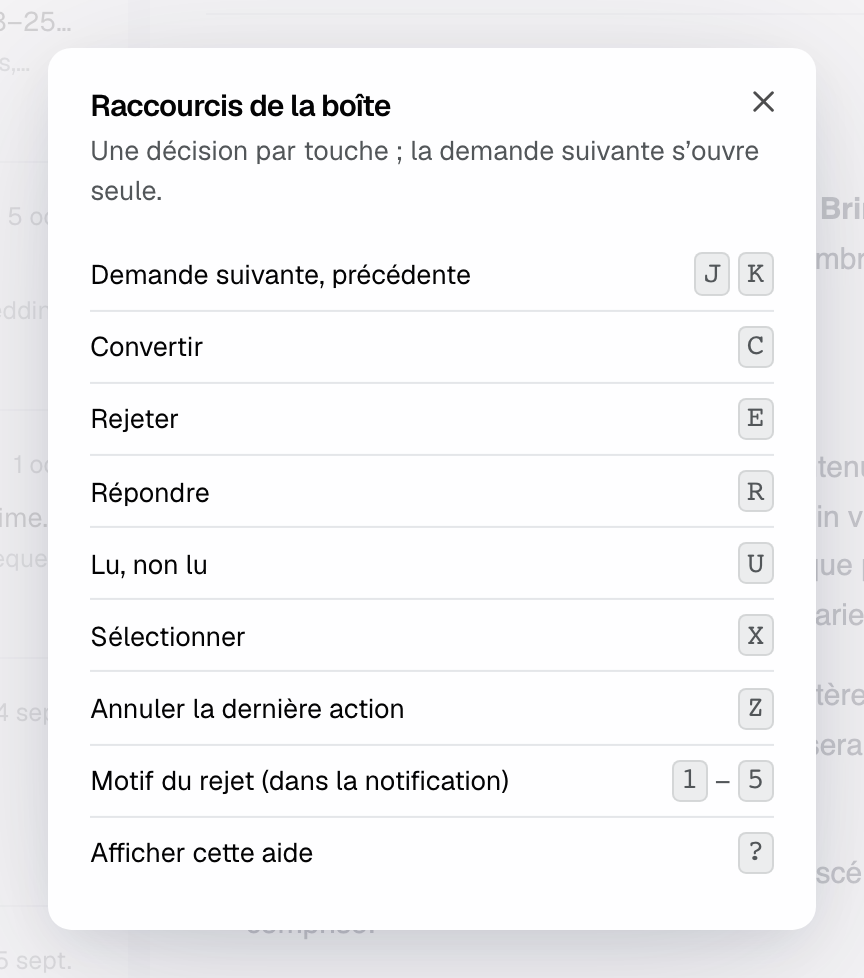
- C: "Convert", opens the event creation form, pre-filled.
- E: "Reject", without emailing the client. The notification that follows offers an optional reason (keys 1 to 5) and "Undo".
- R: "Reply", for an inquiry received by email.
- U: read or unread. X: select, to act on several inquiries at once.
- J and K: next or previous inquiry. Z: undo the last action.
Inquiry statuses
- "To process": the inquiry is waiting for a decision.
- "Replied": you answered the client; the inquiry stays in "To process". For a platform inquiry, when the platform already shows your answer, the header displays "Answer seen on" followed by the platform name and offers "Mark as replied".
- "Converted": an event was created; "View event" opens it.
- "Rejected": the inquiry was set aside, with the name of the person who rejected it and the reason if one was picked. A converted inquiry cannot be rejected: close it from its event (lost or cancelled).
Good to know: on the Free plan, a counter shows the inquiries received this month. Beyond the quota, new inquiries arrive with the "Locked" badge: they are captured, but their content stays hidden until you move to Pro.
Example: a hotel's Monday morning
Eleven inquiries are waiting in "To process". The sales manager reads the cards without opening them: a product launch for 140 people and €34,000, a 25-person film shoot already at "Reply received", two journalist requests with no date. She opens the first, checks the date, presses C and converts. The next one opens: E, reason "Not a fit for the venue". In fifteen minutes the queue is empty and every client has a next step.
Troubleshooting
An inquiry does not show up
Cause: the source that received it is not connected, or no longer is. Solution: a banner says so at the top of Inquiries with a reconnect button; otherwise, check the "Sources" tab in "Settings" > "Integrations".
The list looks incomplete
Cause: a filter or a search is active, and it is kept from one visit to the next. Solution: clear the search and click the reset filters icon.
A real client message was not kept
Cause: AI sets aside what does not look like an event inquiry (newsletter, cold pitch). Solution: create the event from "Events", or link the email to an existing event from its "Conversations" tab.
Frequently asked questions
Why is there no "To process" pill on the cards any more?
Because the tab already says so. The card only shows statuses that tell you something: "Replied", "Reply received" or the reason for a rejection.
Is a rejected inquiry deleted?
No. It moves to "Rejected", where "Restore" puts it back in the queue with its previous status ("Replied" if you had answered). Only "Delete inquiry" erases it.
Where do I answer an Instagram, WhatsApp or platform inquiry?
An inquiry received by email is answered from Joinways with "Reply". Instagram and WhatsApp open in their own app ("See conversation", "Open conversation"), and a platform inquiry on the platform, with the "Reply on" button followed by its name.
Can AI sort inquiries for me?
Yes, with the Joinways Agent, which proposes a decision for each new inquiry. See Process an incoming inquiry.
See also
Provalo sulle tue prossime richieste per 30 giorni, senza carta.