Inquiries received through Loggiata
What an inquiry sent through Loggiata shows, the three ways to answer it, and how to write to the organizer even with no mailbox connected.
Updated
Loggiata is a directory that presents your venue to event organizers. When one of them picks your listing and sends an inquiry, it arrives in Joinways with their contact details, their message and what they are looking for.
The organizer expects an answer from every venue they contacted. This page shows how to read the inquiry, which answer to choose, and how to write to them right away, even if you have not connected any mailbox to Joinways yet.
What you'll learn
- Recognize a Loggiata inquiry in "Inquiries" and read its card.
- Choose between replying, making it an event and declining.
- Reply to the organizer with no mailbox connected.
- Follow the rest of the conversation in Joinways.
Prerequisites
- Your venue has a listing on Loggiata. Without a listing, no inquiry arrives through this channel.
- A role that can handle inquiries. A "Read-only" role reads the inquiry but cannot answer it.
1. Receive the inquiry
When your Loggiata listing is linked to your Joinways workspace, the inquiry lands directly in "Inquiries", in the "To process" tab, like any other. Its card carries the "Loggiata" badge.
Otherwise, you receive the inquiry by email, at your listing's address, with a link that opens it in Joinways. If you have no account yet, the first time you open the link creates it. If you do not open the inquiry, the same email is sent once more, two days later, during business hours. There is no second reminder, and none once the event date has passed. Every email carries an unsubscribe link.
2. Read the inquiry card
Open the inquiry. Instead of the usual email header, the middle of the screen shows a "Request sent through Loggiata" card:
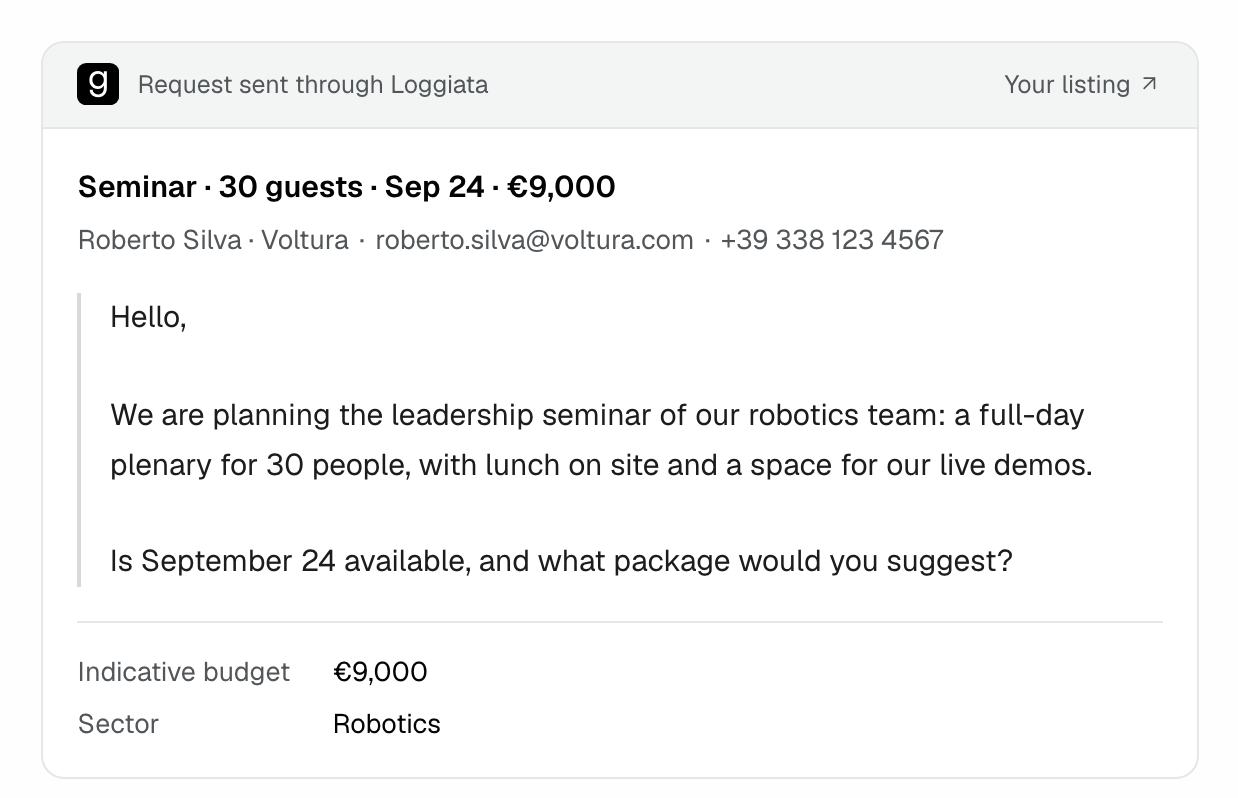
- What is being asked: the facts on one line (type, headcount, date, budget), as on the card in the list.
- The organizer: their name, company, email and phone. Clicking the email or the phone starts a message or a call.
- Their message, as they wrote it. If they wrote nothing, the card shows "The organiser left no message.".
- The details they gave, for example "Indicative budget" and "Sector". At the top right, "Your listing" opens your page on Loggiata.
3. Choose your answer
Under the card, a block reminds you that "The organiser chose your venue and is waiting for an answer." and offers three choices. Each one gives the organizer a next step:
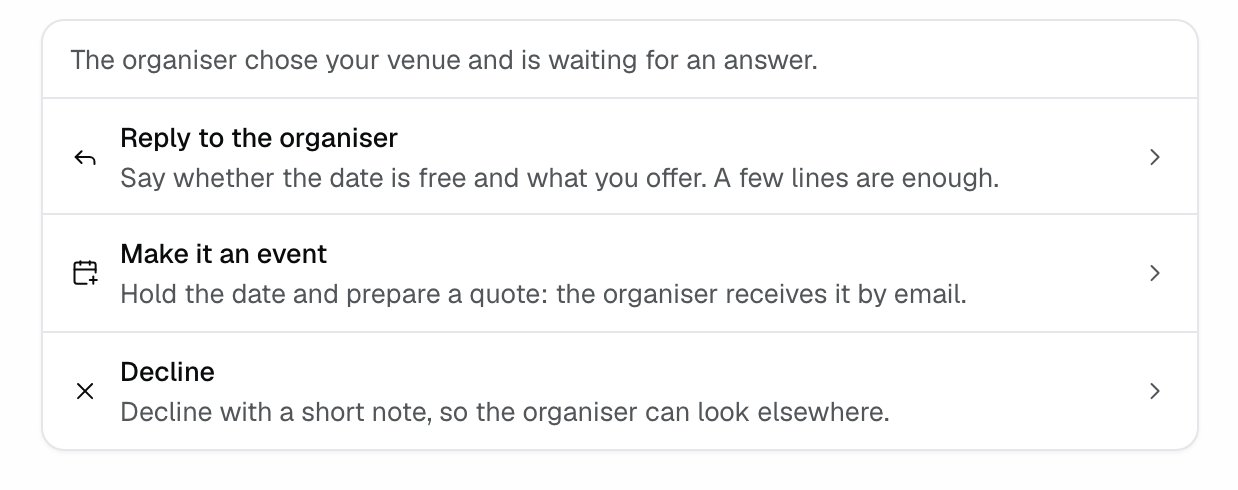
- "Reply to the organiser" opens the composer. Say whether the date is free and what you offer: a few lines are enough. Once sent, the inquiry moves to "Replied".
- "Make it an event" opens the pre-filled conversion form. You hold the date, then prepare a proposal from the event: the organizer receives it by email.
- "Decline" opens the composer on a short refusal message for you to reread. The "Send and reject" button tells the organizer and moves the inquiry to "Rejected".
The block disappears once you have replied to, converted or rejected the inquiry. The header actions and the shortcuts (C to convert, E to reject, R to reply) remain available. Prefer "Decline" to a rejection with no email: the organizer then knows they can look elsewhere.
4. Reply with no mailbox connected
For any other inquiry, you need a connected mailbox to reply from Joinways. A Loggiata inquiry is the exception: if you have no mailbox to send from, neither yours nor a shared one, the composer still opens and Joinways sends the message for you.
- The organizer receives your message under your venue's name followed by "via Loggiata", with a line telling them to reply to the email to write to you directly.
- Their reply arrives in your own mailbox, at the address of your Joinways account. The composer reminds you: "Sent on your behalf through Loggiata. The organiser will reply to" followed by that address.
- You can send three messages per inquiry this way. They are shown under the card, in the inquiry.
Good to know: the language of the reply is chosen at the top of the composer. Joinways reads it from the organizer's message, and the text suggested for a refusal follows that language.
5. Follow the conversation in Joinways
As long as no mailbox is connected, the organizer's replies do not appear in Joinways: they are in your mailbox. The "Connect my mailbox to follow the conversation here" link, in the composer, leads to "My mailbox". Once the mailbox is connected, your replies leave from your own address, with no limit on their number, and the organizer's replies come back into the inquiry, with the "Reply received" badge on the card. See Connect Gmail or Connect Outlook.
Example: a company retreat requested from a country house
An organizer is looking for a venue for a 60-person company retreat in March and sends an inquiry to Olive Grove House from Loggiata. The manager receives the email, opens the inquiry in Joinways and reads the card: the date, the indicative budget, a few lines about the program. She has not connected her mailbox yet. She clicks "Reply to the organiser", confirms the date is free and suggests a call. The message leaves under the name "Olive Grove House via Loggiata". The next day, the organizer's reply is in her usual mailbox. She then goes back to the inquiry, clicks "Convert" and prepares the proposal from the event.
Troubleshooting
The three choices do not show under the card
Cause: the inquiry has already been answered, an event already exists, or it was rejected. Solution: use the header actions, or "Reply" under the last message of the conversation.
The fourth message does not send
Cause: with no mailbox connected, three messages at most can be sent per inquiry. Joinways then shows "You have already sent three messages on this request without a mailbox. Connect yours in your integrations to continue the conversation.". Solution: connect your mailbox in "Settings" > "My mailbox", then reply again.
Frequently asked questions
Does the organizer see my email address?
Yes. When Joinways sends your message, the organizer's reply is addressed to your account's email, and the line added under your message quotes it. That is what lets them write to you directly.
Do I need to connect a mailbox to reply?
Not for the first three messages of an inquiry. Yes to go beyond that, and to find the organizer's replies in Joinways.
What changes with a mailbox already connected?
The card and the three choices are the same. The reply simply leaves from your address, as for an inquiry received by email, with your "Reply to a request" and "Declining a request" templates.
See also
Try it on your next inquiries for 30 days, no credit card.