Process an incoming inquiry
From raw inquiry to created event: review, correct and convert in seconds, or dismiss what isn’t relevant.
Updated
An inquiry that lands in Inquiries is still just a raw message: the AI has already extracted the essentials, but it's you who decides whether to turn it into a file or set it aside. An inquiry is only worth it if you handle it fast and well. The daily move has three beats: open, check what the AI understood, and decide: convert, reply or reject.
Processing an inquiry isn't about re-typing information: the AI has already done that work. Your job is to verify, correct if needed, then route the inquiry to the right next step. This page covers each field, how to correct the AI, how to avoid duplicates, and when to dismiss.
What you'll learn
- Review and interpret the information extracted by the AI, field by field
- Correct an inaccurate extraction
- Convert an inquiry to an event
- Merge a duplicate, reply or reject as appropriate
Review the extraction, field by field
When you open an inquiry, the detected fields appear next to the original message. This side-by-side lets you check at a glance: each extracted field should match what the message actually says.
- Date: the requested date or period. It's the most sensitive field because it drives availability; pay special attention to vague wording ("in June", "next weekend").
- Budget: the amount mentioned. Watch out for tax-inclusive/exclusive confusion and budgets expressed "per person" rather than as a total.
- Attendees (Pax): the number of people expected. It determines the right space; an "around fifty" should be confirmed before committing to a specific room.
The original message stays visible at all times: if you're unsure about a field, reread the matching sentence rather than trusting the summary alone.
Reference: fields and available actions
Here's the inventory of what you'll find on an inquiry. Not every field is always filled in: the AI only extracts what the message contains, and it's normal for a field to stay empty when the prospect didn't specify anything.
- Event type: wedding, birthday, seminar, cocktail… It points to the right space and quote; check it when the message stays generic ("a party").
- Date: the pivot field, required for conversion and for the availability check.
- Attendees (Pax): the number of people expected, which determines the right space.
- Budget: the amount mentioned, to read with care (tax-inclusive/exclusive, total or per person).
- Contact: the prospect's name, email or phone, carried over automatically at conversion.
The original message itself is never modified: it's the source of truth when an extracted field looks doubtful.
The three buttons on an inquiry
- « Convert »: opens the pre-filled « Create event » form; « Convert to event » creates the event with the « Hold » status.
- « Reply »: writes to the client from the inquiry (email inquiries); the inquiry moves to « Sent » and stays in the queue.
- « Reject »: removes the inquiry from the queue without creating a file, with or without an email to the contact.
Correct the AI
The « Extracted data » panel is read-only. If the AI misread a date or mixed up a tax-inclusive and tax-exclusive budget, correct the value in the form that opens when you click « Convert »: every field arrives pre-filled, and the value you confirm is the one saved on the event.
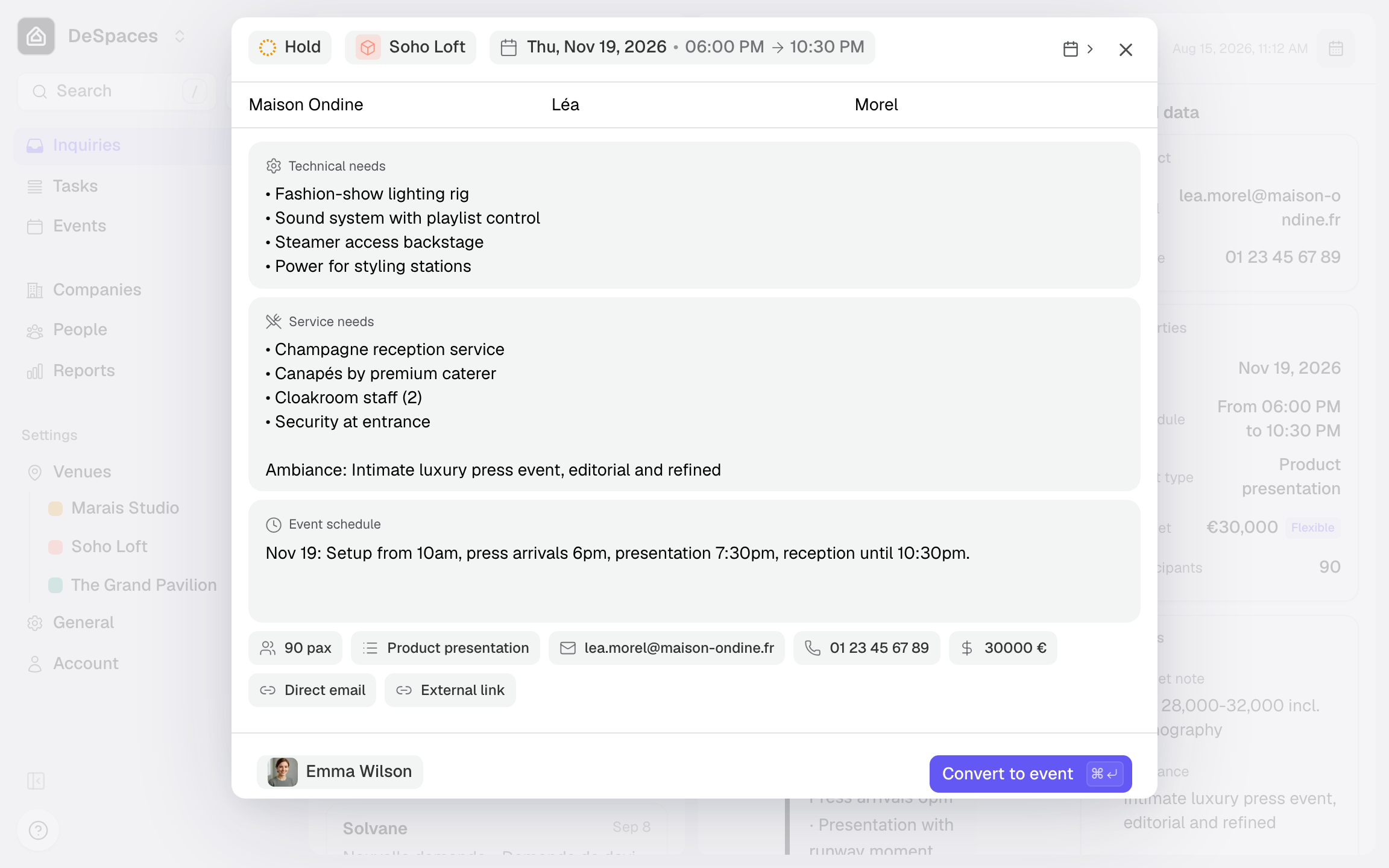
- Open the inquiry in Inquiries.
- Read the original message and the extracted fields (date, budget, PAX).
- Click « Convert » and correct anything inaccurate in the form.
- Confirm with « Convert to event », or close the form and choose « Reply » or « Reject ».
The three decisions
Once the extraction is verified, every inquiry ends up converted, merged with a duplicate or rejected. Choosing the right outcome avoids both losing an opportunity and cluttering your files.
- Convert: the inquiry becomes an event to follow. Everything is carried over (contact, date, prospective space) and you arrive on an already-structured file, ready to work on.
- Merge: when the same inquiry exists twice at the same venue, the « Same request » block offers « Merge into this one ». Nothing is deleted, the history follows. At conversion, an existing contact with the same email or phone is reused automatically.
- Reject: spam or off-topic, keep Inquiries clean. Choose « Reject and notify » (a decline email goes to the contact) or « Reject without notifying ».
Handle duplicates
Duplicates are the most common trap: a prospect writes twice, or follows up through another channel. When the same inquiry comes back at the same venue, Joinways shows it in the « Same request » block, with « Merge into this one ». At conversion, the existing contact with the same email or phone is reused rather than recreated. If a message about a file that's already open wasn't recognized, don't convert it: reject it without notifying and link the email to the event from its « Conversations » tab (« Link an email »).
When to dismiss
Dismiss without hesitation anything that clearly isn't an event inquiry: cold outreach, newsletters, admin questions, personal messages. Clean Inquiries lets you focus on real opportunities. That said, don't confuse "to dismiss" with "incomplete": a real but fuzzy inquiry should be worked (follow up with the prospect), not dismissed.
Edge cases
Inquiry with no date: don't convert blindly. Reply first to get a date, then convert once the field is filled: dates and times are required to create the event.
Several possible dates: if the prospect is torn between two dates, keep the one they prefer and note the alternative; you'll adjust the file later.
Bundled inquiry: a message mentioning two distinct events (a wedding and a brunch the next day) may warrant two files. Convert the main one, then create the second from « Events ».
Inquiry in a foreign language: the AI extracts the fields whatever the language of the message. Check the date format above all (day and month swapped depending on the country) and the budget's thousands separator before converting.
Follow-up on a lost file: if a prospect you had closed comes back months later for the same project, don't create a new event by reflex: reject the inquiry without notifying, then open the existing event, « Conversations » tab, and link the new email with « Link an email ».
Best practices
- Handle the most complete and urgent inquiries first (near date, clear budget).
- Respond fast: speed makes the difference, because the first to reply often wins.
- Correct extractions in the conversion form: accurate data at the source saves you from reworking the quote later.
- Merge rather than recreate when the « Same request » block flags a duplicate at the same venue.
- Empty Inquiries regularly: a short queue is easier to handle than a pile of inquiries built up over several days.
- Before each conversion, get into the habit of a quick search on the contact's name or email to avoid a duplicate.
Troubleshooting
An extracted field is wrong? Cause: ambiguous wording in the message (a relative date, a per-person budget). Solution: correct the value in the conversion form before confirming; that's the value saved on the event.
You created a duplicate? Cause: the inquiry was converted even though a file already existed. Solution: delete the extra event (« Delete event »). Going forward, merge from the « Same request » block, or reject the inquiry without notifying and link the email to the existing event (« Link an email »).
Can't convert an inquiry? Cause: a required field in the form is empty. You need dates and times, the venue, the assignee, and at least the company, first name or last name of the contact. Solution: fill in the flagged field, then confirm « Convert to event ».
The AI extracted nothing from the message? Cause: a very short message with no details ("Hi, are you available?"). Solution: reply to get the date, PAX and budget, then enter them in the conversion form.
Real-world example
An Instagram inquiry arrives: "40th birthday, 50 people, June." The planner opens the inquiry: the AI correctly detected the event type and the 50 attendees, but the budget is empty and the date is still vague. After a quick exchange, the planner checks that no file already exists for this contact, clicks « Convert », fills in the budget and pins down a date in June in the form, then confirms. The file arrives already structured, ready for a quote.
Another example
An email arrives from a regular client: "We'd like to run our annual seminar again, like last year, around 80 people." The AI extracts 80 PAX and the seminar type, but the date is still open. The planner first uses « Reply » to get the date, then clicks « Convert ». Since the client's email is already known, Joinways reuses their contact record: the new event appears next to last year's in the person's « Events » tab, and last year's quote remains available in the previous event.
FAQ
I rejected an inquiry by mistake?
Open the « Rejected » tab, select it and click « Restore »: it goes back to « To process ». Rejecting doesn't delete the message.
Do I have to verify everything before converting?
At a minimum the date, budget and PAX: those are the fields that structure the file. The rest can be completed afterwards in the event.
Are my corrections kept?
Yes, on the event: the value confirmed in the conversion form is the event's value. The original message and the inquiry's extracted data stay unchanged.
What's the difference between merge and convert?
Convert creates a new event. Merge brings together two copies of the same inquiry at the same venue. To link an email to an existing event, use « Link an email » in the event's « Conversations » tab.
What about an inquiry with no budget?
You can convert without a budget if the date and PAX are there; fill in the budget later, after an exchange with the prospect.
Can the AI get the event type wrong?
Yes, especially when the message is generic. Fix the type in the conversion form: it points to the likely space and makes the quote easier to write.
How do I find an inquiry I've already processed?
Open the « Accepted » tab for converted inquiries, or « Rejected » for the ones you rejected. Nothing is deleted unless you choose « Delete inquiry ».
Should I reply to the prospect before or after converting?
Either order works. If a required field (the date) is missing, reply first to get it; otherwise, convert and continue the conversation from the event's file.
See also
- Understanding unified Inquiries
- Understand the AI score
- Create an event
Bring every event inquiry into one queue.