Create a professional quote
Build a clear, compliant quote in minutes: line items, venue catalog, options, discounts and multi-day events.
Updated
The quote is the central document of your commercial relationship: it is what turns an enquiry, or an option held on a date, into a firm booking. A quote that is clear, quick to read and accurate on price reassures the client and speeds up their decision. Joinways is built so you can assemble it from your catalog, keep it compliant and send it in a few clicks, without re-typing your prices every time.
This article walks through the structure of a quote, how the totals are computed, and the habits that keep every quote consistent from one event to the next.
What you'll learn
- Create a quote and add line items
- Pull from the venue's catalog to keep prices consistent
- Handle options, discounts and multi-day events
- Book a line's spaces and hours, and track the minimum spend
- Understand how the net, VAT and gross totals are computed, and send a compliant quote
Anatomy of a quote
Before clicking anywhere, it helps to picture what a quote is in Joinways. A quote is attached to an event (and therefore to a client and a date) and it is made up of line items. Each line represents a service: a space rental, a menu, a technical option. The quote total is nothing more than the sum of its lines, which keeps it transparent for the client and for you.
A line always carries the same information: a title (the service), a quantity, a unit price excl. tax and a VAT rate. From there, everything else is calculated automatically.
Prerequisites
- An event to attach the quote to. It carries the client and the date, and later enables conversion into an invoice.
- Your billing details filled in (legal name, VAT number, legal mentions) so the quote is compliant from the very first draft.
Create a quote
A quote always lives inside an event. You create it from the relevant event's page, which guarantees the right client and date are already associated with it.
- Open the event, then the Proposals tab. You see the list of proposals already created for this event (often empty at the start).
- Click Add proposal, then Empty proposal. The same menu also offers Generate with AI, which pre-fills the lines from comparable signed events and the catalog, and Import a signed proposal for a proposal signed on a booking platform. The proposal gets an automatic number, which identifies it in the list.
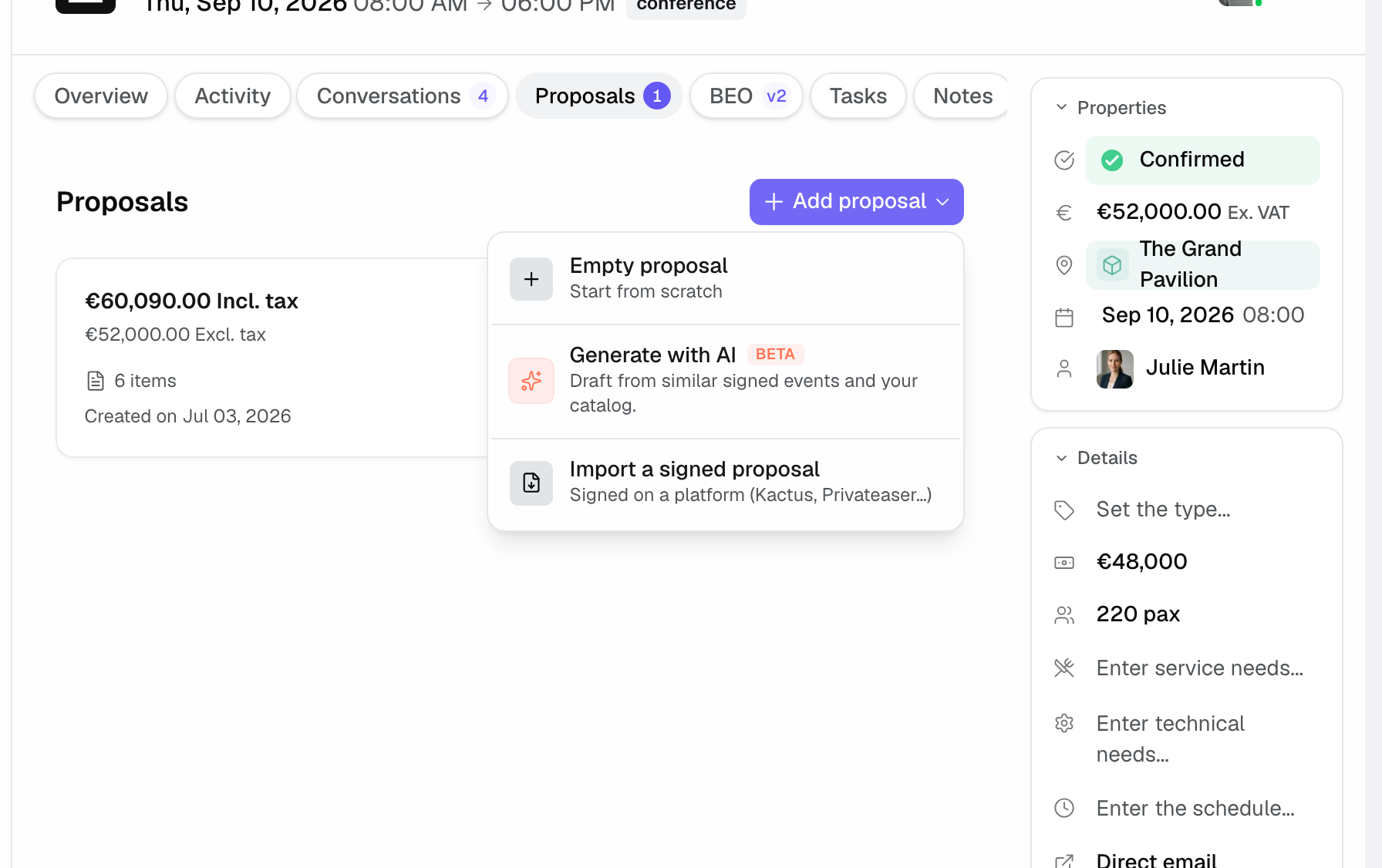
- The quote opens empty, ready to receive its lines. At this stage it is a draft: nothing has been sent to the client yet.
Build the body of the quote: add line items
The body of the quote is built line by line. The fastest way is to pull from your catalog rather than re-type everything, so your prices stay consistent from one quote to the next. For each service, you fill in the following information.
- Title: the service (room rental, catering, technical setup…).
- Quantity and unit price excl. tax, for example the number of guests for a menu.
- VAT: the rate applicable to this service (it can vary from one line to another).
Adding a line takes three steps: click Add line (an empty line appears), pick an item from the catalog or type the service in by hand, then adjust the quantity and price. The line total recalculates live and the quote's gross total updates straight away.
Good to know: you can also create a free line for a one-off service that isn't in the catalog (a special transport, a bespoke request) without having to save it permanently among your reference services.
Pull from the catalog
The catalog is the one of the event's venue: the items you created in the venue settings. Type a few letters in the line title and pick the item: the label, price and VAT fill in by themselves. Prices stay consistent from one proposal to the next and you re-type nothing.
In practice you avoid typos and price gaps between salespeople. If you adjust a line's price on this particular quote, it does not change the reference price in the catalog: your catalog remains your single source of truth.
If an item carries Price rules (by headcount or dates), the suggested price takes them into account from the event's details. An item with a minimum price refuses a lower price. The Margin computed from cost prices is not visible to the client.
Options and discounts
Not every line is necessarily kept by default. Joinways distinguishes included services from those offered as extras, and lets you adjust the final price with a discount.
- Mark a line as Option if it is not included in the base total. It shows up to the client as a possible extra, without inflating the displayed price.
- Give a discount on one line (net amount or percentage), or on the whole proposal with Add a discount: the Overall discount is entered as a percentage or an amount. For a goodwill gesture on a specific service, Offer item brings it to zero while keeping its value visible.
What the client sees: a clear total on the kept services and, alongside, the priced options they can tick to add them. This lets you grow the basket without weighing down the main quote.
How the totals are computed
Understanding the maths avoids most surprises. For each line, the net total is the quantity multiplied by the unit price excl. tax. VAT then applies at that line's own rate, which lets you mix different rates (say one rate on catering and another on the rental) within a single quote.
The base total only adds the kept lines: lines marked Option are excluded until the client chooses them. The discount then reduces that total. Finally, the gross is the sum of net and VAT. Everything recalculates live the moment you touch a quantity, a price or a rate.
If the booked spaces or the venue have a Minimum spend, Joinways compares it with the proposal total excl. tax. If the total stays below it, a warning under the totals gives the amount required for the booking and what is missing. The minimums of the booked rooms add up; the venue's minimum is a floor. The check only runs when the proposal is in the venue's currency. The warning does not block sending.
Multi-day events
For an event spread over several days (a seminar, a wedding with a next-day brunch), attach each line to the day it belongs to. The quote then reads day by day, which helps the client validate each day and helps you organise production.
The overall total stays the sum of all the days: the breakdown is a reading aid, it does not change how the total is computed.
Space and hours of a line
At a venue with at least two spaces that is not always booked whole, a saved line can book rooms on the event's schedule. Under the line description, click Space and hours: the Spaces and hours of this line window opens. The link stays visible on lines tied to a space; on other lines, it appears when you hover the line.
- Each slot has a space (with its capacity), a day, then Whole day or Hours. You can enter the Guests in this space and a label, for example Plenary. Add a slot adds another one.
- A catalog item with a Default room books that room for the line's day as soon as it is added. A package with a Standard route books its spaces at the planned hours. These slots stay editable. The same applies to an AI proposal, a duplicated proposal or lines added through the API.
- An event with no space chosen holds the entire venue: adding the line books no room, and Joinways shows a notice saying so.
- Slots show under the line (space, hours or All day, and the day for a multi-day event) and in the event's Room schedule block.
- The proposal PDF lists the booked spaces with their layout, then Your spaces day by day: hours or All day, space, capacity and label.
- If rooms or hours change after the proposal is sent or signed, a banner on the proposal lists each change. On a sent proposal, choose Keep the schedule or Go back to the quote's schedule. A signed proposal does not change.
Finalize and send
Once the lines are in place, re-read your quote as the client would: order of services, clear labels, options clearly identified. Then comes sending.
- Review your lines. Joinways prepares the proposal's signature link on its own. At the top of the proposal, Preview PDF shows the document, Copy the signature link and Open the signature page give access to the page the client will see, and Send emails it with that link.
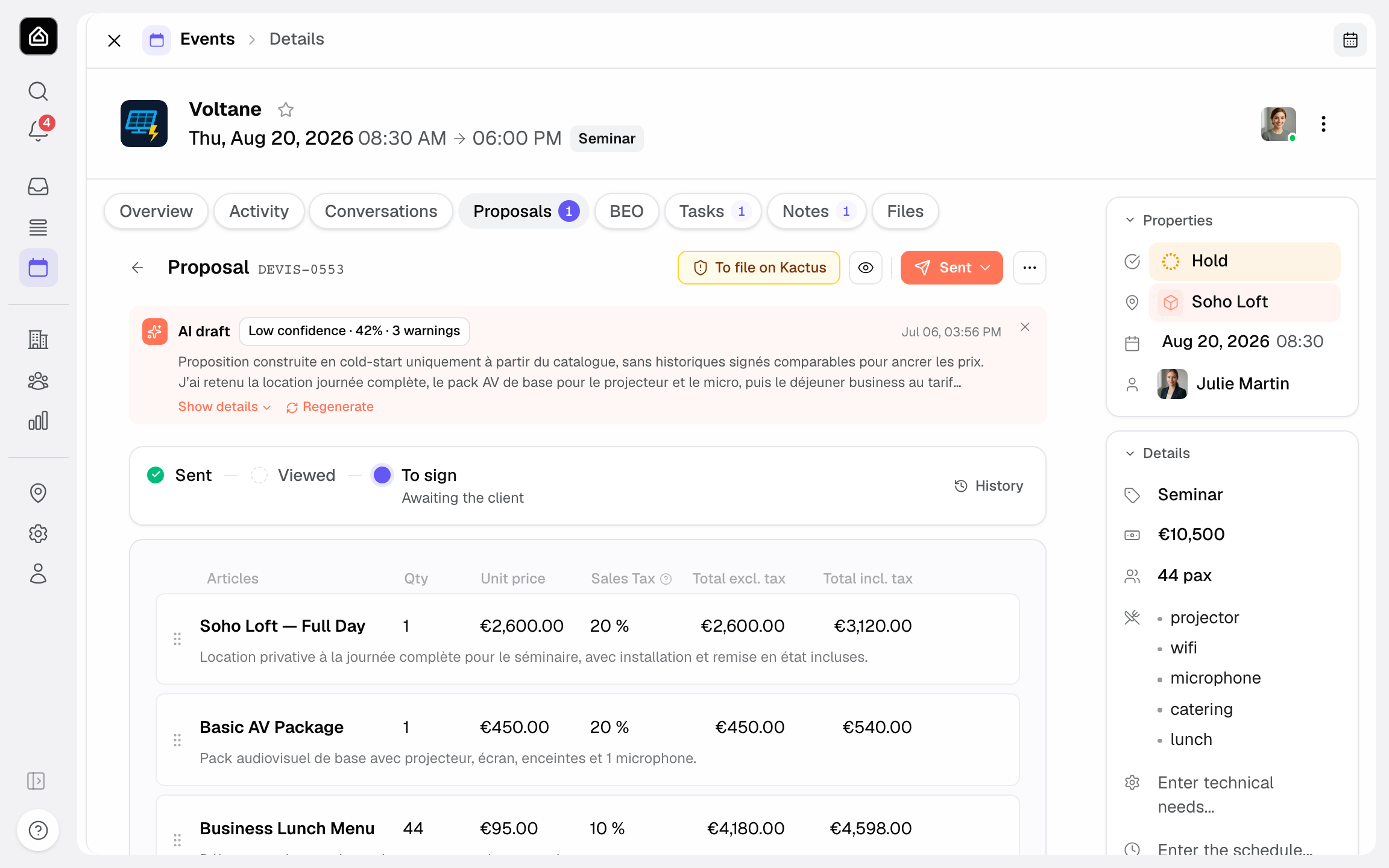
- The client receives the link by email. They review the quote and sign it online, without needing an account. You can also copy the link and pass it on yourself.
- The quote status then moves to Sent, and to Signed once the signature is collected. The status tells you at a glance where each quote stands.
Keeping quotes consistent
Consistency is what tells a seasoned team apart from one that improvises. Three habits are enough: feed and maintain the venue's catalog, start from catalog items rather than free lines, and re-read every quote from the client's point of view before sending it. That way, two salespeople quoting the same type of event land on the same price.
Edge cases
Several quotes for one event: entirely possible and even recommended to offer a standard package and a premium one. The client decides, and the quote they sign becomes the reference.
Different VAT rates on one quote: handled line by line, so mixing catering and rental is no problem. Service not in the catalog: use a free line, it lives only on this quote.
Tip: present two or three clear options rather than a single price. The client decides more easily and feels they are composing their own offer.
Best practices
- Build your catalog first: a quote comes together twice as fast when the services are ready.
- Reserve free lines for genuine one-offs, so you don't dilute the consistency of your prices.
- Check your billing details once and for all: a quote that is compliant from the start spares you corrections after sending.
- Re-read the quote from the client's point of view before clicking Send. Preview PDF and Open the signature page show what they will see.
Troubleshooting
The total looks wrong? Common cause: a line marked Option or an unexpected VAT rate. Fix: check the Option lines (they don't count in the base total) and review the VAT rates line by line.
A service isn't showing in the catalog? Cause: the event has no venue, or the item doesn't exist in that venue's catalog. Fix: set the event's venue, add the item in Venue items settings, or enter a free line in the meantime.
The client doesn't see the right amount? Cause: a mis-entered discount (amount instead of percentage) or a proposal sent before the last edit. Fix: correct the discount, check with Open the signature page, then let the client know with Resend.
Real-world example
Take a 100-guest wedding. The planner opens the event, chooses Add proposal then Empty proposal, and adds the main room from the venue's catalog: the price and VAT fill in by themselves. She then adds the menu, sets the quantity to 100, and the line total jumps instantly.
She marks two lines as Option (DJ and photobooth) so the couple can choose, applies a 5% loyalty discount, re-reads everything, then clicks Send. The proposal goes out the same day; a few hours later its status flips to Signed and the event is secured.
FAQ
Can I create several quotes for one event?
Yes. It is even advisable to compare a standard package and a premium one. The client chooses, and the quote they sign is the one that counts.
Does a discount apply before or after VAT?
The discount reduces the base total, then VAT and gross recalculate on the adjusted amount. Everything updates live in the quote.
Does editing a line's price change my catalog?
No. The adjustment stays local to this quote. The catalog's reference price is untouched; your catalog remains your single source of truth.
What happens after the quote is sent?
The status moves to Sent. The client opens the public link and signs online; the status then flips to Signed. See the E-signature article for the detail of this step.
How can I save time on creation?
Start from the venue's catalog. You can also choose Generate with AI in the Add proposal menu: the AI creates a draft from your comparable signed events and the catalog, which you review before anything is sent (see Generate a quote with AI).
See also
- Generate a quote with AI
- E-signature
- Amendments to a signed quote
- Invoicing
Bring every event inquiry into one queue.