Create and use email templates
Templates shared by the team, variables filled from the event and links to the proposal or BEO: write once, reply fast.
Updated
A first reply to an inquiry, the email that goes with a proposal, sending the BEO form to the client: these messages look alike from one event to the next. Retyping them takes time, and a forgotten first name or a miscopied date shows right away.
Email templates are shared by the whole team. Their variables ({{contact_first_name}}, {{event_date}}, {{quote_link}}…) are filled from the inquiry or the event when you write, and a link can point to the proposal, the invoice or the BEO without pasting an address.
What you'll learn
- Read the "Email templates" page and start from suggested templates.
- Create a template with variables and links.
- Choose each category's default template.
- Know where each template is used.
Prerequisites
- An owner or admin role to create and edit templates. Other roles use them without being able to change them.
- To send the emails: a connected mailbox, yours or one shared by a teammate.
1. Open the templates
Go to "Settings" > "Email templates" ("Sales follow-up" group). The page lists "Your templates" by category; each category says where it is used, for example "Pre-fills the email that goes with a quote". The "Default" badge marks the template used automatically in its category.
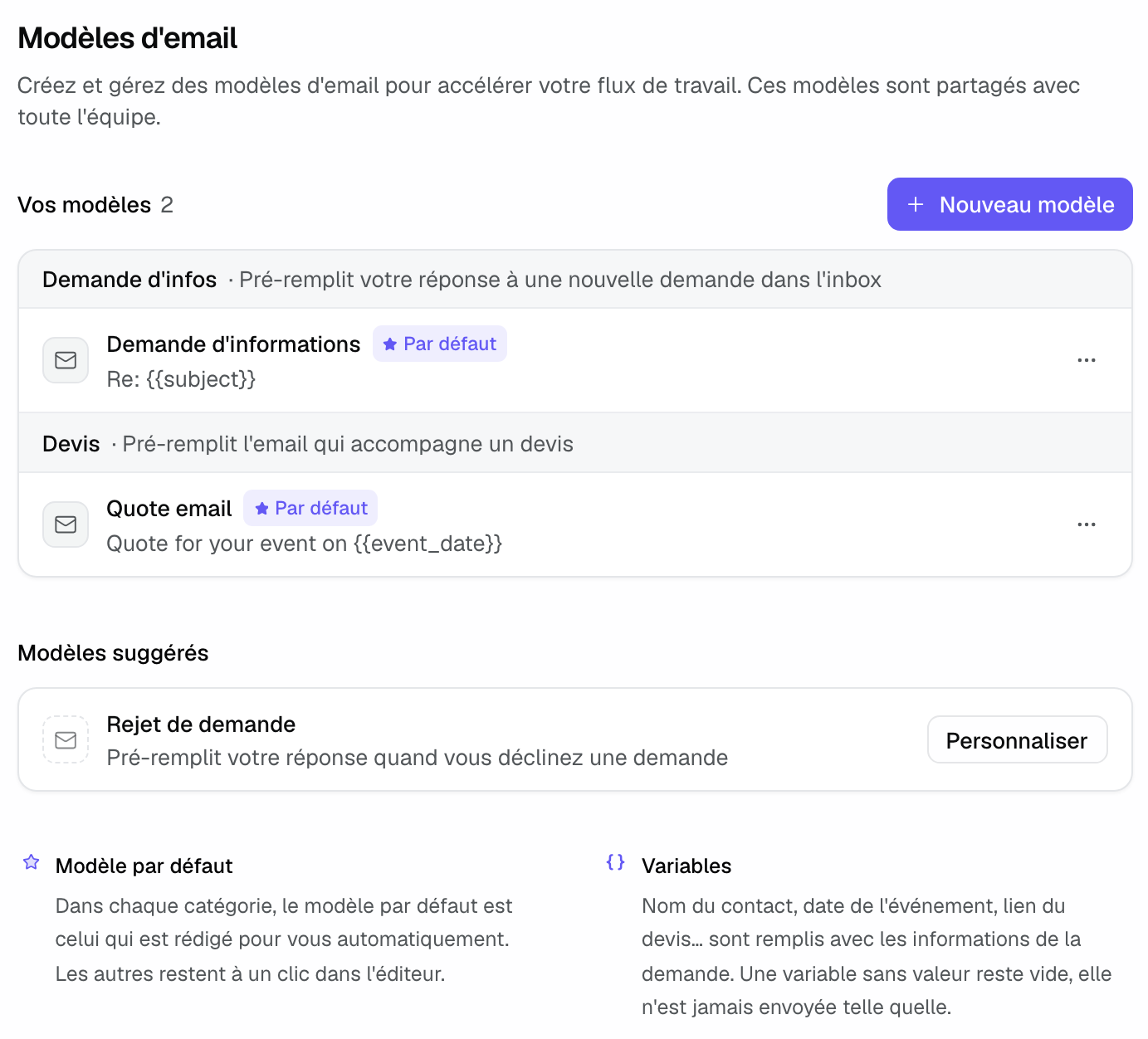
Below the list, "Suggested templates" offers the ones you are missing: "Customize" creates an editable copy. With no template at all, the page explains what a template pre-fills and lists the suggestions directly, with where each is used; the whole row is clickable.
2. Create a template
- Click "New template".
- Fill in the "Name", "Category" and "Subject".
- Write the "Message". Click a chip under "Insert a variable" to add it at the cursor; variables are highlighted in the editor.
- Switch to "Preview" to reread the message with sample information.
- Click "Create template".
A misspelled variable is flagged under the editor ("Unknown variables, they will be left empty in the email:"). A variable with no value when you write stays empty: it never reaches the client as is.
3. Add a link to a proposal or a BEO
Select some text (or place the cursor), then click the link button in the toolbar or press Cmd+K (Ctrl+K on Windows). The panel offers:
- "Text": the text shown in the email, for example "fill in the form".
- "Link to": a link variable, "Quote link", invoice link, "Client form link (BEO)", "Team BEO link" or "Client BEO link". It is replaced by the real link when the email is written.
- "Or a web address": a fixed URL.
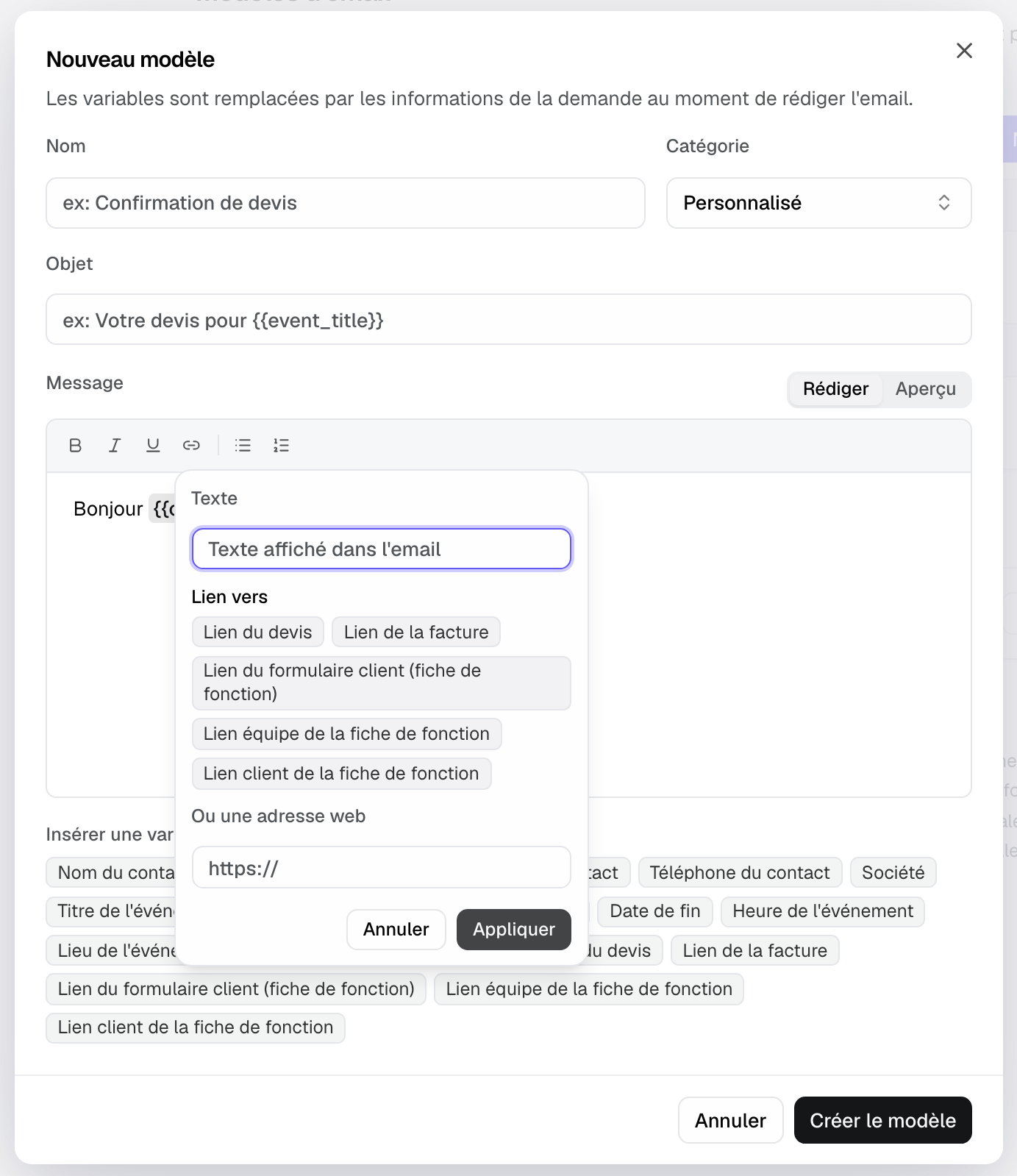
"Apply" sets the link; on an existing link, the same panel edits it or "Remove link" deletes it. The team BEO link is meant for staff and vendors, never for the client.
4. Available variables
- Contact: {{contact_name}}, {{contact_first_name}} (falls back to the full name if the first name is missing), {{contact_last_name}}, {{contact_email}}, {{contact_phone}}, {{company_name}}.
- Event: {{event_title}}, {{event_date}}, {{event_start_date}}, {{event_end_date}}, {{event_time}}, {{event_location}}.
- Links: {{quote_link}}, {{invoice_link}}, {{beo_form_link}}, {{beo_team_link}}, {{beo_client_link}}.
- Other: {{subject}} (original subject), {{current_date}}.
For a multi-day event, {{event_date}} is written as a range of dates rather than the first day only; an evening that ends after midnight stays on one day. To show only one end, use {{event_start_date}} or {{event_end_date}}. Dates follow the venue's time zone, and the venue, the contact's first name and phone are filled in every composer.
5. Choose the default template
In each category, the default template is the one written for you automatically; the others stay one click away in the editor. Open a template's "⋯" menu and choose "Set as default". The same menu lets you edit, "Duplicate" or delete a template. If you delete the default template, the most recently edited template in the category takes over.
Where templates are used
- "Info request": the composer's "Reply" pill, in "Inquiries".
- "Rejection": the composer's "Reject" pill, which sends and rejects the inquiry.
- "Proposal" and "Invoice": the email that goes with a proposal or an invoice.
- Every category: the "Template" field of "New email", in an event's "Conversations" tab, and your automations' emails.
Example: sending the BEO form
An estate creates a "Your BEO" template in the "Custom" category: "Hello {{contact_first_name}}, for your event on {{event_date}}, please fill in this form." It selects "fill in this form" and links it to "Client form link (BEO)". For a seminar from April 1 to 3, the client receives a greeting with their first name, both dates of the seminar and a link that opens their form.
Troubleshooting
A variable stays empty in the email
Cause: the information is missing on the inquiry or event (no venue, no proposal for {{quote_link}}), or the variable is misspelled. Solution: complete the event, or fix the variable flagged under the editor.
I cannot edit a template
Cause: your role can use templates but not change them. Solution: ask an owner or admin of the workspace.
The wrong template loads automatically
Cause: another template is "Default" in the category. Solution: choose "Set as default" on the right one.
Frequently asked questions
Does inserting a template send the email?
No. The template pre-fills the draft; you reread and send it yourself.
Are templates personal to each member?
No, they are shared with the whole workspace team. The signature depends on the sending mailbox and on your personal signature.
Can I link to the proposal without pasting its address?
Yes: use {{quote_link}}, or link some text to "Quote link" in the link panel.
See also
Try it on your next inquiries for 30 days, no credit card.