Create a professional quote
Build a quote from the venue catalog: lines, options, discounts, prices excl. or incl. tax, photos in the PDF, then send it or show it to the client.
Aktualisiert am
A client waiting for a quote often compares several venues. The quote that arrives first, with the right prices and easy to read, has a head start. Typing it by hand for every inquiry takes time and makes prices drift from one salesperson to the next.
In Joinways, you build a quote on the quote page, from the venue catalog. You pick items, Joinways fills in the price, the tax rate and the quantity, then you adjust options and discounts. The client gets an online signature page and a PDF in your colors.
What you'll learn
- Create a quote and add several catalog items at once.
- Mark a line as an option, offer it or discount it.
- Enter your prices excluding or including tax, and read how totals are calculated.
- Book spaces from a line and add the venue's photos and floor plans to the PDF.
- Show a draft to the client, send it, or mark it as sent without a mailbox.
- Duplicate, cancel or delete a quote from its page.
Prerequisites
- The Pro plan or the trial: quotes are not included in the Free plan.
- A role that can edit quotes. The Read-only role can view them but not edit them.
- An event with a venue: the catalog offered is that venue's catalog.
- The venue's billing profile filled in, so your legal details appear on the quote (see Billing settings).
1. Create the quote
- Open the event, then the "Proposals" tab.
- Click "New proposal", then "Empty proposal".
- The quote page opens under the title "New proposal", marked "number pending". The send actions stay greyed out: "Add a line to send the proposal".
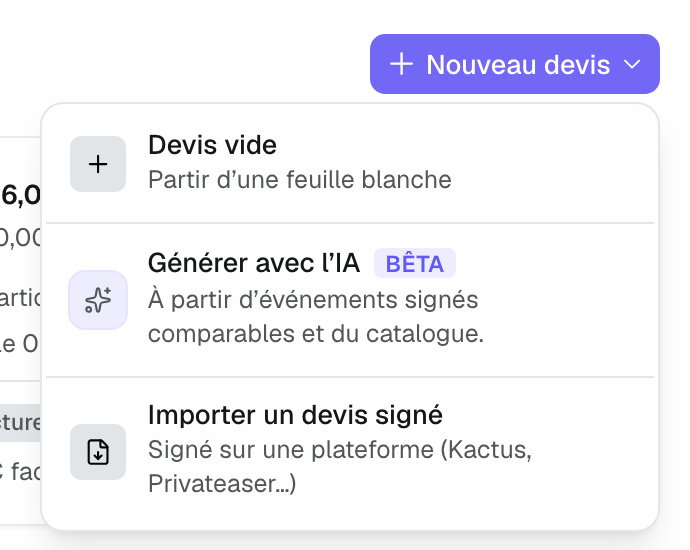
The first saved line creates the quote and gives it its number. The same menu offers "Generate with AI", which drafts a quote from your comparable signed events (see Generate a quote with AI), and "Import a signed proposal" for a quote signed on a platform.
2. Add lines from the catalog
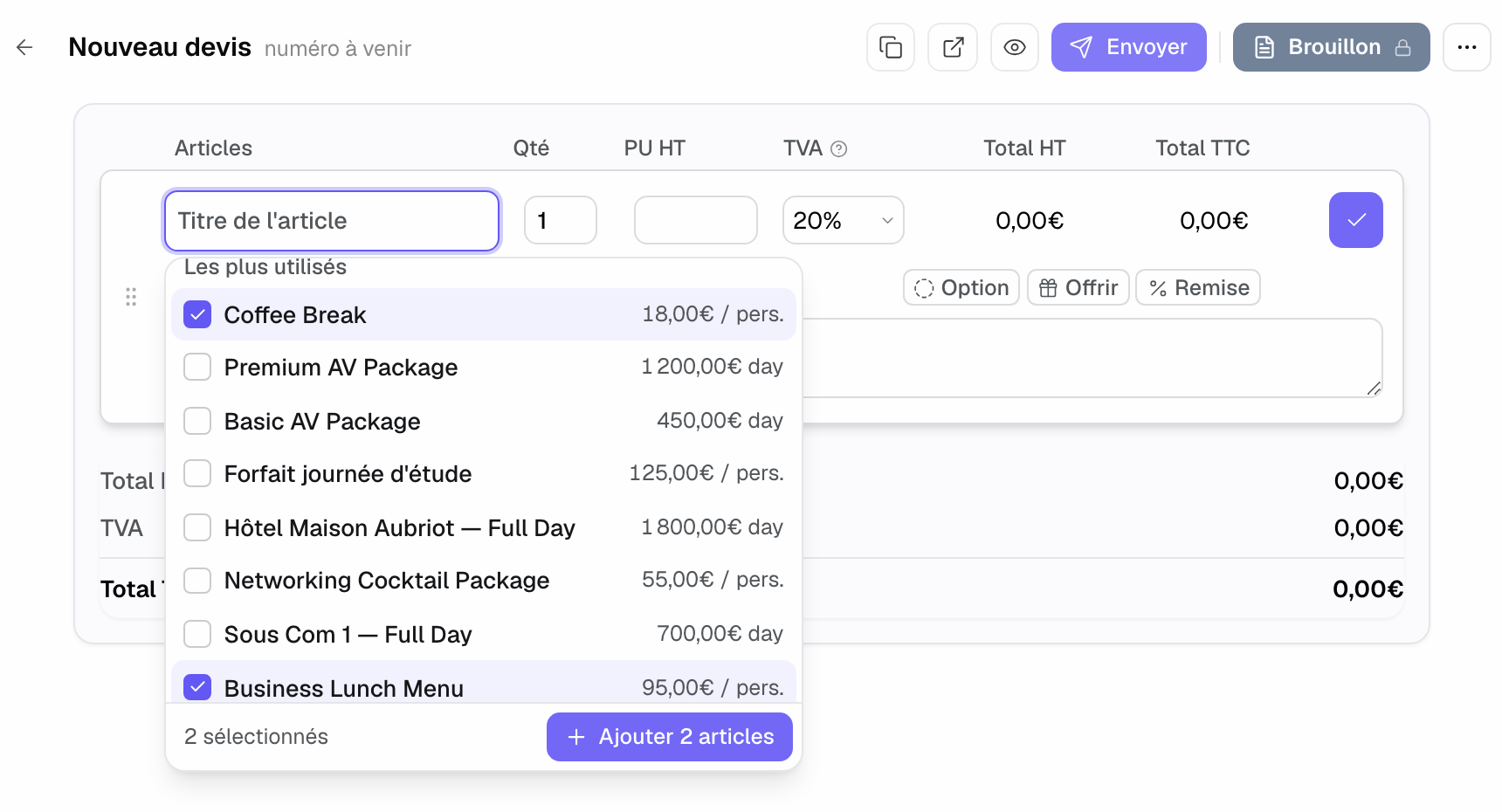
Click the "Item title" field: the venue's catalog list opens. It starts with the venue's "Most used" items, then groups the others by category. Type a few letters to filter, with or without accents.
- Tick one or more items.
- Click "Add 2 items" (the number follows your selection). The lines arrive together, with their label, price and tax rate.
- Adjust the quantity or the price if needed, then confirm the line with the check mark.
- Per-person item: the quantity takes the event's number of participants. If you change it, "Use the number of participants" brings it back.
- Package: an item tagged "Package" arrives as a single line, with its contents (see Sell bundled packages).
- Free line: type a title that is not in the catalog, then the quantity and the price. Tick "Save to catalog" to keep it for future quotes.
- Edited catalog line: "Update catalog" carries the new price or label over to the item, "Save as new" creates another item. Without either box, the catalog does not change.
If the item has "Price rules", the price offered takes the event's headcount and dates into account. An item with a minimum price refuses a lower price.
3. Options, offered items and discounts
Click a line to edit it. Three shortcuts appear under the line: "Option", "Offer" and "Discount".
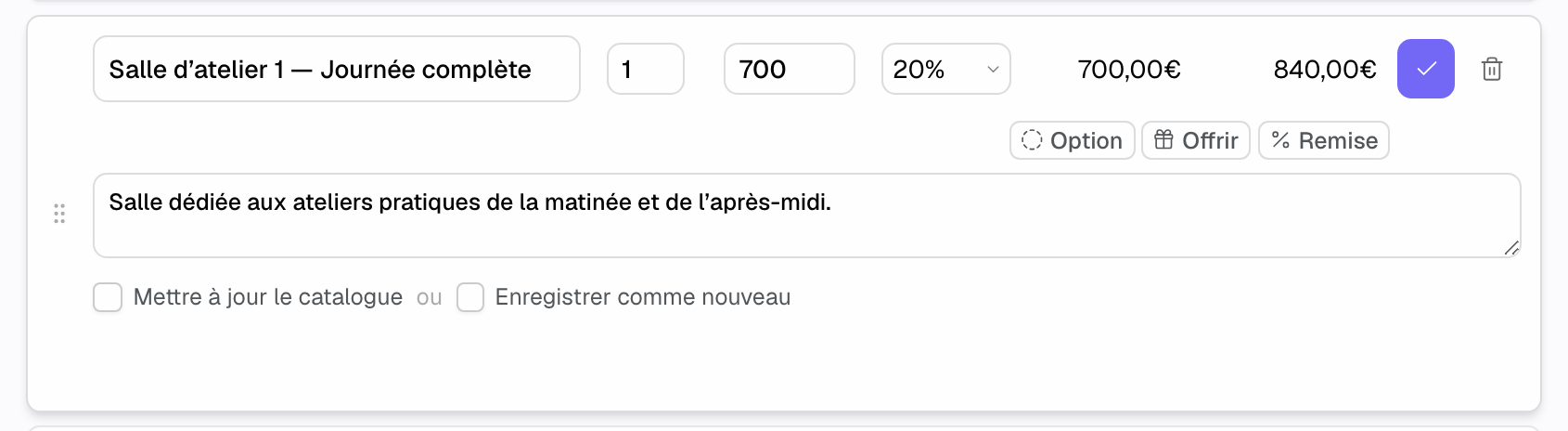
- "Option": the line stays visible but leaves the total. On their page, the client can tick it to add it.
- "Offer": the line drops to zero and keeps its value displayed. The client sees what you are offering.
- "Discount": opens the "Discount" fields, an amount excl. tax "or" a percentage. The two are exclusive.
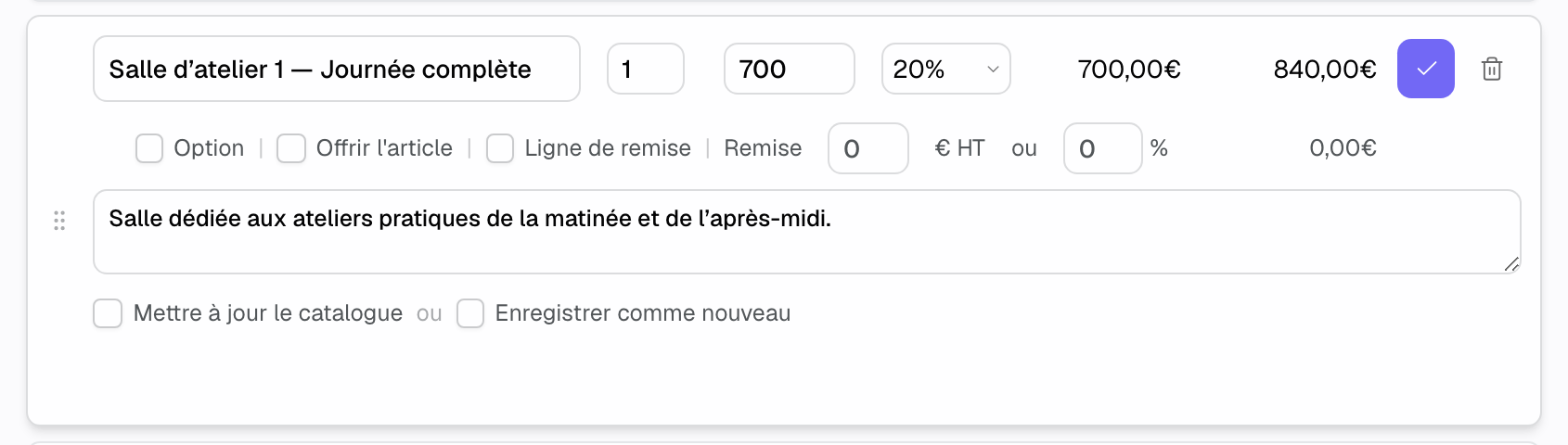
The full row also offers "Discount line", which turns the line into a discount deducted from the total. Under each discounted or offered line, the client page and the PDF show the net amount after discount. For a discount on the whole quote, click "Add a discount" under the lines: the "Overall discount" is entered as a percentage or an amount.
4. Prices excl. or incl. tax, and how totals work
Each venue chooses how it enters prices, in "Settings" > "Venues" > the venue > "General information", "Preferences" section, "Price display" row: "Excluding tax" or "Including tax". Including tax, the editor shows the "Unit price incl. tax" column, and the client page and the PDF print the unit price incl. tax. Invoices keep unit prices excluding tax.
- Line total excl. tax: quantity × unit price excl. tax, minus the discount.
- Tax: calculated at each line's rate. The summary breaks tax down by rate.
- Options: left out of the total until the client ticks them.
- Total incl. tax: total excl. tax, minus the overall discount, plus tax.
If the booked spaces or the venue have a "Minimum spend", Joinways compares it with the total excl. tax. Below it, a warning says so and shows the missing amount. It does not block sending.
5. Spaces, hours and event days
In a venue with several spaces, a line can book rooms on the event's schedule. Click "Space and hours" under the line: each slot has a space, a day, then "Whole day" or "Hours", and the number of guests in that space.
- An item with a "Default room" or a "Standard route" books its spaces as soon as it is added. These slots stay editable.
- An event with no space chosen takes the whole venue: Joinways shows that no space is booked because the event takes the whole venue.
- For a multi-day event, each line is attached to its day and the quote reads day by day.
- If rooms or hours change after sending, a banner says so. On a sent quote, choose "Keep the schedule" or "Go back to the quote's schedule". A signed quote does not change.
6. Photos and floor plans in the PDF
The quote PDF can show the venue. In "Settings" > "Venues" > the venue > "Photos & Plans", "On quotes" section, choose the layout: none, thumbnails, banner or cover (a cover page, then a page presenting your spaces). Also choose the venue's main photo. Each booked space prints the first photo of its page.
To add the floor plans of the venue and the booked spaces at the end of the PDF, turn on the floor plans option in "Proposals & invoicing", client proposal tab. The client page always shows the venue gallery. Invoices stay without photos.
7. Show, send or mark as sent
At the top of the quote, the eye icon opens "Preview PDF". On a draft, the link icon opens the signature link menu.
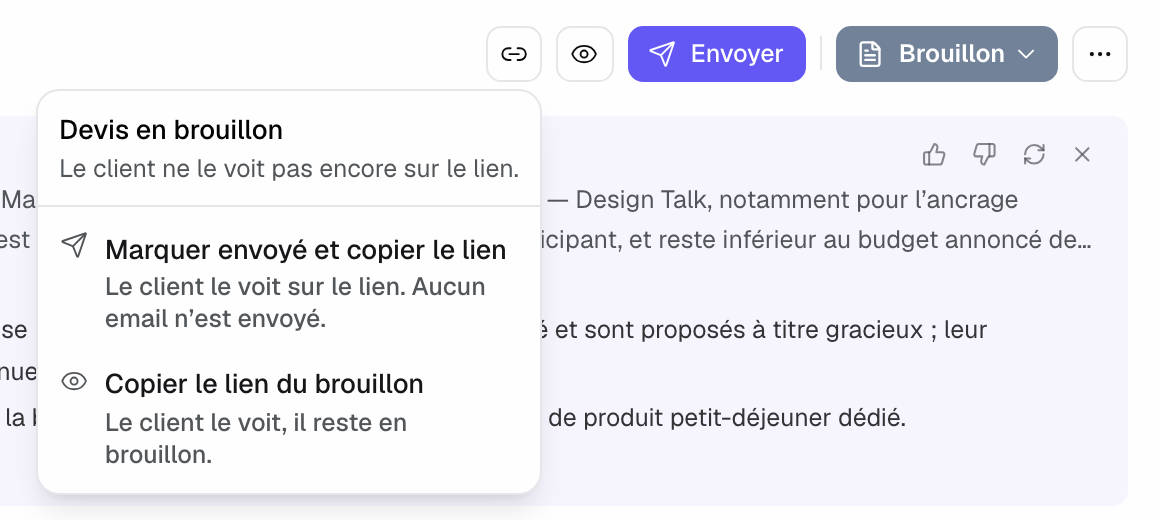
- "Mark as sent and copy the link": the quote moves to sent and the client sees it on the link. No email is sent: you share the link yourself. The timeline, automatic follow-ups and reports treat it as a send.
- "Copy the draft link": the client sees the quote and can sign it, but it stays a draft. It gets no follow-ups and does not count as sent. A crossed-out eye button, "Hide the draft from the client", removes it from the page.
- "Send": the email leaves from your connected mailbox, with the signature link. Without a connected mailbox, the window that opens offers "Copy the link and mark as sent".
Once the quote is sent, "Resend", "Copy the signature link" and "Open the signature page" stay available. On an event from a platform that requires its own quote, a "to submit on" chip replaces "Send" (see Quotes sent through a booking platform).
8. Duplicate, cancel or delete
The "…" menu of the quote page offers the same actions as the quote card.
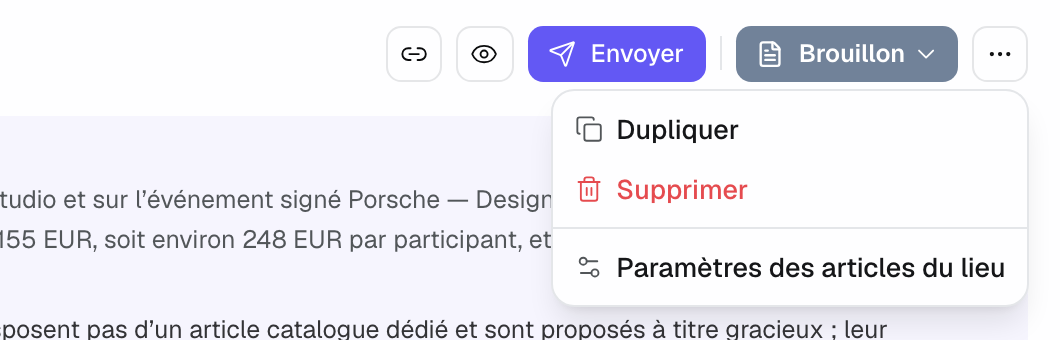
- "Duplicate": creates a draft copy and opens it.
- "Delete": only for a quote that was never signed. You return to the list of quotes.
- "Cancel proposal": for an accepted, signed or invoiced quote. It keeps its history and signature, but no longer counts in revenue and leaves the client page. Void any active invoice first.
- "Venue items settings": opens the venue catalog.
As soon as a quote is invoiced, the "Proposal | Invoices" switch appears on its page and in the event tab: it toggles between the lines and the billing (see Invoice a signed quote).
Example: a seminar for 80 people
A hotel receives an inquiry for a one-day seminar. The salesperson creates an "Empty proposal", ticks the plenary room, the coffee break and the lunch in the catalog, then clicks "Add 3 items". The coffee break and the lunch, sold per person, take the quantity 80. She sets the evening cocktail as an "Option", offers the cloakroom and gives 5% off the room. The client needs internal approval: she chooses "Copy the draft link" and shares it. The next day, she sends it from Joinways.
Troubleshooting
The catalog offers no items
Cause: the event has no venue, or the venue has no items yet. Solution: choose the event's venue, then add your items in "Venue items settings" (see Manage your catalog). Meanwhile, enter a free line.
The "Send" button is greyed out
Cause: the quote has no saved line yet. Solution: add a line and confirm it with the check mark. The quote gets its number and the send actions become active.
The total does not match my lines
Cause: a line is an "Option", or a discount was entered as an amount instead of a percentage. Solution: check the options, then each line's discount and the "Overall discount".
"Delete" is missing
Cause: the quote was signed, or it comes from a platform. Solution: use "Cancel proposal". The proof of signature must be kept.
Frequently asked questions
Does changing a line's price change the catalog?
No, unless you tick "Update catalog" or "Save as new". Otherwise, the change stays on this quote.
Can a draft shown to the client be signed?
Yes. A draft visible on the link is signed like a sent quote. It stays a draft until you mark it as sent, and it gets no follow-ups.
Can I create several quotes for one event?
Yes, for example a standard and a premium package. The client sees the quotes sent or shown on their page, and the one they sign is the reference.
Is a discount applied before or after tax?
Before. The discount reduces the amount excl. tax, then tax is calculated on the discounted amount.
See also
Testen Sie es 30 Tage lang mit Ihren nächsten Anfragen, ohne Kreditkarte.