Get a quote signed online
The client reads the quote on a page in your colors and signs with a code received by email. Joinways confirms the event and sends the signed copy.
Aktualisiert am
Between sending a quote and a confirmed date, every day counts. A quote to print, sign and scan often drags on for a week. A signature from a phone can arrive the same evening.
Every Joinways quote has its own online signature page. The client reads the proposal there, enters a code received by email and signs, with no account or software. On signature, Joinways confirms the event, recalculates the confirmed amount and sends the signer their signed copy.
What you'll learn
- Send a quote for signature and track when it is opened.
- Know what the client sees, on a computer and on a phone.
- Understand signing with a code and the proof that is kept.
- What happens after signature, including the deposit payment.
- Record a paper signature or a quote signed elsewhere.
Prerequisites
- The Pro plan: unlimited signatures. During the 30-day trial, three electronic signatures in total, quotes and contracts combined. Manual signatures and quotes imported from a platform do not count.
- A reviewed quote: after signature, any change goes through an amendment.
- The event contact, with a valid email address.
1. Send the quote for signature
From the quote page, "Send" emails the signature link from your connected mailbox. You can also copy the link, or show a draft to the client without sending it (see Create a professional quote).
The tracking strip at the top of the quote moves to viewed as soon as the client opens the page, with the number of opens. Your own visits do not count. If no follow-up is set up, the panel offers "Enable the day 3 / 7 / 12 sequence".
2. What the client sees
The page opens on a header with your name, your logo and a language picker. Next comes a cover card: "Quote" and its reference, the event title, then the date, hours, venue with a directions link, and the number of guests. Below, the client and their contact at your venue.
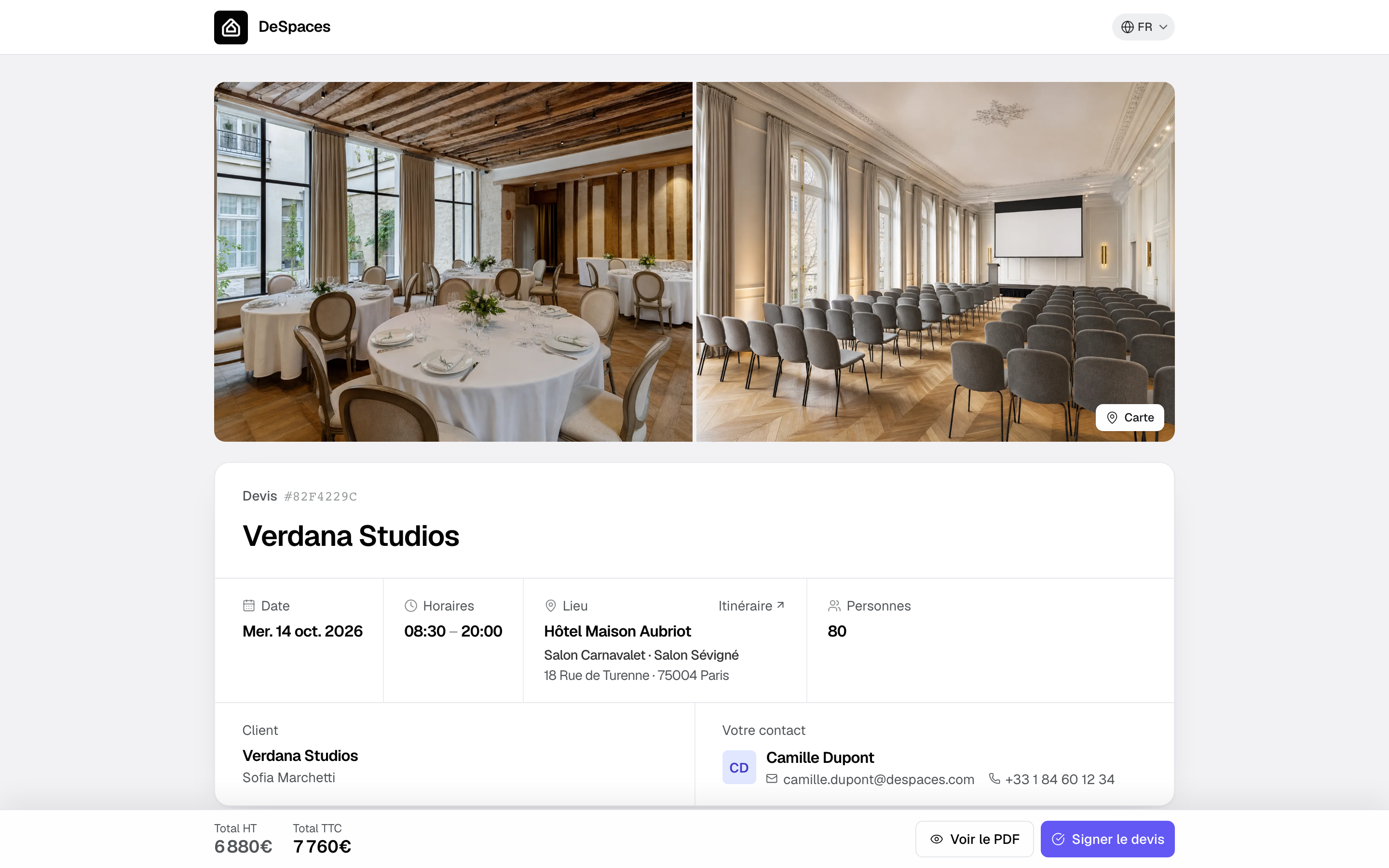
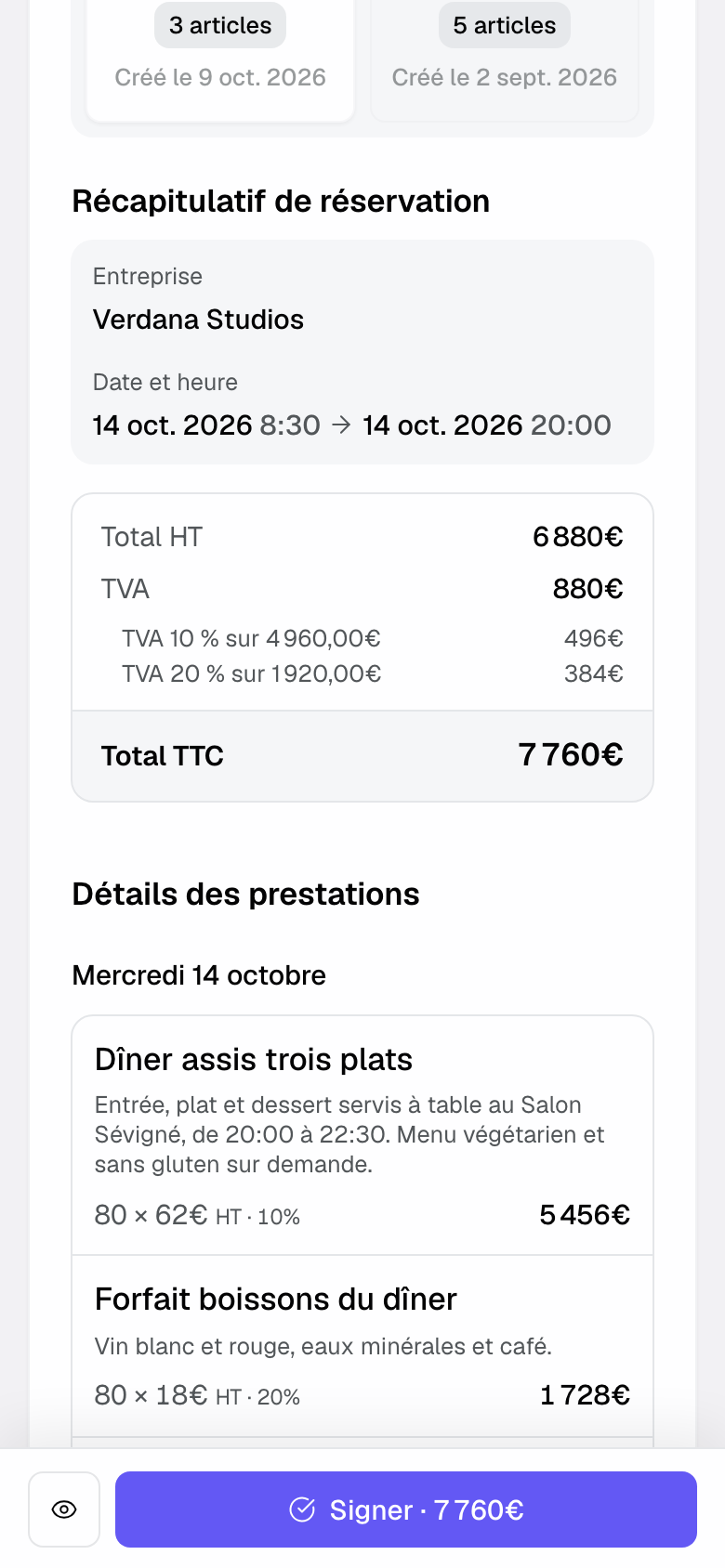
The page then shows the venue gallery, the spaces day by day, the available quotes if there are several, the booking summary and totals, the line detail and the terms. A fixed bar at the bottom shows the total excl. and incl. tax, with "Preview PDF" and "Sign proposal". Options are ticked directly on the page.
On a phone, each line becomes a card (label, quantity × unit price, total) and the bar shows "Sign" followed by the total.
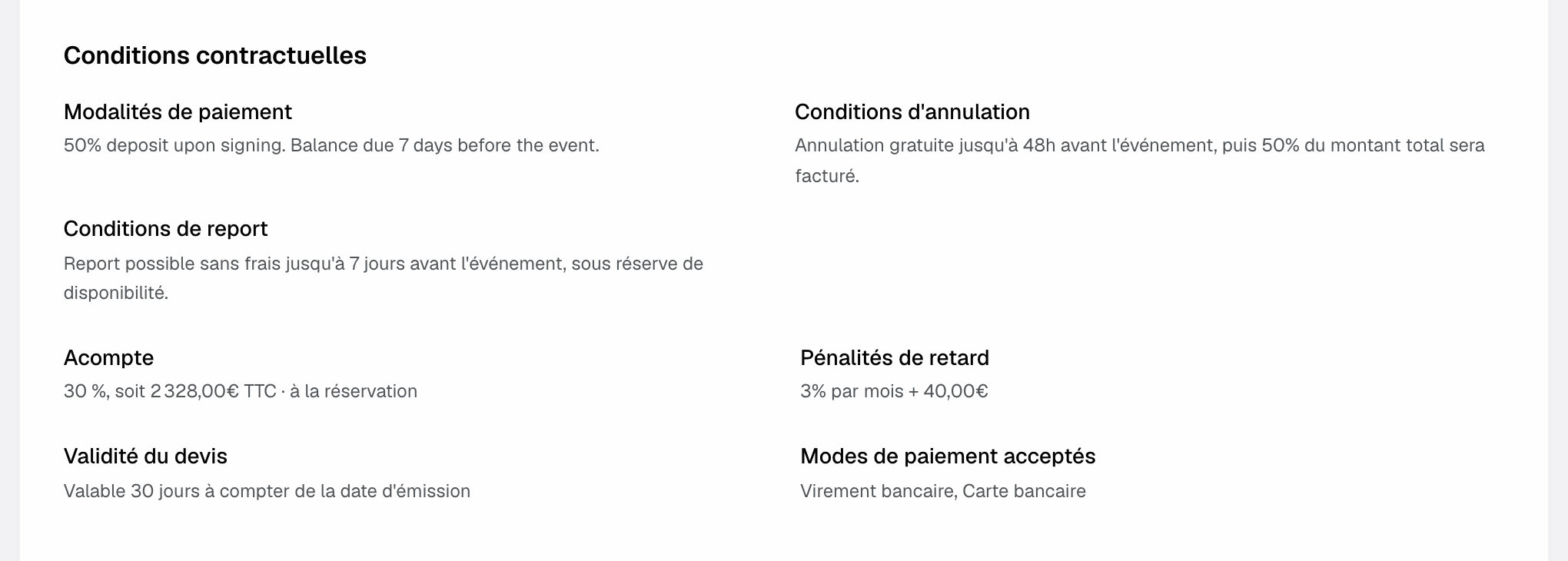
In the terms, the deposit is shown as an amount, for example "30%, i.e. €2,328.00 incl. tax" (excl. tax for a reverse-charge quote). A reverse-charge quote says it plainly: "VAT reverse-charged: your company accounts for it.", with the legal reference in small print.
The page displays in the client's language when Joinways knows it, without changing amounts. A draft only appears there if you showed it.
3. Signing with a code
- The client clicks "Sign proposal" and fills in "Your information": name, email and, for a company, its details.
- Joinways sends a 6-digit code to that address. If the signer has already written to you about the event, the code leaves from your connected mailbox. Otherwise, it leaves from a Joinways address, on behalf of your venue.
- On the "Enter your signature code" screen, the client types the code, then clicks "Verify and sign". The code is valid for 15 minutes. "Send a new code" sends another one, after a short countdown ("New code in 30 s").
- The signature window opens and the client signs.
Joinways keeps the proof of this check: signer's address, code sender, message ID, send and entry times, IP address and browser. The event's history shows it too: "Signature code sent to" the signer's address, "from" the sender, then "entered the signature code". The code itself never appears. The same code signature applies to quotes, amendments and contracts.
4. After signature
The client sees the "Proposal signed successfully!" screen with "Download the signed quote". If a deposit is due, the screen says so: "Pay the deposit" when an invoice payable online exists, otherwise a note that the venue will send its deposit invoice. The signer also receives an email with their signed copy attached.
- The quote moves to signed, with the signer and the exact time.
- The event moves to confirmed and its confirmed amount is recalculated. A stage linked to the signed quote signal moves too (see Track progress with event stages).
- The event owner gets a notification, and the signature is added to the history.
- The signed PDF stays attached to the quote, in a version that can no longer be erased.
A signature on a lost, cancelled or archived event records the quote as signed without touching the event status. To thank the client automatically, create a workflow on the event confirmed trigger.
The emails sent to the signer
- Code email: "Your code to sign" the document, the 6-digit code, how long it is valid and a reminder that nothing is signed without it. When Joinways sends it, it carries your workspace logo at the top and "Sent via Joinways on behalf of" your venue at the bottom.
- Signed copy email: "Your signed copy", the document attached and the signature date, with your logo at the top and a small Joinways logo at the bottom.
- Language: both emails follow the language of the signature page chosen by the client. For a signature started before October 27, 2026, the signed copy follows the event's language.
- Replies: a reply to the signed copy email reaches you. It goes to the connected mailbox that already wrote to them about the event, otherwise to the person assigned to the event. The signed copy email says so: "A question? Reply to this email, it goes straight to" your venue.
5. Pay from the page
When you issue an invoice, the client finds it on the same page. If it can be paid online, the bottom bar becomes "Pay the deposit" or "Pay", followed by the amount. For a bank transfer, the "Or by bank transfer, free of charge" block shows the "Beneficiary", the IBAN (or the "Account number" and "Routing number" outside the IBAN area), the BIC and the "Reference", each with a "Copy" button.
6. Other ways to get to signed
- Paper signature: on the quote, choose "Record a manual signature", enter the signer and the signature date, and attach the signed PDF. The same chain of events follows.
- Quote signed on a platform: "New proposal" > "Import a signed proposal" records the signed PDF on the event (see Quotes sent through a booking platform).
- Separate contract: if the venue keeps its terms in a contract, it is signed separately with the same code (see Generate and sign a rental contract).
Quote statuses
- Draft: being built. The client only sees it if you showed it.
- Sent: with the client, awaiting an answer. This is the status follow-ups track.
- Accepted: the client agreed without a recorded signature.
- Signed: agreement recorded and time-stamped. The event is confirmed.
- Declined and cancelled: the quote is out of play and follow-ups stop.
Example: a signature on a weekday evening
A client receives a wedding quote at 6 pm. She opens it on her phone at 9 pm, ticks the next-day brunch option and taps "Sign". The code arrives from the venue's mailbox, which has already written to her: she signs in a minute and downloads her copy. The next morning, the event is confirmed, the amount is up to date, and the account manager only has to issue the deposit.
Troubleshooting
The client does not receive the code
Cause: the email is in spam, or the address entered has a typo. Solution: ask them to check their spam folder, then click "Send a new code". After too many requests, they must wait an hour. To have the code leave from your mailbox, write to them first from the event.
The page says e-signature is not available
Cause: the three electronic signatures of the trial are used up. Solution: upgrade to Pro, or record a manual signature.
The event was not confirmed after signature
Cause: the event was lost, cancelled or archived. Solution: change its status yourself. The quote stays signed.
The client cannot see the quote on the page
Cause: the quote is a draft that was never shown. Solution: send it, or use "Copy the draft link".
Frequently asked questions
Does the client need an account?
No. They read and sign from any browser, with just the code received by email.
Where does the code email come from?
From your connected mailbox if the signer has already written to you about the event, otherwise from a Joinways address on behalf of your venue.
Where do replies to the signed copy go?
To your connected mailbox that already wrote to them about the event, otherwise to the person assigned to the event.
Does the client get a signed copy?
Yes. They download it on the success screen and receive it by email, as an attachment.
Can I edit a signed quote?
No. Create an amendment: it keeps the original quote and becomes the contract once signed (see Manage amendments to a signed quote).
See also
Testen Sie es 30 Tage lang mit Ihren nächsten Anfragen, ohne Kreditkarte.