Billing settings
A venue's proposals and invoicing page: identity, financial options, conditions, contract and how the client quote is displayed.
Aktualisiert am
A quote without a company name, without an IBAN or with outdated cancellation terms means corrections after sending. This information rarely changes: you set it once per venue.
A venue's "Proposals & invoicing" page gathers everything printed on its quotes, contracts and invoices: billing identity, financial options, conditions, the contract choice and how the quote looks to the client. Joinways uses them on every document.
What you'll learn
- Find the page and its five tabs.
- Fill in the billing identity and bank details.
- Set the deposit, security deposit, penalties and quote validity.
- Write your conditions and custom clauses.
- Choose what the client sees on their quote.
Prerequisites
- Be a workspace owner or admin, or the venue owner.
- Have your legal details (company name, registration number, VAT number) and bank details at hand.
- The workspace logo: it is the one printed on documents.
1. Open the "Proposals & invoicing" page
Open "Settings" > "Venues", choose the venue, then "Proposals & invoicing" in the sales group. The page has five tabs: "Identity", "Financial options", "Conditions", "Contract" and "Client quote".
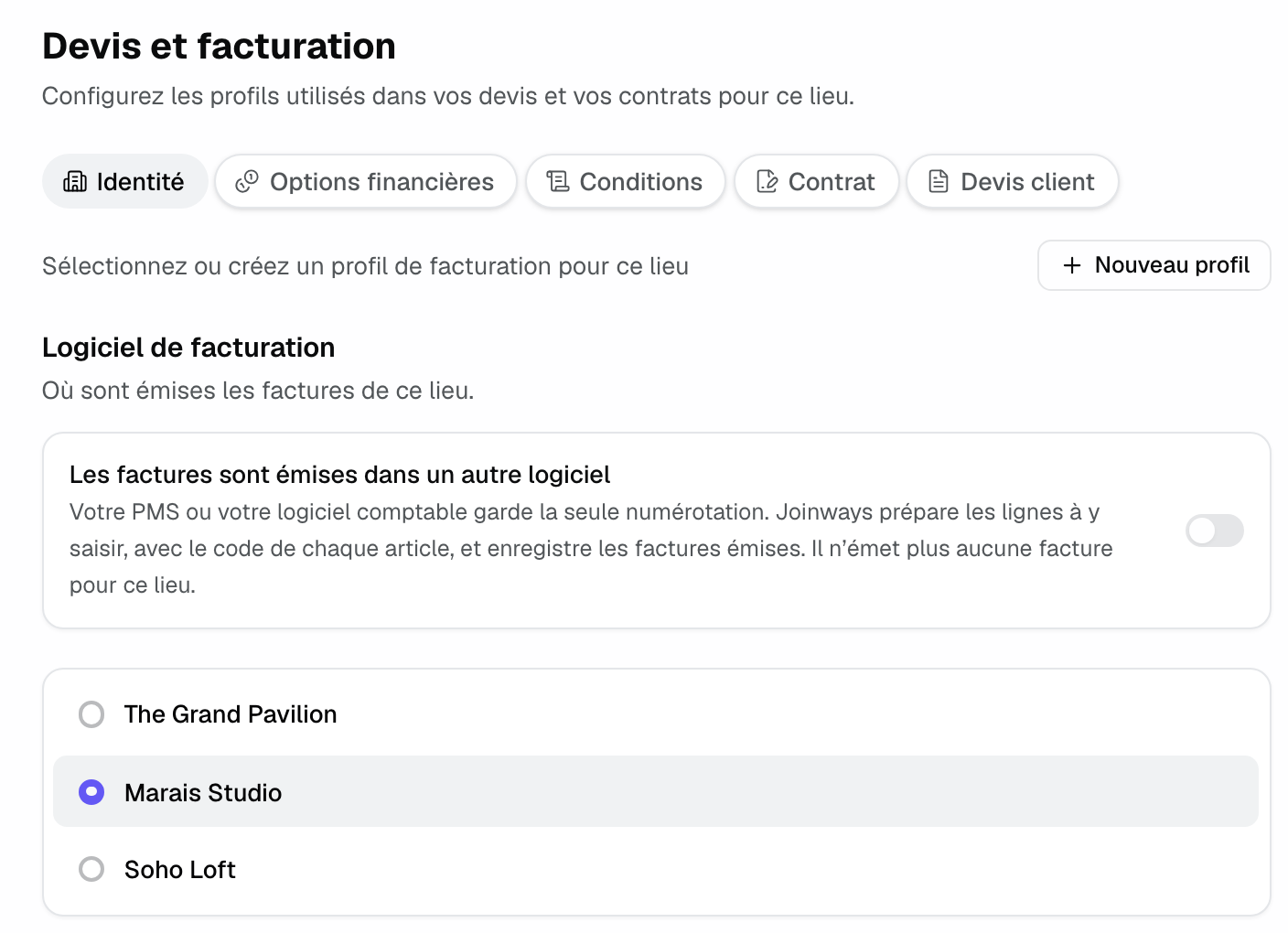
Several venues: each tab offers reusable profiles. Pick the venue's profile in the list, or create one with "New profile". A profile's "…" menu offers edit and delete. One profile can serve several venues. With no profile chosen, the document prints the "Workspace identity", the "Venue's default options" or the "Venue's default conditions".
A single venue: no profile to name. Fields are edited directly on the page, already filled in, and saving creates the profile named after the venue. The venue's name, logo, currency and time zone are set together in "General information".
2. Identity: company and bank
The tab starts with the "Invoicing software" section, for a venue that issues its invoices in its PMS or accounting software (see Invoice in the venue's software). Billing profiles come next.
- "Company Name", "Corporate Form", legal numbers (registration number, "VAT Number") and address. Fields adapt to the country: a US venue enters its state and ZIP code, for example.
- "Banking Information": bank, IBAN and BIC. Outside the IBAN area, the form asks for the "Account number" and the "Routing number (ABA)".
- "Invoice legal mentions": "Share capital", "Trade register city (RCS)", "VAT franchise (art. 293 B of the French Tax Code)" and "VAT paid on debits", which add the matching statement to invoices.
3. Financial options
Options are grouped in two sections.
- "Payment and guarantees": the "Deposit" (percentage or amount, and its "Payment Timing": "At Reservation" or a number of days before the event), the "Security Deposit", "Late Payment Penalties" (rate per year or per month, fixed penalty) and "Accepted Payment Methods".
- "Proposal and insurance": the "Proposal Validity Period" and the "Liability Insurance" required from the client.
The deposit setting is also used for invoicing: the "Invoice" button offers the deposit when the venue asks for one, and its due date follows the number of days before the event (see Invoice a signed quote).
4. Conditions and custom clauses
In the "Conditions" tab, open a profile with edit. The "Edit contractual profile" panel has three blocks.
- "Contractual Conditions": "Payment Terms", "Cancellation Terms" and "Postponement Terms", each with its switch and text.
- "Additional Clauses": "Custom Legal Text", "Price Revision Clause" and "Force Majeure Clause".
- "Custom clauses": "Add a clause" creates a title and free text, for example house rules.
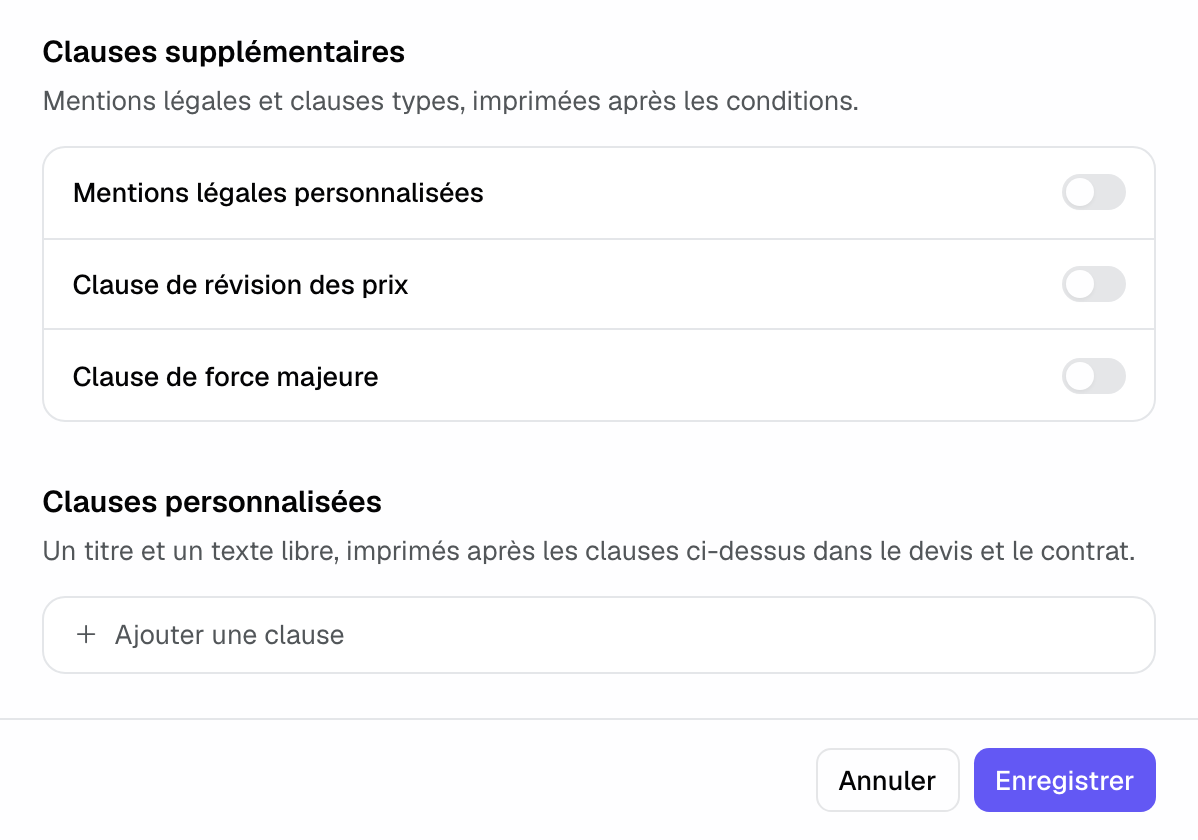
Custom clauses print after the standard clauses, in the quote, on the client page, in the signed PDF and in the contract. They are translated with the quote.
5. Contract
The "Contract" tab answers "Where do the contractual and financial conditions go?": "In the proposal" (default) or "In a separate contract". The "What the contract takes up" section reminds you that the contract reads the other tabs' settings (see Generate and sign a rental contract).
6. Client quote
The "Client quote" tab sets what the client sees on the venue's quotes, on the web page and in the PDF.
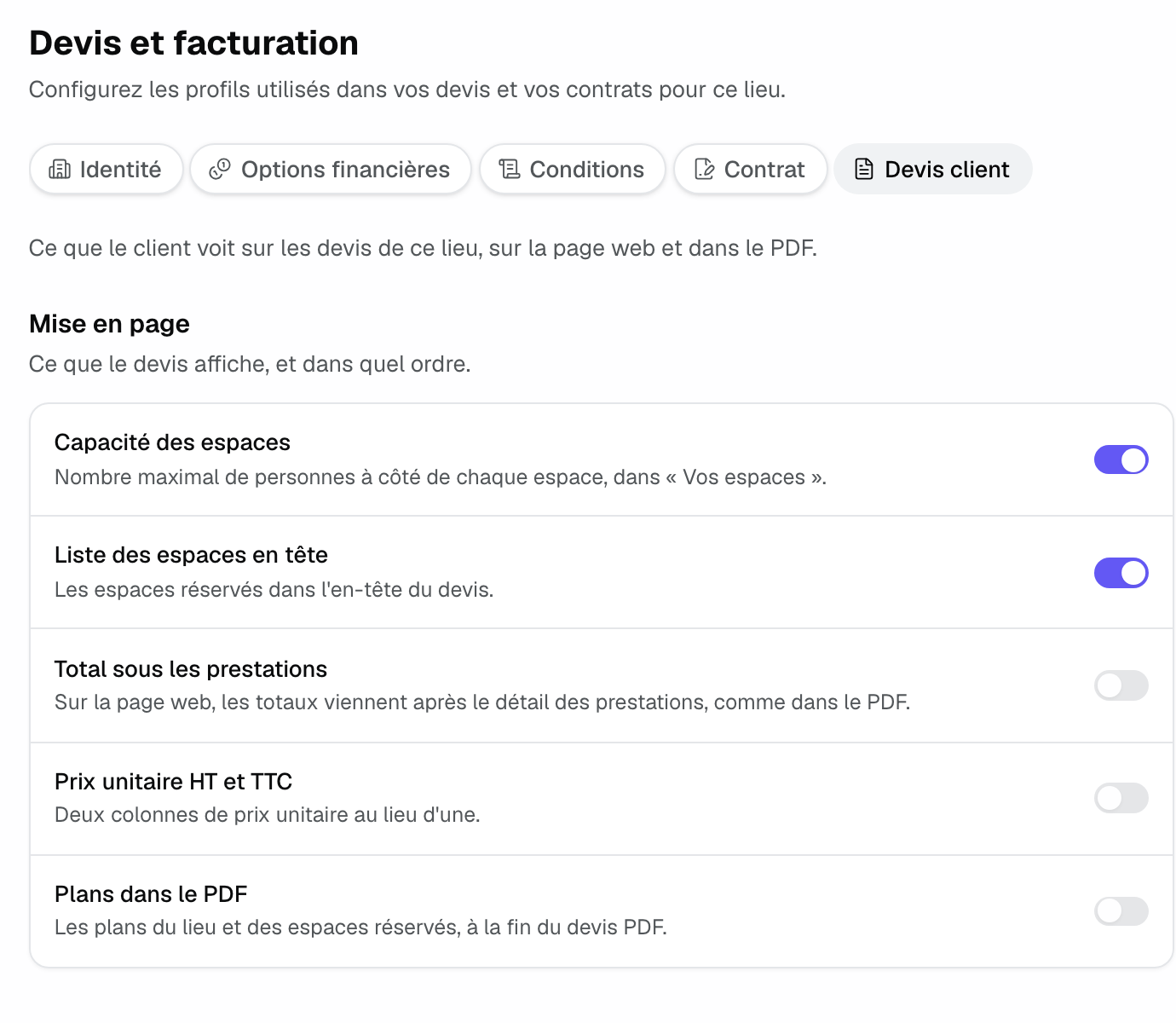
- "Space capacity": the maximum number of guests next to each space.
- "Spaces list at the top": the booked spaces in the quote header.
- "Total under the services": on the web page, totals after the detail, as in the PDF.
- "Unit price excl. and incl. tax": two unit price columns instead of one.
- "Floor plans in the PDF": the floor plans of the venue and the booked spaces, at the end of the PDF.
- "Shared sales contact": a name, email and phone shown to the client instead of the person assigned to the event.
Two related settings live elsewhere in the venue settings: entering prices excl. or incl. tax, in "General information", and the quote photos, in "Photos & Plans" (see Create a professional quote).
Tax and numbering
The tax rate is not set on this page: each catalog item carries it, and it can be changed line by line on the quote. Numbering of invoices issued by Joinways is automatic and continuous per venue, with nothing to configure.
Example: a group with two venues
A group runs a hotel and a banquet hall, through two companies. It creates two billing profiles, one per company, and assigns one to each venue. Both venues share one conditions profile, to which it adds a custom house rules clause. In "Client quote", the hotel turns on floor plans in the PDF and a shared sales contact for its meetings team.
Troubleshooting
The quote says no billing profile is configured
Cause: no billing profile is assigned to the venue. Solution: choose or create a profile in the "Identity" tab.
An invoice is refused for an incomplete profile
Cause: the company name, address, postal code, city, country, registration number or VAT number is missing. Solution: complete the profile, then issue the invoice again.
The logo does not appear on the document
Cause: the workspace has no logo. Solution: upload it in the workspace's general settings (or in "General information" for a single venue).
Frequently asked questions
Can I have billing per venue?
Yes. Each venue has its profiles and its own invoice number series.
Do my changes affect quotes already signed?
No. A signed or accepted quote keeps what was agreed. New quotes and those still editable use the new settings.
Where do I manage my Joinways subscription?
Elsewhere: in the "Subscription" group of the settings, "Plans" and "Invoices & payment" pages (see Plans, pricing and subscription).
See also
Testen Sie es 30 Tage lang mit Ihren nächsten Anfragen, ohne Kreditkarte.