Invoice a signed quote
Issue the deposit, the balance or the full amount from the quote, on the channel you choose, track payments and correct with a credit note.
Aktualisiert am
Once the quote is signed, the invoice should not ask for anything more: the lines, amounts and client are already known. Retyping them in another tool creates gaps between what was signed and what is invoiced.
Joinways invoices from the quote page. It prepares the deposit according to the venue's settings, issues the invoice on the chosen channel (Joinways, Stripe, Qonto, QuickBooks or the venue's own software) and tracks payment. If an amendment lowers the total, it issues a credit note for the difference.
What you'll learn
- Invoice the deposit, the balance or the full amount of a quote.
- Set the deposit and the due date in the invoicing window.
- Choose the issuing channel among the five available.
- Track invoices and record a payment.
- Void an invoice, issue a credit note and invoice after an amendment.
Prerequisites
- An accepted or signed quote. An invoice always starts from a quote.
- The venue's billing profile complete: company name, address, legal numbers and bank details (see Billing settings).
- A role that can issue invoices in the workspace.
- No integration is required. Stripe, Qonto and QuickBooks add an issuing channel.
1. Invoice from the quote
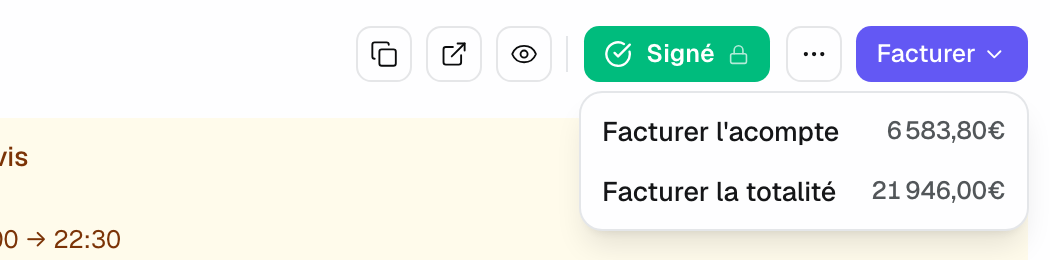
At the top of an accepted or signed quote, the "Invoice" button follows the venue's deposit setting.
- Venue with a deposit: "Invoice" opens a menu with amounts, "Create deposit" and "Invoice the full amount".
- Venue without a deposit: the button shows "Invoice" followed by the amount and opens the full invoice directly. A deposit is still possible from the "Billing" block.
- After a deposit: the button becomes "Create balance", followed by the remaining amount.
2. Set the deposit, due date and client
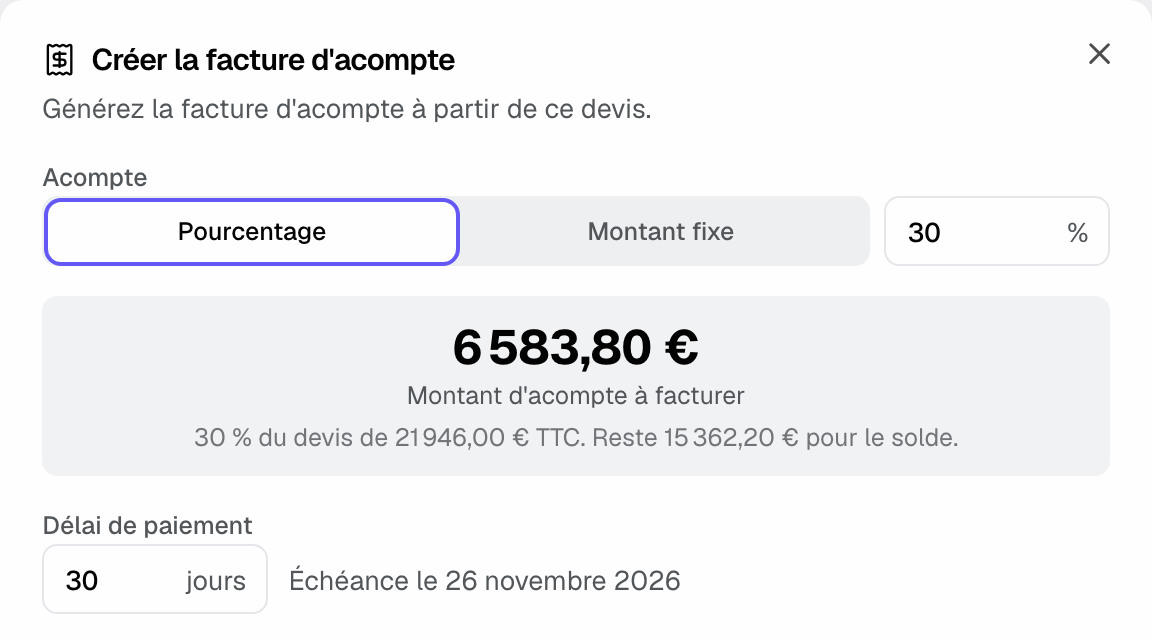
The "Create deposit invoice" window puts the amount first.
- Under "Deposit", choose "Percentage" or "Fixed amount". Switching keeps the same amount. The central block shows the "Deposit amount to invoice", its share of the quote and the remaining balance. A deposit above the total is refused.
- Under "Payment terms", enter a number of days: the due date shows next to it. If the venue sets its deposit "N days before the event", the due date follows that setting and the window says so. Otherwise, the default is 30 days, capped between businesses.
- Check the "Billed client", company or individual, and their details.
- Check the channel on the "Issued via" line, and click "Change" to pick another.
- Click "Generate only", or "Generate & send" to open the prefilled email with the invoice link.
3. Choose the issuing channel
The channel is chosen at the quote's first invoice. The balance then follows the same channel.
- Joinways: no integration. Joinways numbers the invoice in the venue's series and generates the PDF with the Factur-X XML embedded. The client pays by bank transfer.
- Stripe: Stripe invoice, numbered and collected by Stripe. The payment is recorded automatically (see Connect Stripe for payments).
- Qonto: Qonto issues the Factur-X invoice in your own numbering. The client pays by transfer or card on the Qonto page (see Connect Qonto).
- QuickBooks: the invoice is created in your QuickBooks books, which number it and compute sales tax.
- Venue software: the venue invoices in its PMS or accounting software. Joinways prepares the lines to type there and records the invoice issued there (see Invoice in the venue's software).
A venue that invoices in its own software issues on no other channel. A quote already invoiced on a channel stays on it for all its billing.
4. Track invoices and payments
As soon as a quote has an invoice, the "Proposal | Invoices" switch appears on its page. The Invoices view opens by default once the quote is invoiced. The quote timeline follows each step, such as deposit pending, then balance to invoice.
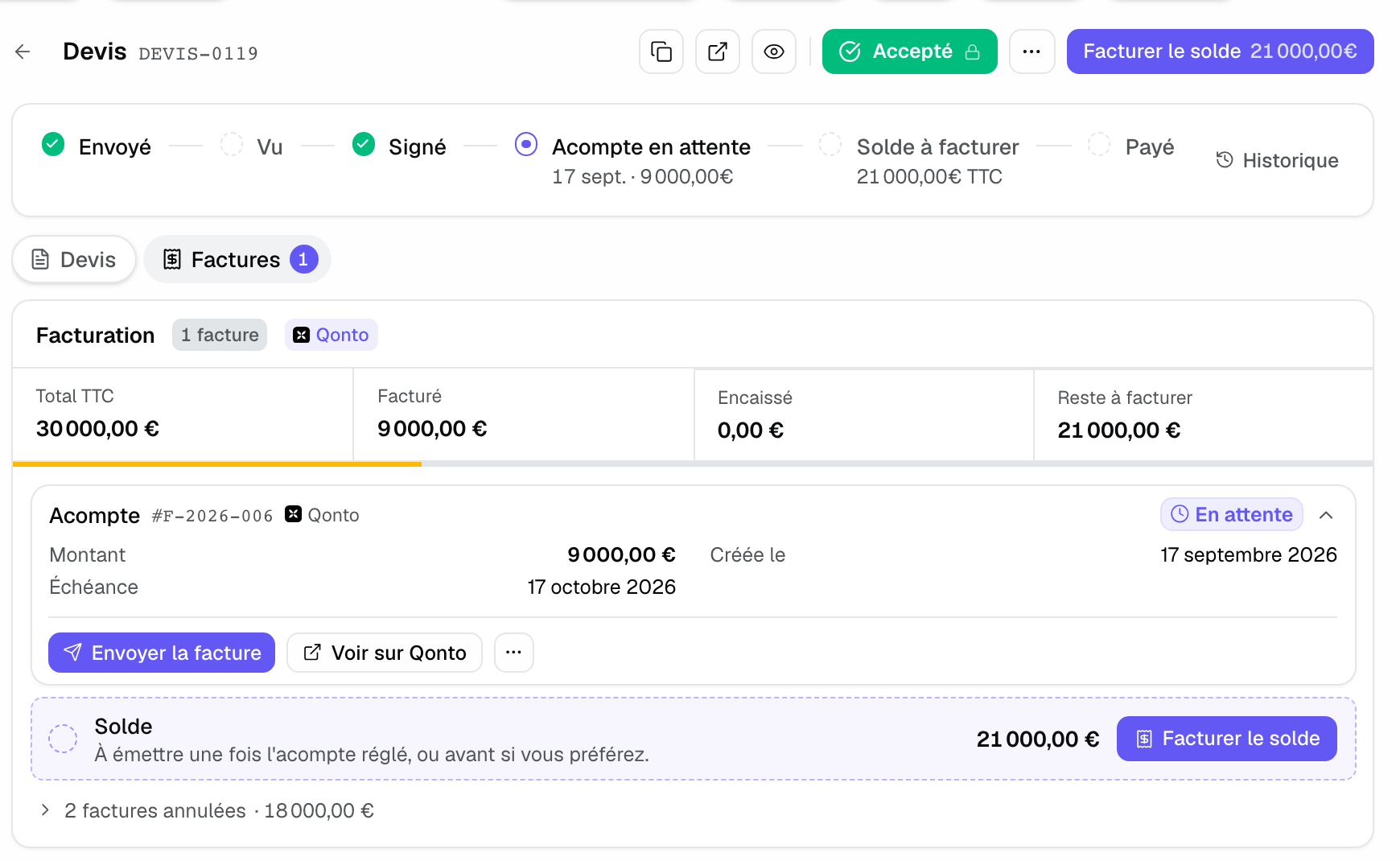
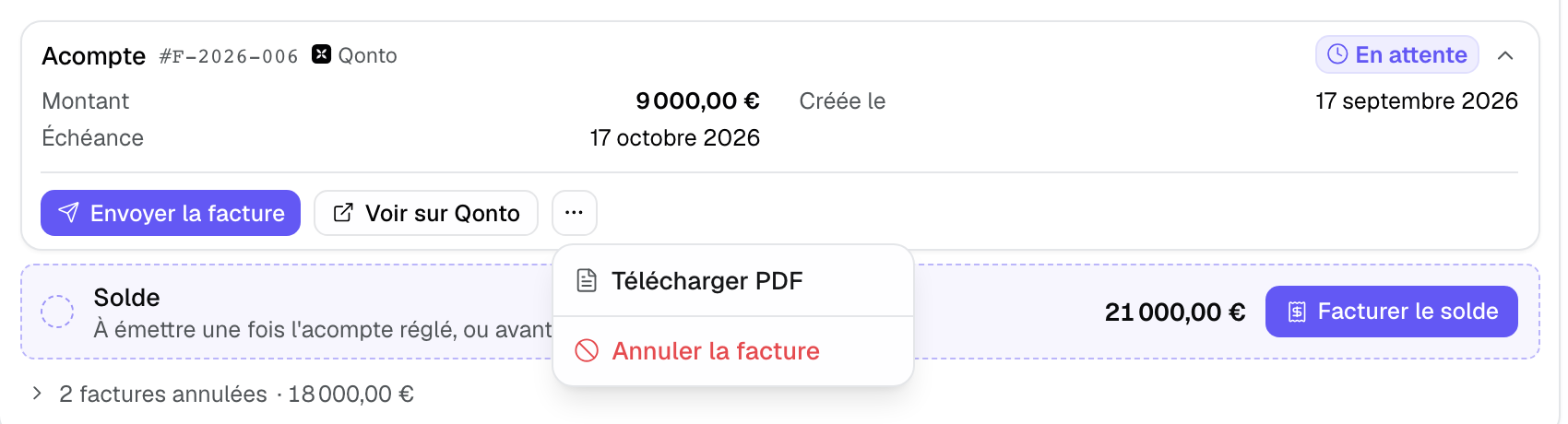
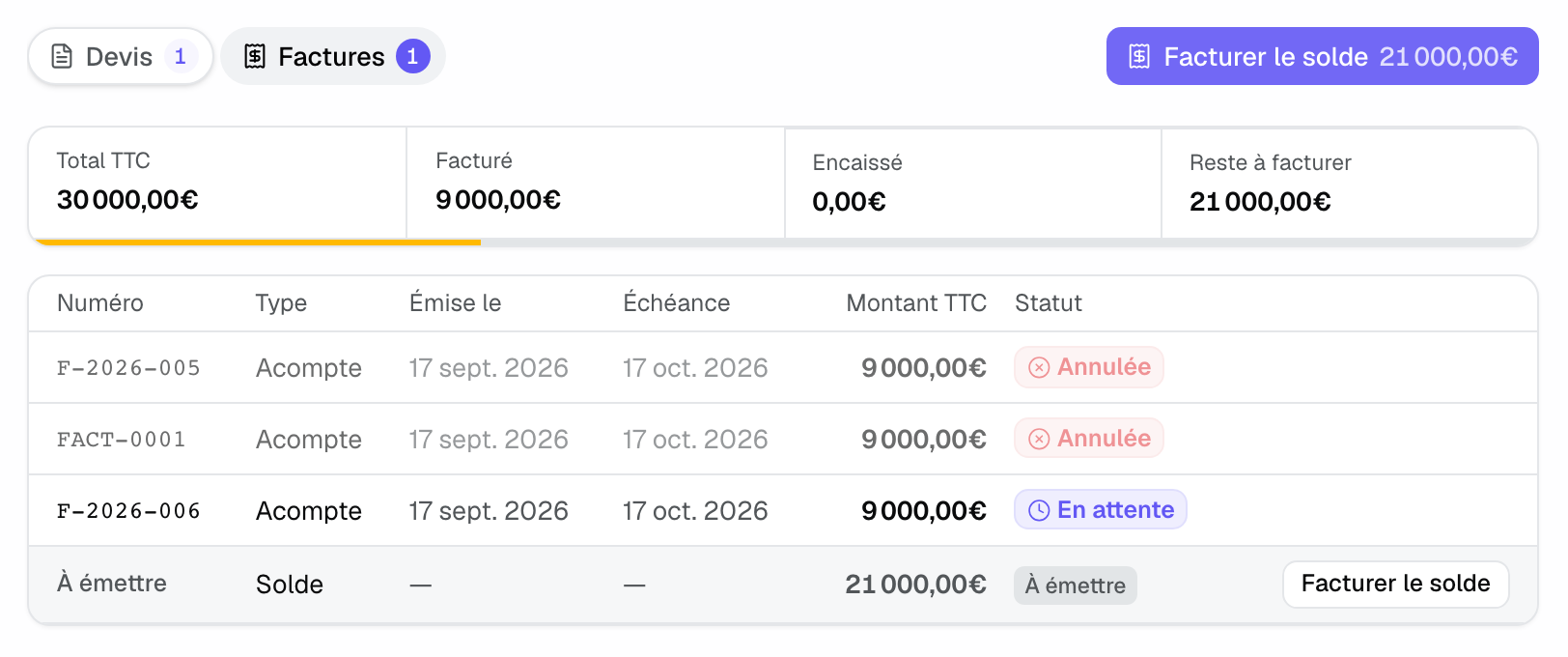
The "Billing" block sums up "Total incl. tax", the "Invoiced" amount, "Collected" and "Remaining to invoice". Each invoice has its card, with its number, status and due date. "Send Invoice", the invoice link and "Mark as paid" stay visible. Other actions are in the "…" menu: "Download PDF", the credit note PDF, voiding and the credit note.
For a Joinways invoice or one recorded from the venue's software, click "Mark as paid" when the payment arrives. The "Record the payment" window asks for the "Payment date", the "Payment method" ("Bank transfer", "Card", "Cheque", "Cash", "Other") and an optional reference. Stripe, Qonto and QuickBooks record the payment automatically.
In the event tab, the "Invoices" view lists all invoices and credit notes of its quotes, with number, type, dates, "Amount incl. tax" and status. Amounts still "To issue" have their button, such as "Create balance".
5. Numbering
Invoices issued by Joinways follow a continuous series per venue, assigned when generated. The series word follows the venue's country: FACT- for a French- or Spanish-speaking country, INV- elsewhere, then the venue ID and four digits, for example INV-1234-0001. Credit notes have their own series, CN- (or AVOIR-). A voided invoice keeps its number. Stripe, Qonto, QuickBooks and the venue's software use their own numbering.
6. Correct: voiding, credit notes and amendments
- Wrong unpaid invoice: on a Joinways invoice, "Cancel with a credit note" issues a credit note for the full amount. The invoice keeps its number and becomes void. On other channels, use "Void invoice".
- Paid invoice: it can no longer be voided. Issue a credit note.
- Amendment that raises the total: once the amendment is signed, the block shows "Aligned with amendment #1". The balance uses its lines and total, the deposit stays anchored to the original quote.
- Amendment that lowers the total below what was invoiced: the "Credit note to issue" row appears, with "Issue a credit note". The "Issue a credit note?" window shows the amount, recalculated on the invoice lines, and offers a "Reason printed on the credit note (optional)". These partial credit notes exist on Joinways, Stripe, Qonto and QuickBooks.
A credit note is an accounting document: it cannot be deleted. While an amendment is in progress, the quote's billing is blocked. A quote with an active invoice can be neither cancelled nor deleted: void the invoice first.
7. Bank accounts outside the IBAN area
For a US account, for example, the billing profile asks for the "Account number" and the "Routing number (ABA)" instead of the IBAN. The invoice PDF and the client's payment page then print the account number and the routing number.
Example: a seminar invoiced in two steps
A seminar is signed at €21,946 incl. tax in a hotel that asks for a 30% deposit, due 30 days before the event. The salesperson clicks "Invoice" > "Create deposit": the window shows €6,583.80 and the due date. She chooses "Generate & send". When the transfer arrives, she clicks "Mark as paid". After the event, "Create balance" issues the remaining €15,362.20 on the same channel.
Troubleshooting
The "Invoice" button is missing or blocked
Cause: the quote is neither accepted nor signed, or an amendment is in progress. Solution: get the quote accepted or signed. If an amendment is in progress, sign it or delete it.
A message mentions an overall discount
Cause: invoicing does not yet carry over a quote's "Overall discount". Solution: move that discount onto the quote lines, as line discounts.
The invoice is refused because the profile is incomplete
Cause: the venue's company name, address, registration number or VAT number is missing. Solution: complete the profile in the venue's "Proposals & invoicing" settings, identity tab.
A message says the venue invoices in another software
Cause: the venue declared its invoicing software. Solution: record the invoice issued in that software (see Invoice in the venue's software).
Frequently asked questions
Can I edit an issued invoice?
No. An issued invoice is final. Void it if it is unpaid, or issue a credit note. If the contract changes, use an amendment.
Does the balance take the deposit into account?
Yes. The balance is the quote total, minus what was already invoiced and any partial credit notes.
Can the client find their invoices?
Yes, on their quote's public page, with online payment when the channel allows it and bank details to copy.
How do I mark an invoice as paid without Stripe?
Click "Mark as paid" on the invoice card and enter the date and payment method. The quote becomes paid when all its invoices are settled.
See also
Testen Sie es 30 Tage lang mit Ihren nächsten Anfragen, ohne Kreditkarte.