Invoice a signed quote
Convert a signed quote into a compliant invoice, manage numbering and track payments through to settlement.
Updated
Once the quote is signed, you invoice it from the quote page. Joinways issues the invoice with no integration at all: a legal number in the venue's series, a PDF with the Factur-X XML embedded, payment by bank transfer to your IBAN. If Stripe, Qonto or QuickBooks is connected, you can issue the invoice through that channel instead.
This article covers the full cycle: invoicing a deposit, the balance or the full amount, choosing the issuing channel, understanding numbering, recording a payment and voiding a wrong invoice.
An invoice is never an isolated entry: it extends the signed quote and feeds directly into the venue's revenue tracking.
Prerequisites
- A signed or accepted quote: the invoice is always built from an existing quote, it is never created from scratch.
- The venue's billing profile filled in: legal name, address, legal mentions and IBAN. They are printed on the invoice.
- No integration is required. Stripe, Qonto and QuickBooks are optional: each adds an issuing channel.
What you'll learn
- Generate an invoice from a quote
- Understand invoice numbering
- Choose the issuing channel: Joinways, Stripe, Qonto or QuickBooks
- Track payment statuses through to settlement
Generate an invoice from a quote
Invoicing always starts from a signed or accepted quote: Joinways reuses the quote's lines, amounts and legal mentions to avoid any re-keying and keep the signed offer consistent with the accounting record.
- Open the relevant quote and confirm it is in the accepted or signed status.
- Click “Invoice”, then “Create deposit” or “Invoice the full amount”. Later, the same button becomes “Create balance”.
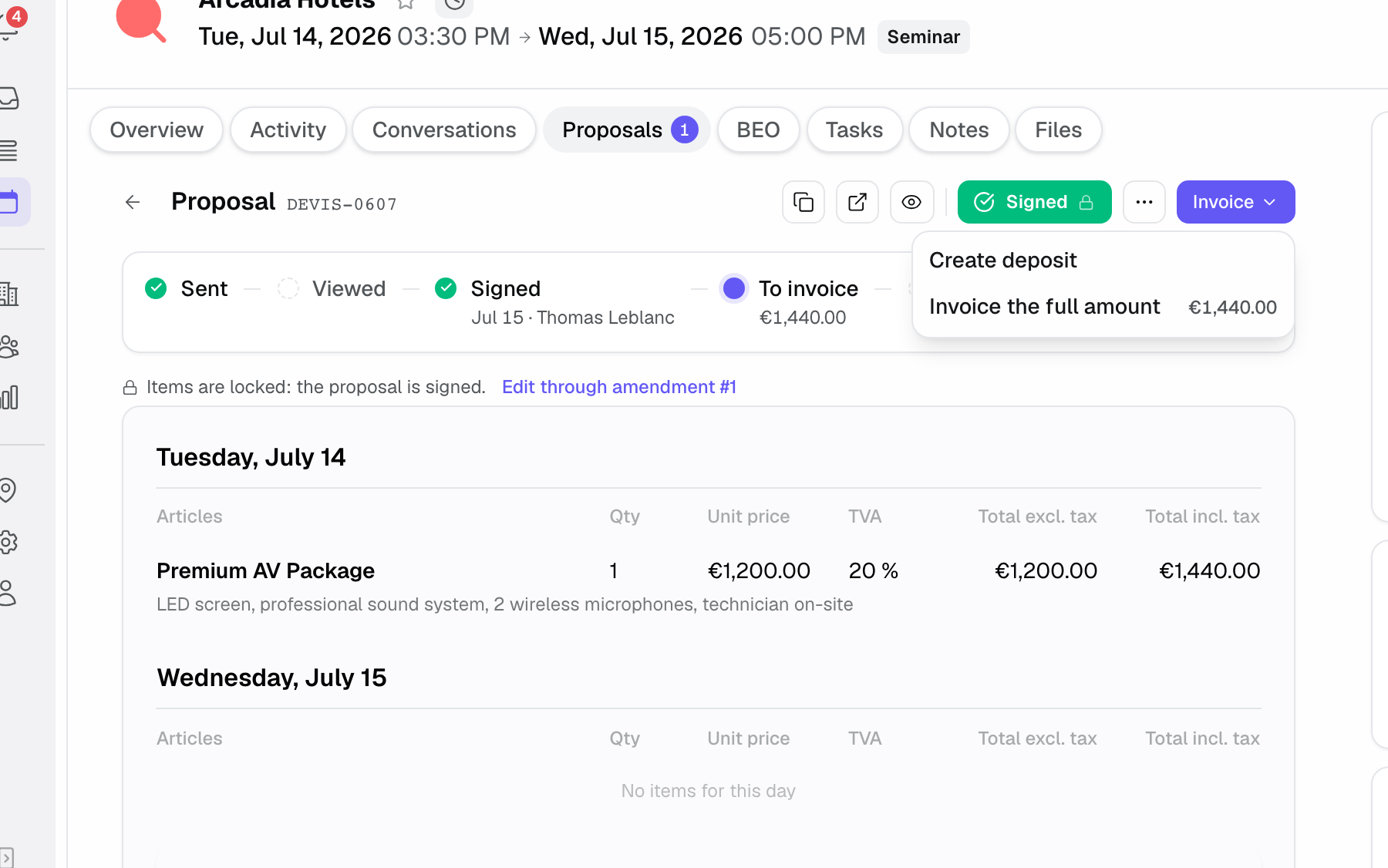
- In the dialog, check the client, the amount and the payment terms. Pick the channel under “Issue via”, then click “Generate only” or “Generate & send”. “Generate & send” opens the email drawer pre-filled with the invoice link, in the thread already tied to the event.
- The invoice appears in the “Billing” block under the quote, with its number, status and PDF. The quote moves to invoiced.
Quote and invoice stay consistent this way: any amount difference must go through an amendment rather than a direct edit on the invoice.
On an invoice issued by Joinways, the spaces booked by the event are printed next to the venue, with their layout, as on the quote.
Choose the issuing channel
The invoicing dialog shows “Issue via” as soon as several channels are available. The channel is chosen at the quote's first invoice, and the balance then follows the same channel.
- Joinways: no integration. Joinways numbers the invoice in the venue's series and generates a PDF with the Factur-X XML (EN 16931) embedded. The client pays by bank transfer to your IBAN.
- Stripe: a Stripe invoice, numbered and collected by Stripe. Payment is recorded automatically.
- Qonto: Qonto generates the Factur-X invoice in your Qonto numbering. The client pays by transfer or by card on the Qonto page.
- QuickBooks: the invoice is created in your QuickBooks company, which numbers it and computes sales tax.
Numbering
Invoices issued by Joinways follow continuous legal numbering per venue. The series word follows the venue's country: FACT- for a French- or Spanish-series country, INV- elsewhere, followed by the venue identifier and a four-digit number, for example INV-1234-0001. The sequence never resets. Stripe, Qonto and QuickBooks number their invoices in their own series.
Each venue has its own series: continuity is ensured at venue level, which avoids numbering gaps that would break accounting compliance.
The number is assigned when you generate the invoice. A Joinways invoice has no draft: it is numbered as soon as it is created.
Reference: statuses and states
An invoice has a status, which says where its payment stands, and a kind: deposit, balance or single invoice.
- Open: the invoice is issued and numbered, payment not yet received.
- Paid: payment is recorded, automatically for Stripe, or with “Mark as paid” for a Joinways invoice.
- Void: the invoice is cancelled. It keeps its number and stays in the series.
- Deposit: a partial invoice, as a percentage or a fixed amount, issued ahead of the event.
- Balance: an invoice for the amount remaining after the deposit, usually after the event.
- Invoice: a single invoice covering the full quote amount.
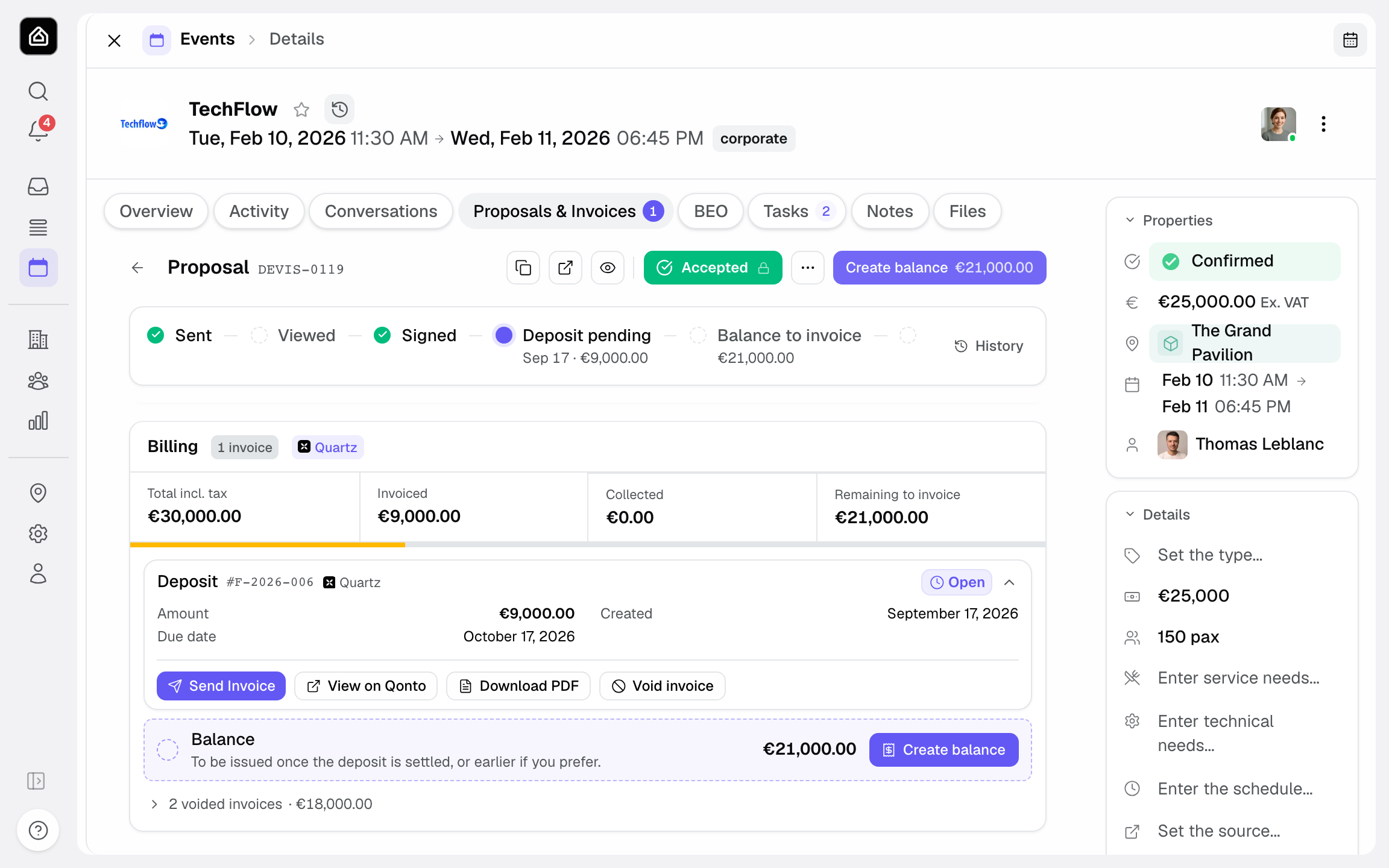
A single quote can combine several states, for example a deposit already Paid and a balance still Open. The “Billing” block sums up “Total incl. tax”, “Invoiced”, “Remaining to invoice”, “Collected” and “Awaiting payment”.
Payment tracking
The “Billing” block shows, file by file, what has been invoiced and what has been settled. It updates automatically when collection goes through Stripe; for a Joinways invoice, you record the payment yourself.
How it works
Behind the scenes, Joinways links the quote, the invoice and the payment within a single file so every record stays consistent with the signed offer.
- The accepted quote serves as the basis: its lines and amount feed the invoice.
- On issue, the legal number is assigned within the venue's continuous sequence.
- If Stripe is connected, online payment automatically moves the invoice to Paid.
- For a Joinways invoice, click “Mark as paid” when the payment arrives. Enter the date, the payment method (Bank transfer, Card, Cheque, Cash, Other) and a reference if needed.
Deposit and balance appear as two separate invoices attached to the same file, each with its own payment status.
Each invoice's payment status stays independent: settling the deposit does not automatically mark the balance as paid.
This deposit/balance split mirrors the file's real cash flow and lets you follow up precisely on the part not yet settled.
Edge cases
A few common situations deserve extra attention to stay compliant and keep tracking clear.
- Partial invoicing: a deposit, as a percentage or a fixed amount, then a balance, on the same channel. The balance is only possible after a deposit, and “Invoice the full amount” only when no active invoice exists.
- Change after signature: an amendment changes the total. Until it is signed, invoicing is blocked. Once signed, the balance uses its lines and total, while the deposit stays anchored to the original quote.
- Wrong invoice: click “Void invoice” while it is Open, then issue a new one. A paid invoice cannot be voided. “Create credit note” is only available on Stripe invoices. Voiding requires the right to manage the workspace's billing.
- Deletion: a quote or event carrying an issued invoice can no longer be deleted. An invoice is kept for ten years; void it if it is wrong.
Best practices
- Check your billing details before the venue's first invoice.
- Mark each Joinways invoice as paid as soon as the transfer arrives, so “Remaining to invoice” and “Collected” stay accurate.
- Issue deposits before the event and the balance after, to secure cash flow.
- Keep every invoice attached to its file to maintain a complete audit trail.
Troubleshooting
Missing invoice number?
Cause: the invoice was issued through Stripe, Qonto or QuickBooks, which use their own numbering, or the quote has not been invoiced yet. Solution: open the “Billing” block under the quote. If “Invoice” is greyed out, check that the quote is signed and that no amendment is in progress.
Payment not showing as settled?
Cause: no payment is recorded. Solution: for a Joinways invoice, click “Mark as paid”. For Stripe, check that the Stripe account is still connected.
Real-world example
A seminar signed at €8,400 incl. tax. The venue clicks “Create deposit” (30%) and picks Joinways under “Issue via”: invoice FACT-1234-0012 is generated with its Factur-X and sent to the client. When the transfer arrives, “Mark as paid”. After the event, “Create balance” issues the balance invoice on the same channel.
Another example
A wedding at €12,000 is invoiced in one go with “Invoice the full amount”. The invoice carries FACT-1234-0013 for a French venue, or INV-1234-0013 for a US venue. It stays Open until the transfer, then moves to Paid with “Mark as paid”.
Because the venue's sequence is continuous, the next invoice takes the following number, with no gap. A voided invoice keeps its number unchanged and stays in the series: the number is never reused.
FAQ
Can I invoice partially?
Yes, whatever the channel: “Create deposit”, then “Create balance”. The balance is computed on the total excluding tax, minus what has already been invoiced.
Can the numbering reset each year?
No: the sequence is continuous per venue and does not reset, to guarantee an unbroken series compliant with legal obligations.
What does the FACT- or INV- format mean?
It is the legal number assigned per venue to invoices issued by Joinways. FACT- is used for French- and Spanish-series countries, INV- for the others, so a US venue never issues a FACT- document.
How do I mark an invoice as paid without Stripe?
On an invoice issued by Joinways, click “Mark as paid” and enter the date and payment method. The invoice moves to Paid. The quote turns to paid once all its invoices are settled.
Do I need a signed quote to invoice?
Yes: the invoice is built from a signed or accepted quote, with your billing details filled in.
Where do I find my invoices?
In the “Billing” block under the original quote: each invoice is listed with its number, status, PDF and available actions. The client also finds them on their public page.
Can I edit an invoice that has already been issued?
No. An issued invoice is frozen. If it is still Open, void it and issue a new invoice. If the contract amount changes, first create an amendment, have it signed, then invoice the balance.
See also
Bring every event inquiry into one queue.