Calendar, list and kanban views
Read your events as a room planner, a chronological list or a kanban board by status, and switch between them without losing your filters.
Aktualisiert am
When a client calls to ask "are you free on the 14th?", you need to see how your rooms are booked. On Monday morning, you want to know which holds to follow up. Before a busy week, you want the list of what is coming, day by day.
The "Events" page covers all three with three views of the same data: the "Calendar" (a planner by venue and room), the "List" (a chronological planner in sections) and the "Kanban" (one column per status). A change made in one view shows up in the other two right away.
What you'll learn
- Read the calendar in morning, afternoon and evening, and spot public holidays, closures and double bookings.
- Open an event's card with one click and change its status without leaving the planner.
- Create, move and resize an event, including a single day of a multi-day event.
- Read the list by sections (Today, Tomorrow, This week…) and the "Past" period.
- Run your statuses from the kanban, fold the columns you do not need and save your filters.
Prerequisites
- Every member of the workspace sees the three views.
- Changing an event's status (dragging a card, the "Status" menu) requires the right to manage events: owner, admin or member. A read-only account can look but not change anything.
- Your venues and their spaces exist, so the calendar shows one row per venue and per room. See Create your spaces.
1. Pick a view
Open "Events" in the left menu. At the top of the page, the "Calendar", "List" and "Kanban" buttons switch views; your choice is kept for your next visit. The filter bar is shared by the three views: statuses, period, venues, "Filter", search and saved views (see step 8).
2. Read the calendar
The calendar is a planner: one row per venue, which you expand with its chevron to see one row per room. Pick the scale with "Day", "Week", "2 weeks" or "Month", or with keys 1 to 4. The T key goes back to today, the arrow keys change the period and the "?" key lists every shortcut.
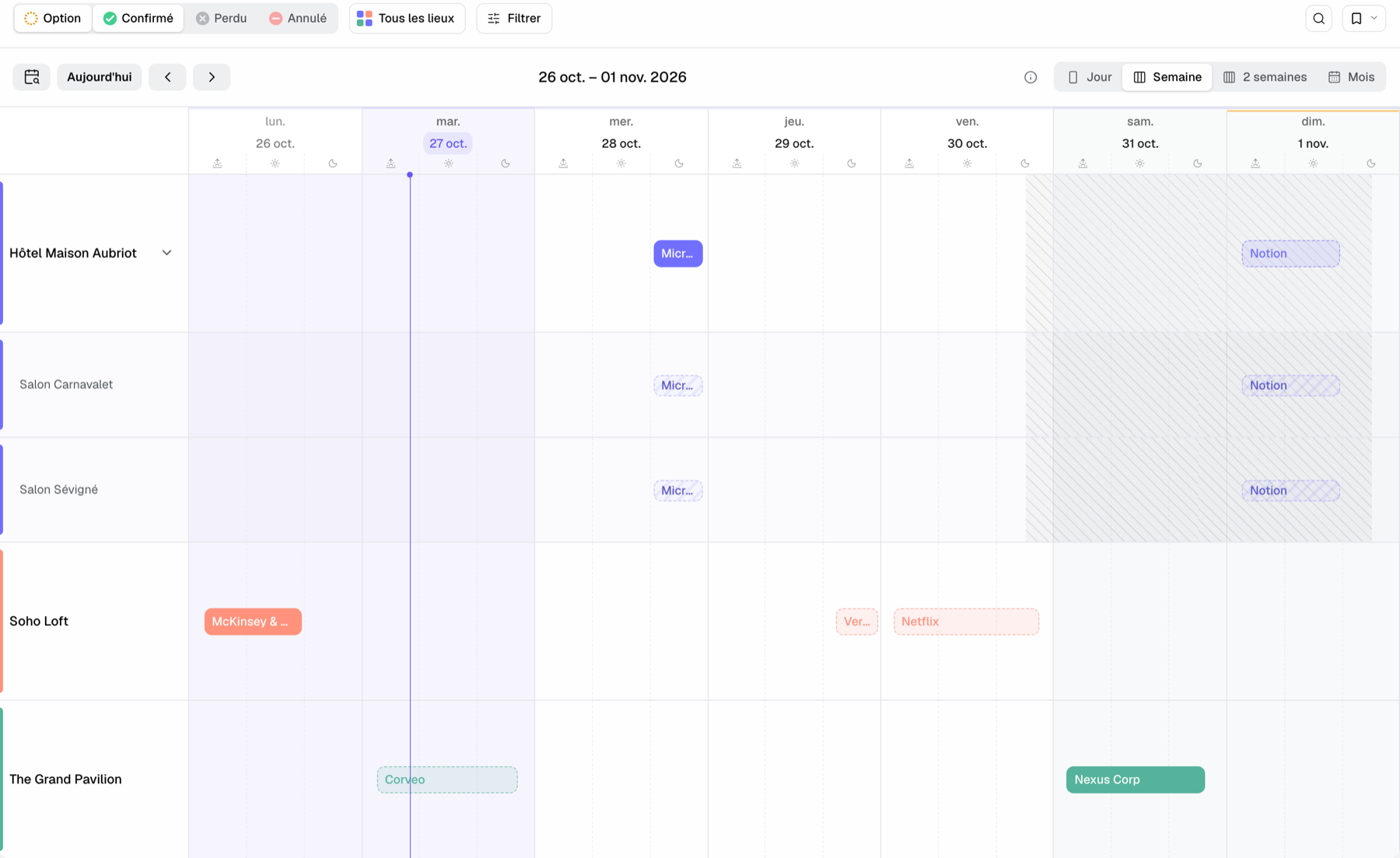
- In "Week" and "2 weeks", each day reads as three parts: morning (6am–12pm), afternoon (12pm–6pm) and evening (after 6pm). An event takes a part once it spends 2 hours in it. The exact hours are on the event card and in the "Day" view, where the night from midnight to 7am is folded.
- In "Month", a day's events are sorted by time; a counter gives their number and "3 more" opens the rest.
- A "Confirmed" event is a solid block, a "Hold" a dotted block. "Lost" and "Canceled" stay hidden until you tick their status.
- Hatched areas are closed: outside the venue's opening hours or during a closure period.
- Weekends are lightly shaded and today is violet. A public holiday has an amber line on its header and its name shows on hover; if it falls today or on the open day, the shade turns amber.
- The ⓘ button next to the scales opens the legend: statuses, parts of the day, closures, double booking and the "Near-certain option (star)".
Tip: public holidays follow the venue's country, and school holidays its zone. You hide them in "Settings" > "Profile", under "Calendar Preferences".
3. Open an event's card
Click a block: its card opens right below it, linked to the block by a line in the venue's color (above it when there is no room at the bottom of the screen). There is no hover card: one gesture, the click.
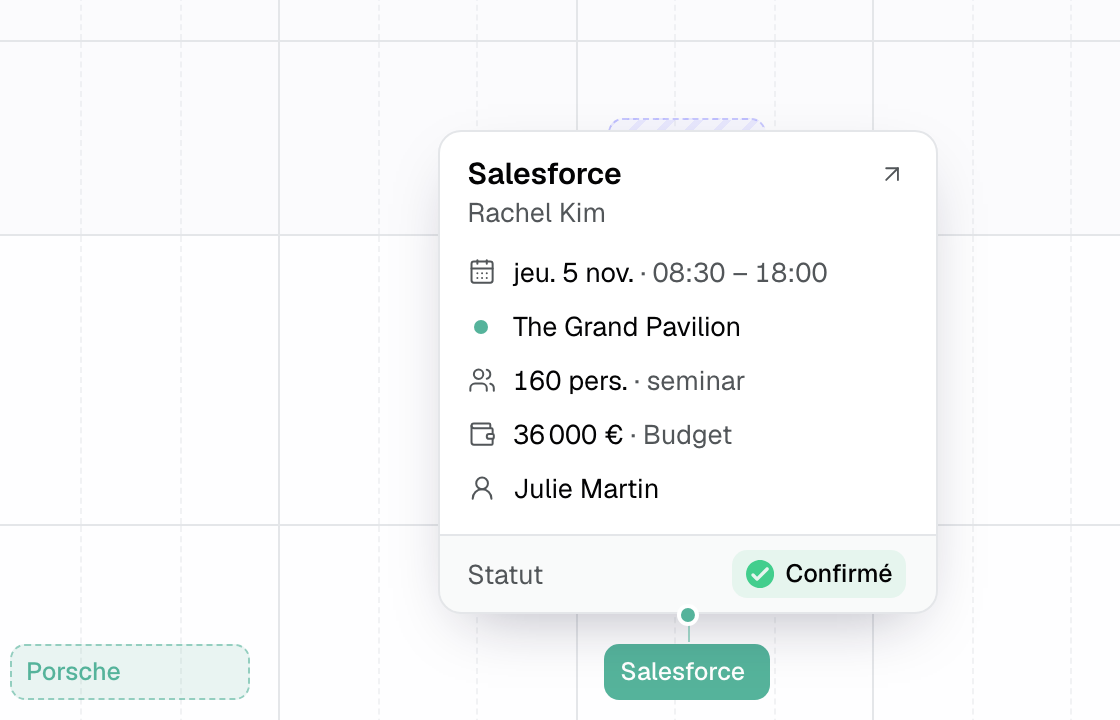
- At the top: the client and their contact. The arrow at the top right opens the event.
- One fact per line: the day and hours, the venue with its mark, the number of people and the type, the current quote with its amount (or the budget when there is no quote), then the owner.
- At the bottom, "Status": click the pill to change the status and the stage. Towards "Lost" or "Canceled", the reason window opens in front of the card.
4. Create, move and resize
- Create: click a free part of a row; the event is suggested over its usual hours. Drag across several parts to cover a range. In the "Day" view, you select by the hour. The "Add an event" button stays available at the top of the page.
- Move: drag the block. In "Week" and "2 weeks", it moves by whole days and keeps its hours. On mobile, a long press picks the event up.
- Resize: drag an edge of the block. In the week views, the end snaps to a part of the day; in the "Day" view, to the hour.
- A single day of a multi-day event: drag the edge of that day's block. Only its hours change, saved as hours per day; the end can go up to 06:00 the next day.
When the change carries no risk (same venue, same rooms, no conflict, no slot lost), it is saved at once, with "Undo" in the confirmation message. Otherwise the "Move this event?" window opens: it lists the other events that overlap the new slot ("This slot overlaps other events. You can still confirm.") and the "Confirm" button waits for the check to finish.
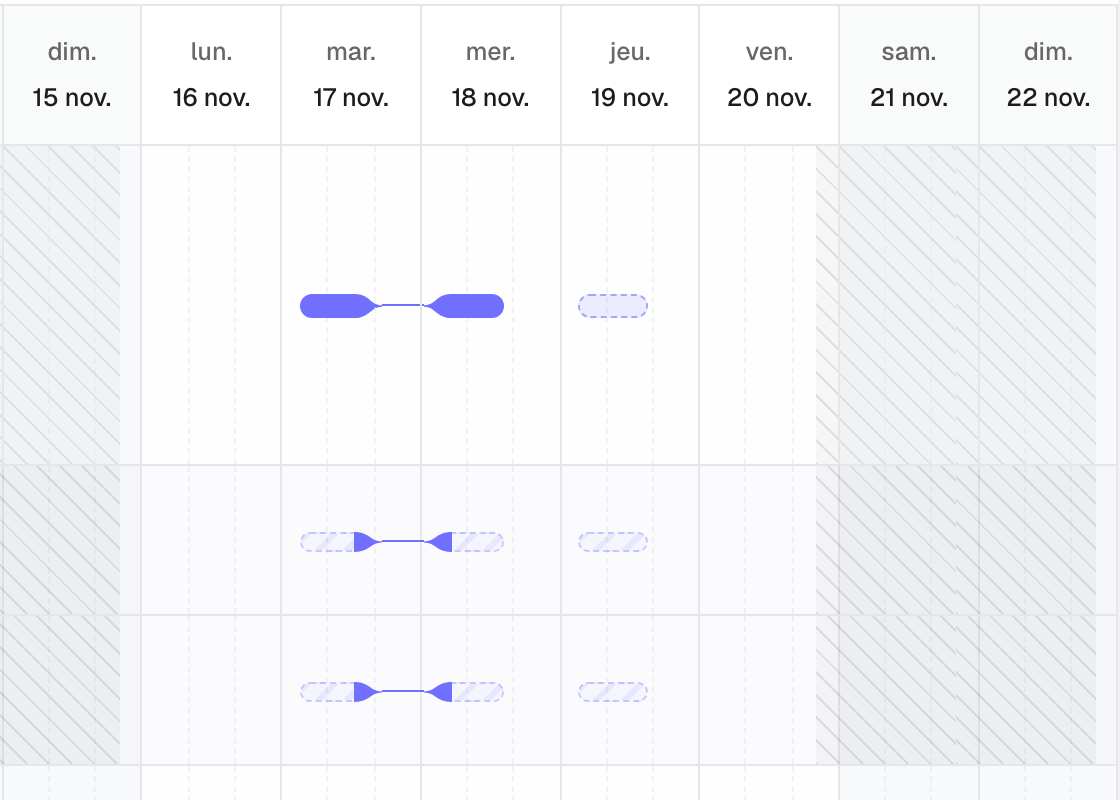
A multi-day event shows one block per day. Between two consecutive days with no other booking on the row, a funnel joins solid blocks; for a hold or a tinted block, it is a thin line in the style of its border.
5. Read the rooms on the planner
- Only base rooms have a row. A combination (for example "Room A + Room B") has no row: its booking shows as a solid block on each room it joins, with "Booked with …" on hover. Dropped on one of its rooms, it only changes time; dropped on another room, it books that room instead.
- An event with no room picked takes the whole venue: it shows hatched on every room row ("Whole venue booked" on hover). These blocks do not move: act on the event itself.
- Expanded venue: the event is drawn once on the venue row, over its whole duration, and its slots on the room rows. A slot shows its name if it has one, otherwise the event name.
- Slots from a quote other than the reference quote are dotted, with that quote's number. Click a slot to see guests and seats, the line and the quote, the layout and the BEO instructions.
- A red outline flags a double booking with a confirmed event in the same room.
- On mobile, each room has a short tag in its color; tap it to read its name. Tap a venue's mark to fold or expand it.
6. Browse the list
The "List" is a chronological planner. Events are grouped in sections: "Ongoing", "Today", "Tomorrow", "This week", "Next week", "Later this month", then one heading per month. Each section shows its number of events and stays at the top while you scroll.
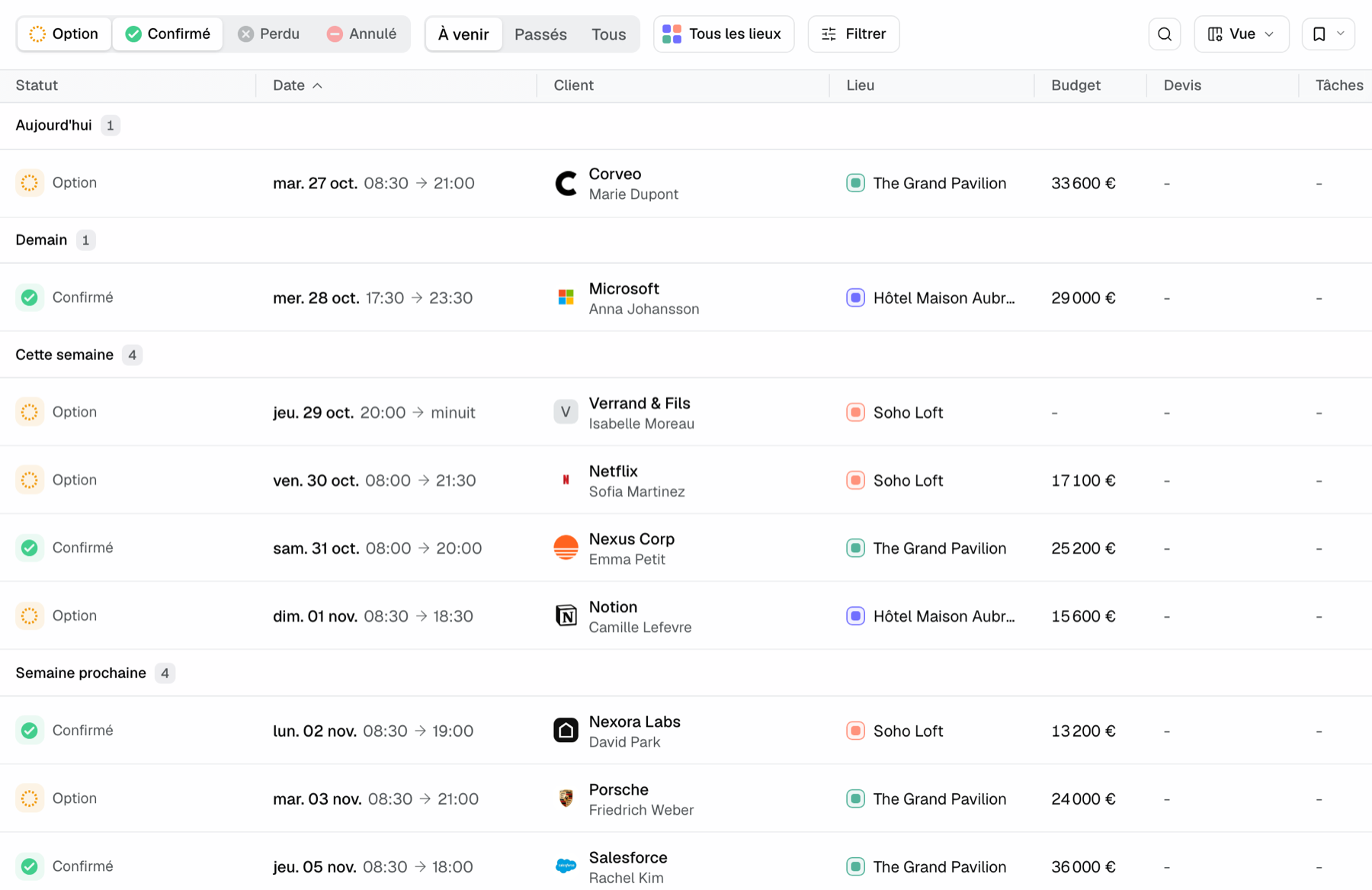
- Period: "Upcoming" (default), "Past" (most recent first) or "All".
- Date: day of the week, hours, and the year only when it is not the current one. A multi-day event shows its range.
- "Proposals" column: the status of the most advanced quote ("Transmitted" or "Validated" for a platform quote). "BEO" column: "Filled" or "2 to handle" when items are waiting for the team.
- A star on a hold marks it "near-certain". The add "+" shows when you hover a row.
- To pick the columns, their order and the totals, see Customize lists.
7. Run your pipeline from the kanban
The "Kanban" sorts events into four columns: "Hold", "Confirmed", "Lost" and "Canceled", each with its number of events. The status buttons leave the filter bar: the columns replace them.
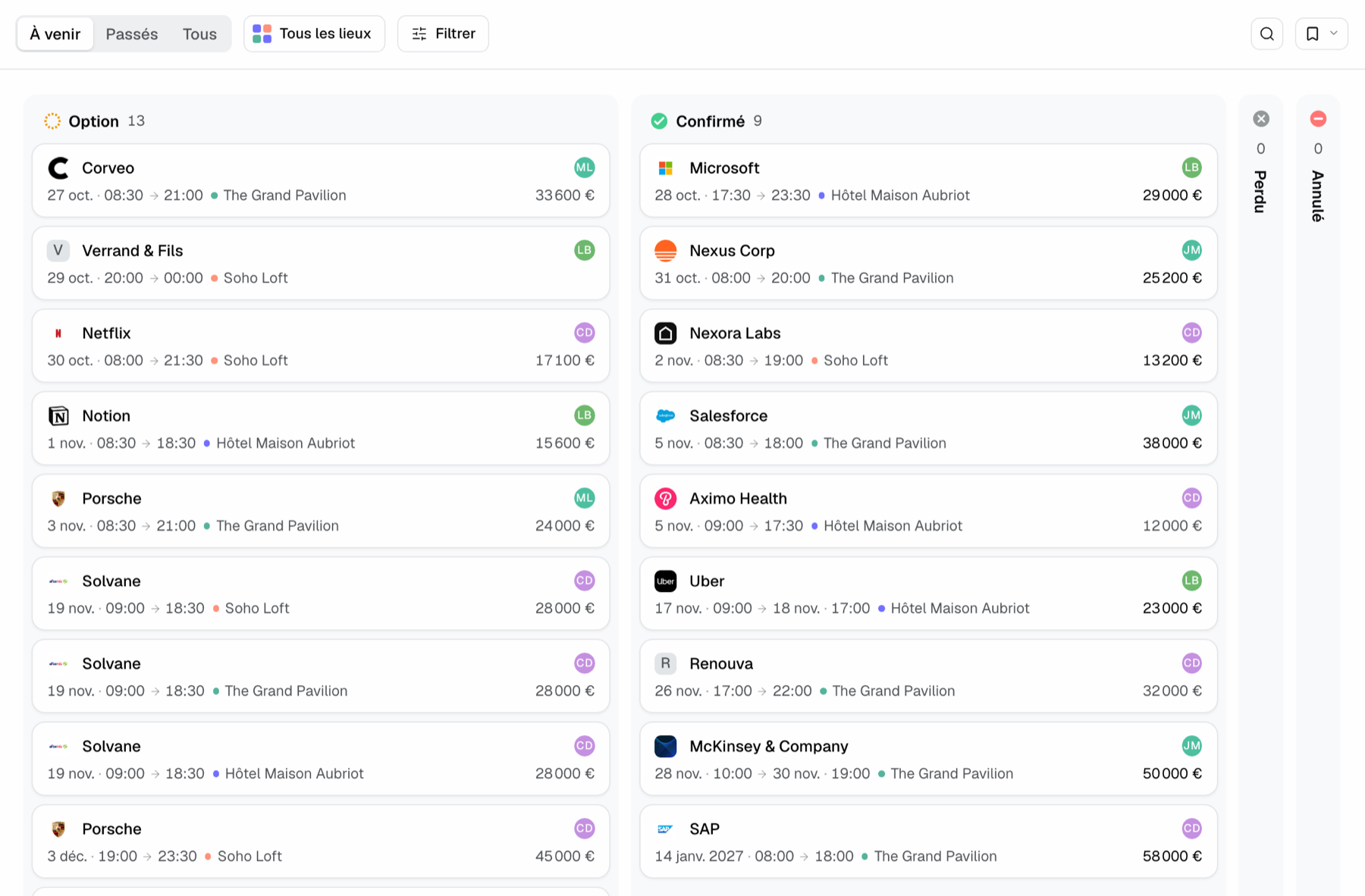
- A card fits on two lines: the name (with the star and the owner's avatar), then the date, the venue with its color and the amount. Confirmed revenue excl. tax shows in black, the budget announced by the client in grey.
- Click a card to open the event; Cmd/Ctrl + click opens it in a new tab. Dragging never opens the card.
- Drag a card to another column to change its status. Towards "Lost" or "Canceled", a window offers an optional reason. Towards "Confirmed", if other holds linked to the same inquiry exist, Joinways offers to mark them lost.
- When you hover a column header: "Fold the column" shrinks it to a vertical band that still accepts drops; click the band to unfold it. The choice is kept in your browser. The "+" creates an event.
8. Filter and save a view
- Statuses: "Hold" and "Confirmed" are ticked by default; tick "Lost" or "Canceled" to show them.
- "All venues": pick one or several venues.
- "Filter": "Company", "Name", "Owner", "Room", "Start Date Range", "Created At Range", "Confirmed revenue excl. tax", "Budget", "Pax", "Source", "Stage", "Proposal status", "Invoice", "Vendor". With "Room", an event booked on the whole venue counts for each of its rooms.
- The magnifying glass opens a quick search on client, contact and title.
- The bookmark button manages saved views: filters, sort and chosen view. When you change an active view, "Save to “…”" and "Back to “…”" appear.
Example: the Monday review at a wedding estate
On Monday, the sales lead opens the "Kanban": 13 holds, 9 confirmed. She folds "Lost" and "Canceled", spots the holds without a quote and follows them up. A hold that became firm moves to "Confirmed"; the window offers to mark the other holds of the same inquiry as lost.
A client calls about a seminar on the 17th. She switches to the "Calendar" in "2 weeks", expands the estate and sees the room is taken in the morning but free in the afternoon. She clicks the afternoon of the 17th to create the hold, then checks in the "List", "Next week" section, that everything is in place.
Troubleshooting
An event I created does not show
Cause: a filter excludes it: unticked status ("Lost" and "Canceled" are hidden by default), "Upcoming" period for a past event, venue not selected, or an active filter in "Filter". Solution: tick its status, set the period to "All" and clear the filters.
The move was saved without asking
Cause: the change carried no risk (same venue, same rooms, no conflict). Solution: click "Undo" in the message shown after the move to go back.
An event shows hatched on a room it does not book
Cause: the event has no room picked and takes the whole venue. Solution: open the event and pick the spaces it really uses.
I can't find the row of a room combination
Cause: combinations no longer have a row on the planner. Solution: read their booking on the rows of the rooms they join, where it shows as a solid block.
Frequently asked questions
Do the three views show the same data?
Yes. Calendar, list and kanban read the same events. A status changed in the kanban or an event moved in the calendar shows up everywhere right away.
How do I see an event's exact hours?
Click its block: the card gives the day and hours. The "Day" view also places events to the hour.
Can I change the status without opening the event?
Yes: drag the card to another kanban column, or click the "Status" pill on the calendar card.
Does a canceled event still hold the room?
No. Only "Hold" and "Confirmed" events hold a room. "Lost" and "Canceled" events are hidden from the calendar by default.
How do I export my events?
From "Settings", "Import/Export": choose "Events" and the format. See Import and export your data.
See also
Testen Sie es 30 Tage lang mit Ihren nächsten Anfragen, ohne Kreditkarte.