Import and export your data
Bring over the history from your previous tool, your venues and your catalog, and export your data whenever you need it.
Aktualisiert am
You are leaving Tripleseat, Perfect Venue, Salesforce or a home-made spreadsheet, and you don't want to retype years of clients and events. The "Import / Export" page brings that history over: companies, contacts and events, then your venues, your spaces and your catalog. The other way round, export gives you your data back at any time, for your accountant, an analysis or a backup.
For history, Joinways checks the file before writing anything: you see what will be created, what already exists and what has a problem. A record already in Joinways is never overwritten.
What you'll learn
- Pick the right import type for your situation.
- Bring over the history of another tool, in the right order.
- Import everything in one file with the complete import.
- Import your venues, spaces and catalog items.
- Export your events, requests, companies and people.
- Follow imports and exports in the history.
Prerequisites
- Be an owner or admin of the workspace: the "Import / Export" page is reserved for them.
- A CSV, Excel (.xlsx) or JSON file of 10 MB or less, with a header row.
- To import events into a workspace with several venues: a column giving each event's venue.
- Your venues and their spaces already created in Joinways if your events must be linked to them.
1. Pick the right import type
Open "Settings" > "Import / Export". The "Import" tab opens on "Data type to import".
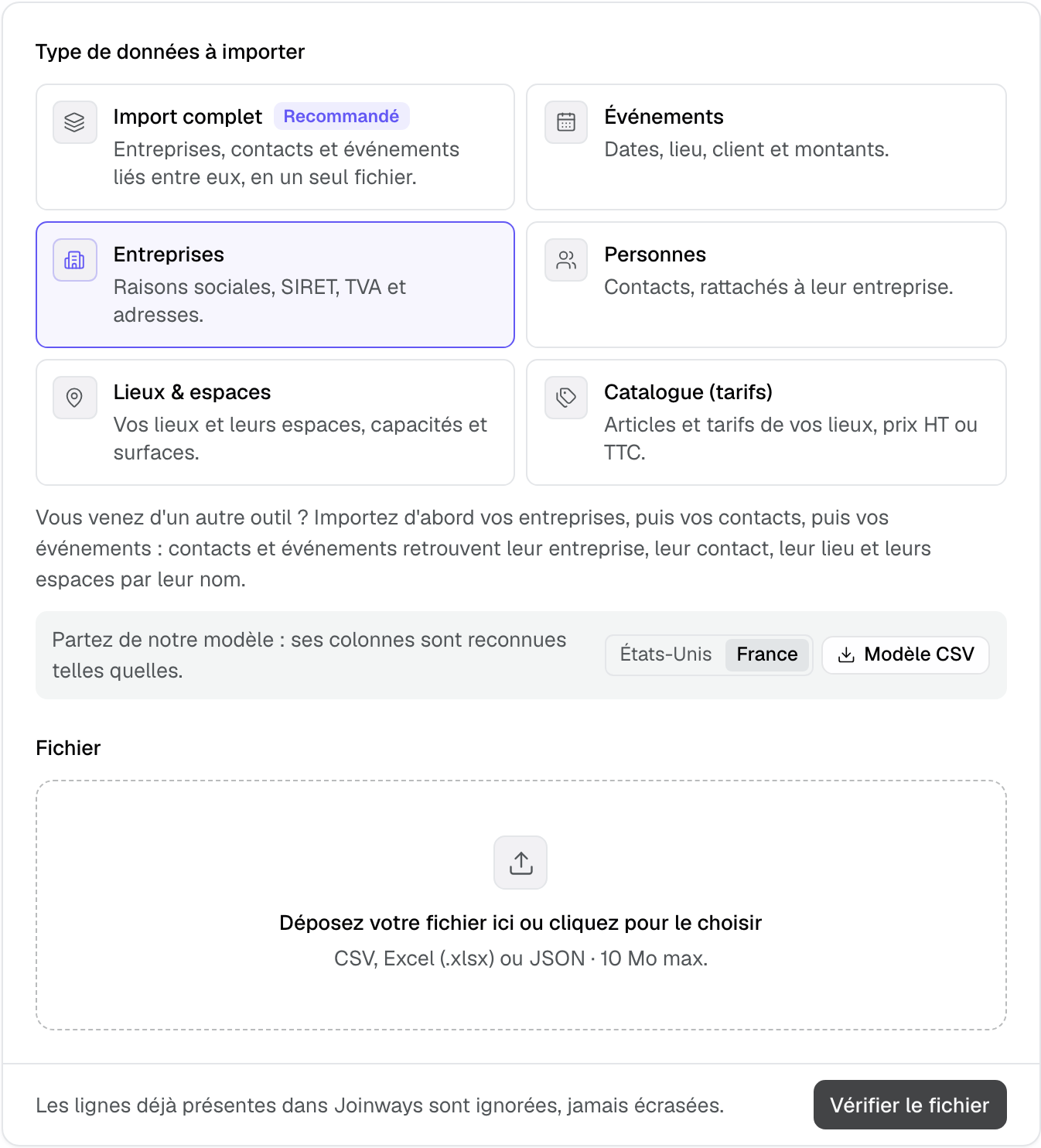
- "Companies", "People", "Events": to bring over the history of another tool, one file per type. Joinways shows a preview, then only adds the new rows.
- "Complete import" ("Recommended"): companies, contacts and events linked together in a single file, built from the Joinways template. A matched record is completed with the file's values.
- "Venues & spaces" and "Catalog (price list)": to create your venues, their spaces and your items in one go.
Each type offers a template to download (the CSV template, or the Excel and JSON templates for the complete import). First pick the template country, United States or France: columns and formats follow that country.
2. Bring over the history of another tool
Import in this order: your companies, then your contacts, then your events. Each contact finds its company by name, and each event finds its company, contact, venue and spaces the same way.
- Choose "Companies".
- Drop the file exported from your previous tool. Tripleseat, Perfect Venue and Salesforce headers are recognized, in English, French and Spanish.
- Review "Map your columns". Fix a wrong match, or choose "Do not import" to skip a column. A required field left unmapped is flagged.
- Click "Check the file". Nothing is written yet.
- Read "Before importing": the number of rows "to create", "already in Joinways" and "with an error", with the detail row by row.
- If the file has dates such as 04/07/2026, check the "Dates such as 04/07/2026 are read as" setting: "DD/MM/YYYY" or "MM/DD/YYYY". Joinways infers it from the file when it can.
- Click "Import N rows". The "Import report" shows the rows created, skipped and with an error.
- Click "Import another file" and start again with "People", then "Events".
What Joinways treats as already there
- A company with the same name, or with the same website.
- A contact with the same email, or the same name in the same company.
- An event with the same name, on the same day, at the same venue.
- Two identical rows in the same file: the second one is skipped.
These rows are counted "already in Joinways" and skipped. Existing records are never changed.
What happens when events are imported
- Your previous tool's statuses are translated into option, confirmed, lost or cancelled (for example Tentative, Definite, Booked, Closed Won, Lost).
- Events that are already over stay in Joinways: they are not pushed to connected calendars.
- Without an event name, Joinways names it after the company or the contact.
- Notes become a note on the event.
- An owner not found among your teammates: the event is assigned to you.
- An unknown time zone: the venue's is used.
- Generic or platform emails (Kactus, Naboo…) are not saved on contacts.
Important: a file holds at most 5,000 companies or contacts, and 2,000 events. Beyond that, split it into several files that keep the same header row.
3. Import everything in one file: the complete import
The complete import loads companies, contacts and events at once, already linked together. Start from the Excel template (one sheet per type) or the JSON template: its columns are recognized as they are, so there is no mapping step.
- Choose "Complete import".
- Download the template, fill in its three sheets and save it.
- Drop the file, then click "Start import". The import keeps running in the background: follow it in "History".
Here a matched record is updated: a filled-in value from the file replaces the old one, an empty cell keeps the existing value. Fill in the "External ID" column (the identifier from your previous tool): running the same file again then updates the records instead of duplicating them.
4. Import your venues, spaces and items
- "Venues & spaces": one venue or space per row. For a space, fill in the parent venue column with the venue's name. Import the venue before its spaces.
- "Catalog (price list)": one item per row, linked to its venue by its name. Each price is given excluding or including tax ("Unit price (excl. tax)" or "Unit price (incl. tax)", and the same for the per-person and minimum prices): fill in only one of the two columns. A price including tax is converted with the row's VAT rate, otherwise the item's, otherwise the venue's default rate.
- An item already in the catalog is updated when you import it again.
If your workspace has a single venue, the "Import" button of its catalog opens this import directly.
5. Export your data
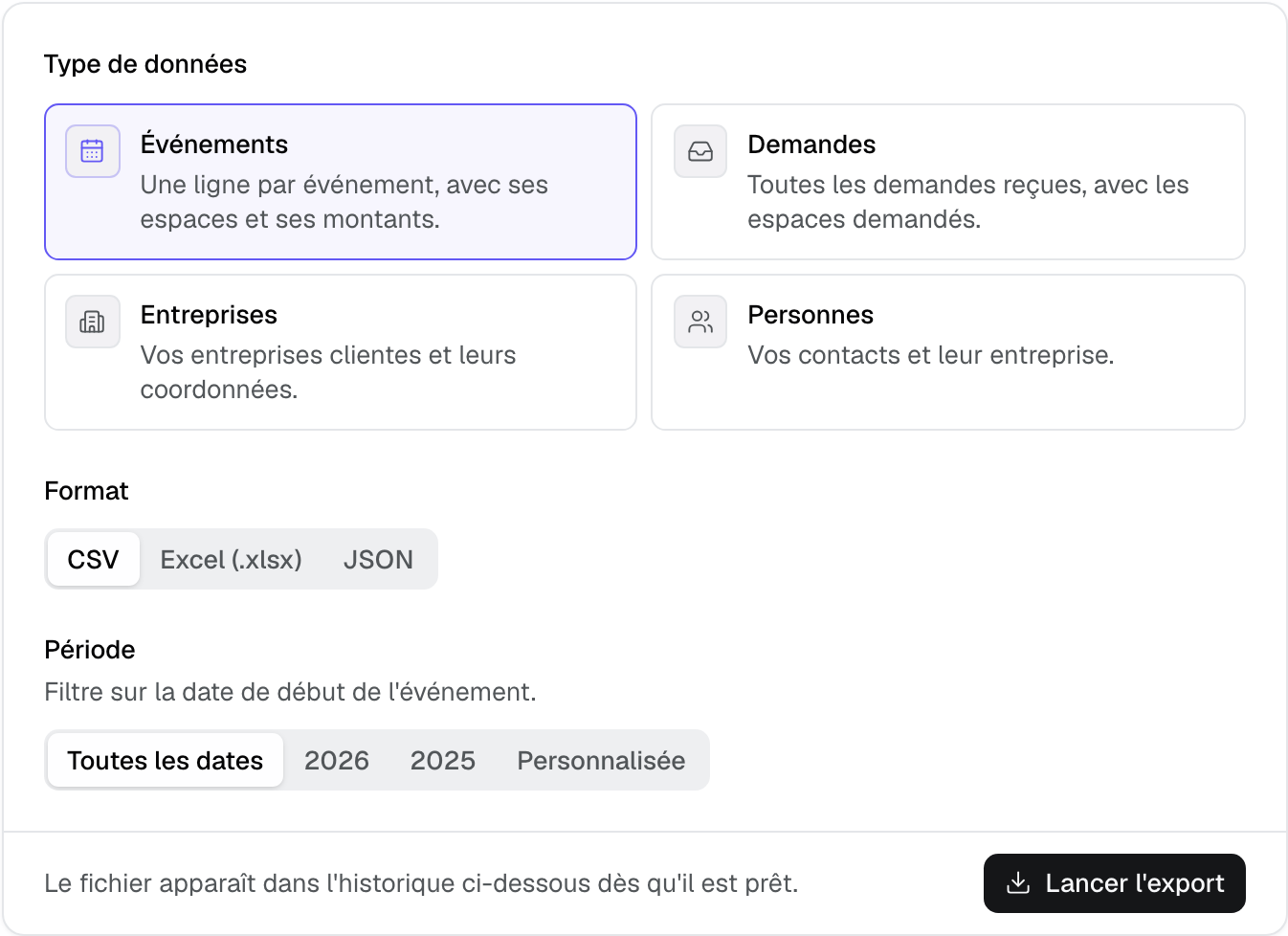
- Open the "Export" tab.
- Under "Data type", choose "Events", "Requests", "Companies" or "People".
- Choose the "Format": CSV, Excel (.xlsx) or JSON.
- For events and requests, set the "Period": "All dates", the current year, the previous year or "Custom". It filters on the event's start date, or on the day the request was received.
- Click "Start export". The file shows up in "History" as soon as it is ready: click "Download".
- An export holds up to 10,000 rows. Beyond that, Joinways reports a partial export: narrow the period and run a second export.
- Archived events are not exported, and neither are requests locked by the Free plan limit.
- In events, the rooms column lists the booked spaces, separated by ";". The file can be imported again as it is.
- Exported files stay available for 7 days.
- From the "People" and "Companies" lists, the "Export" button exports the filtered list, with the fields you choose.
6. Follow your imports and exports
The "History" card, below the tabs, lists your last imports and exports with their status (queued, in progress, completed, failed, cancelled) and the number of rows. "Error report" downloads the rows that were left out and why; "Retry" runs a failed job again.
Example: an estate leaving Tripleseat
A wedding and seminar estate exports its accounts, contacts and events from Tripleseat. It first imports the 480 accounts with "Companies": the preview announces 472 rows to create and 8 already in Joinways, created by hand in the meantime. It then imports 1,150 contacts with "People".
For the 1,600 events, the preview reads dates as MM/DD/YYYY, the order found in the file. Definite and Tentative become confirmed and option. Past events stay out of the team's Google Calendar, which only shows the upcoming ones.
Troubleshooting
"Required field not mapped"
Cause: a required field is linked to no column (for example a company's name or an event's start date). Solution: map it in "Map your columns", or add the column to the file.
"Several venues in this workspace: give the venue in a column"
Cause: your workspace has several venues and the row doesn't say which one. Solution: add a venue column and map it to the existing venue field, with the venue's exact name in Joinways.
"Company … not found: import your companies first"
Cause: the contact or event refers to a company that isn't in Joinways. Solution: import your companies first, then check the file again.
Dates are off by a month
Cause: dates are read in the wrong order. Solution: before importing, switch "Dates such as 04/07/2026 are read as" to the other format.
"This file has … rows, the limit is …"
Cause: the file is over the row limit for this type. Solution: split it into several files with the same header row.
Accented characters look wrong
Cause: the CSV isn't UTF-8 encoded. Solution: save it again as UTF-8, or import the Excel file.
Frequently asked questions
Can an import overwrite my existing records?
Not with "Companies", "People" and "Events": a row already there is skipped. With the complete import, a matched record is completed: an empty cell never replaces an existing value.
Can I run the same file again?
Yes. Rows already imported are recognized and skipped: only the new ones are added.
Will my old events fill the team's calendar?
No. Events that are already over are not sent to Google Calendar or Outlook. Upcoming ones are, like events created in Joinways.
Who can import or export?
The workspace owner and admins. Other roles don't see the page.
See also
Testen Sie es 30 Tage lang mit Ihren nächsten Anfragen, ohne Kreditkarte.