Invite and manage your team
Add your colleagues, assign roles and distribute files to work as a team without stepping on each other.
Updated
As a team, organization makes all the difference. Inviting your colleagues into Joinways, giving each one the right role and clearly splitting the files turns a confusing inbox into a well-oiled machine where nobody steps on anyone's toes. This page walks you through building your team, dosing access and assigning responsibilities.
The point isn't just to add accounts: it's to define who sees what, who can act on what, and who owns each incoming request. Set up well, this structure prevents oversights, duplicate follow-ups and conflicting access to sensitive information.
Prerequisites
Before inviting your team, you need an active Joinways workspace and an account allowed to manage members (administrator or workspace owner).
- The number of teammates never changes your bill: Joinways bills per venue, not per user.
- Prepare the list of your colleagues' email addresses: each invitation goes to a specific address.
- Decide ahead of time who needs admin rights and who only needs everyday access: you will adjust roles as soon as the invitations are accepted.
What you'll learn
- Invite a team member into your workspace.
- Assign a role suited to each function.
- Assign files so everyone knows what to handle.
- Review and remove access over time.
Invite a member
The invitation is the starting point: it links an email address to your workspace. Until the person accepts, they appear as a pending invitee.
- Go to Settings then Teammates.
- Click “Invite teammates” and enter the person's email, first name and last name. “Add another teammate” lets you invite several people at once.
- You do not choose a role at this step: every invitee joins the workspace as a “Teammate”, with access to all your venues. You adjust their role once the invitation is accepted.
- Click “Send Invites”: each person receives an email to join the workspace. The invitation is valid for 14 days.
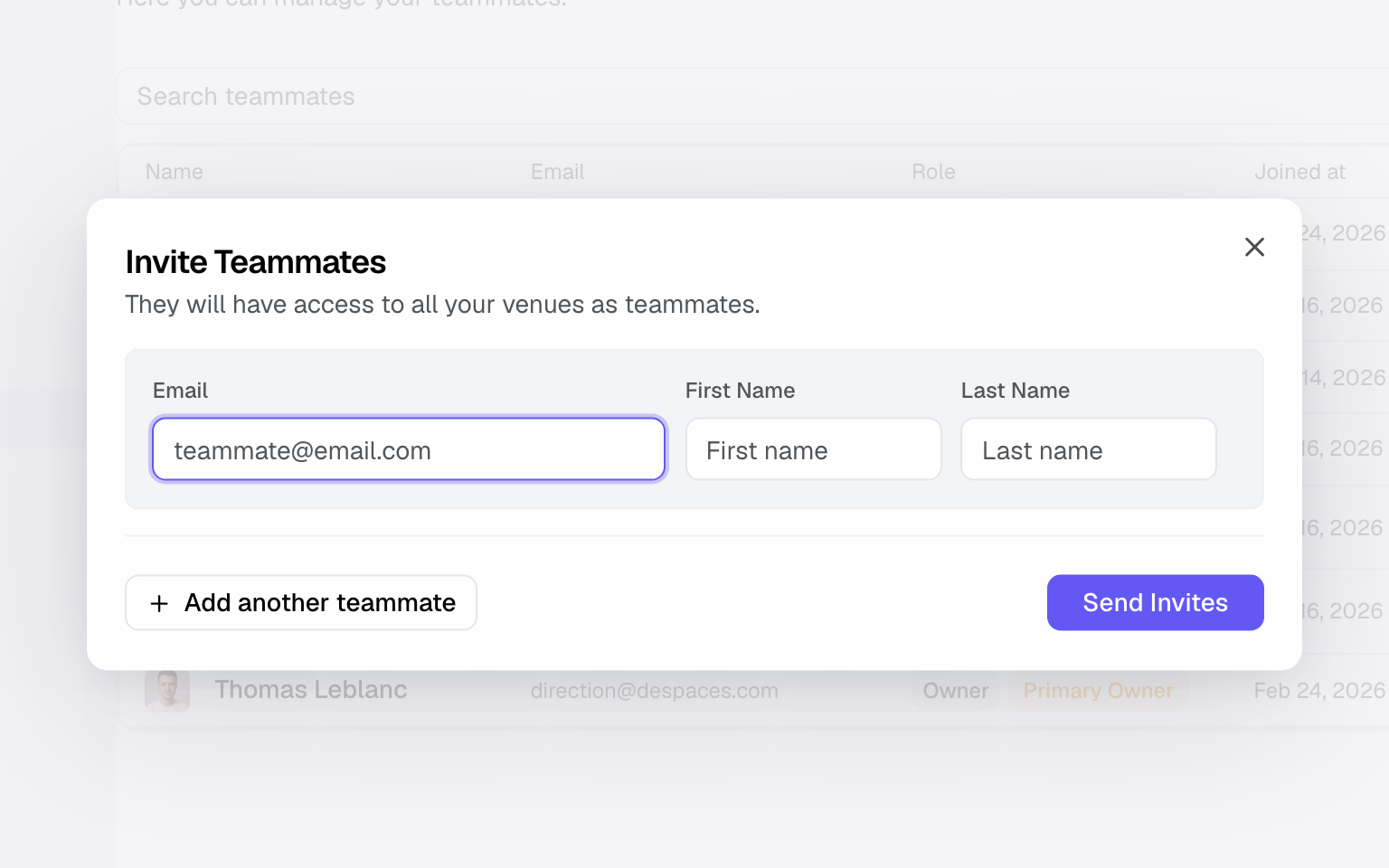
Once the invitation is accepted, the member appears in the team list and can start working according to their role's rights.
While the invitation stays pending, you can track it from the team list: handy for spotting a wrong address or an email that never arrived.
Manage the team list
The team list gathers in one place all active members and all pending invitations. It's your dashboard for knowing who makes up the workspace and with which role.
- Open Settings then Teammates to see all members and their role.
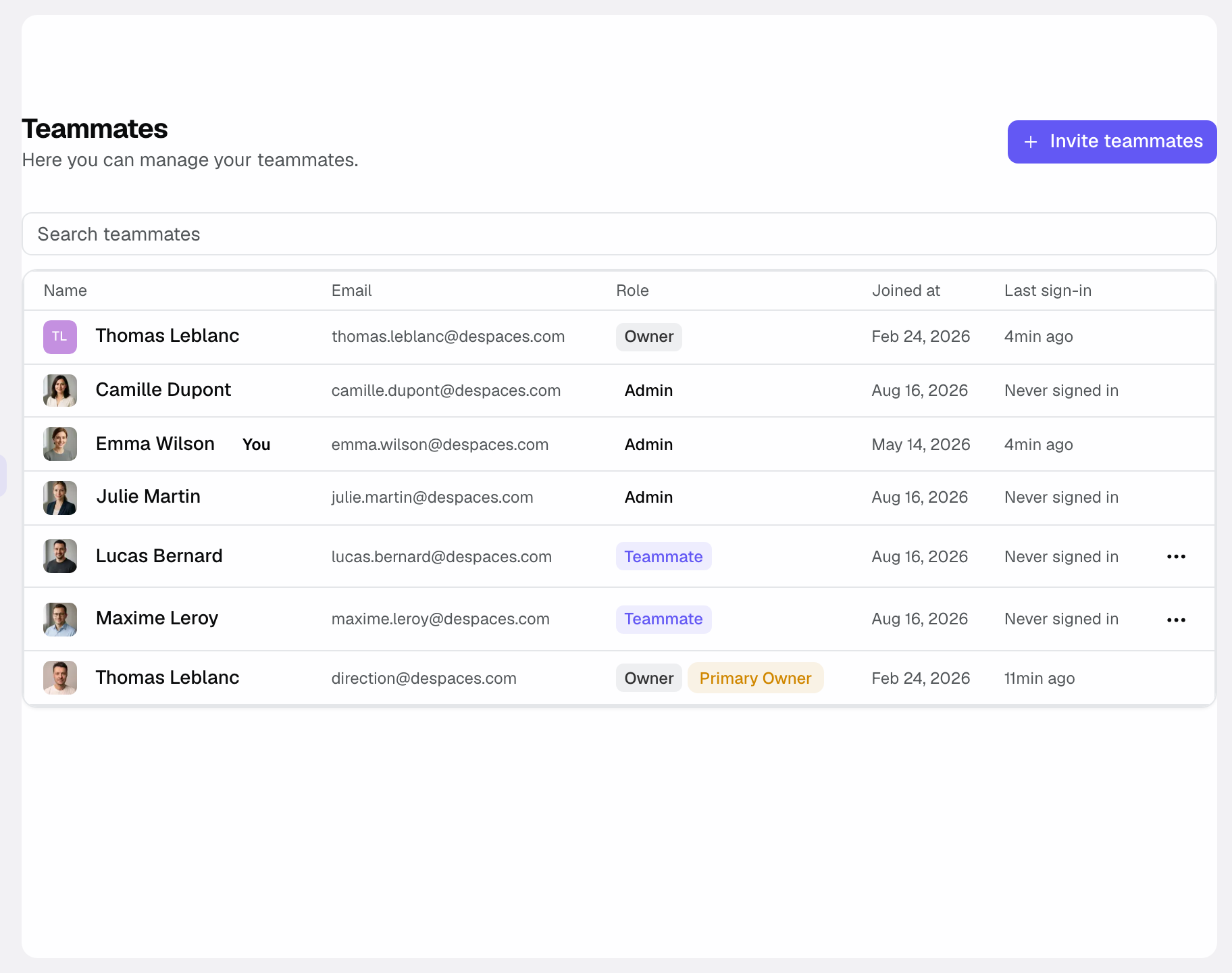
- Spot the invitations still pending, distinct from members who have already accepted.
- From a member's “Actions” menu: “Update Role” or “Remove from Account”. The primary owner also gets “Edit Teammate” (first and last name) and “Transfer Ownership”.
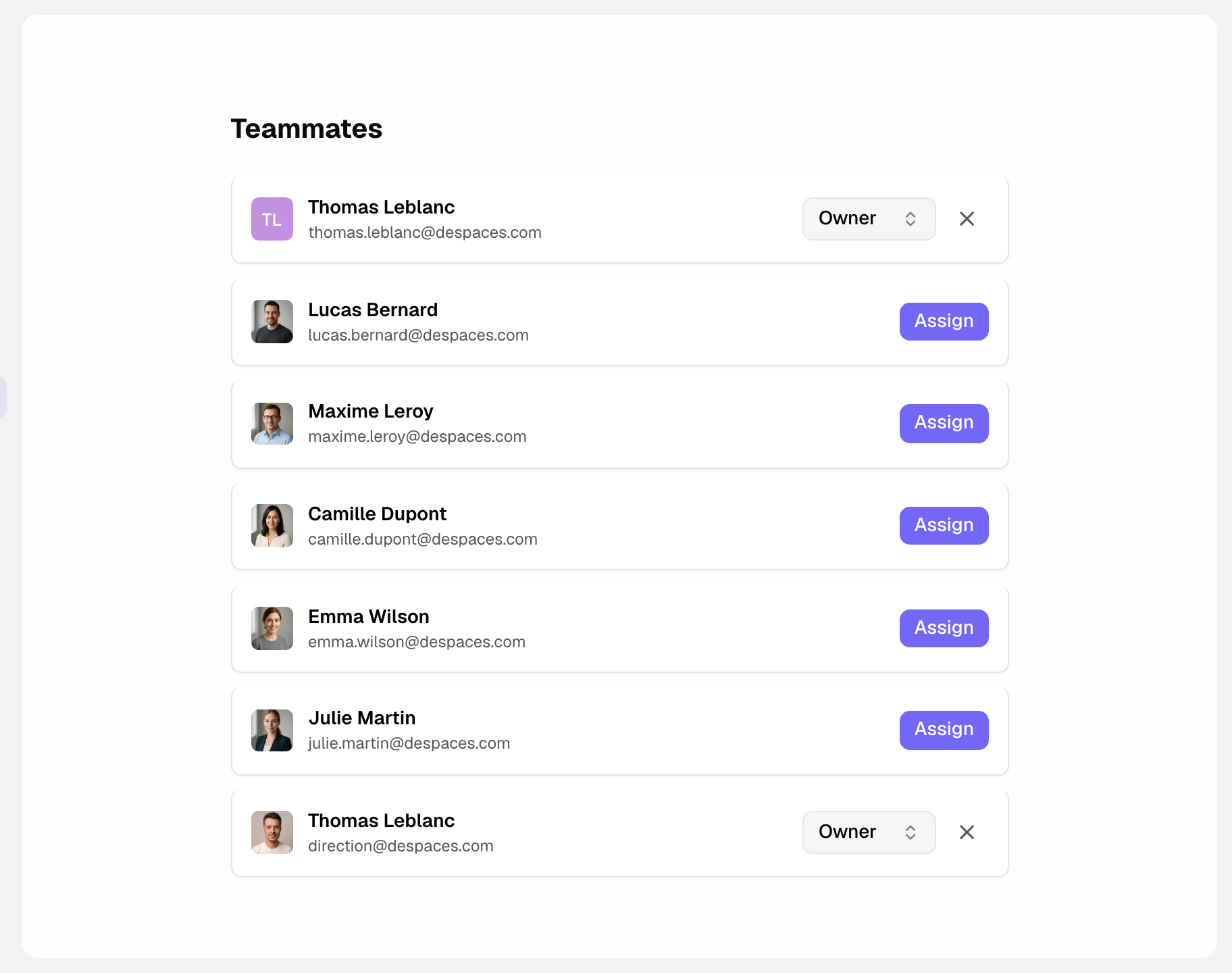
To tune access venue by venue, open “Settings” then “Venues”, the venue, then its “Teammates” section. There you choose who is assigned to the venue and with which role: “Owner” (manages the whole venue), “Teammate” (normal access) or “Viewer” (sees the venue and its items without editing them).
Assign a role
The role is the cornerstone of team security: it decides what each person can see and do. Giving access suited to each function avoids both frustration (too few rights) and risk (too many rights).
- Give access suited to each function: a salesperson doesn't have the same needs as an administrator.
- Limit sensitive actions to administrators, so critical operations stay in the right hands.
When in doubt, start from the most restricted role: it's always easier to widen rights than to repair an information leak.
Assign files
Assigning an owner to each file is what keeps requests from falling through the cracks. Everyone knows which files are theirs, and follow-ups no longer depend on anyone's memory.
- For each event, fill in the “Owner” field: that person is responsible for the record.
- The owner becomes the point of contact: they see their files and handle the follow-up end to end.
- Set that owner as soon as a request becomes an event, so that no record is left without someone in charge.
Roles and permissions reference
Here are the access principles to know in order to dose everyone's rights well.
- “Owner” and “Admin”: they manage teammates, invitations, billing and workspace settings. The owner remains the only one who can create or edit automations.
- “Teammate” and “Viewer”: they access leads, events and quotes, but cannot open restricted settings (teammates, billing, integrations). To restrict a member's rights on a venue, give them the venue role “Viewer” in that venue's “Teammates” section.
- Record owner: the person set in the “Owner” field of an event, in charge of following it up.
- Pending invitee: an address an invitation was sent to but that hasn't accepted yet; it has no access yet.
- Removed member: a person whose access was revoked; they can no longer view or handle any file in the workspace.
The exact rights depend on the role assigned: give each function the access level it truly needs, and reserve sensitive actions for administrators.
How it works
An invitation links an email address to your workspace: the person joins with the “Teammate” role. From then on, their role, which you can change at any time, determines what they can do in the workspace.
Files, on the other hand, attach to an owner. This assignment is independent of the role: one standard member can own many files, and a file has one clear owner at a time.
So the role governs the technical rights (what is allowed), while the assignment governs the organization of work (who handles it).
Edge cases
- A teammate changes function: adjust their role rather than piling up rights that have become useless. Moving someone between roles takes effect immediately.
- Someone leaves the team: remove their access immediately so they can no longer view the files, even if they kept their role before.
- A file with no owner: it risks going unnoticed. Always assign an owner, even a temporary one, to every new file.
- An invitation stays pending too long: the person may never have received it. “Renew Invitation” extends it by 14 days without resending the email. To resend the email, choose “Remove Invitation” and invite the right address again.
Good to know: assigning an owner to each event prevents oversights and clarifies who does what. It's the reflex that separates a team that follows up on time from a team that discovers a forgotten file too late.
Best practices
- Always assign a file owner: no file should remain orphaned.
- Remove access for people who leave as soon as they depart, without waiting.
- Review roles regularly: needs evolve, and a right granted one day may become useless.
- Reserve the administrator role for a small number of trusted people.
- Split incoming requests as they come in rather than letting a shared queue pile up.
- Document internally who is an administrator, so everyone knows who to ask for a sensitive action.
- Check pending invitations: an invitation never accepted often signals a wrong address.
Troubleshooting
Problem: the invitee does not receive the invitation. Cause: the email may have been mistyped or filtered as spam. Fix: check the address and ask the person to look in their spam folder. If needed, remove the invitation from “Settings” then “Teammates” (“Remove Invitation”) and invite them again: a new email is sent.
Problem: a member cannot see a record. Cause: a filter is active in their view (venue, owner, status, archived). Assignment never hides a record: every workspace member sees every record. Fix: clear the list or calendar filters.
Problem: a teammate cannot reach something they need. Cause: their role is too restricted, in the workspace or on a venue. Solution: change their role in Settings then Teammates or, if they are “Viewer” on a venue, in that venue's “Teammates” section. There is no seat limit to free up: billing follows your number of venues, not your number of users.
Real-world example
A team of 4 splits incoming inquiries by owner. Everyone sees their files, follow-ups no longer fall through the cracks and tracking becomes predictable. Each file's owner knows exactly what to handle, and the administrator keeps control of the sensitive settings.
Another example
A new colleague joins for the season. The admin invites them by email: they join the workspace as a “Teammate”. The admin makes them “Owner” of a few events and, if needed, restricts their venues in each venue's “Teammates” section. At the end of the season, “Remove from Account” cuts their access in one click.
FAQ
How many members can I invite?
As many as you need. Joinways bills per venue, not per user, so inviting a colleague never costs more.
How do I invite someone?
Go to “Settings” then “Teammates”, click “Invite teammates”, enter the email, first name and last name, then “Send Invites”. The person joins as a “Teammate”; change their role afterwards with “Update Role”.
What's the difference between a role and a file assignment?
The role defines rights (what you can do); the assignment defines who is responsible for a specific file.
What happens when someone leaves the team?
Remove their access: the person can no longer view or handle the workspace files.
Does every member need an administrator role?
No. Reserve the administrator role for people who manage members and sensitive actions; the rest stay standard members.
Can a file have several owners?
Designate one clear owner per file to avoid dilution; that person is the point of contact for follow-up.
How do I resend an invitation that wasn't received?
Check the address and the recipient's spam folder. To resend the email, remove the invitation (“Remove Invitation”) and invite the person again. “Renew Invitation” only extends its validity by 14 days.
Can I change a member's role afterwards?
Yes: from Settings then Teammates, change a member's role whenever their responsibilities evolve.
See also
Bring every event inquiry into one queue.