Security and access
Passwordless sign-in, two-factor authentication, roles, and revoking keys, apps and integrations.
Aggiornato il
Your client data is sensitive: contacts, quotes, amounts. Three levers protect it: how each person signs in, each person's role in the workspace, and the access given to outside tools (API keys, connected apps, integrations).
This article shows how to secure your account with two-factor authentication, who can access what, and how to cut off access.
What you'll learn
- Understand the ways to sign in to Joinways.
- Turn on two-factor authentication.
- Know which role opens which sensitive settings.
- Revoke a key, an app or an integration.
Prerequisites
- Your personal account: each user sets their own security in "Settings" > "Security & Access".
- Be an "Owner" or "Admin" to manage teammates, integrations and the "Developers" page.
- An authenticator app on your phone (Google Authenticator, Microsoft Authenticator, 1Password…) for two-factor authentication.
1. Understand sign-in
Joinways signs in without a password first. On the sign-in page, you enter your email address and get a 6-digit code, or you click "Continue with Google" or "Continue with Microsoft". For a Gmail, Google Workspace or Microsoft 365 address, Joinways offers the right provider directly. A password still works if you have set one.
Signing out only closes the session on the device you use: you stay signed in on your other devices, such as the mobile app.
2. Set your account security
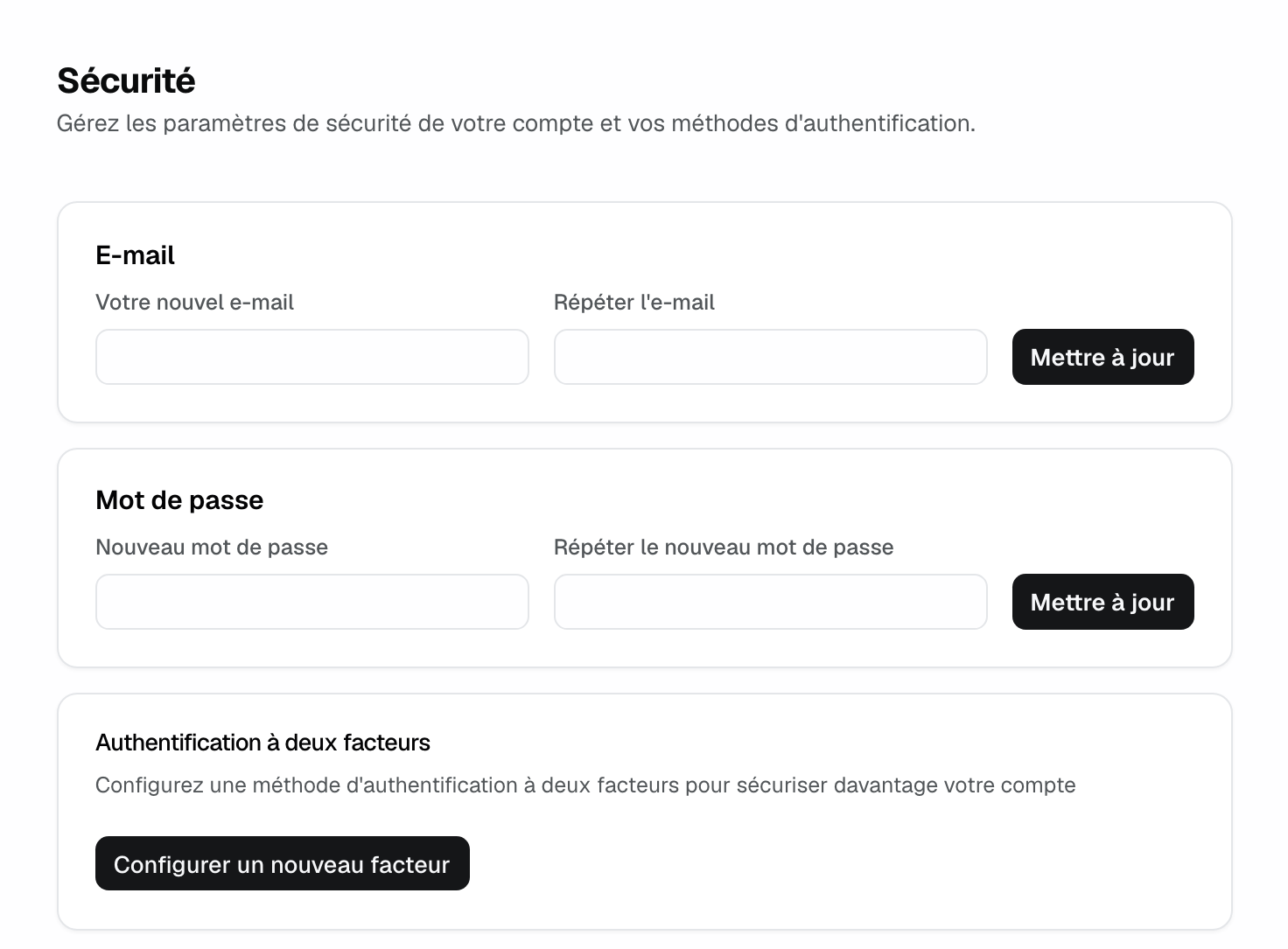
Open "Settings" > "Security & Access". The "Security" page groups:
- "Email": your sign-in address. A confirmation email goes to the new address.
- "Password": to set or change one.
- "Multi-Factor Authentication": see step 3.
- "Linked Accounts": the methods already linked to your account, and under "Available Accounts", Google or Microsoft to add.
- "Danger Zone": "Delete your Account" deletes your account and the workspaces you own, and cancels their subscriptions. This is permanent.
3. Turn on two-factor authentication
- In the "Multi-Factor Authentication" card, click "Setup a new Factor".
- Scan the QR code with your authenticator app, then enter the code it shows.
- Name the factor, for example after your phone, to recognize it later.
At each sign-in, after the email code or Google and Microsoft, Joinways then asks for the app's code. The Joinways mobile app asks for it too, in a separate step. The same code confirms deleting a workspace.
Tip: register a second factor on another device. If you lose your phone, you can still sign in.
4. Give the right level of access
Workspace roles decide who touches sensitive settings:
- "Owner" and "Admin": "Teammates", "Integrations", "Developers", "Import / Export", "Plans" and "Invoices & payment". Only the primary owner transfers ownership or deletes the workspace, with a verification code.
- "Member": requests, quotes and events, without those settings.
- "Operations": planning and BEOs, without requests, quotes or revenue.
- "Read-only": views everything, changes nothing.
To limit a teammate to some venues, use the "Venues" column in "Settings" > "Teammates". See Invite and manage your team.
5. Revoke access
API keys, connected apps and integrations read your data without going through the sign-in screen. Treat them as secrets and cut off those you no longer use. Revocation is immediate.
- An API key: "Settings" > "Developers", "API keys" tab.
- An AI assistant (Claude, ChatGPT): "Settings" > "Developers", "MCP" tab, "Connected apps" section.
- A connected tool (calendar, payment, accounting, messaging): "Settings" > "Integrations".
- Someone who leaves: "Settings" > "Teammates", "Remove from Account".
If the use is still legitimate, create a new key afterwards and update it wherever the old one was used.
Example: a key pasted by mistake
A hotel's sales manager pastes an API key into a team message by mistake. He opens "Settings" > "Developers", "API keys" tab, revokes the key, creates a new one and replaces it in the tool that used it. The old key no longer opens anything. He also turns on two-factor authentication on his account.
Troubleshooting
I don't get the sign-in code
Cause: filtered email or a typo in the address. Solution: check your spam folder, use "Change" to fix the address, then resend the code. With a Google or Microsoft address, "Continue with Google" or "Continue with Microsoft" skips the code.
I lost the phone with my two-factor app
Cause: your only registered factor is on that device. Solution: sign in with a second factor if you have one, then remove the old one. Otherwise, write to Joinways support from your account's address.
A teammate can't open "Integrations" or "Developers"
Cause: these pages are reserved for owners and admins. Solution: an admin makes the change, or changes the teammate's role.
A message says the account is suspended
Cause: access to the account has been suspended. Solution: contact Joinways support.
Frequently asked questions
Do I need a password to use Joinways?
No. The email code, Google or Microsoft are enough. A password is still possible from the "Password" card.
Is two-factor authentication mandatory?
No, each user turns it on for their account. It is recommended for owners and admins, who manage the team and integrations.
Can I share my account with a colleague?
No. Invite them as a teammate with a suitable role: it's free and everyone keeps their own access.
Does signing out on my computer sign me out on my phone?
No. Signing out only closes the session on the device you use.
See also
Provalo sulle tue prossime richieste per 30 giorni, senza carta.