Tasks and follow-up
Create tasks linked to your events, assign them and follow them by due date: overdue, today, upcoming, no due date, completed.
Aggiornato il
At a venue, sales are won on follow-up: calling back after a site visit, sending the promised quote, confirming the menu with the kitchen. One slip is enough for a client to sign elsewhere.
A task turns every "I need to call back" into a dated, assigned action linked to the right file. The "Tasks" page then sorts your actions by due date, and the sidebar counter tells you each morning how many are waiting.
What you'll learn
- Create a task from an event or from the "Tasks" page.
- Assign it, give it a due date and a priority.
- Read the five sections of the "Tasks" page and sort the list.
- Check off, edit or delete a task.
- Automate quote follow-ups.
Prerequisites
- A role that can edit the workspace's data: with "Read-only", you see tasks but can't create or edit them.
- Your teammates invited to the workspace, so you can assign them tasks.
- The "Task owned" and "Task due tomorrow" notifications turned on if you want to be alerted.
1. Create a task
A task can be linked to an event, a person or a company, one at a time, or to nothing for an internal action.
- From a file: open the event (or a person's or company's page), "Tasks" tab, then click "Add task". The task is linked to that file.
- From the menu: open "Tasks", click "Add task", then pick the link with "Attach to" ("Event", "Person" or "Company").
- Type a title, or pick a suggestion: "Follow up with client", "Send proposal", "Confirm booking", "Schedule visit". Suggestions only appear once the task is linked. Type @ to mention a teammate in the title.
- Set the due date ("Today" by default, "Tomorrow", "Next week", a calendar date or "No date"), the assignee ("Assigned to me" by default) and the priority ("Medium" by default).
- Click "Save" or press Enter.
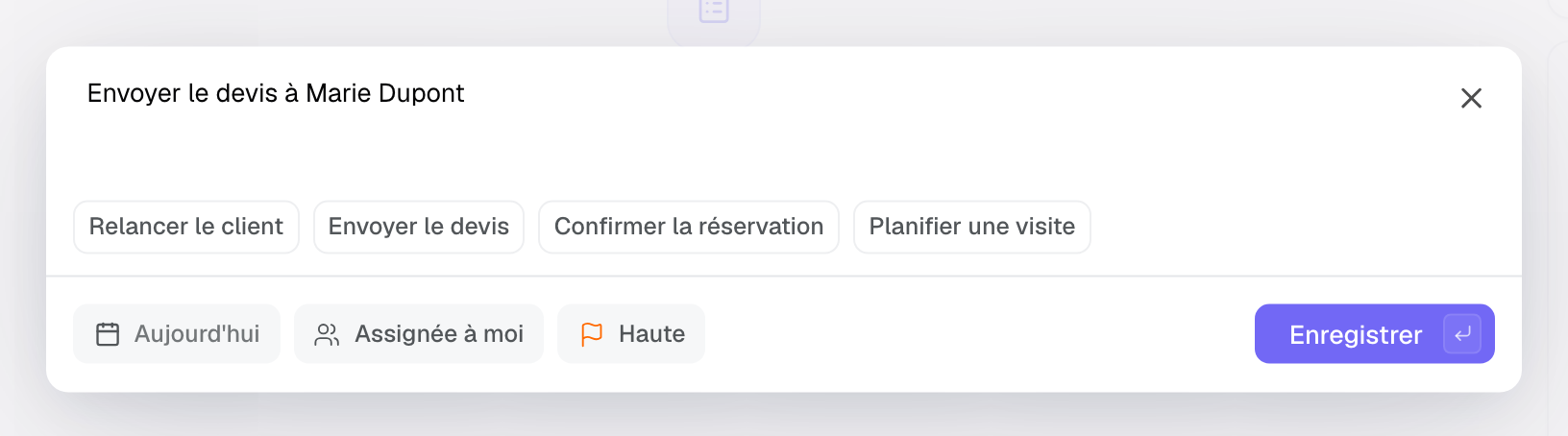
Escape or a click outside the window doesn't throw away what you're typing: the window shakes and stays open. The cross closes it.
2. Assign and prioritize
The assignee is the person who acts: without one, a task is left orphaned. The priority says in which order to handle the actions of a busy day.
- Priorities: "Low", "Medium" (default), "High", "Urgent". A follow-up on a hot quote goes to "High" or "Urgent".
- The assignee gets the "Task assigned" notification as soon as the task is given to them, then "Task due tomorrow" the day before the due date, depending on their preferences.
- To reassign, edit the task and change the assignee.
3. Find your tasks
The "Tasks" page gathers the workspace's tasks. By default, the "Assigned to" filter is set to "Me". Tasks are sorted into five sections, computed by day in the workspace's time zone, each with its counter:
- "Overdue": due date passed, task not done.
- "Today": due today.
- "Upcoming": due later.
- "No due date": no due date.
- "Completed": checked-off tasks.
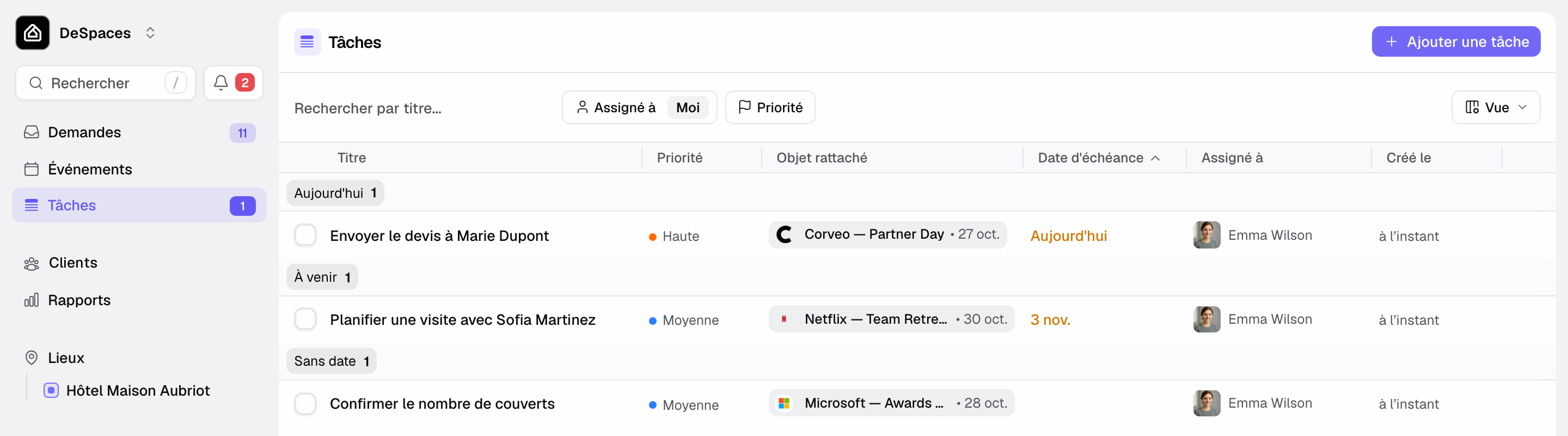
- Columns: "Title", "Priority", "Linked item" (the event and its date, the person or the company), "Due date", "Assigned to", "Created at". The "View" button sets them as in the other lists; the checkbox and title stay frozen. See Customize lists: columns, views and totals.
- Sort: click a header (title, priority, due date, assignee, creation date). The sort applies inside each section, across all tasks, not only those loaded.
- Filters: "Search by title...", "Assigned to" (you, a teammate or several), "Priority".
- On a phone, each task shows as a card.
In the sidebar, the "Tasks" counter adds up your open "Overdue" and "Today" tasks. It updates at midnight, workspace time. The "Tasks" tabs of an event, a person and a company show that file's tasks, and stay visible even when empty.
4. Check off, edit or delete
- Check the box in front of the task once the action is done: it moves to "Completed". Uncheck it to reopen it.
- Click a task, or pick "Edit" in its row menu, to change its title, due date, assignee, priority or link.
- For a task that is no longer needed, pick "Delete" in its row menu. A message lets you undo for a few seconds.
On an event page, the "To do now" block of the Overview also shows your next open task, with "Done" to check it off without opening the tab.
5. Automate follow-ups
An automation can create tasks with the "Create a task" action, for example a follow-up a few days after a quote left unanswered ("Proposal sent, no reply" trigger). The task is created on the event and assigned to its owner. See Workflow examples to copy.
Joinways also cancels some tasks on its own: the open tasks of an archived event (they come back if you unarchive it) and the follow-up tasks of a quote that is accepted, signed, declined or canceled. Canceled tasks no longer appear in the list.
Tip: create a "Proposal sent, no reply" automation with a 3-day delay and the "Create a task" action. The follow-up is created without you thinking about it, and is canceled if the client signs in the meantime.
Example: after a site visit
After a couple visits the estate, the account manager creates three tasks on the event: "Send proposal" for tomorrow with "High" priority, "Follow up with client" in a week, and "Confirm the menu" assigned to the chef, with no date for now. The next day, the sidebar counter shows 1: the quote to send is in "Today".
Troubleshooting
I don't get any reminder
Cause: the task has no due date or no assignee, or the "Task due tomorrow" notification is off. The reminder goes out the day before the due date, not on the day. Solution: add a due date and an assignee, then check your notifications.
The "Tasks" page is empty
Cause: the "Assigned to" filter is set to "Me" and no task is assigned to you. Solution: click "See all tasks", or change the filter.
Title suggestions don't appear
Cause: the task isn't linked to anything. Solution: pick an event, a person or a company with "Attach to".
I can't edit an event's tasks
Cause: the event is archived, or your role is "Read-only". Solution: unarchive the event, or ask an admin for another role.
Frequently asked questions
Does a task have to be linked to an event?
No. It can be linked to an event, a person, a company, or nothing.
What does the number next to "Tasks" count?
Your open tasks that are overdue or due today, in the workspace's time zone.
Why isn't a task in "To do now"?
The block only shows your next open task: a task assigned to a teammate only shows for them. An unassigned task shows for the whole team.
Where can I see completed tasks?
In the "Completed" section, at the bottom of the "Tasks" page and of each file's "Tasks" tab.
See also
Provalo sulle tue prossime richieste per 30 giorni, senza carta.