Set up the event card and its fields
Section order, added fields, types, sources and layouts: set what your team sees on every event, for the whole workspace.
Updated
Every venue tracks its events in its own way: an estate notes the caterer and the time of the cocktail hour, a hotel the PO number. When the event card has no place for that information, it ends up in a note or in a separate spreadsheet.
The "Events" page of the settings decides what your team sees on every event: the "Card" tab sets the sections, the fields and the dropdowns, the "Stages" tab your stages. These settings apply to the whole workspace.
What you'll learn
- Reorder, hide and add sections on the event card.
- Add your own fields, from ten types.
- Show a field in the events list and on the BEO.
- Set up event types, sources and room layouts.
Prerequisites
The whole team can open the page. Only workspace owners and admins can change it; everyone else sees it with the "Read only." notice.
1. Open the page
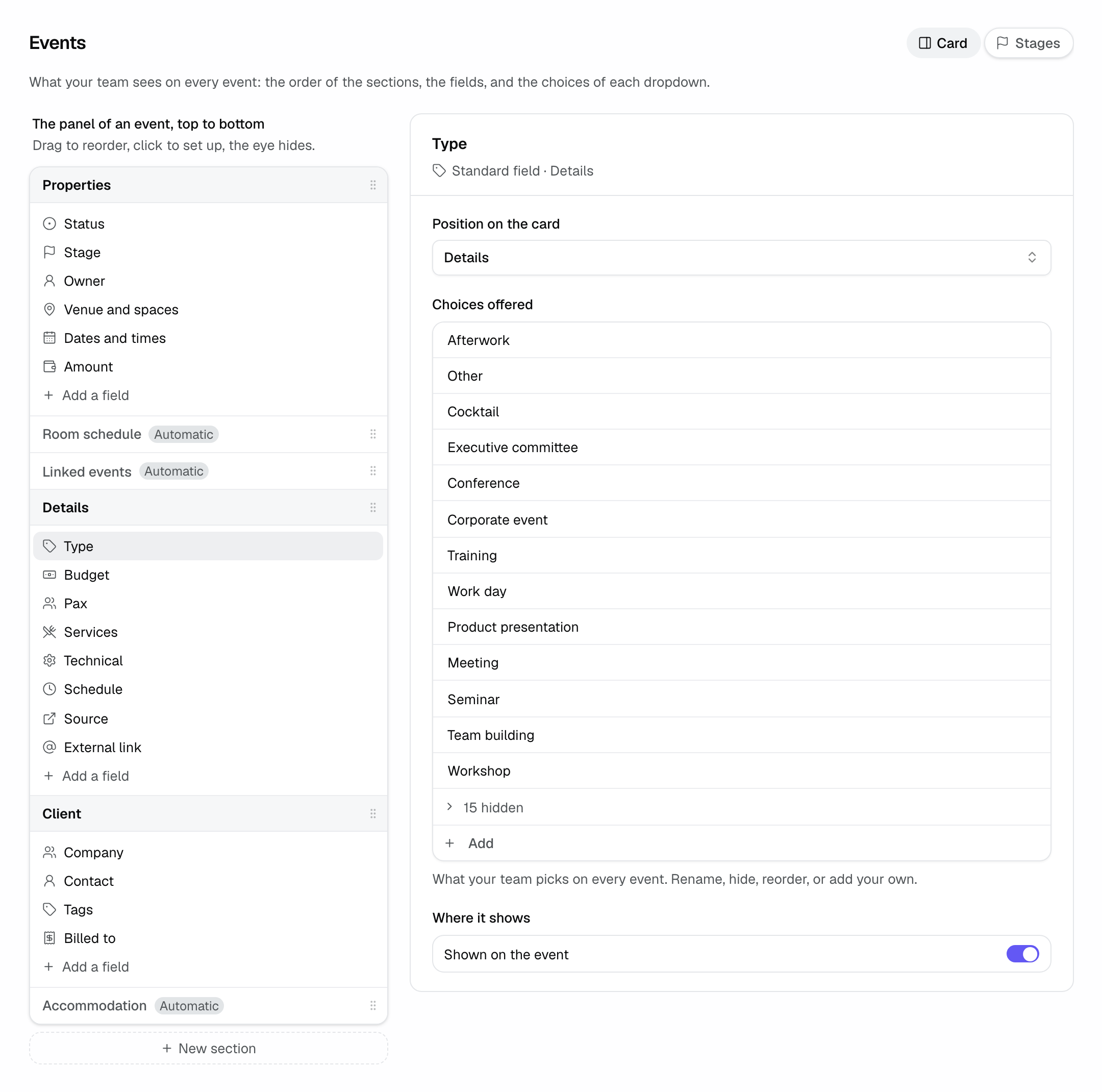
Go to "Settings" > "Events" ("Sales follow-up" group). The page opens on the "Card" tab. On the left, the panel shows the sections in the order the team sees them; on the right, the settings of the item you clicked. Every change is saved right away.
2. Reorder and hide sections
The card has six standard sections: "Properties", "Room schedule", "Linked events", "Details", "Client" and "Accommodation".
- Order: drag a section by its handle.
- Hide: click the eye of the section, or turn off "Shown on the event" on the right. "Properties" and "Client" are always shown.
- "Automatic" sections: "Room schedule", "Linked events" and "Accommodation" are filled in by Joinways. You can move and hide them, but they take no fields.
- New section: click "New section" below the panel, then type its name on the right. You can add up to 20. "Delete the section" removes an added section once it holds no fields.
3. Reorder and hide fields
Eight standard fields can be arranged freely: "Type", "Budget", "Pax", "Services", "Technical", "Schedule", "Source" and "External link".
- Drag a field by its handle to change its position within its section.
- To move it to another section, click it and pick the section under "Position on the card". It lands at the bottom of that section.
- To hide it, click its eye or turn off "Shown on the event". Events that have a value keep it.
The rows of "Properties" (status, stage, owner, venue, dates, amount) and of "Client" always stay in their block.
4. Add a field
- At the bottom of a section, click "Add a field".
- Pick the "Type": "Short text", "Long text", "Number", "Amount", "Date", "Dropdown", "Multiple choice", "Checkbox", "Link" or "Team member".
- Type the "Name", check "Position on the card", then click "Create the field".
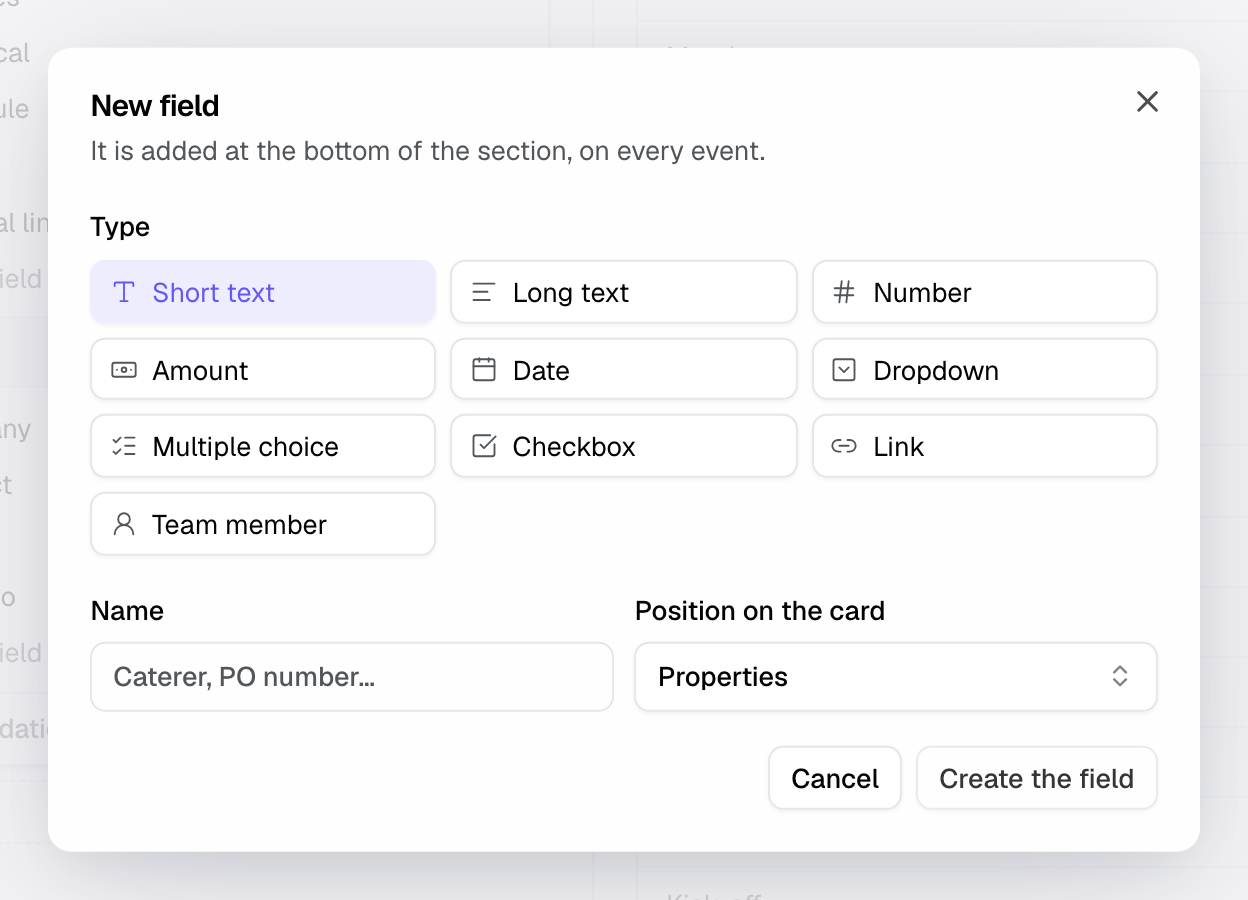
The field is added at the bottom of the section, on every event, with the "Added" badge. You can rename it later; its type is set at creation. Two fields cannot share a name, and a workspace has 100 added fields at most.
For a "Dropdown" or "Multiple choice" field, type the options under "Choices offered" ("Add an option"), each with its color. An option cannot be deleted: hide it, and events that have it keep it.
5. Choose where the field shows
Under "Where it shows", every added field has three settings:
- "Shown on the event": the field appears in the right column of the event, where the team fills it in.
- "Column and filter in the events list": the field becomes a column you can add to the events list. Dropdowns, multiple choices, checkboxes, numbers and amounts also become a filter, in the "Your fields" group.
- "Printed on the BEO": the field and its value appear in the header of the BEO, on its shared link and in its PDF. An empty field is not printed, and a "Team member" field only appears in the app.
The events export also has one column per added field, named after the field. See Import and export your data.
6. Set up types, sources and layouts
Each list lives in the field that uses it. Click that field in the panel:
- "Type": the event types, under "Choices offered". This is the field selected when the page opens.
- "Source": the event sources, under "Choices offered".
- "Venue and spaces", in "Properties": the "Layouts". These are Joinways layouts only, each with its capacity per space. You can rename or hide them, not add new ones.
In a list, click a name to rename it, drag a row to move it, or type a type or a source in the "Add" row. The eye hides a value: it is no longer offered, and events that carry it keep it.
Types hidden from the start
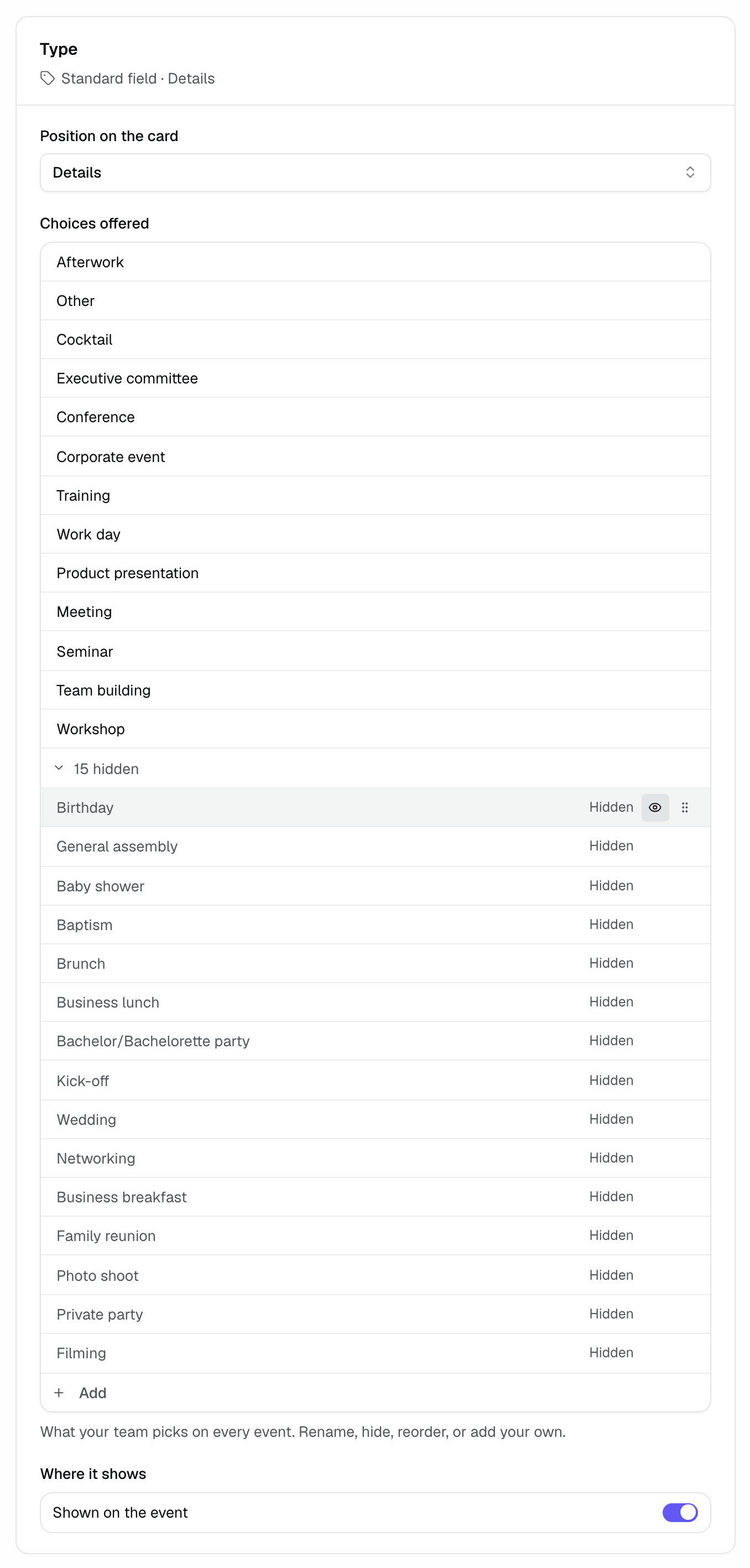
Joinways has 28 standard event types. To keep the list short, your workspace starts with a base only, chosen from what your venues host (corporate events, weddings and private parties, filming), plus "Other" and the types you already use regularly. The rest are folded at the bottom of the list, under a row that shows how many there are, for example "14 hidden".
To offer a type again, unfold that row, then click the eye of the type ("Offer again"). Nothing is removed from your data: an event that carries a hidden type keeps it and shows it. After that, the list no longer changes on its own.
7. Set up the stages
The "Stages" tab refines "Hold" and "Confirmed" with your own stages. From the "Card" tab, you can also get there through "Stage", then "Edit the stages". The details are in Track progress with event stages.
Example: a wedding estate
The estate creates a "Reception" section with two fields: "Caterer" (dropdown) and "Fireworks" (checkbox). It turns on "Printed on the BEO" for both, and "Column and filter in the events list" for "Caterer". It hides "External link" and offers the "Brunch" type again. The team now filters the list by caterer, and the venue manager reads the caterer at the top of the BEO.
Troubleshooting
I cannot change anything
Cause: you are neither an owner nor an admin, and the page shows "Read only.". Solution: ask an owner or admin to make the change.
An event type is no longer offered
Cause: it is hidden, either from the start or by a teammate. Solution: click the "Type" field, unfold the row of hidden types and click the eye of the type.
My field does not appear in the filters
Cause: "Column and filter in the events list" is off, or the field's type cannot be filtered (text, date, link, team member). Solution: turn the setting on; to filter, create a dropdown or a checkbox instead.
Frequently asked questions
What happens when I delete a field?
Only added fields can be deleted, with "Delete the field". The field disappears from the card, the events list and the BEO, and its values are no longer shown. If you might use it again, hide it instead: events keep their value and one click brings the field back.
See also
Try it on your next inquiries for 30 days, no credit card.