Create and structure an event
Create an event from an inquiry or from scratch, capture the right information up front, and keep a clean file all the way to the big day.
Updated
The event is the central file that brings everything together: contact, dates, space, quote, tasks, notes and files. Everything you do next (sending a quote, preparing a function sheet, tracking follow-ups, measuring your conversion rate) rests on this file. Creating it well from the start saves back-and-forth, keeps your availability reliable and secures your follow-up all the way to signature.
Think of the event less as a form to fill in than as the living memory of a sales opportunity: it often starts with a simple question ("Are you free on June 15?") and grows until the day itself. The cleaner it is early on, the easier the work downstream.
What you'll learn
- Create an event from an inquiry or manually
- Capture early the information that truly matters
- Understand statuses to steer your pipeline
- Attach spaces, schedule their slots and handle a multi-day event
Prerequisites
All you need is a venue in your workspace: the venue is the only required prerequisite. Setting up its spaces and service catalog (recommended) makes the file far more useful: the calendar shows which room is taken and your quote is built from the right prices.
Create from an inquiry (recommended)
Most files start from a client message. Starting from the inquiry rather than a blank page saves time and avoids re-keying errors, because the information Joinways already understood is carried over for you.
- In the Inquiries, open the inquiry and check the extracted fields. You see what Joinways understood from the message (date, attendees, budget): fix anything inaccurate before going further.
- Click “Convert”. The creation window opens, already pre-filled with what you just confirmed. Check it, then click “Convert to event” (or Cmd/Ctrl + Enter).
- Contact, company, date, venue, type, budget and guest count (Pax) are carried over automatically. The status defaults to “Hold” and the event is assigned to you. All that's left is to complete what's missing.
Tip: starting from an inquiry avoids double entry and keeps the conversation thread attached to the file. You keep the original context in view at every follow-up.
Create from scratch
Some opportunities don't arrive by email: a call, a visit, a referral. In that case, create the file manually: the logic is the same, you simply enter the basic information yourself.
- In “Events”, click “Add an event” (the + button on mobile). The “Create event” window opens.
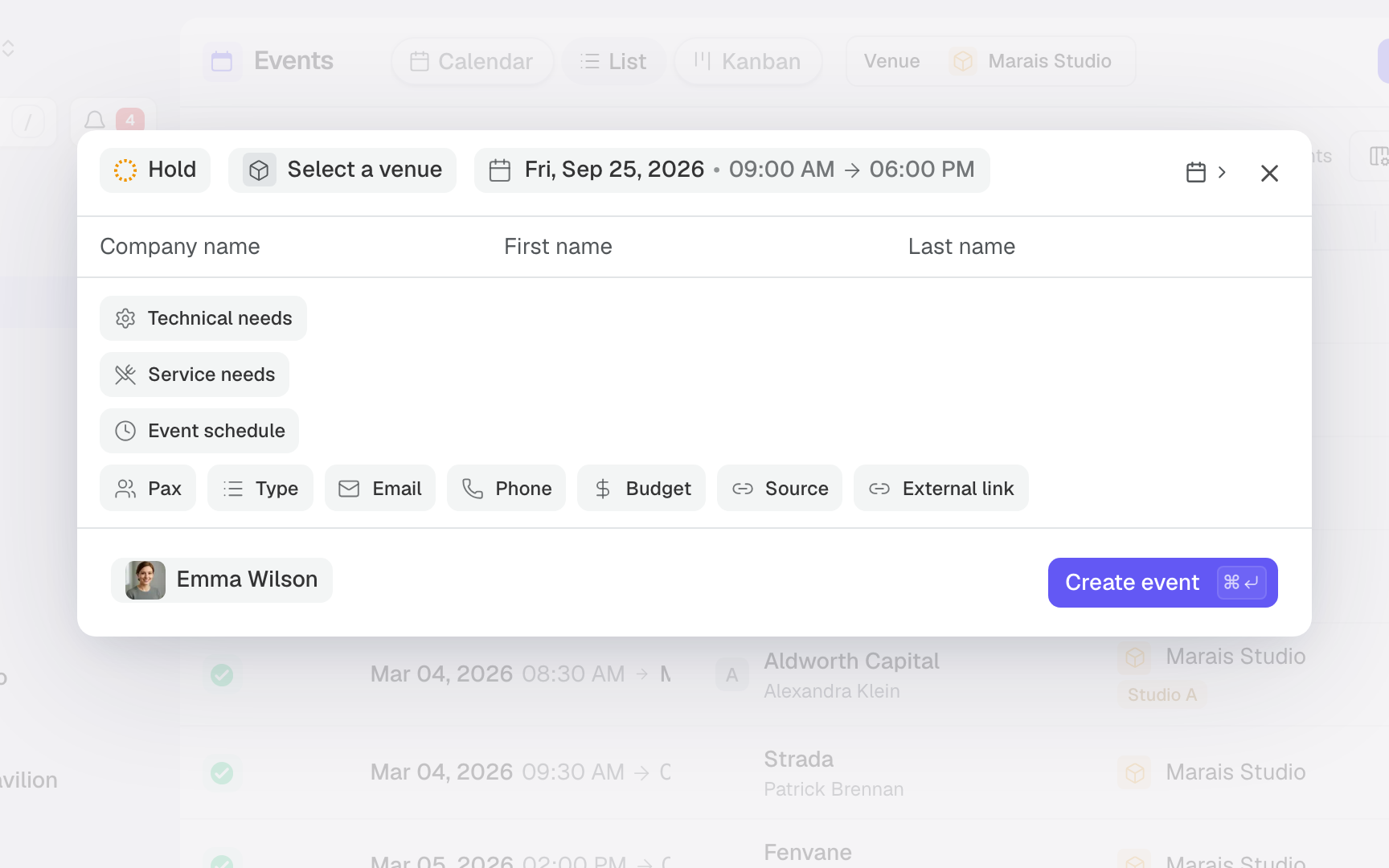
- Fill in at least the client's company, first name or last name: the event title is derived from it automatically. Then pick the venue, the dates and the times. The status defaults to “Hold” and the event is assigned to you.
- If needed, narrow down the spaces (“Entire venue” by default), then add the email, phone, type, source, budget and guest count (Pax). Each of these fields later feeds the quote, logistics and your reporting.
- If needed, fill in “Technical needs”, “Service needs” and “Event schedule”. This is what your team reads to grasp the file, and the schedule can later be turned into a planning in the function sheet.
The information that matters
Not all fields are equal. Four of them truly structure the file and decide what you can do next. Make a habit of filling them in early, even roughly.
- Dates: they put the event on the venue calendar as soon as it is created, whether on Hold or Confirmed. While you type, Joinways flags other events that hold the venue or the same spaces on the same dates, as well as venue closures.
- Attendees (Pax): it drives quoting and logistics. PAX guides quantities, room choice and the sizing of services, hence the importance of entering it, even approximate.
- Venue and spaces: the venue links the event to the right service catalog, and spaces pin down the rooms in use. Your quote is built from the prices and services actually available at that venue.
- Contact: it centralizes emails, quotes and history. Every interaction attaches to the same record, giving you a complete view of the client relationship.
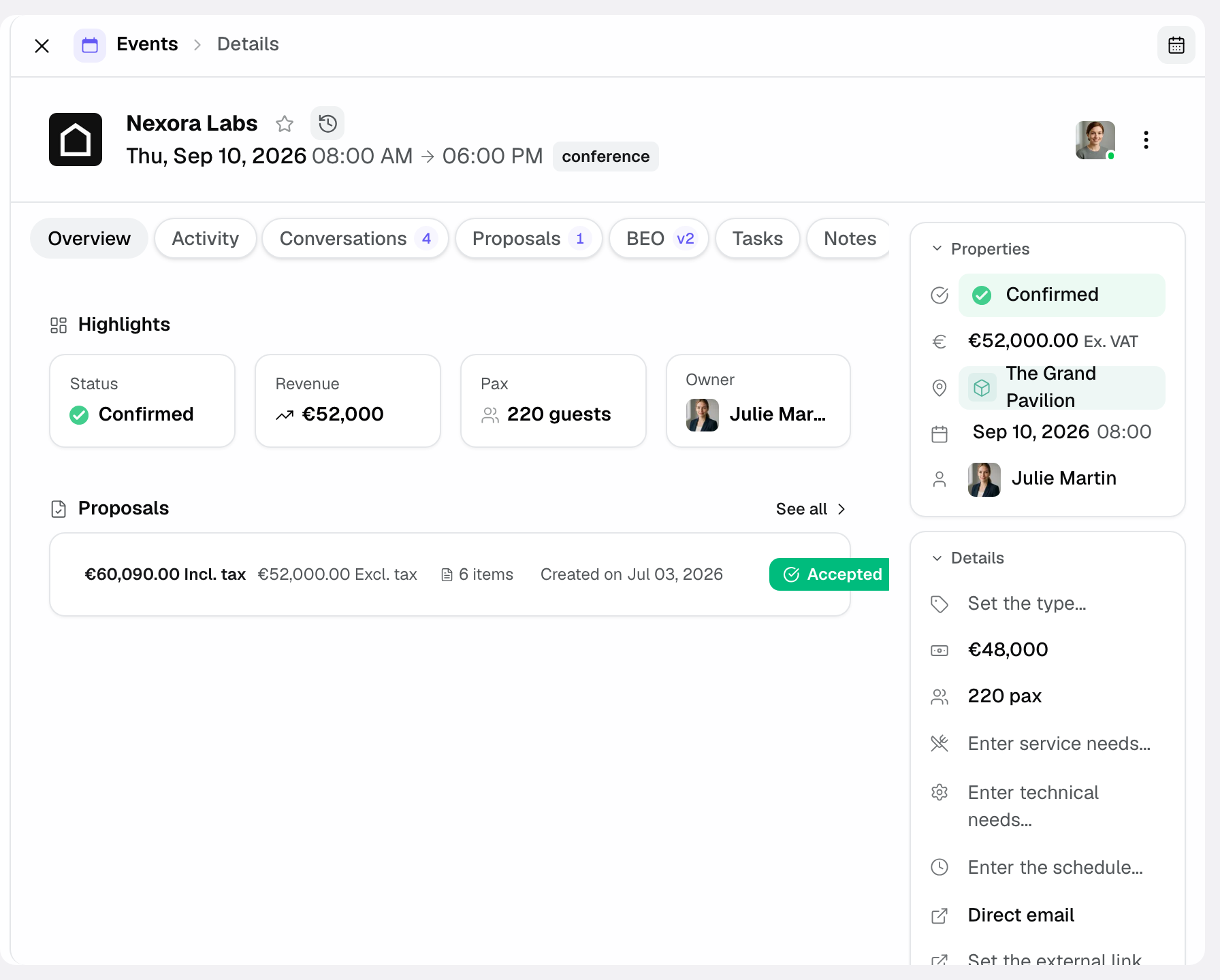
A clean file then pays off at every stage: the function sheet (BEO) reuses the venue, dates and PAX, the quote draws on the venue's catalog, and your reports aggregate only reliable data. Conversely, an incomplete file forces you to re-enter everything at the worst moment.
The record also adapts to the client type: for an individual, the contact (first name, last name) comes first; for a company client, the company leads the panel. Joinways infers this from whether a company is attached, with nothing for you to set.
Understand the statuses
The status shows where the opportunity stands. It is what feeds your pipeline and forecasts: a mis-classified file distorts your sales view. Update it as soon as a step is crossed.
- Hold: opportunity in progress, quote under discussion. The date is held provisionally, nothing is signed yet.
- Confirmed: signed quote, firm booking. On the calendar, the event switches from the dotted outline of a hold to a solid block.
- Lost: opportunity that did not convert. The file stays in your history so you can analyze why you didn't sign.
- Canceled: confirmed event later canceled, sometimes with fees. Distinct from “Lost”: here the deal had been signed before being dropped.
To refine tracking, you can create stages under Hold and Confirmed (“Quote sent”, “Deposit received”…) in Settings, “Event stages”. They show up in the status picker. When you move a file to Lost or Canceled, Joinways asks for an optional reason.
Attach a space and handle multi-day
The venue is required: the event holds its date on that venue's calendar from the moment it is created. You can then narrow it down to one or more spaces; with none selected, the event covers the “Entire venue”. A venue that is always booked whole offers no space choice.
For a multi-day event, set a start date and an end date. The file then covers the whole period, and your quotes can be organized by day, handy for a residential seminar or a wedding with an eve and a morning-after.
The date picker also accepts specific, non-contiguous days, for example a Friday and the following Monday without the weekend. Click the days you want one by one; Shift+click fills a whole range at once.
Schedule rooms by slot
At a venue with at least two spaces that is not always booked whole, the event's details column shows the “Room schedule” block. A slot books one room for one day, all day or for set hours. Without slots, each space of the event is booked for all its dates.
- “Add a slot”: pick the space and the day, then “All day” or a start and end time. An end before the start ends the next day. The label and the number of guests are optional.
- A slot booked from a proposal shows “quote line”. You can also edit it from the proposal line.
- A slot outside the event's dates is flagged: “Move” puts it on the nearest event day, “Remove” deletes it.
- A warning appears when the expected guests exceed a room's capacity.
Room layouts and conflicts
Under the spaces, “Space layouts” shows how each booked room is set: Theatre, Classroom, Banquet, Cabaret, Reception, U-shape or Boardroom. Pick it in the “Layout” menu. The seats for that layout are shown, with a warning if the guests expected in the room exceed them. The layout is printed on the proposal PDF.
When other events on hold or confirmed use the same rooms at the same time, a banner says so, for example “2 other events hold these rooms at the same time”. Each row gives the other event's status, name and date; click it to open the event. The banner informs, it blocks nothing.
How it works
The event file acts as a point of convergence. The status places it in the pipeline; the dates, venue and spaces place it on the calendar; the contact links the history; the venue provides the quote's catalog, and PAX feeds both the quote and the function sheet. Every field entered early avoids a re-entry later.
When you move the status to Confirmed and other holds at other venues are linked to the same request, the “Confirm this event” window offers to mark them as lost with a reason (“Confirm & mark as lost”) or to confirm this one only. Your team is notified of the confirmation.
Edge cases
Date still uncertain: create the file on Hold with the most likely date. You hold the slot and can adjust it later without starting over.
Room not chosen yet: create the event on the venue with “Entire venue”, then narrow down the spaces later. As long as no space is chosen, the event holds the whole venue: a proposal line tied to a room does not narrow it to that room. The venue itself is always required.
Poorly extracted inquiry: if the fields carried over from Inquiries are wrong, fix them in the conversion window before clicking “Convert to event”, so the error does not spread into the quote.
Tip: even when everything is uncertain, at least set the client name, the venue and an approximate date on Hold. An imperfect but existing file always beats an opportunity kept in your head and forgotten.
Best practices
- Enter the client's company or name carefully: the event title is derived from it, and that is what you find in the list and the calendar.
- Always enter the PAX, even approximate: it drives the quote and logistics.
- Narrow down the spaces as soon as you know them: the calendar shows the event on the right room's row, which limits double-bookings.
- Keep the status up to date at every step: that's what makes your pipeline and forecasts usable.
Troubleshooting
Two files for the same client?
Cause: the same request arrived twice (another platform, a follow-up, a duplicate). Solution: in Inquiries, the “Same request” badge flags duplicates; click “Merge into this one” to attach the inquiry to the other one, nothing is deleted.
The date doesn't show as taken?
Cause: the event is at another venue or on other dates, it was moved to Lost or Canceled, or the calendar is filtered on another venue. Solution: check the file's venue, dates and status, then the calendar's venue filter.
The quote doesn't offer the right prices?
Cause: the event isn't attached to the right venue, hence the right catalog. Solution: check the event's venue; correcting it makes the quote draw from the expected catalog.
Real-world example
A seminar inquiry lands in Inquiries for 60 people in October. The planner opens the inquiry, checks that the date and PAX were correctly extracted, then clicks “Convert”.
They attach the main room, leave the status on Hold and immediately create a quote. With the contact, conversation thread and dates already linked, the file is ready to follow: all that's left is to chase the client and, on signature, flip the status to Confirmed.
FAQ
Can I manage a multi-day event?
Yes, set the start and end dates; quotes can be organized by day, which is ideal for a residential seminar or an event spread across a weekend.
Do I have to fill everything in at creation?
No. The minimum is a client name (company, first or last name), a venue and dates; the Hold status and the assignee are pre-filled. Add the spaces, PAX and budget as soon as you know them.
What's the difference between Hold and Confirmed?
Hold flags an opportunity under discussion with a date held provisionally; Confirmed means a signed quote and a firm booking on the calendar.
What happens to a lost or canceled file?
It stays in your history. “Lost” covers an opportunity that didn't convert; “Canceled” a confirmed event that was later dropped, sometimes with fees.
Should I create the file from Inquiries or from scratch?
If the inquiry came by email, start from Inquiries: fields are carried over and the thread stays attached. For a call or a visit, create from scratch.
See also
- Calendar and pipeline views
- Create a quote
- Tasks and follow-up
- Prepare a function sheet (BEO)
Bring every event inquiry into one queue.