Track progress with event stages
Refine "Hold" and "Confirmed" with your own stages, some of which are set automatically: proposal sent, deposit paid, BEO frozen.
Updated
An event always has one of four statuses: "Hold", "Confirmed", "Lost" or "Canceled". Those statuses do not say where you stand inside a hold or a confirmation. A hold with no visit yet and a hold whose proposal went out ten days ago do not call for the same action.
Event stages refine "Hold" and "Confirmed" with your own vocabulary: visit scheduled, proposal sent, deposit received, BEO approved… The four statuses stay as they are. Some stages are set on their own when a signal becomes true.
What you will learn
- Create your stages, from a preset or from scratch.
- Make a stage automatic.
- Set a stage on an event.
- Find stages in the pipeline, the list and exports.
Before you start
Everyone can see the stages. Only workspace owners and admins can create, edit or delete them. A member sees the page read-only and uses the stages on events.
1. Open the stages
Go to "Settings" > "Event stages", in the "Sales follow-up" group. The page has two sections: stages that apply while the event is on hold, and stages that apply once the event is confirmed.
2. Start from a preset
As long as your workspace has no stage, the page offers two presets under "Start from a preset". Click "Use" to add all the stages at once, then adjust them.
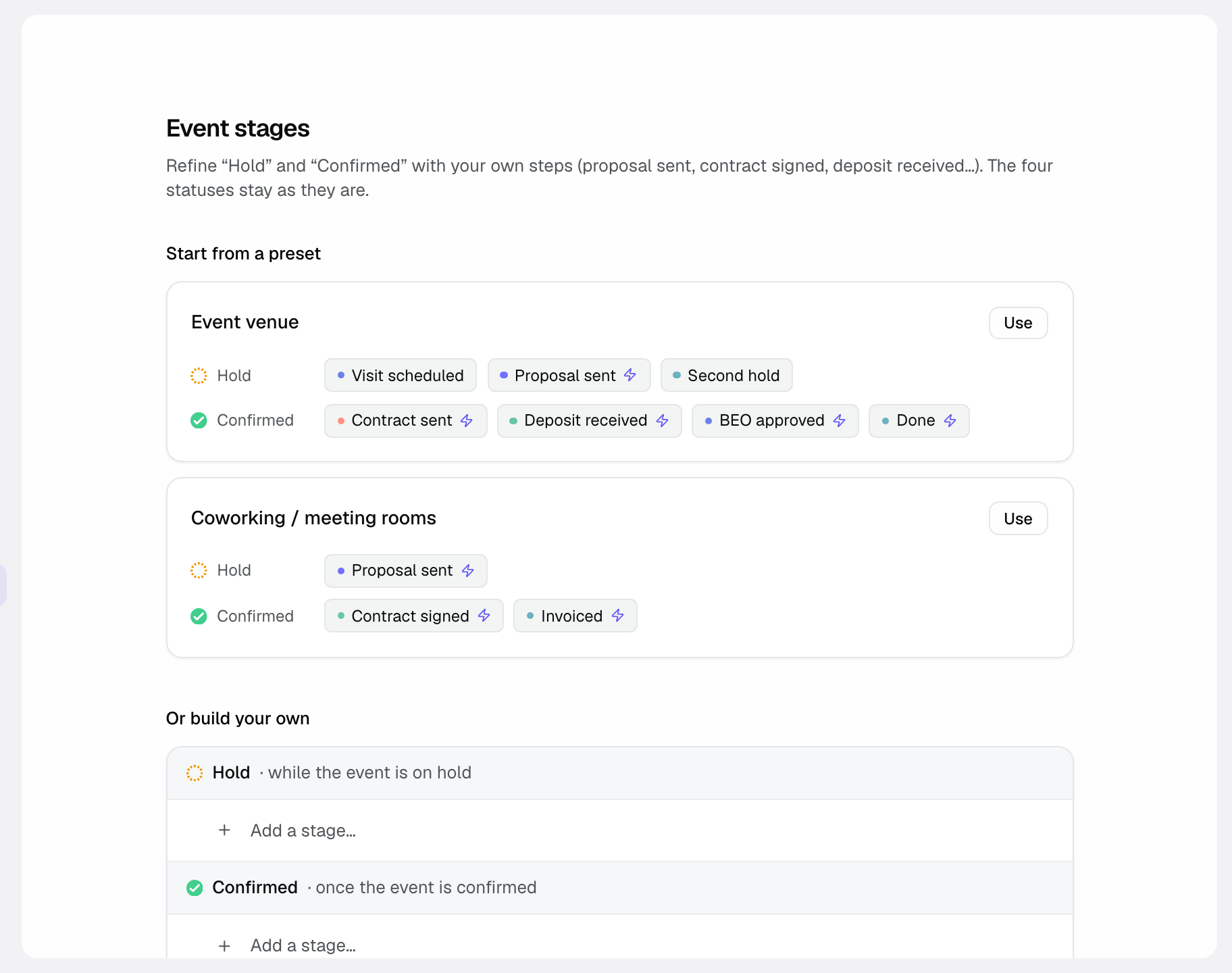
- "Event venue": Visit scheduled, Proposal sent and Second hold under "Hold"; Contract sent, Deposit received, BEO approved and Done under "Confirmed". Five of them are automatic.
- "Coworking / meeting rooms": Proposal sent under "Hold"; Contract signed and Invoiced under "Confirmed". All three are automatic.
3. Create and organise your stages
- In the "Hold" or "Confirmed" section, type a name in "Add a stage…", then click "Add".
- On each stage, "Rename" changes its name and "Change color" its chip.
- "Move up" and "Move down" set the order. The order matters: it tells which stage is the most advanced.
- "Delete" removes the stage. Events that carried it keep their status and simply lose the stage.
Two stages cannot share the same name. Each stage shows how many events carry it.
4. Make a stage automatic
Each stage is "Manual" by default. Pick a signal instead: the stage is set on its own as soon as the signal becomes true on the event. When the stage name matches a signal, Joinways links it for you; you can change it.
- Under "Hold" or "Confirmed": "Proposal sent", "Proposal accepted", "Contract sent".
- Under "Confirmed" only: "Proposal signed", "Contract signed", "Invoice issued", "Deposit paid", "Balance paid", "BEO frozen", "Event ended".
A signal drives only one stage. When several signals are true, Joinways sets the most advanced of the matching stages, following your order.
Never backwards: an automatic stage never moves an event back. If you picked a later stage by hand, it is kept.
5. Set a stage on an event
- From the event's status menu: stages are listed under their status. One click changes the status and sets the stage at the same time.
- From the event page: the "Stage" row, in the right-hand column, offers the stages of the current status.
A stage belongs to a status. When the event changes status, its stage is cleared. Dragging a card from one pipeline column to another has the same effect.
Where stages show up
- Pipeline: the event card shows its stage chip and the time spent in that stage.
- Event page: the "Stage" row also tells since when the stage changed.
- Event list: filter by "Stage" with the "Filter" button.
- Event export: the stage is one of the exported columns.
Example: the second hold
A caterer puts a hold on a Saturday already held by another client. Instead of keeping a separate waiting list, the venue creates the hold and gives it the "Second hold" stage. In the pipeline, the chip sets it apart from firm holds. If the first hold falls through, the team knows at once whom to call.
Troubleshooting
I cannot edit the stages
Cause: you are a member, not an owner or admin. Fix: ask a workspace owner to make the change.
A signal is not offered for my stage
Cause: the signal only makes sense under "Confirmed", or it already drives another stage. Fix: put the stage in the right section, or free the signal on the other stage by setting it back to "Manual".
The stage disappeared from the event
Cause: the event changed status, which clears its stage. Fix: pick a stage of the new status.
Frequently asked questions
Do stages replace statuses?
No. The status remains the reference for revenue, the calendar and reports. The stage refines it.
Are stages set per user?
No. The list of stages is shared by the whole workspace.
What about "Lost" and "Canceled"?
These statuses have no stages. An event that moves to one of them loses its stage.
See also
Bring every event inquiry into one queue.