Customize lists: columns, views and totals
Pick the columns of the event, company and people lists, save your views and read totals at the bottom of each column.
Updated
The event, company and people lists adapt to the way you work. You choose the columns, their order and width, you read a total at the bottom of a column, and you save your filters as views you recall in one click.
What you will learn
- Show, hide and reorder columns.
- Read totals at the bottom of columns.
- Save and recall a view.
Where to find it
In "Events", switch to the list view. In "Companies" and "People", the list is the default view. The "View" button sets the columns; the bookmark icon button manages saved views.
Choose the columns
- Click "View". The panel lists the columns shown.
- To add a column, click "Add attribute to view" and pick it. When everything is shown, the panel says so: "All attributes are already displayed".
- To remove a column, click the cross next to its name.
- To change the order, drag a column by its handle in the panel, or drag the column header directly in the table.
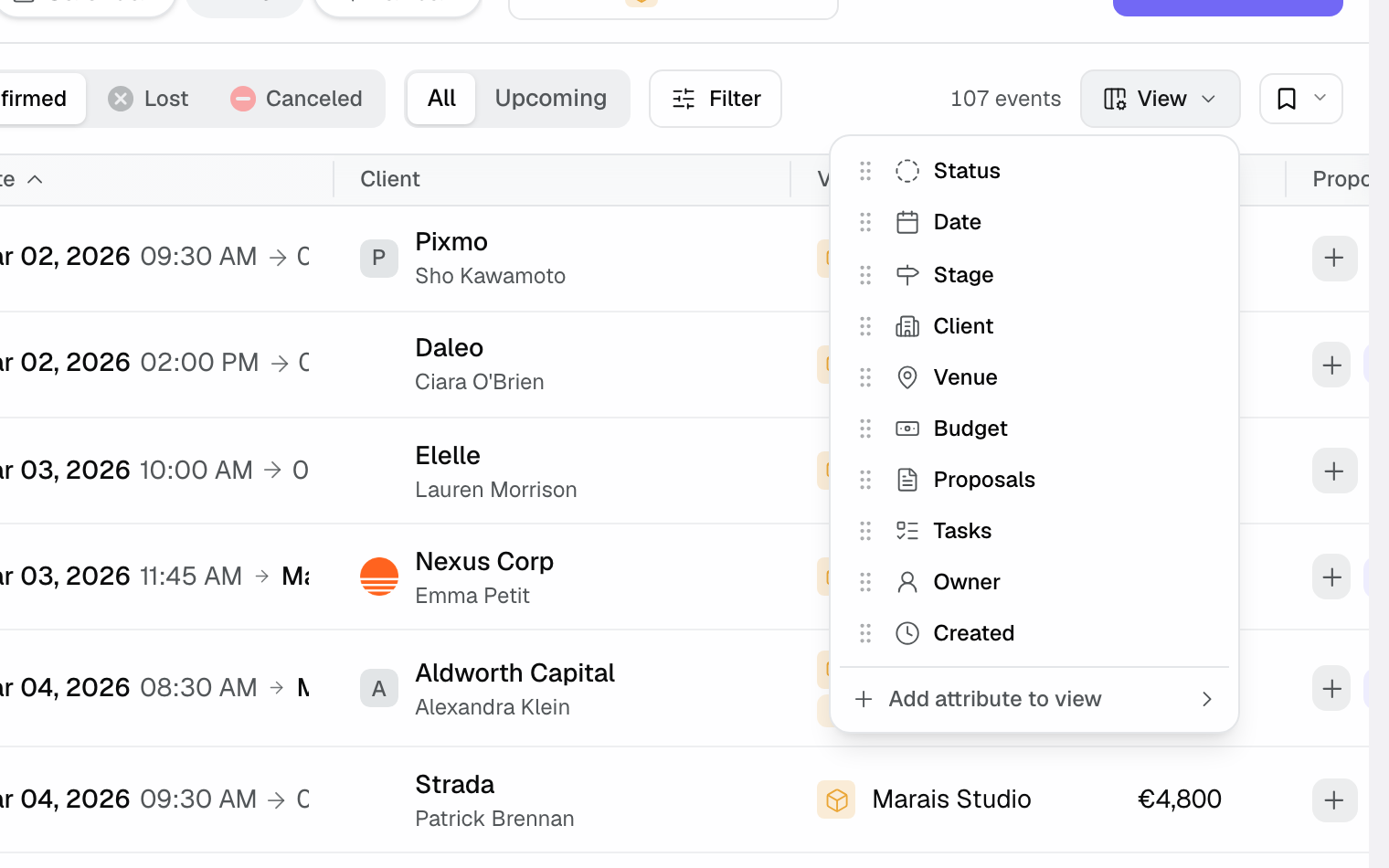
Each column header menu also offers "Fit column width" and "Remove column". You can widen a column by dragging its edge. "Reset view" restores the original columns.
In the event list, the first columns stay in place when you scroll the table to the right.
Read totals at the bottom of columns
Under each column, the table footer can show a calculation. Click a column's footer to open the "Aggregations" menu and pick:
- For any column: "Count", "Count empty", "Count filled", "Percent empty", "Percent filled".
- For a numeric column, such as an amount or a guest count: "Sum", "Average", "Minimum", "Maximum".
- "None" removes the calculation.
The calculation covers every result that matches your filters, not only the lines loaded on screen.
Save a view
- Set your filters, sort and columns.
- Click the bookmark icon button, then "Save current view".
- Give it a "View name", then save.
The view keeps your filters, sort and columns. For events, it also keeps the selected statuses, venues and display mode. To apply it, open the bookmark menu and click its name: the active view's name shows on the button.
On each view in the menu, "Update filters" replaces its content with your current settings, the "Set as default" star makes it the view applied when the list opens, and the pencil and bin rename or delete it.
What is personal
- Saved views are yours: your teammates do not see them and have their own.
- Columns and totals are remembered in your browser. On another computer, recall a saved view to get your columns back.
Example
A sales manager follows her holds for the quarter. She filters "Hold" on her venues, adds the proposal amount column, shows the "Sum" at the bottom and saves the view "Quarter holds". Every Monday, one click gives her the list and the amount at stake.
Troubleshooting
The "View" button does not appear
Cause: in "Events", you are on the calendar or the pipeline. Fix: switch to the list view.
My columns are gone
Cause: you changed browser or cleared its data. Fix: recall a saved view, or set the columns again and save them in a view.
"Sum" is not offered
Cause: the column is not numeric. Fix: use a count, or pick an amount column.
See also
Bring every event inquiry into one queue.