Import and export your data
Get started fast by importing your existing contacts and events, and export your data whenever you need it.
Updated
Arriving with history: a contacts spreadsheet you patiently built, a schedule of past and upcoming events, a list of client companies? Importing this data into Joinways saves you hours of re-typing and lets you start with your business already in place. In the other direction, export keeps you in control of your data: you can pull it out for analysis, accounting or backup, without being locked into the tool.
This article details what can be imported and exported, the accepted formats, how to prepare a clean file, and how to re-run an import after fixing it. The goal: that your first day in Joinways starts from a complete base rather than a blank page.
Prerequisites
- Having a Joinways account and access to your workspace.
- Having your source data in a spreadsheet (Excel, Google Sheets) or a CSV file.
- Be an owner or admin of the workspace: the "Import / Export" page is reserved for them.
- Ideally, a clear header row in your file (Name, Email, Phone, etc.) to make column mapping easier.
What you'll learn
- Import your existing contacts, companies and events, as well as your venues, spaces and items.
- Prepare a clean file for an error-free import.
- Map your file's columns to Joinways fields.
- Export your events, companies, people and requests.
- Fix and re-run a partially failed import.
Import data
Import reads your file line by line: each row creates a record, or updates the existing one if Joinways recognizes it. You stay in control at every step: choosing the data type, mapping the columns, then following the result.
- Open Settings then the Import / Export section of your workspace.
- Choose the data type: "Complete import (1 file: companies + people + events)", "Events", "Companies", "People", "Venues & spaces" or "Catalog (price list)". The "Download CSV template for …" link gives you a ready-to-fill file.
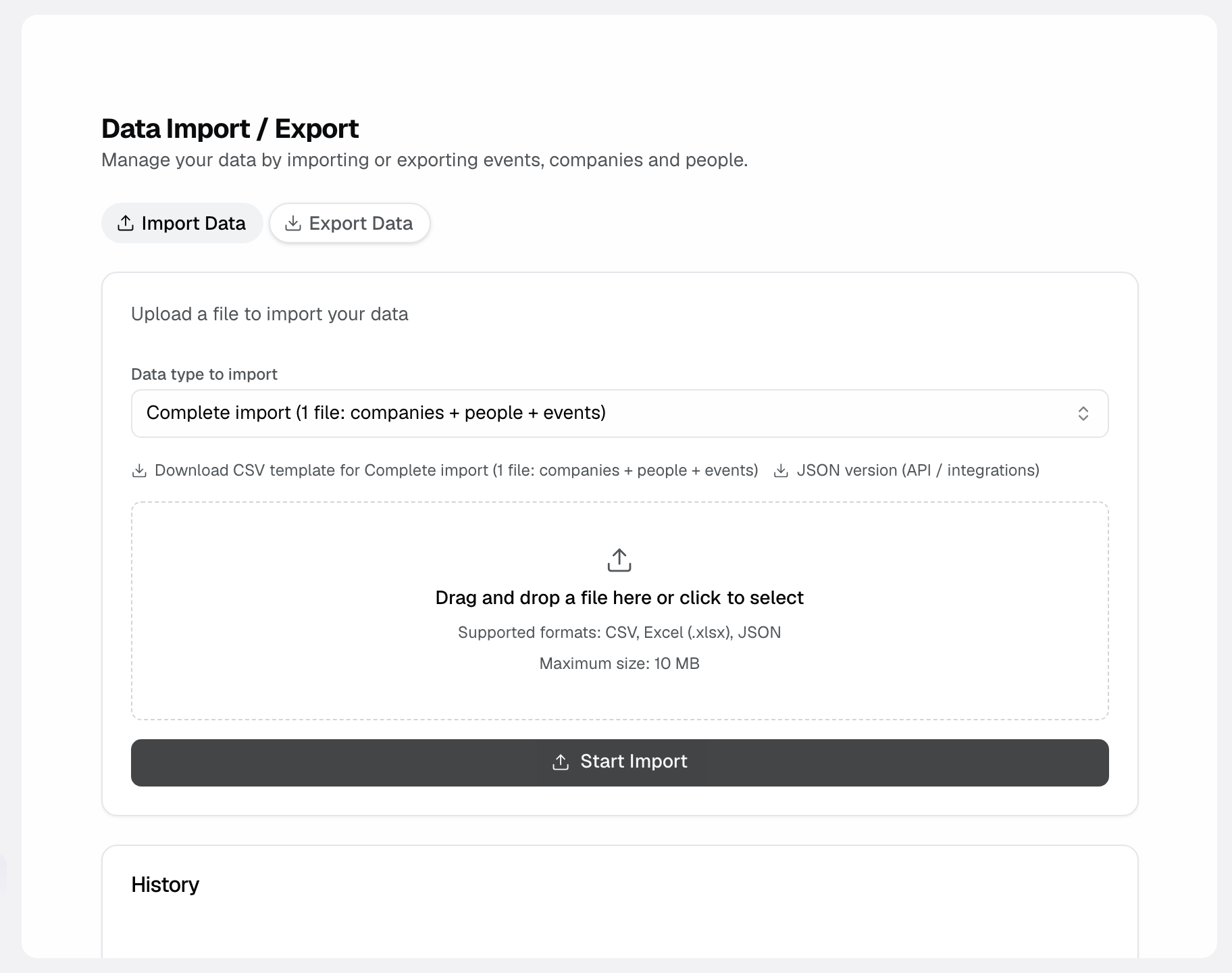
- Drop your CSV, Excel (.xlsx) or JSON file, 10 MB maximum. The complete import requires a three-sheet Excel file (or JSON).
- In "Map your columns", check the automatic mapping and fix it if needed; a column set to "Do not import" is skipped. This step does not exist for the complete import, which follows the template columns.
- Run the import: Joinways processes the rows, creates the new records and updates the ones it recognizes.
- Follow the result in "History": status, row count and warnings. The "Error report" button downloads the list of skipped rows.
Prepare a clean file
Import quality depends above all on the quality of the source file. A few minutes of upfront cleanup save hours of fixing afterwards. The idea is to arrive with a regular table, where each column holds a single type of information and where formats are consistent.
- Put an explicit header row on the first line (Last name, First name, Email, Phone, Company, Date…).
- One piece of information per column: don't mix first and last name, or city and postal code, in the same cell.
- Standardize date formats (for example DD/MM/YYYY everywhere) and phone formats.
- Remove empty rows, obvious duplicates and stray characters.
- Save as CSV (UTF-8) or as Excel before uploading.
Export data
Export does the reverse: Joinways generates a spreadsheet file from your records, which you download in a few clicks. This is useful for external analysis, sending to the accountant, a periodic backup or a migration.
- In "Import / Export", "Export Data" tab, choose "Events", "Companies", "People" or "Requests", the format (CSV, Excel or JSON) and the date range. For requests, the date range applies to the day each request was received.
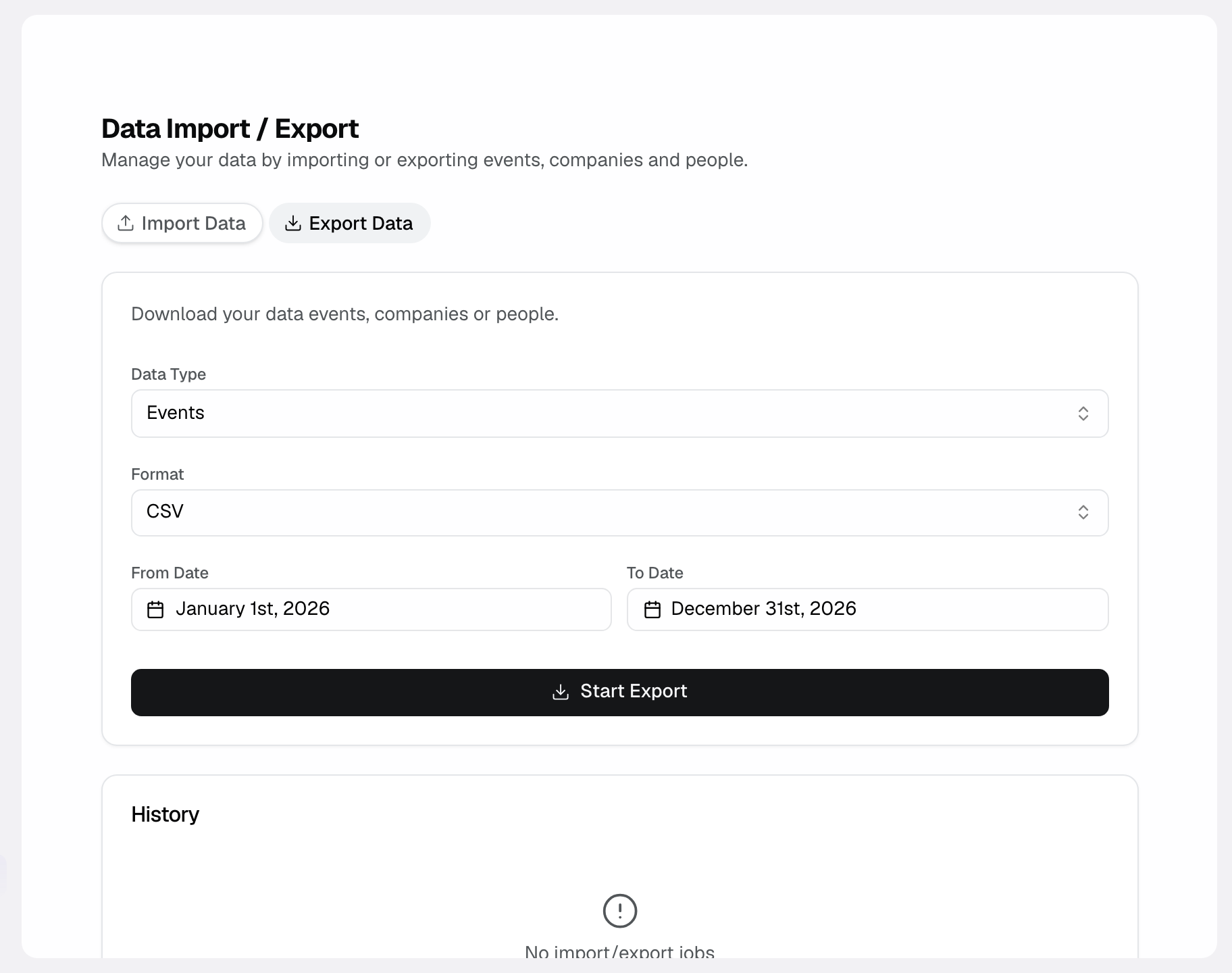
- Click "Start Export" (10,000 rows maximum). From the "People" and "Companies" lists, the "Export" button instead exports the filtered list, with a choice of fields, as CSV or Excel.
- Once the export is done, download the file from "History".
- Open it in your usual tool for your analysis or accounting.
Reference: what imports and exports
Here are the supported data types and the expected format, with a one-line description of what each covers.
- Contacts (people): your contacts, with name, email, phone and associated details.
- Companies: the client or prospect companies to which you attach your contacts and events.
- Events: your schedule, past and upcoming events with their dates and spaces. On export, the spaces column ("Espaces") lists the names of the booked spaces, separated by ";"; empty means the event takes the entire venue.
- Requests (export only): one row per request, with the requested spaces ("Espaces demandés" column). Requests locked by the Free plan limit are not exported.
- Venues & spaces and Catalog (price list): importable to create your venues, spaces and items in one go.
- Accepted import formats: CSV, Excel (.xlsx) and JSON, 10 MB maximum.
- Export formats: CSV, Excel or JSON, usable in Excel, Google Sheets or accounting software.
- Column mapping: the "Map your columns" step, which links each column of the file to the right Joinways field.
- Import tracking: "History" shows the status, row count and warnings; "Error report" lists the skipped rows.
- Recommended encoding: UTF-8 to preserve accents and special characters in CSV files.
- Backup: export also serves as a backup copy independent of the tool.
How it works
During an import, Joinways reads your file's header to suggest a column mapping, then goes through each row: it creates the new records and updates the ones it recognizes. Rows with an empty or badly formatted required column are set aside and listed in the "Error report". No data is saved until you run the import.
On export, Joinways assembles the records of the chosen type and date range into a CSV, Excel or JSON file. From a list, it uses the active filters and the fields you tick.
Edge cases
- Large file: beyond 10 MB, split it into several batches, keeping the same header row in each batch.
- Duplicates: a person already known (same email, or same phone) or a company with the same name is updated, not recreated. An empty cell does not overwrite the existing value.
- Ambiguous dates: a mixed format (DD/MM and MM/DD) can shift event dates; standardize before uploading.
- Required columns: the name for a company or venue, the title and start date for an event, the venue and name for a catalog item. A person needs at least a first name, last name, email or phone. The import will not start until every required field is mapped.
- An event's spaces: in an events import or a complete import, map your rooms column to the "Rooms (names, separated by ;)" field. A column named "Espaces", "Salles" or "Rooms" is recognized on its own, so an export re-imports as is. Each name must match a space of the event's venue, ignoring case and accents; an unknown name is skipped and reported with the import warnings.
Tip: always run a test import on a small sample (5 to 10 rows) before importing the whole file. You validate the column mapping and the formats without risking polluting your base with hundreds of mis-mapped rows.
Best practices
- Start with a reduced sample to validate the mapping and the formats.
- Standardize date and phone formats across the whole file.
- Check for duplicates after each import and clean them up if needed.
- To bring everything over at once, use the "Complete import": companies, people and events are linked automatically.
- Keep your source file: it serves as a backup and lets you re-run a corrected import.
Troubleshooting
Problem: some rows weren't imported. Cause: a required column is empty or a format is invalid on those rows. Solution: download the "Error report" from "History", fix the flagged rows in the file, then re-run the import on the corrected file.
Problem: the columns don't map correctly. Cause: the header row is missing or ambiguous. Solution: add explicit headers on the first line and fix the mapping at the "Map your columns" step.
Problem: accented characters display wrong after import. Cause: the file is not encoded in UTF-8. Solution: re-save the CSV in UTF-8 (or use the Excel format) then upload it again.
Real-world example
A reception venue migrates from a 400-contact Excel spreadsheet. The manager first cleans the file (one Name column, one Email column, one Phone column, removing duplicates), then tests the import on 10 contacts. With the mapping validated, she runs all 400 contacts at once: "History" shows 396 rows imported and 4 skipped, with no name, email or phone.
She fixes the 4 rows in the file, re-imports them, and gets her full address book in Joinways in under a quarter of an hour.
Another example
At quarter-end, the manager exports his events to hand them to his accountant. From Import / Export, he generates a spreadsheet file of all the quarter's events, opens it in Google Sheets to check the amounts, then sends it to the accounting firm.
He also keeps a dated copy of the file, which serves as a backup independent of Joinways.
FAQ
Which file formats are accepted for import?
CSV, Excel (.xlsx) and JSON, 10 MB maximum. Prefer CSV in UTF-8 to preserve accents; the "Complete import" requires a three-sheet Excel file or JSON.
What can I import?
Your existing contacts (people), companies and events, as well as your venues, spaces and catalog items.
What can I export?
Your events, companies, people and requests, as CSV, Excel or JSON.
How do I map my columns to Joinways fields?
At the "Map your columns" step, Joinways suggests a mapping automatically; check it and link each column to the right field if needed (Email, Phone, etc.).
Why aren't some rows imported?
Because a required column is empty or badly formatted on those rows; fix them and re-run.
Should I import companies before contacts?
It's not necessary. A person is linked to their company by the company name, whether it already exists or is in the same import. The "Complete import" handles all three types at once.
Does my data belong to me?
Yes. Export lets you retrieve your data at any time, for analysis, accounting or backup.
Can I re-run an import without creating duplicates?
Yes. Records already imported are recognized and updated: you can re-run the whole corrected file.
See also
- Manage people
- Manage companies
- Get started in 15 minutes
Bring every event inquiry into one queue.