Connect the Outlook calendar
Send your venues' events to Outlook or Microsoft 365, with the statuses you choose, so the whole team sees the same dates.
Aktualisiert am
Your team lives in Outlook. An event confirmed in Joinways that does not show there is a date a colleague can promise a second time.
The "Outlook Calendar" connection sends your venues' events to the Outlook or Microsoft 365 calendars you choose, with the statuses you pick. Joinways stays the reference: sync goes from Joinways to Outlook.
What you'll learn
- Connect Outlook Calendar to your workspace.
- Choose, venue by venue, the calendars that receive events.
- Set when to sync, the content sent and the synced statuses.
- Subscribe to the iCal export, with no connection.
Prerequisites
- An owner or admin role: the "Calendars" tab of the integrations and a venue's "Synchronization" page are reserved for them.
- An Outlook.com or Microsoft 365 account with a calendar, and edit rights on the calendars that will receive events.
- On Microsoft 365, an organization that grants Joinways permission to write to the calendar (Calendars.ReadWrite).
1. Connect Outlook Calendar
- Go to "Settings" > "Integrations", "Calendars" tab.
- Click the "Outlook Calendar" card. The Microsoft window opens.
- Pick your account and accept access to your calendars.
- Back in Joinways, the card shows "Active".
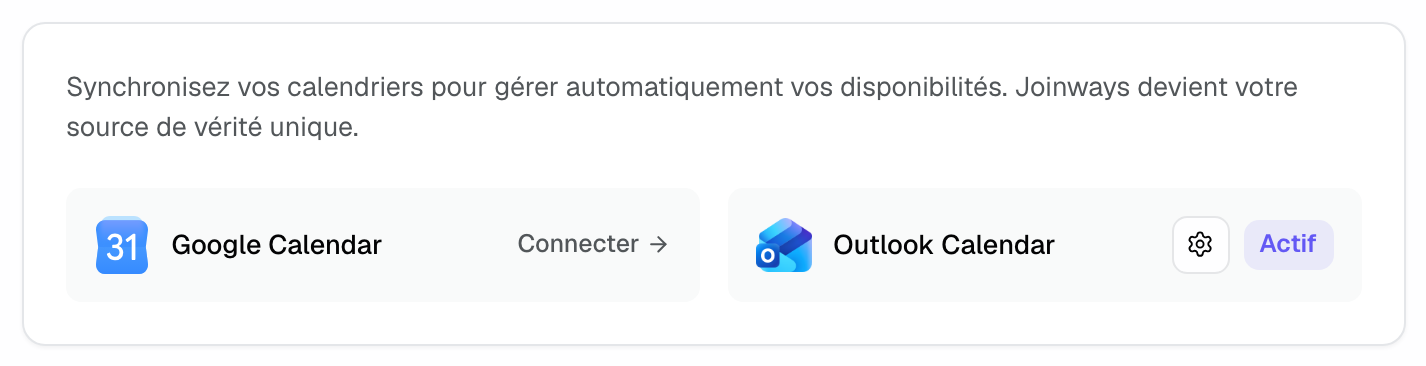
The connection applies to the whole workspace. The card's gear opens "Outlook Calendar Settings": the available calendars, and "Disconnect".
2. Choose each venue's calendars
Go to "Settings" > "Venues", open the venue, then "Synchronization". A "Outlook Calendar" tab appears for each connected provider, next to "iCal Export".
- In the "Calendars" block, tick one or more calendars. Only those you can write to are listed; the main one is marked "Primary".
- The venue's events are created in every ticked calendar.
- Repeat for each venue: each can have its own calendars.
3. Set up the sync
The "Sync settings" block on the same page becomes available as soon as a calendar is ticked.
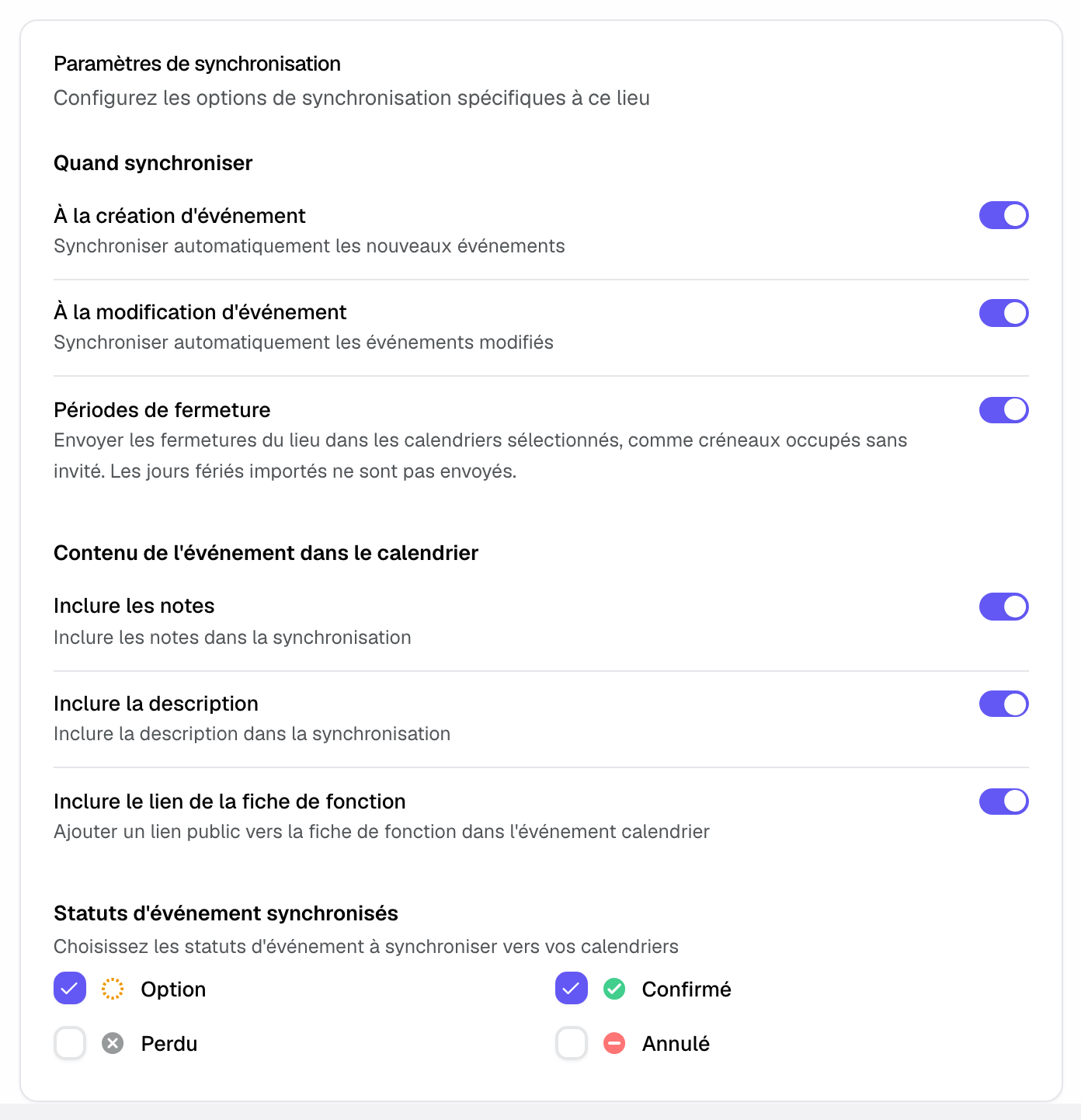
- "When to synchronize": "On event creation", "On event update".
- "Closure periods": the venue's closures are sent as busy entries, without guests. Imported public holidays are not sent.
- "Calendar event content": "Include notes", "Include description", "Include BEO link" (a public link to the BEO).
- "Synchronized event statuses": Hold, Confirmed, Lost, Canceled. An event that moves to an unticked status is removed from the calendar.
What the calendar event contains
- A title preceded by the status in capitals, for example "CONFIRMED - Nexora seminar".
- The dates and times. For a multi-day event, each day's hours are listed in the description.
- In the description: owner, type, guests, budget, spaces, company and contact, then a link to the event in Joinways.
- Labels follow the language of the venue's country, whatever the language of the person editing the event.
With no connection: the iCal export
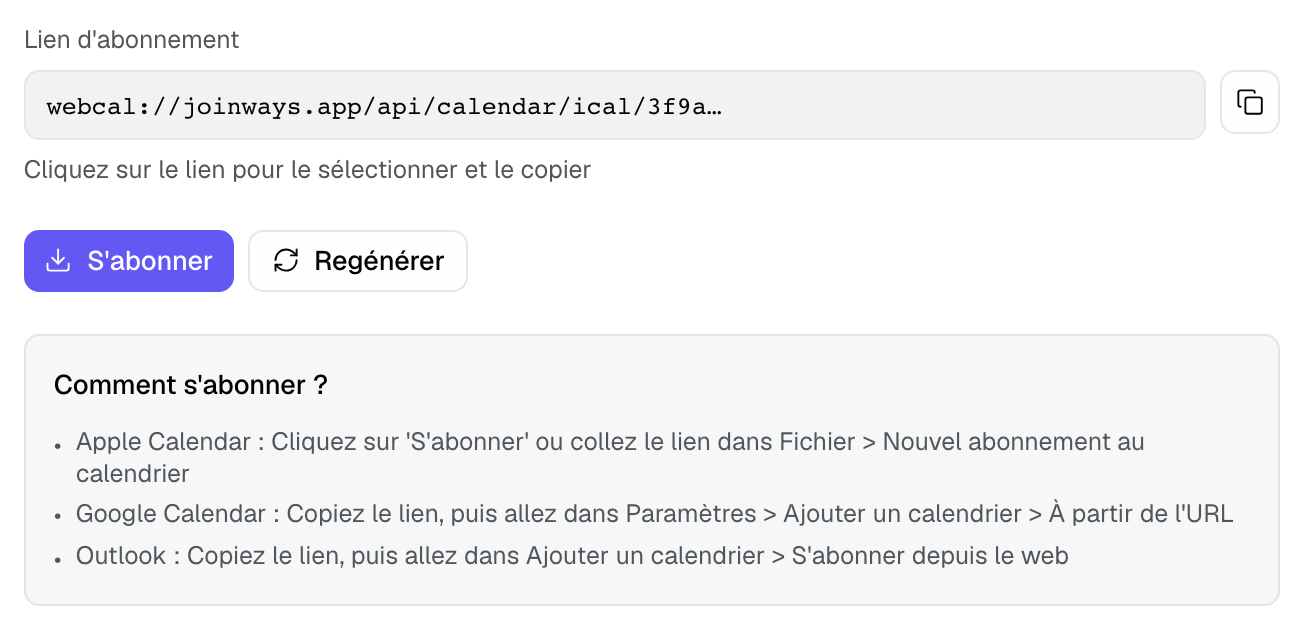
The "iCal Export" tab of the "Synchronization" page gives a subscription link to paste into Google Calendar, Apple Calendar or Outlook. It is read-only, updates about every hour and creates one entry per event day, at that day's hours. "Regenerate" replaces the link if you shared it too widely.
Example: a hotel on Microsoft 365
Hôtel Maison Aubriot connects Outlook Calendar with its sales manager's account. In the venue's "Synchronization", she ticks the "Events" calendar, shared with the front desk, and only the Confirmed status. Each confirmed seminar shows in Outlook with its rooms and guest count.
Troubleshooting
"The calendar is connected read-only"
Cause: your Microsoft organization did not grant Joinways permission to write to the calendar (Calendars.ReadWrite). Solution: ask your Microsoft 365 administrator to grant this permission, then disconnect and reconnect the Outlook calendar.
Events do not show
Cause: no calendar is ticked for this venue, the event's status is not ticked, or "On event creation" is off. Solution: check the venue's "Synchronization" page, then edit the event to send it again.
"No calendar found on this Outlook account."
Cause: the chosen account has no accessible calendar. Solution: reconnect with the account that holds your calendars.
"No writable calendars"
Cause: you can only read this account's calendars. Solution: ask for edit rights on the shared calendar, or use a calendar you own.
"Your role can't change this venue's calendar sync."
Cause: only owners and admins set up the sync. Solution: ask one of them to do it.
Frequently asked questions
Do changes made in Outlook come back to Joinways?
No. Sync goes from Joinways to the calendar. Edit the event in Joinways: the calendar follows.
Can I send each venue to a different calendar?
Yes. Calendars are chosen on each venue's "Synchronization" page.
Can I connect Google and Outlook at the same time?
Yes. Each connected provider has its tab on the venue's "Synchronization" page.
Does the connection replace the Joinways calendar?
No. The Joinways calendar remains the planning tool, with conflicts and availability. The connection mirrors your events where the team already checks its calendar.
See also
Testen Sie es 30 Tage lang mit Ihren nächsten Anfragen, ohne Kreditkarte.