Connect the Outlook calendar
Show your venues' events in your Outlook or Microsoft 365 calendar, with the statuses you choose.
Updated
For teams on Microsoft 365, connecting the Outlook calendar reflects your Joinways events in the calendar you already check every day. No more juggling between Joinways and Outlook: one shared schedule serves as the reference for the whole team.
This article walks you through linking your Outlook account step by step, what gets synced once the connection is in place, and how to keep a consistent schedule across tools. It is aimed at venue managers and event teams working in the Microsoft ecosystem.
The connection relies on Microsoft's official authorization (OAuth). It links your Microsoft account; you then choose, venue by venue, which calendars your events appear in.
Prerequisites
- An Outlook / Microsoft 365 account with calendar access.
- An owner or admin role in Joinways: the Calendars tab of Integrations is only visible to these roles.
- A browser where you can sign in to Microsoft to complete the OAuth authorization.
- Depending on your organization, authorization from your Microsoft administrator may be required.
What you'll learn
- Connect the Outlook calendar to your Joinways workspace.
- Understand what is synced and in which direction.
- Avoid date conflicts by keeping a consistent schedule across tools.
- Diagnose cases where authorization is refused or events don't appear.
Connect the calendar
Connecting takes a few steps from your workspace settings. Follow the order below: at each step, the screen tells you what action is expected.
- Go to Settings then Integrations. This is where all the external connections for your workspace are grouped.
- In the Calendars tab, click the Outlook Calendar card. Joinways then starts the Microsoft authorization.
- Authorize via Microsoft (OAuth): Microsoft asks you to sign in to your account and accept the access requested by Joinways. This is the step that establishes the trusted link between the two services.
- Then open Settings then Venues, pick the venue, then Synchronization. In the Outlook tab, tick one or more calendars: the venue's events will be created in every selected calendar.
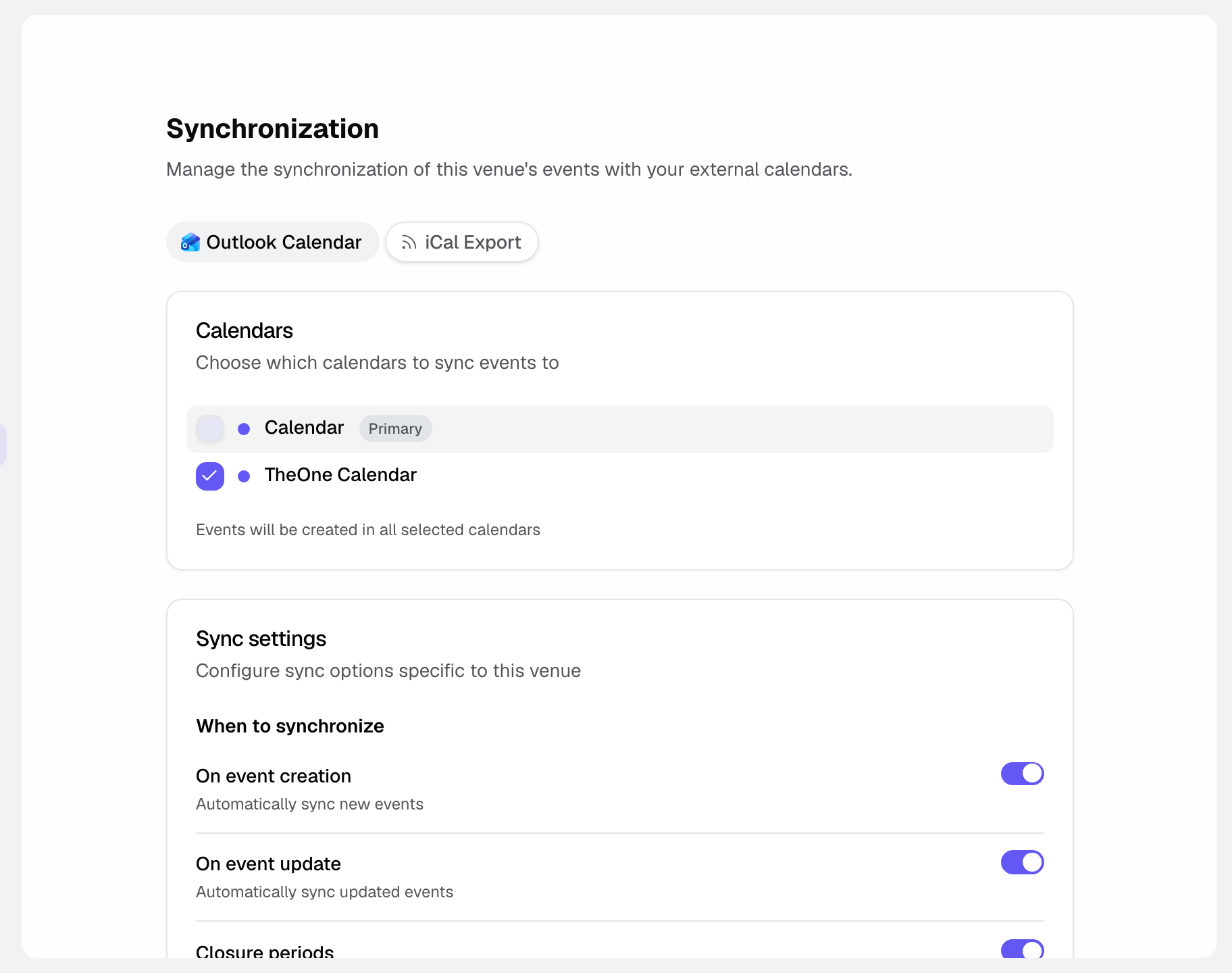
- On the same page, set When to synchronize (On event creation, On event update), the Calendar event content (notes, description, BEO link), the Synchronized event statuses (Hold, Confirmed, Lost, Canceled; only Confirmed by default) and, if needed, Closure periods to send the venue's closures as busy slots.
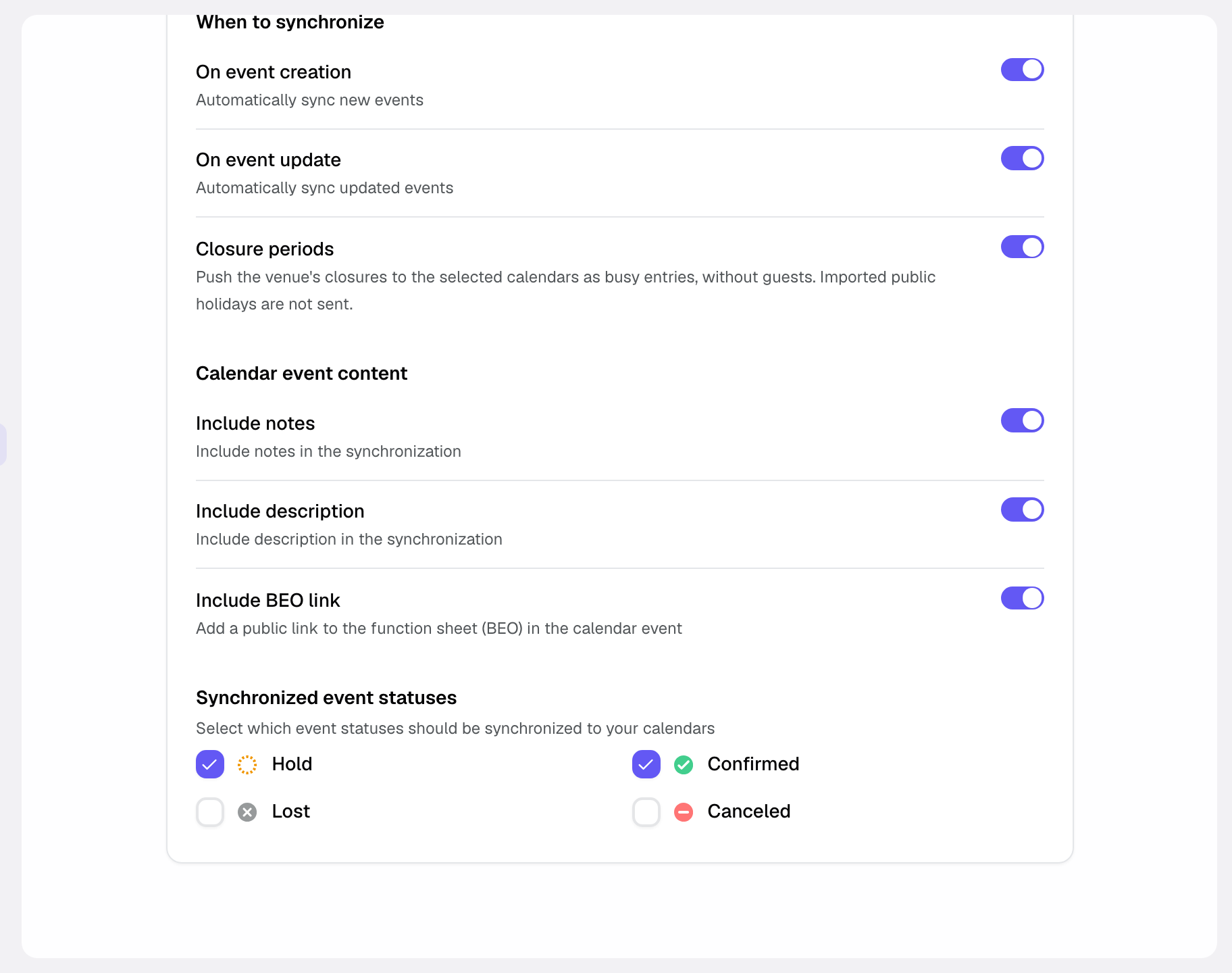
Once these steps are done, the connection is active: the venue's events arrive in the ticked calendars.
What is synced
This section recaps, based on how Joinways works, what flows between the two tools once the connection is in place.
- The venue's events whose status is ticked under Synchronized event statuses appear in the chosen calendars. By default, only confirmed events.
- The direction of the sync is from Joinways to Outlook: Joinways feeds the ticked calendars with the events whose status is synchronized.
The goal is to keep your schedule consistent across tools: you check your Joinways commitments directly in Outlook, which you already use every day.
Because the same date information is visible to the whole team in Outlook, everyone reasons from a shared schedule rather than from isolated copies.
In practice, once the connection is in place, you no longer have to copy your dates over: Joinways carries your events into the calendars ticked for each venue.
How it works
Once the authorization is granted and calendars are ticked for a venue, Joinways pushes that venue's events whose status is synchronized. There is nothing to re-enter: confirming an event in Joinways is enough to surface it on the Outlook side.
Only the ticked calendars receive the events: your other calendars, personal ones in particular, stay out of it.
This mechanism helps you avoid date conflicts: one shared schedule avoids double-booking spaces, because the whole team sees confirmed events in the same place.
Edge cases
- Administrator authorization: in some Microsoft 365 organizations, your administrator must authorize the app before the connection can go through.
- Several Outlook calendars: you can tick several for the same venue, and different calendars for each venue. Only calendars you can write to are offered.
- Events on hold: they only appear if the Hold status is ticked in the venue's synchronization. An event that moves to an unticked status is removed from the calendar.
- You use Google: if your organization runs Google rather than Microsoft, connect Google Calendar instead (see the "See also" section).
- Internal schedule view: even without an external calendar, Joinways offers its own calendar and pipeline views; the Outlook connection complements them rather than replacing them.
Best practices
- Tick a calendar dedicated to your events for each venue, to keep them clearly separate from your personal appointments.
- Tick in the venue's synchronization the statuses your team needs: Confirmed only for a production schedule, Hold too to visually hold dates under discussion.
- Anticipate administrator authorization if your organization requires it, to avoid a refusal during the connection.
- Check your calendars regularly to make sure there is no overlap on important dates.
- Keep the one-way direction in mind: Joinways feeds Outlook, not the other way around.
Troubleshooting
If something doesn't go as planned, these common situations help you get back to a reliable sync.
Problem: authorization is refused when connecting to Microsoft.
Cause: your Microsoft administrator hasn't yet authorized the app for your organization.
Solution: your Microsoft administrator may need to authorize the app. Ask them to approve the access, then restart the connection.
Problem: events don't appear in Outlook.
Cause: the calendar you're looking at isn't ticked in the venue's synchronization, or the events' status isn't ticked under Synchronized event statuses.
Solution: open the venue's Synchronization page and check the calendars ticked in the Outlook tab and the synchronized statuses.
Problem: events land in the wrong calendar.
Cause: a calendar other than the intended one is ticked in the venue's synchronization.
Solution: open the venue's Synchronization page and fix the calendars ticked in the Outlook tab.
Real-world example
An event space manager works on Microsoft 365. She opens Settings then Integrations, Calendars tab, clicks the Outlook Calendar card and authorizes access. She then opens her venue's Synchronization and ticks her work calendar.
As soon as she confirms a seminar in Joinways, the event appears in Outlook. Her team sees the date taken in the same place, which prevents a colleague from offering the same space to another client.
Another example
A Microsoft 365 organization has a strict policy: no external app can access calendars without administrator approval. The venue manager starts the connection, but authorization is refused at first.
He asks his Microsoft administrator to authorize the app, then clicks the Outlook Calendar card again. This time the authorization goes through. He ticks his calendar in the venue's Synchronization page, and his confirmed events start appearing there.
FAQ
Can I also connect Google?
Yes, choose the calendar that matches your organization. If you run Google rather than Microsoft, connect Google Calendar instead.
Which events are synced?
The venue's events whose status is ticked under Synchronized event statuses: Confirmed by default, and optionally Hold, Lost or Canceled.
In which direction does the sync run?
It runs from Joinways to Outlook: Joinways feeds the calendars ticked for each venue with the events whose status is synchronized.
Why is my authorization refused?
Your Microsoft administrator may need to authorize the app for your organization. Once the access is approved, restart the connection.
How do I choose the calendar where events appear?
In Settings then Venues, venue, Synchronization, Outlook tab: tick one or more calendars.
Do I have to re-enter my events manually?
No. Once the connection is in place, your events surface automatically in the ticked calendars, with no double entry.
What is this sync actually for?
It keeps your schedule consistent across tools and, through a shared schedule, avoids double-booking spaces.
Does the connection replace Joinways' views?
No. Joinways keeps its own calendar and pipeline views; the Outlook connection is added to reflect your confirmed events where your team already tracks its schedule.
See also
- Connect Google Calendar
- Connect Outlook
- Calendar and pipeline views
Bring every event inquiry into one queue.