Budget and revenue of an event
Track the announced budget, the confirmed revenue calculated from quotes, each quote's gap to the budget and the margin after vendor costs.
Aktualisiert am
An announced budget isn't guaranteed revenue, and a sent quote isn't signed yet. To know what an event is worth, you need to tell apart what the client said, what you expect and what is committed.
Joinways tracks these amounts on every event: the "Budget" announced by the client, the confirmed revenue ("Revenue" in the app: committed revenue excl. tax, calculated from quotes) and, if you import it, an expected revenue. It also compares each quote with the budget, and calculates the margin when you enter your purchase prices.
What you'll learn
- Where to read and edit the "Budget" and the confirmed revenue.
- How the confirmed revenue is calculated from quotes.
- Compare a quote with the announced budget.
- Read a quote's margin and the margin after vendor purchases.
- Find these amounts in the events list and in reports.
Prerequisites
- An event, ideally created from an inquiry: the budget extracted from the message carries over.
- A role other than "Read-only" to edit amounts.
- For a calculated confirmed revenue: an accepted or signed quote, and the event in "Confirmed" status.
1. The three amounts
- "Budget": what the client announced, often carried over from the inquiry. You can mark it "Flexible". It's an intention, not a commitment.
- "Revenue" (confirmed revenue): committed revenue excl. tax. It is calculated from accepted, signed, invoiced or paid quotes as soon as the event moves to "Confirmed".
- Expected revenue: your estimate, with no field on the event. It is set by import ("Expected revenue" column) or through the API, and values an option that has no quote yet.
2. Read and edit amounts on the event
In the event's right-hand column:
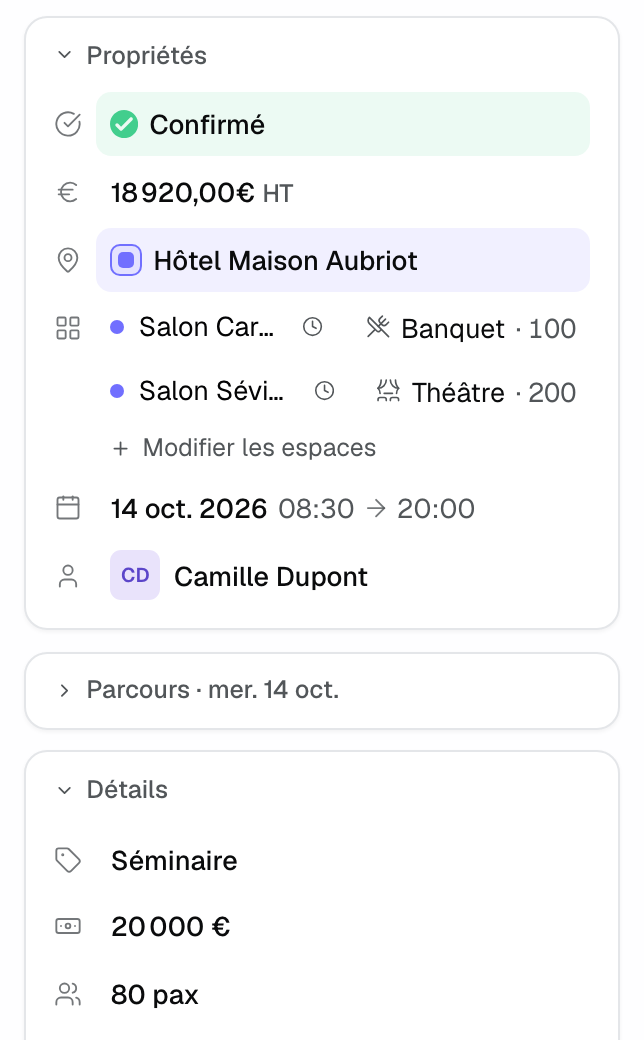
- the confirmed revenue appears in the "Properties" block, followed by "excl. tax", as soon as the event is "Confirmed" or an amount already exists;
- the "Budget" sits in the "Details" block, with the "Flexible" option;
- a "Canceled" event also shows "Cancellation fee", an amount excl. tax counted in revenue.
At the top of the "Overview" tab, the "Highlights" show the relevant amount for the status: the "Budget" for an option, the confirmed revenue for a confirmed event.
Click an amount to edit it. A 0 amount is accepted and stays visible, for example for a complimentary service.
3. How the confirmed revenue is calculated
- The client accepts or signs one or more quotes.
- You move the event to "Confirmed": Joinways adds up the total excl. tax of accepted, signed, invoiced or paid quotes.
- With every quote change (new acceptance, amendment, cancellation), the amount is recalculated. A quote replaced by an amendment drops out: only the amendment counts.
- If the event leaves "Confirmed" (back to option, lost, cancelled), the amount is cleared. It is recalculated at the next confirmation.
You can enter the confirmed revenue by hand, for example for a discount given outside the quote. A manual amount is no longer recalculated from quotes or replaced by an amount detected in an email or a file, even at 0. Clear the field to hand control back to the quotes.
Without a qualifying quote, Joinways can pre-fill the confirmed revenue from a confirmation email or a PDF uploaded to "Files", until a quote replaces it.
4. Compare a quote with the budget
When the event has a budget, the "Client budget" line appears under the quote totals. It shows the announced budget and the gap, as a percentage, with the quote's total incl. tax (excl. tax under reverse charge). Hover the percentage to read the gap as an amount, for example "€1,946.00 above the announced budget".
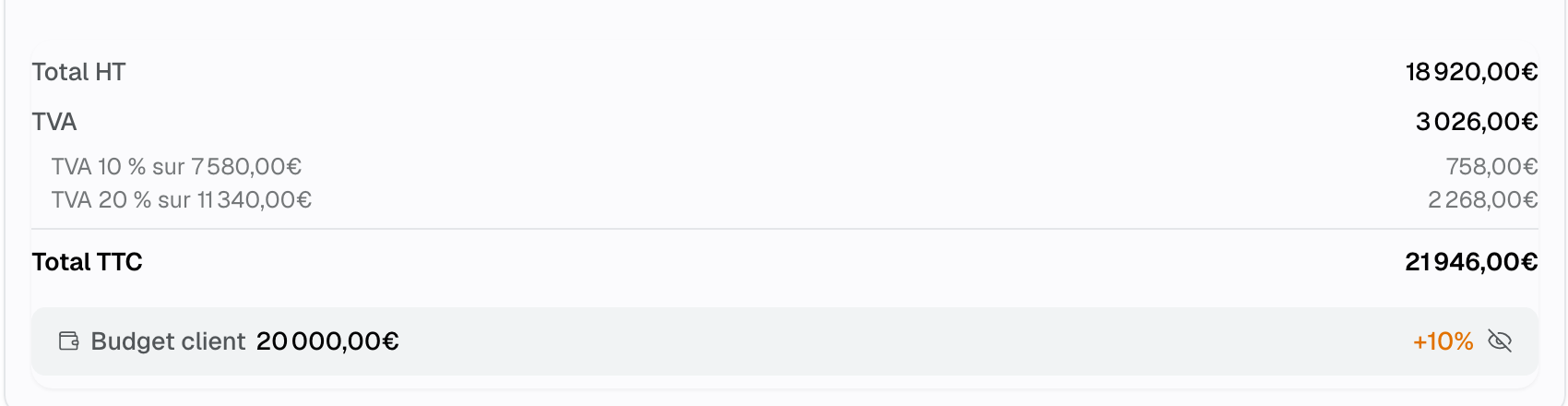
The gap turns orange more than 5% above the budget; below that, it stays gray. The crossed-out eye icon reminds you that this line is "Not visible to client". In the same place, a warning appears if the total excl. tax stays below the minimum spend of the booked spaces or of the venue.
5. Read the margin
Two margins are calculated, never shown to the client:
- Quote margin: when catalog items have a purchase price, the "Margin" line appears under the quote totals, as a percentage. Preceded by "~" with a triangle, it's a "Partial margin": some items have no purchase price.
- Margin after vendors: in the "BEO" tab, "Vendors" section, enter each vendor's "Purchase price excl. tax", "Flat" or "Per person" (multiplied by the covers of their program lines, otherwise by the event's guest count). Under the list, "Vendor purchases" gives the total, and "Margin" what remains of the confirmed revenue excl. tax, as an amount and a percentage.
The margin after vendors only appears when the event has a confirmed revenue. Vendors see their agreed price on their link; the client never sees these prices.
6. Find the amounts elsewhere
- Events list: the "Revenue" column, and the "Confirmed revenue excl. tax" filter ("Filter" button, "Amounts" group): "Filled in", "Not filled in", or a "Min" / "Max" range. A 0 revenue counts as not filled in for this filter.
- Company and person records: the "Relationship" block adds up the confirmed revenue of the client's events.
- Reports: revenue adds up the confirmed revenue of confirmed events plus cancellation fees. The "Open pipeline" values options by their latest active quote, otherwise by the expected revenue. The budget isn't used in reports.
Example: a seminar over budget
A seminar inquiry announces a "€20,000 excl. tax budget". The budget carries over to the event. The quote, with an extra hour of open bar, comes to €21,946 incl. tax: the "Client budget" line shows +10% in orange, and the sales manager decides to send it as is. Once the quote is signed and the event confirmed, the confirmed revenue shows €18,920 excl. tax. The caterer is added to the BEO at €45 excl. tax per person: the margin after vendors appears under the list.
Troubleshooting
The confirmed revenue stays empty although a quote was sent
Cause: a sent quote doesn't count until it is accepted or signed, and the calculation only runs when the event is "Confirmed". Solution: check the status of the quote and of the event.
The confirmed revenue no longer follows the quotes
Cause: the amount was entered by hand. Solution: clear the field; Joinways recalculates the amount from the qualifying quotes.
The "Client budget" line doesn't appear on the quote
Cause: the event has no budget, or it is 0. Solution: enter the "Budget" in the event's "Details" block.
The margin after vendors doesn't appear
Cause: no vendor has a purchase price, or the event has no confirmed revenue. Solution: enter the vendors' "Purchase price excl. tax" and check the confirmed revenue.
Frequently asked questions
Does the confirmed revenue include amendments?
Yes. A quote replaced by an amendment drops out of the calculation; only the amendment counts.
Do several signed quotes on one event add up?
Yes. Once the event is confirmed, the confirmed revenue adds up all accepted, signed, invoiced or paid quotes.
Can the client see the budget, the gap or the margin?
No. This information stays in Joinways; the quote sent to the client shows none of it.
Should I enter an approximate budget?
Only if it comes from the client. A made-up number skews the comparison with your quotes: an empty field is better.
See also
Testen Sie es 30 Tage lang mit Ihren nächsten Anfragen, ohne Kreditkarte.