The Workflows page: your workflows and included automations
Your sending and follow-up rules in "Custom", everything Joinways does on its own, AI included, in "Included": what each tab holds.
Aktualisiert am
Some tasks come back with every event: following up on a quote, asking for a review, alerting the team. Others, Joinways already does without you thinking about it: marking a quote as sent, confirming an event on signature, reading new inquiries. The "Workflows" page brings both together.
The "Custom" tab holds the rules you create. The "Included" tab lists everything Joinways does on its own, AI included, with a switch when you can turn it off.
What you'll learn
- Find the "Workflows" page and its two tabs.
- Know where to read and create your workflows.
- Turn off or tune an included automation, venue by venue if needed.
- Manage event confirmation on signature.
Prerequisites
- "Custom" tab: Pro plan or trial. On the Free plan, it shows "Unlock automations with Pro".
- "Included" tab: available on every plan.
- To make changes: Owner or Admin role. Other roles see the page read-only.
1. Open the page
Open "Settings" > "Workflows", in the "Sales follow-up" group. Two tabs share the page: "Custom" and "Included".
2. The "Custom" tab
These are your rules: a trigger, a delay, conditions and one or more actions (email to the client, task, notification, webhook). The list shows each rule with its switch, its number of runs and its last run. The "Ready-to-use templates" offer four rules to start from.
To create one, follow Create your first automation workflow. The full list of building blocks is in Triggers, conditions and actions: the reference, and ready-to-copy rules in Workflow examples to copy.
3. The "Included" tab
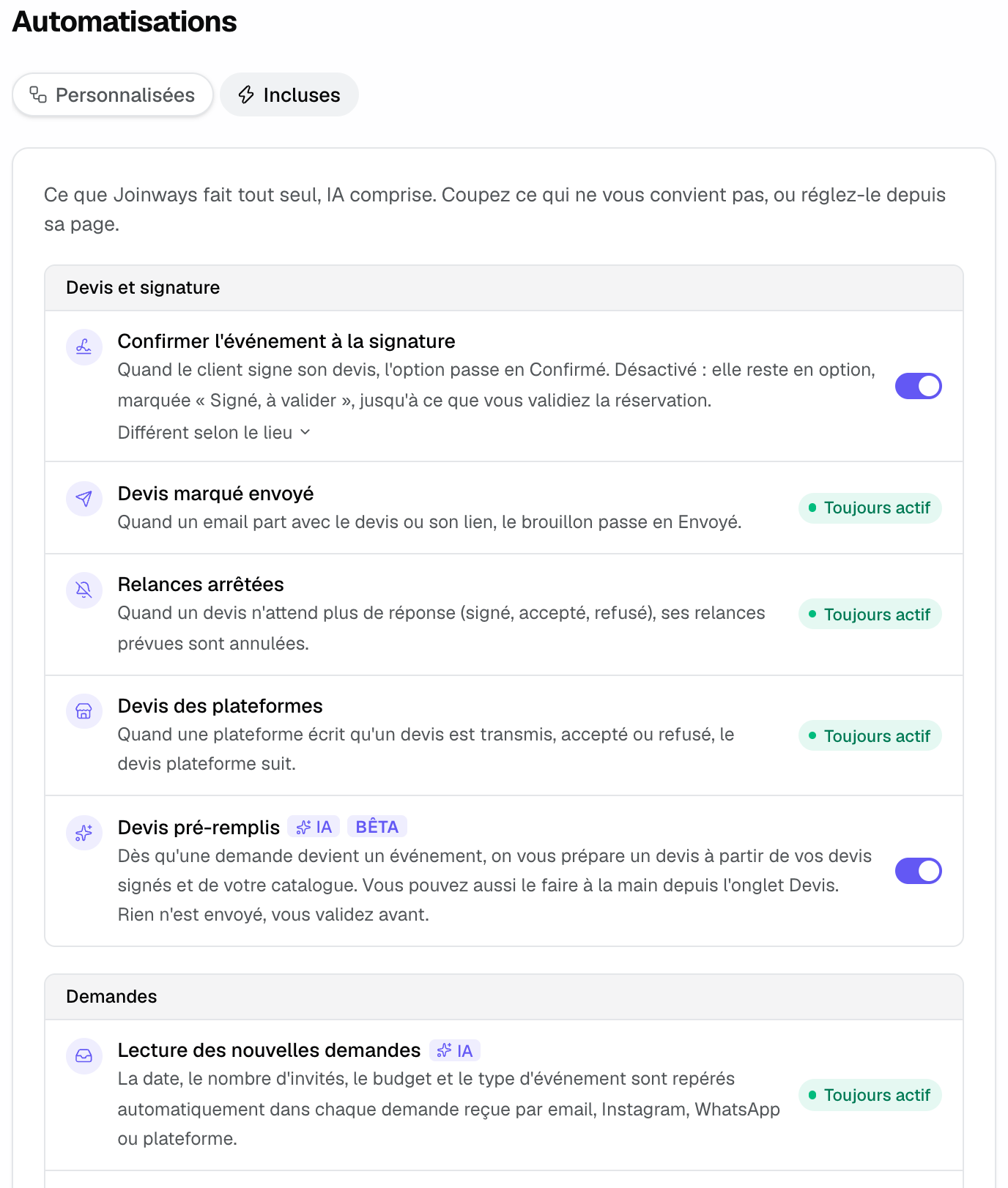
"What Joinways does on its own, AI included." The automations are grouped into eight sections: "Quotes and signature", "Leads", "Events", "Payments and invoices", "Function sheet", "Emails", "Calendar and integrations", "Notifications". On the right of each row, you find one of three cases:
- a switch: you can turn it off here;
- a link to the page that already tunes it ("Lead sources", "Stages", "Invoicing", "Venues", "Developers", "Notifications", "Communication", "Inbox");
- "Always on": it is part of how Joinways works (a recomputed total, merged duplicates).
AI features carry the "AI" tag, and "Beta" while still being tested.
Automations you can turn off
- "Confirm the event on signature" (on by default). When the client signs their quote, the option becomes Confirmed. Off, it stays an option, marked "Signed, to validate"; you get a notification and a "Validate the booking" banner shows at the top of the event.
- "Auto-filled proposals" (AI, Beta). As soon as an inquiry becomes an event, a draft quote is prepared from your signed quotes and your catalog. On by default during the trial and on paid plans. See Generate a quote with AI.
- "Unpaid invoice reminders" (on by default). 3, 10 and 17 days after a Stripe invoice's due date, a summary goes to the workspace owner, never to the client.
Venue-by-venue setting
"Confirm the event on signature" can differ per venue. Under the description, "Different per venue" unfolds the list of your venues; for each one, choose "Like the workspace (on)", "On" or "Off". The row then shows "Different for 1 venue".
AI features
- "Incoming inquiry reading" ("Always on"): date, guest count, budget and type spotted in each inquiry. See How AI qualifies your inquiries.
- "Auto company profiles" ("Always on"): address, industry and logo filled in. See Automatically enrich companies with AI.
- "Running order from a file" ("Always on"): the BEO filled from a signed quote or a PDF.
- "Email writing assistant": link to the "Inbox". See Reply faster with the AI email assistant.
The Joinways agent and its new inquiry triage are not set here, but from the "Agent" page: see The Joinways agent.
Example: validating signed bookings yourself
An estate wants to check the deposit and the schedule before confirming a wedding, but keep automatic confirmation for its city seminars. In "Included", it leaves "Confirm the event on signature" on for the workspace, opens "Different per venue" and picks "Off" for the estate. Signed weddings stay as options, marked "Signed, to validate", until someone clicks "Validate the booking".
Troubleshooting
The switches are greyed out
Cause: your role lacks the right to manage automations. Solution: ask a workspace owner or admin.
A signed event stays an option
Cause: "Confirm the event on signature" is off for the workspace or for that venue. Solution: click "Validate the booking" at the top of the event, or turn the setting back on.
The "Custom" tab shows "Unlock automations with Pro"
Cause: the workspace is on the Free plan. Solution: upgrade to Pro. The "Included" tab stays available.
Frequently asked questions
What's the difference between a workflow and an included automation?
A workflow is a rule you write (when, what, to whom). An included automation is a Joinways behavior: you can only turn it off or tune it, not change it.
Does turning off "Confirm the event on signature" block signing?
No. The client signs as usual; only the automatic switch to Confirmed waits for your validation.
Are AI features available on the Free plan?
The "Included" tab shows on every plan, but each feature keeps its own plan conditions. "Auto-filled proposals", for example, is off by default on the Free plan.
See also
Testen Sie es 30 Tage lang mit Ihren nächsten Anfragen, ohne Kreditkarte.