Automate your post-event emails
Build rules that automatically send an email after an event: feedback, thank-you notes, quote follow-ups, with delays, conditions and dynamic fields.
Updated
Asking for feedback two days after an event, following up on a proposal still on hold, thanking a client: these emails always go out too late when sent by hand. Workflows send them for you, following rules you define once.
What you will learn
- Create a rule from scratch or from a template
- Configure the trigger, delay, conditions and email
- Track the send history and understand statuses
Prerequisites
- Pro plan (or free trial). The Free plan does not include automations.
- Workspace owner role to create, edit or delete a rule (other members can view them).
- Connected mailbox. Emails are sent from the event owner's Gmail or Outlook account: each member connects theirs in Settings > “My mailbox”.
Create an automation
- Open Settings > Workflows, Workflows tab.
- Click “New workflow” to start from a blank rule, or pick one of the four “Ready-to-use templates” shown under the list: “Post-event feedback D+2”, “Pre-event reminder”, “Acknowledgment when the event is created” or “Proposal follow-up (sequence)”.
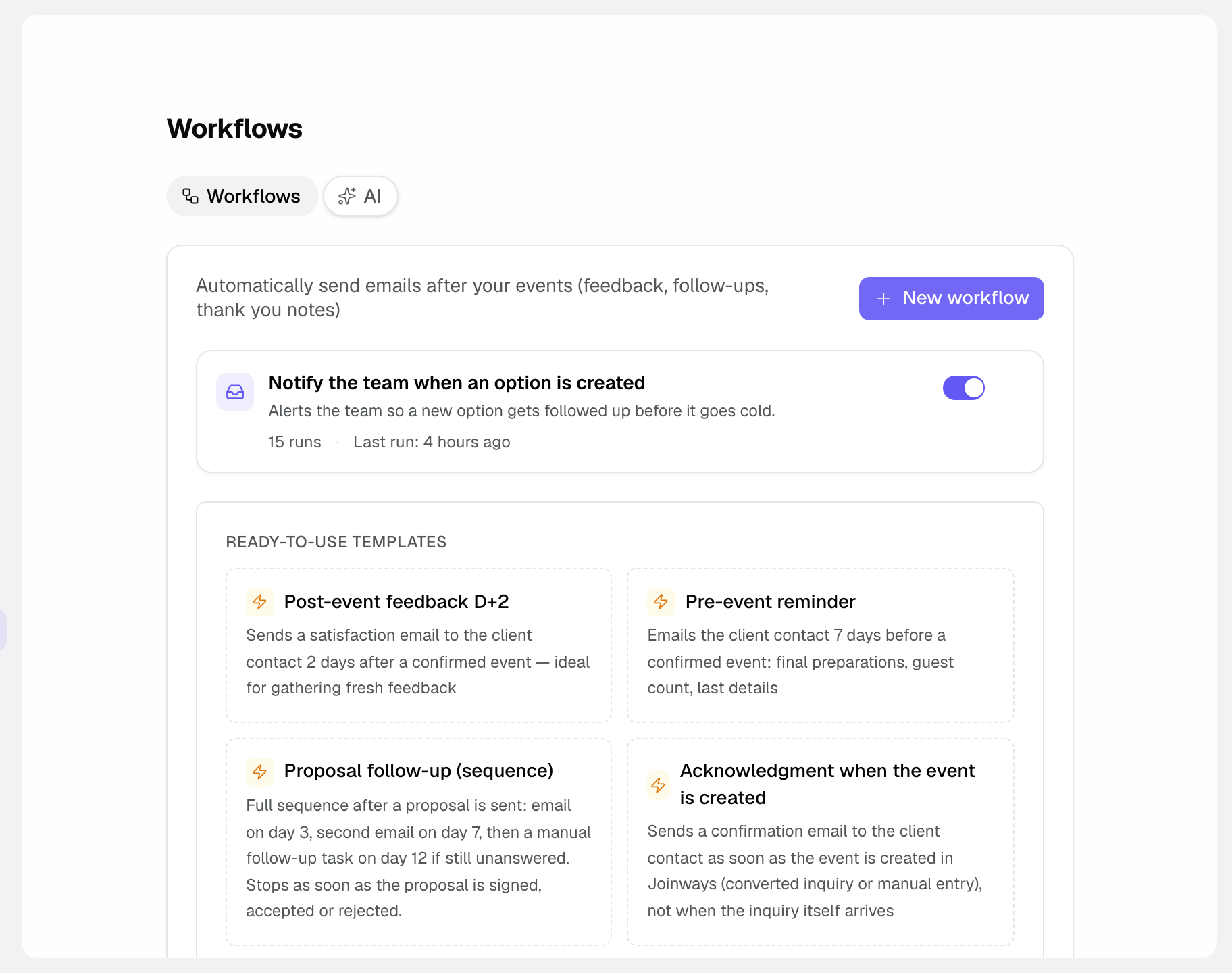
- The rule opens in the editor (the proposal follow-up sequence creates three rules and stays on the list). A rule is inactive by default: nothing is sent until you switch it on.
Workflow steps
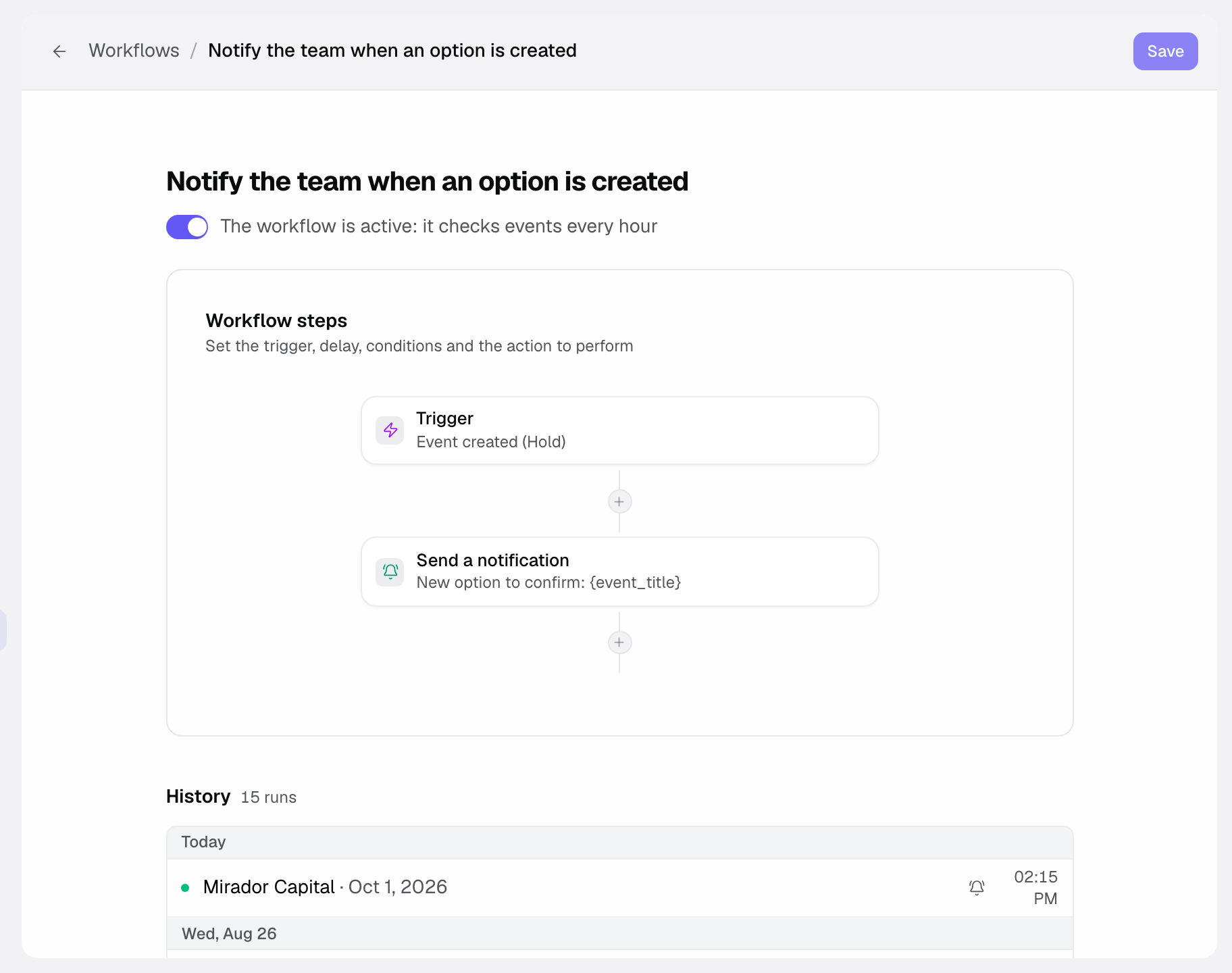
- Trigger. Six to choose from. “Event ended” (the end date has passed), “Upcoming event” (before the event starts), “Status unchanged for” (the event has stayed in a status for N days), “Event created” (the event is created in Joinways, from a converted inquiry or entered by hand, not when the inquiry arrives), “Event confirmed” (the event has just moved to the chosen status; runs on the next hourly pass, with no delay) and “Proposal sent, no reply” (a sent proposal is still pending after the delay). For event triggers, then pick the “Matching statuses”: Confirmed, Hold, Lost, Cancelled.
- Delay. From 0 to 365 days and 0 to 23 hours after the trigger (before the start for “Upcoming event”), with an optional “Preferred run time” (9:00 suggested). The time zone is the event venue's. With no time set, an email only goes out between 8 a.m. and 9 p.m. local time. “Event confirmed” does not accept a delay.
- Condition (optional). Checks a piece of information before acting: Contact email, Event type, Venue, Number of guests or Event owner, with the operators “is filled in”, “is empty”, “equals”, “is not equal to”, “contains”, “is greater than” and “is less than”. You can add several: all of them must be met. If a condition is not met, the workflow does nothing for that event.
- Actions. Four are available: “Send an email”, “Create a task”, “Send a notification” (in-app, to the event owner or the whole team) and “Call a webhook” (a signed JSON POST to your own URL, for Zapier, Make, n8n or any HTTPS endpoint). A rule can chain several actions. For an email, write the subject and body and insert dynamic fields ({client_name}, {event_title}, {event_date}, {venue_name}, {owner_name}, {company_name}, {client_email}, {quote_link}, {quote_number}…), or switch on “AI drafting”: the AI writes a personalized message for each event from your instructions.
Test, then activate
- Use “Send a test email” to receive the real rendering in your inbox (subject prefixed [Test]).
- Click Save.
- Activate the rule with the switch at the top of the editor. Joinways then reviews your active rules every hour, which is why a delay in hours and a chosen send time are honoured.
Track the send history
Each rule shows its “History”: Sent, Failed, Skipped or Pending, with the date and the reason. A Failed run is retried on the next hourly pass. An event never receives the same email twice: a Sent or Skipped run is final for that rule.
Inquiries from some platforms: when a platform's terms forbid emailing the client directly (Kactus, Funbooker), a workflow never emails that client outside the platform. The run shows as “Skipped” with the reason. Tasks, notifications and webhooks are not affected.
FAQ
Why is a send “Skipped”?
“Skipped” means the rule was dropped for good on that event: no contact email, a condition not met, the event status changed in the meantime, the proposal no longer pending, or an inquiry from a platform whose terms forbid emailing the client directly. If the event has no owner or the owner's mailbox is not connected, the send is “Failed”: Joinways retries on every hourly pass, and the email goes out once the mailbox is connected in Settings > “My mailbox”. The reason is shown on each history line.
Can I send two different emails for the same event?
Yes, by creating two rules (for example a thank-you at D+1 and a review request at D+7). A single rule holds one delay and at most one action of each type: one email, one task, one notification and one webhook.
Who can create rules?
Only the workspace owner. Members can view rules and their history.
See also
Bring every event inquiry into one queue.