Add the chat to your website
Turn the website chat on, teach it your answers, paste its line of code: it answers visitors, prepares their inquiry and sends it to your Inquiries.
Updated
A visitor on your website often has a question before filling in a form: is the room free on June 12, how many people fit for a cocktail reception, can we bring our own caterer? If they cannot find the answer on a Sunday evening, they go and look at another venue.
The website chat opens from a button on all your pages. It answers from what you taught it, says whether a date is free without ever showing a name, then prepares the inquiry with the visitor. The inquiry lands in "Inquiries", with the conversation. The chat is a system of its own, separate from the website form, with its own settings and code.
What you'll learn
- Turn the chat on and teach it what it needs to know.
- Set what it asks, what it says about dates and its button.
- Put its code on your website and check it is in place.
- Handle an inquiry that came from the chat and reply to a visitor who is still online.
Prerequisites
- An owner or admin role in the workspace, and at least one venue created.
- Being able to edit your website's footer, or someone who does it for you.
1. Turn the chat on
- Go to "Settings" > "Website", or to "Settings" > "Integrations", "Sources" tab, "Website chat" card.
- At the top of the page, choose the "Chat" pill.
- On the "The chat is off" card, click "Turn the chat on". The "Chat on" switch, top right, turns on.
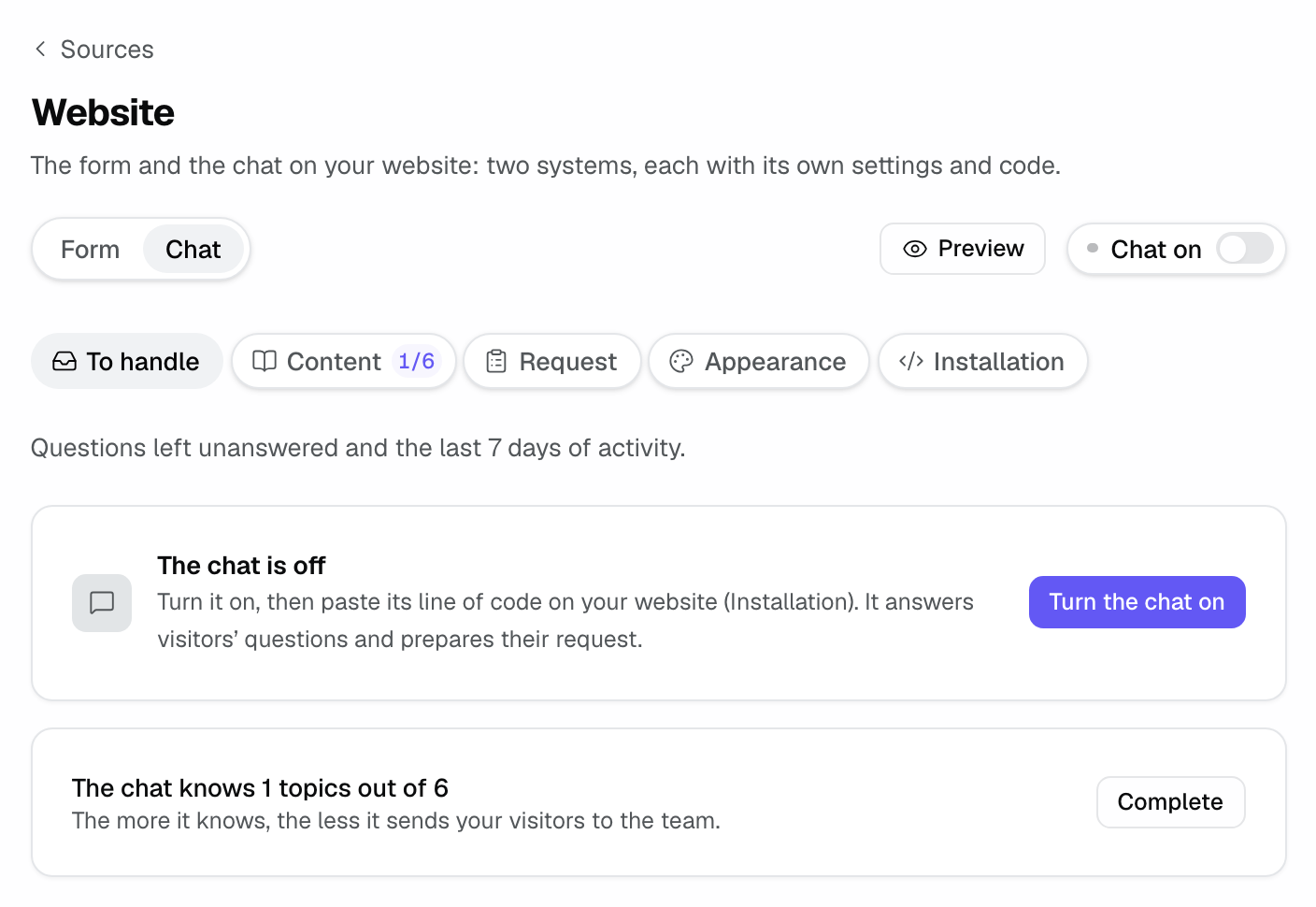
The chat settings fit in five sections: "To handle", "Content", "Request", "Appearance" and "Installation". The "Preview" button opens the chat with the saved settings; a test conversation never creates an inquiry.
2. Teach it what it needs to know
The chat only answers from the sources in the "Content" section. When it does not know, it notes the question for your team instead of making something up. Those questions show in the "To handle" section, under "Unanswered questions": "Answer", then "Teach the chat", adds your answer to the frequent questions. The same section gives the week's number of conversations and inquiries.
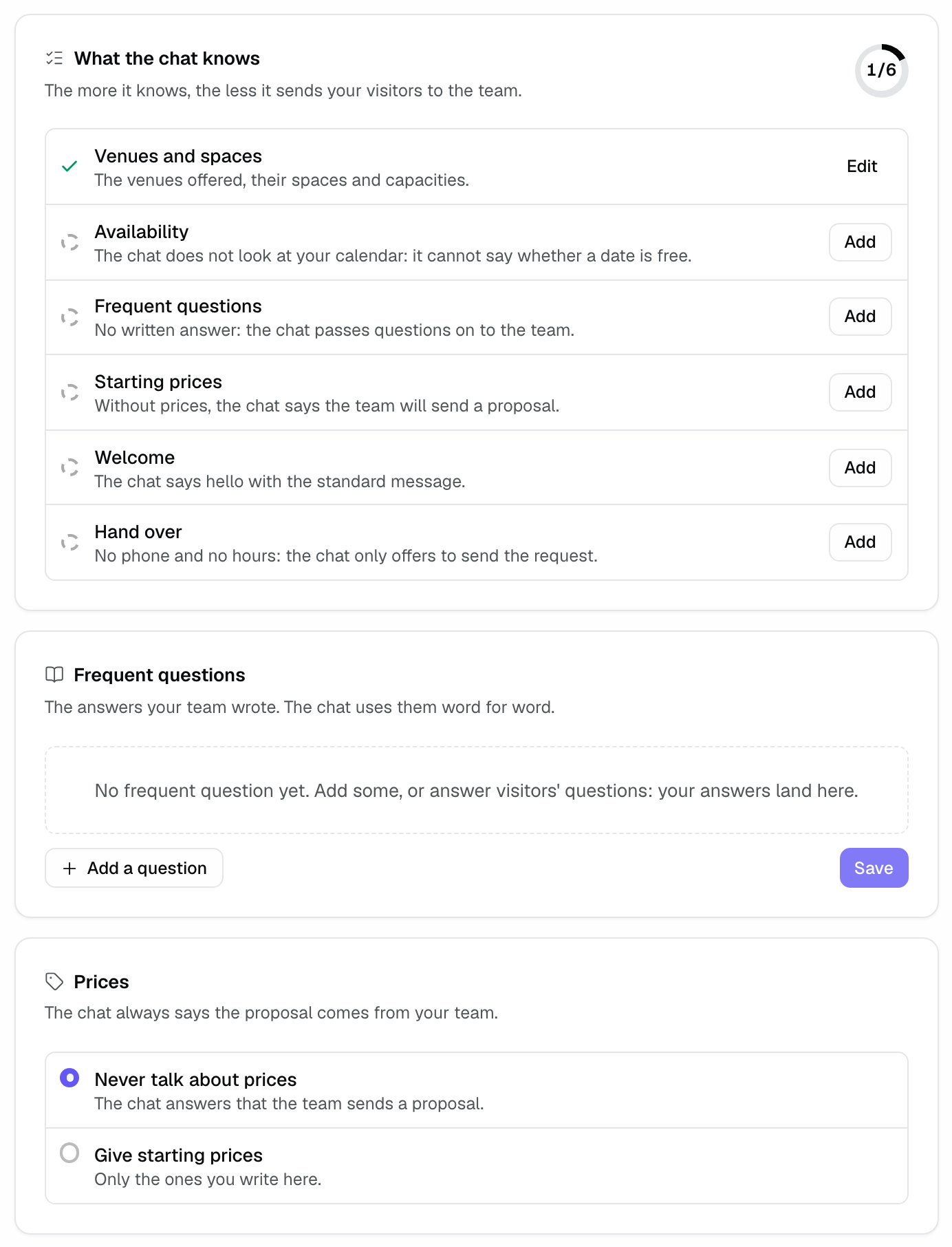
- "Welcome": the "Welcome message" and up to 4 one-click suggestions under it.
- "Venues and spaces": the venues offered, their spaces and their capacities by layout, taken from your settings.
- "Frequent questions": the answers written by your team, which the chat uses word for word. "Add a question" creates one (100 at most).
- "Prices": "Never talk about prices", and the chat answers that the team sends a proposal, or "Give starting prices", limited to the lines you write (12 at most).
- "Hand over to the team": the "Phone shown" and the "Hours" the chat gives when the visitor wants to talk to someone.
3. Set the inquiry and the dates
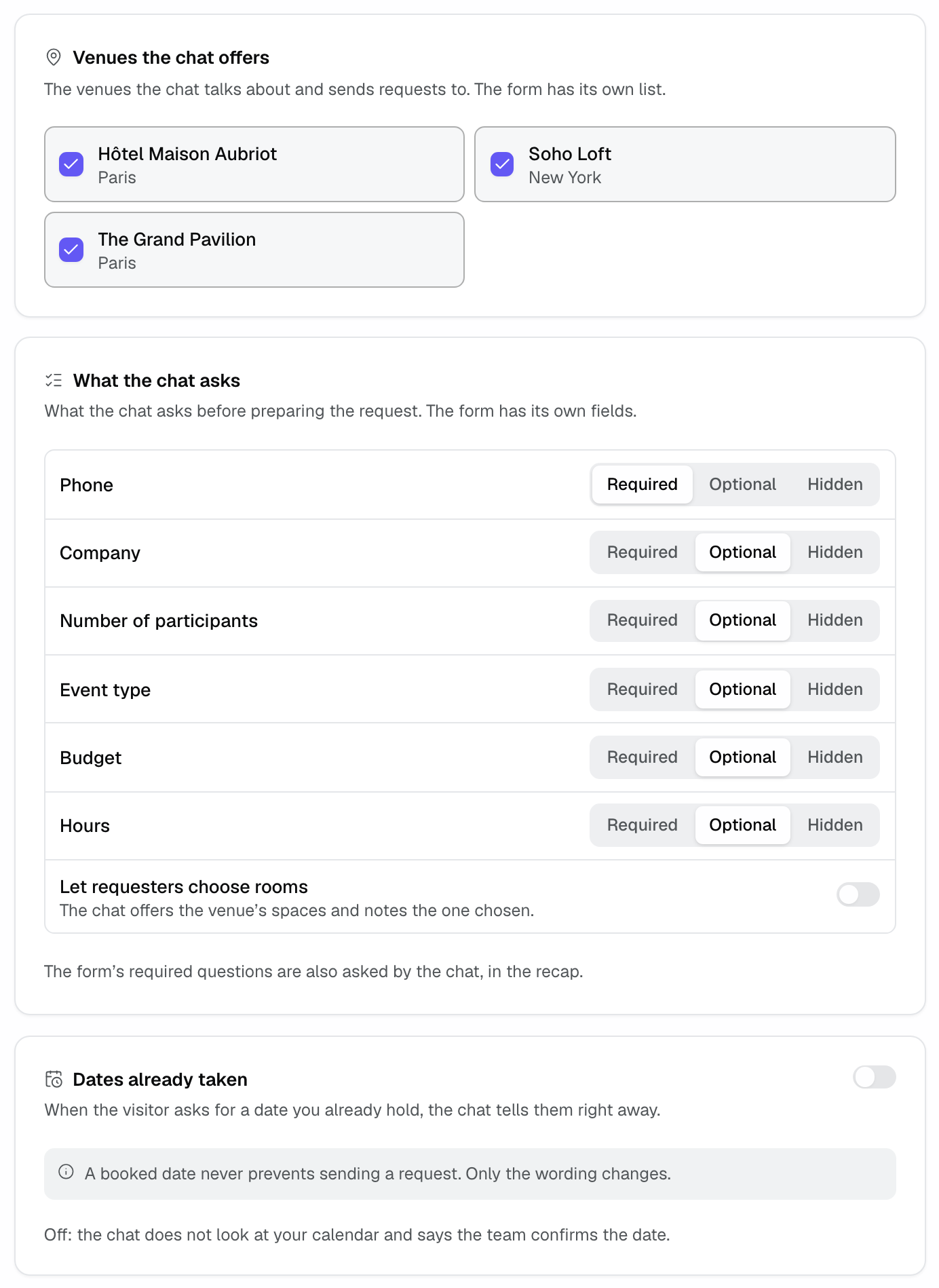
The "Request" section sets what the chat prepares: "Venues the chat offers" and "What the chat asks", separate from the form's. In "Dates already taken", the "Show dates already taken" switch lets the chat read your calendar. For events on option, confirmed or replaceable events and venue closures, you choose what it answers: "Free", "On request" or "Closed". A booked date never prevents sending an inquiry. When it is off, the chat says the team confirms the date.
4. Set the button and the look
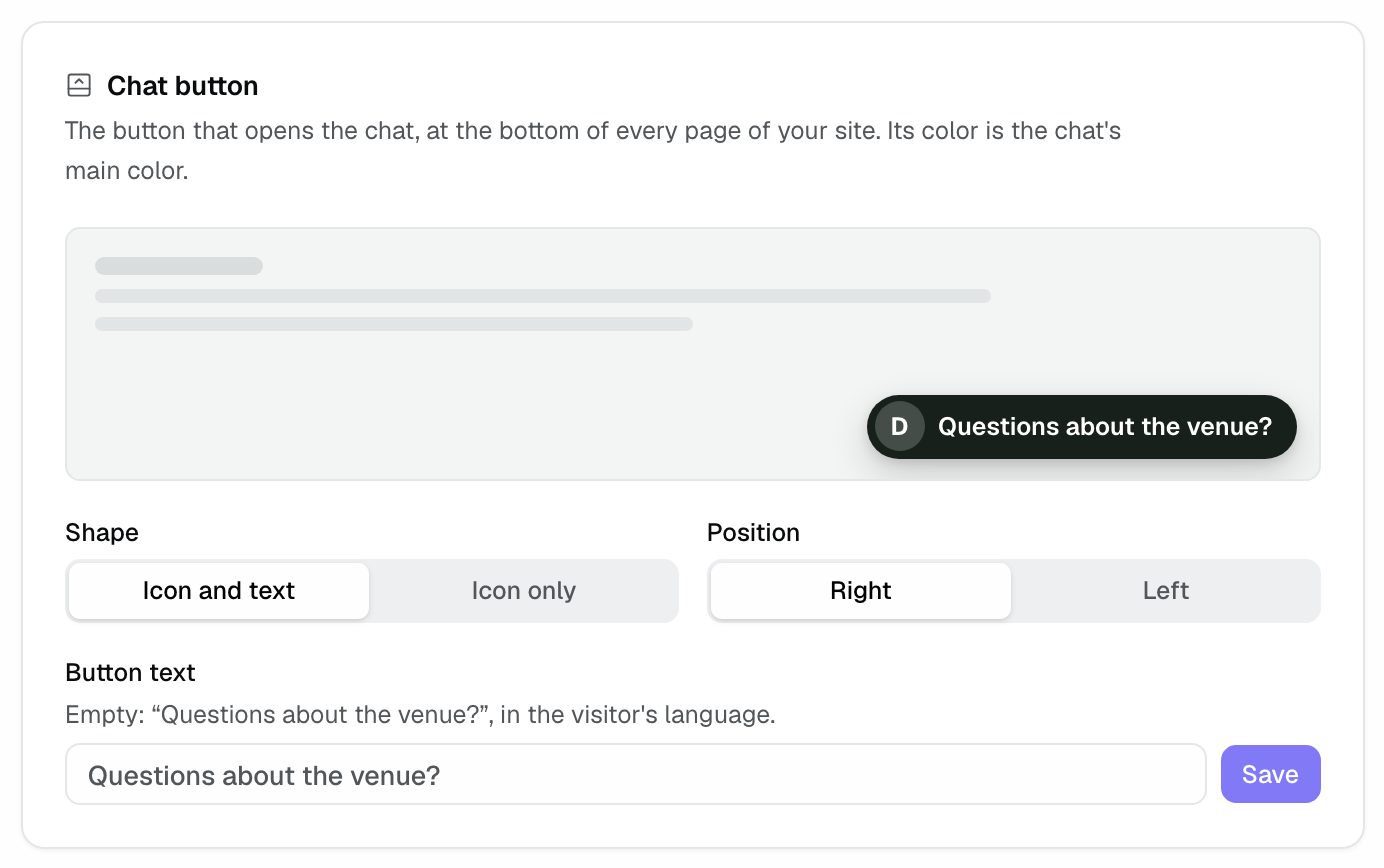
- "Chat button": the "Shape" ("Icon and text" or "Icon only"), the "Position" (right or left) and the "Button text". Left empty, the button says "Questions about the venue?", in the visitor's language.
- "Chat appearance": the window's colors, font, corners and language. On automatic, the chat answers in the visitor's language: French, English, Spanish, Italian or German.
5. Put the code on your website
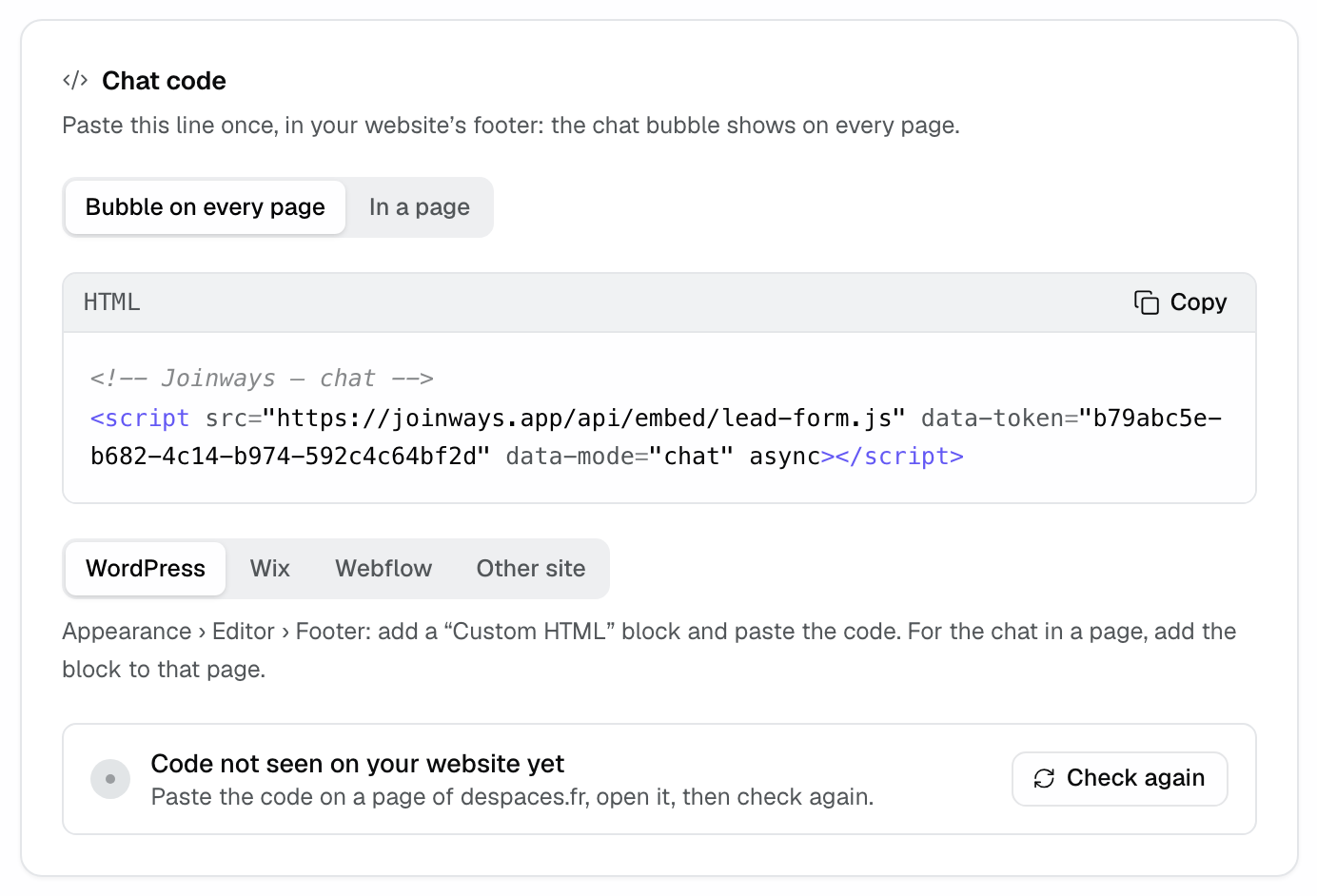
- Open the "Installation" section. Under "Chat code", keep "Bubble on every page": a single line to paste once in your website's footer. "In a page" gives a block to paste where the chat should appear.
- Choose your site builder, "WordPress", "Wix", "Webflow" or "Other site", to read where to paste the code.
- Open a page of your website, then click "Check again": the "Check" card shows "Code seen on" followed by the page address.
"Allowed domains" limits the websites where the chat shows. If an agency runs your website, "Someone else runs your website?" emails them the code and the steps. At the bottom of the section, "Advanced options" sets the confirmation shown in the chat after sending, the acknowledgement emailed to the visitor and privacy.
6. What lands in "Inquiries"
The visitor chats, reviews a summary of their inquiry, then sends it. It lands in "Inquiries" like an inquiry from the form, with the "Website chat" source: event type, date, headcount, spaces, budget and contact details. The "Conversation on the site" block shows the full exchange and the "Points raised", meaning the questions the chat could not answer.
- While the visitor is online, the inquiry is marked "On the site now" and your reply goes "In the chat", signed with your first name. The assistant then stays silent for 20 minutes after your last message; "Hand back to the assistant" restarts it sooner.
- If the visitor has left the website, your reply goes "By email", from your connected mailbox.
- "Reply and teach the chat" answers the visitor and adds the answer to the frequent questions, if your role has access to the settings: the chat knows it from the next conversation on.
The "Site chat" notification tells you at once about an inquiry sent from the chat, a question left unanswered or a visitor writing again. It is on by default and arrives in the app and on your phone, not by email: the visitor may still be on the website. See Set up your notifications.
Example: an estate that answers on Sunday evening
Domaine des Tilleuls turns the chat on and writes eight frequent questions (caterer, accommodation, end time). On a Sunday at 9 p.m., a bride-to-be asks whether September 12 is free for 90 guests. The chat answers that the date is on request, then prepares the inquiry, which the visitor sends. On Monday morning, the manager finds it in "Inquiries" with the conversation and a new question about fireworks. She answers it and teaches it to the chat.
Troubleshooting
The chat button does not show on my website
Cause: the "Chat on" switch is off, the code is not in the shared footer, or the website's domain is not in "Allowed domains". Solution: check these three points, republish the website, open a page, then click "Check again".
The chat hands over to the team too often
Cause: answers are missing in "Content". Solution: go through the "Unanswered questions" in the "To handle" section and complete the frequent questions and starting prices. For dates, check that "Show dates already taken" is on in the "Request" section.
Frequently asked questions
Should I keep the form if I turn the chat on?
They are two independent systems: you can turn on one, the other or both. See Website form.
See also
Try it on your next inquiries for 30 days, no credit card.