Set up your notifications
Choose what alerts you and how, to react fast to client replies and signatures without drowning in notifications.
Updated
In events, reacting fast wins deals: an inquiry answered within the hour turns into a visit, then a signature, far more often than one left unanswered for days. But the opposite is just as true: an account that buzzes constantly ends up ignored, and the real alerts drown in the noise. Tuning your notifications well means striking the balance between being told what matters and not being overwhelmed.
This article details how to choose what alerts you, through which channel, and how to avoid overload. Settings are personal: each team member configures their own notifications, without affecting anyone else's.
Prerequisites
Before tuning your notifications, make sure you meet the following conditions.
- Have an active account on the relevant workspace.
- Have access to the Settings then Notifications page.
- For push: allow Joinways notifications in your browser. On iPhone and iPad, first install Joinways to your home screen.
- For email: have a valid address linked to your account.
What you'll learn
- Choose your notification channels.
- Select the events that alert you.
- Understand the difference between email, push and in-app channels.
- Avoid overload while keeping critical alerts on.
Open the notification settings
All configuration happens on a single screen. You reach it in a few clicks, then enable or disable each type of alert per channel.
- Go to Settings then Notifications: your preferences list appears.
- Turn on push for this device with the "Enable" button in the "Push notifications on this device" card. Push is set per device, not per alert type.
- In the "Notify me about" table, turn each type on or off with its two switches: "Email" and "App".
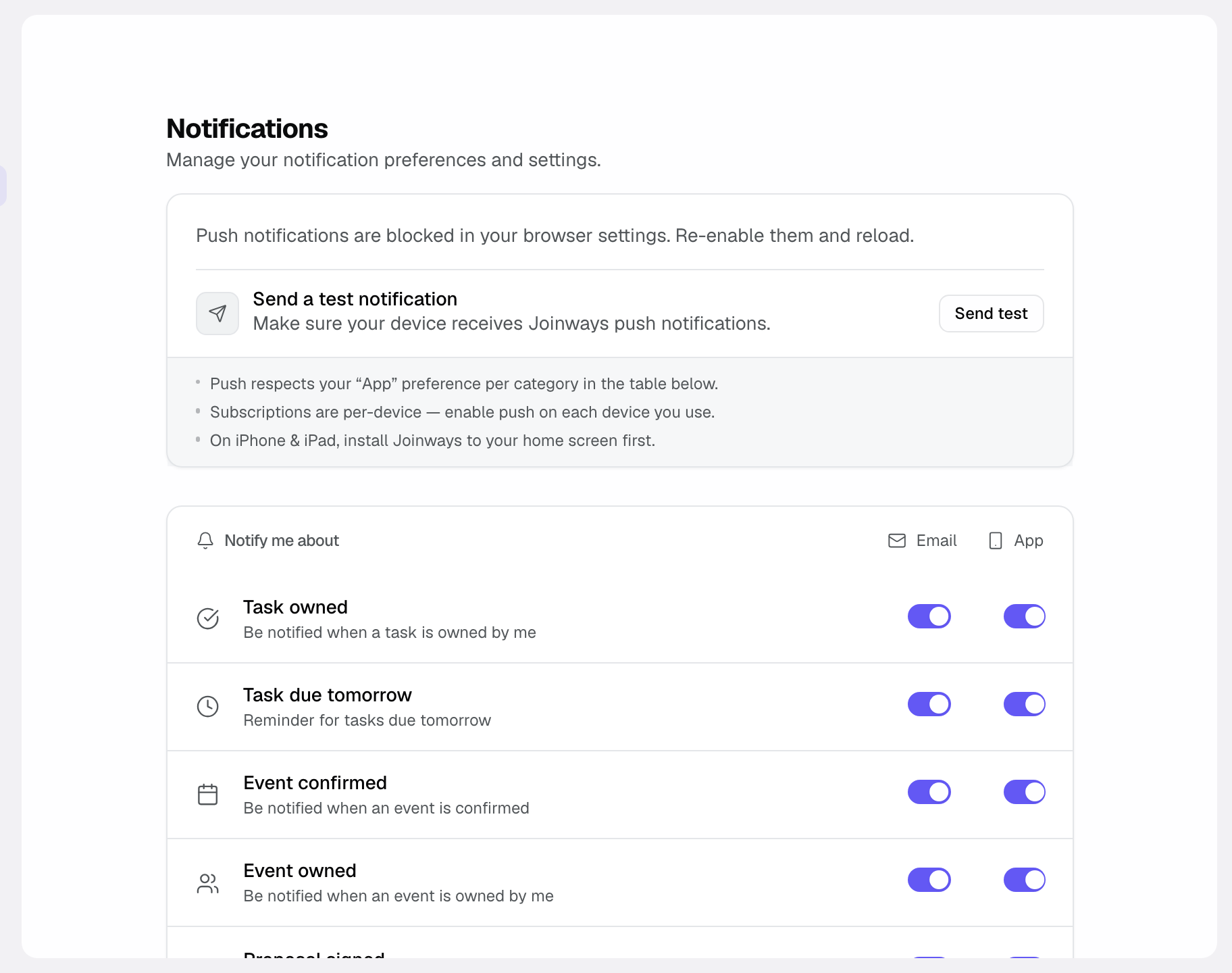
- Your choices are saved automatically and apply to your next notifications.
Understand the available channels
The same alert type can reach you by email and in the app. Push is not a per-type choice: once turned on for a device, it relays every alert whose "App" switch is on.
- Email: the alert lands in your mailbox, ideal to keep a trace and handle at your own pace.
- Push: the notification shows on the device where you turned it on (computer or phone), even with Joinways closed. It follows the "App" switch of each type.
- In-app: the alert appears in the application while you use it, for continuous follow-up.
Select the events that alert you
Not every event deserves the same treatment. Keep on what calls for a quick reaction and turn off the rest.
- Find the row of the alert type, for example "Proposal signed" or "Task due tomorrow".
- Turn on the "Email" switch, the "App" switch, or both. For "Inbound emails on my events", "BEO frozen or modified", "Proposal option chosen" and "Automations", email is greyed out: these alerts stay in the app.
- Turn off the switches for what doesn't concern you to reduce noise.
Reference: the notification types
Here are the main events you can enable, each with a one-line meaning.
- "Task owned" and "Task due tomorrow": a task is assigned to you; a reminder the day before for your tasks due the next day.
- "Event confirmed" and "Event owned": an event moves to confirmed; an event is assigned to you as owner.
- "Proposal signed" and "Proposal option chosen": a client signs a proposal; a client selects or drops an option on a proposal (app only).
- "Mention (@)" and "Inbound emails on my events": someone mentions you; an email arrives on an event you own (app only, the received email is already the alert).
- "Event discussion": new messages arrive in the team discussion of an event you follow (you own it, you wrote in it, or you clicked "Follow"). A single notification per event, updated with each message (app only; mentions still send an email).
- "BEO frozen or modified" and "Automations": a BEO is frozen, or modified after its freeze; an automation sends you a notification (app only in both cases).
There is no "new inquiry" alert: new inquiries land in "Inquiries". Alerts about something broken (mailbox disconnected, failed payment, email forwarding down) are always on. You are never notified of your own actions, and notifications expire after 30 days.
How it works
When an event happens in your workspace, Joinways looks at your personal preferences for that alert type. If "Email" is on, an email goes to your address; if "App" is on, the alert appears in the application and, if you turned on push for a device, it shows there too. If no switch is on, you aren't alerted, but the information stays viewable in the tool. Since settings are individual, two colleagues concerned by the same event can be notified differently.
Act from the notification center
The notification center is more than a list: it filters by tabs ("Priority", "Emails", "All") and groups alerts by date ("Today", "This week", "Older"). Above all, you can act straight from a notification.
When an inbound email concerns an event, open the notification: a reply drawer appears with the full conversation thread and the event title pinned. You reply (with the AI draft if needed) without leaving your page, and the notification is marked done when you send.
Edge cases
- Push blocked by the browser or phone: if Joinways notifications are denied there, push won't arrive, even if it is turned on in Joinways.
- Multiple workspaces: your preferences are specific to each workspace; set them in each one.
- Email in spam: if email alerts don't arrive, check your junk folder and add the sender to your contacts.
Tip: turn on push on your phone and keep "App" on for "Inbound emails on my events" to know right away when a client replies.
Best practices
- Keep on the alerts that call for a quick reaction ("Inbound emails on my events", "Proposal signed") and turn on push on the device you always carry.
- Turn off unnecessary noise so real alerts stand out.
- Adapt channels to how you work: push if you're often on the move, email if you're at the desk.
- Only turn on push on the devices you actually check: it relays all your "App" alerts.
Troubleshooting
Problem: I receive no notifications. Cause: neither "Email" nor "App" is on for these alerts. Solution: open Settings then Notifications and turn on at least one of the two switches on each type you need.
Problem: push alerts don't arrive. Cause: notifications blocked in the browser or phone, or push not enabled on this device. Solution: allow Joinways notifications, click "Enable" in the push card, then "Send test".
Problem: I'm flooded with emails. Cause: too many types have "Email" on. Solution: turn off "Email" on non-urgent alerts and keep them in the app.
Real-world example
A manager turns on push on his phone and keeps "App" on for "Inbound emails on my events". A client replies in the evening: he sees it right away and confirms the visit within ten minutes. For "Proposal signed", he turned "App" off and kept "Email": he reviews those alerts the next day in his mailbox, without being interrupted in meetings.
Another example
A coordinator does not handle sales. She turns off "Proposal signed" and "Proposal option chosen", and keeps "Task due tomorrow" and "Task owned" in the app and by email, so she never misses a follow-up.
FAQ
Can I have different settings per member?
Yes, each user configures their own notifications, without affecting their colleagues'.
Which channels are available?
Two switches per type: "Email" and "App". Push, turned on per device, follows the "App" switch.
What happens if I disable everything?
You stop receiving alerts, except those reporting something broken, which are always on. The information stays viewable directly in the application.
Do my settings apply to all my workspaces?
No, preferences are specific to each workspace; set them in each one.
Does push work with the app closed?
Yes, provided you allowed Joinways notifications in your browser (or on your iPhone, once Joinways is installed on the home screen).
Why turn on push?
To know right away that a client wrote to you, even with Joinways closed. Replying fast raises your chances of signing.
See also
- Tasks and follow-up
- Understand the unified Inquiries
- Invite and manage your team
Bring every event inquiry into one queue.