Connect Microsoft Teams
Get a card in a Teams channel when an event moves to hold, confirmed, lost or cancelled, and have your Microsoft 365 administrator approve Joinways if your organization requires it.
Updated
In many hotels and venues that run on Microsoft 365, the team lives in Teams. An event that moves to confirmed should show up there on its own, without the person who clicked having to tell the kitchen, operations and the front desk.
The Microsoft Teams integration posts a card to the channel of your choice on every event status change, with the key details and a button to the event. You can also post a message there from the event. You connect it yourself; if your organization only lets its administrators approve apps, Joinways prepares the message and the link to send them.
What you'll learn
- Connect Microsoft Teams to your workspace.
- Get your Microsoft 365 administrator's approval when it is required.
- Pick the team, the channel and the statuses that notify.
- Read a card, and post a message from an event.
Prerequisites
- An owner or admin role in Joinways.
- A Microsoft 365 work or school account. A personal Microsoft account has no access to Teams channels.
- Membership of the Teams team and channel where the cards will be posted: messages go out under your name.
1. Connect Microsoft Teams
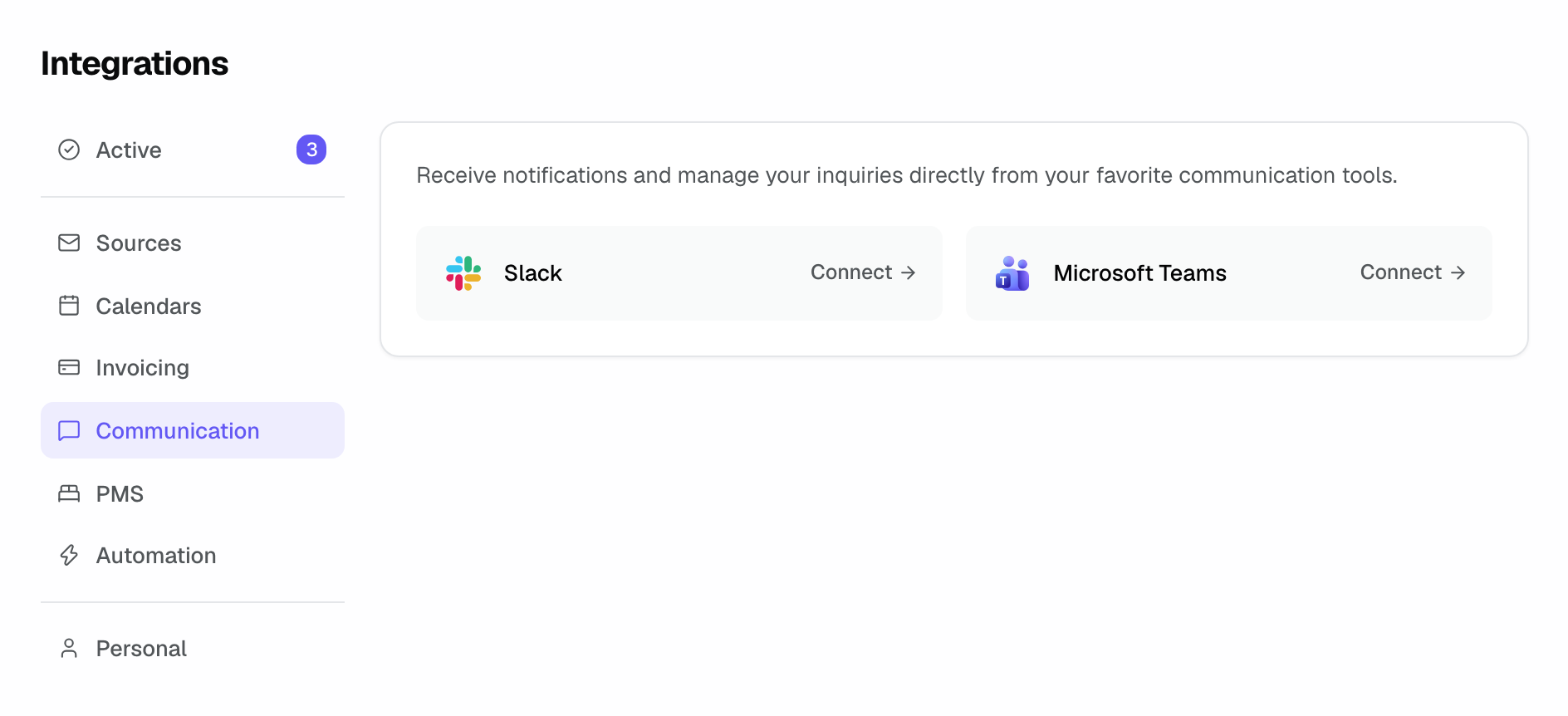
- Go to "Settings" > "Integrations", "Communication" tab.
- Click the "Microsoft Teams" card. You are redirected to Microsoft.
- Choose your organization's Microsoft 365 account and accept the requested permissions.
- Back in Joinways, the message "Microsoft Teams connected" appears and the "Microsoft Teams settings" window opens.
Joinways asks for access to your profile, to the list of your teams and their channels, and for the right to post messages to channels on your behalf. Joinways does not read channel messages.
2. If Microsoft asks for an administrator's approval
Some organizations only let their administrators approve a new app. In that case the connection stops on the Microsoft screen and, back in Joinways, the "Your Microsoft 365 administrator must approve Joinways" window opens.
- Under "Message to send to your IT administrator", click "Copy the message". The text explains the request, lists the access asked for and contains the approval link.
- Send it to your administrator. They open the link with an administrator account (Global Administrator, Cloud Application Administrator or Application Administrator) and accept. They then see the page "Joinways is approved for your organization".
- Come back to the "Communication" tab and click the "Microsoft Teams" card again: the connection goes straight through.
Are you a Microsoft 365 administrator yourself? Click "I am an administrator: approve" in the same window. The approval covers the whole organization: it only has to be given once.
3. Pick the team, the channel and the statuses
- "Team": one of the Teams teams you belong to.
- "Channel": the channel of that team that receives the cards, one per workspace.
- "Notify when status changes to": Hold, Confirmed, Lost, Cancelled. By default, only Confirmed is on.
- "Test" sends a verification message to the saved channel.
Click "Save" to apply your settings. The window reminds you that messages are posted in the channel under the name of the person who connected Teams. These cards are also listed in "Settings" > "Workflows", "Included" tab, under "Teams messages".
4. What a card contains
Each card has a header for the status ("Event confirmed", for example), the event title, then the date, the venue, the headcount, the amount, the owner, the client, the contact and the source, plus a button that opens the event in Joinways.
A proposal amendment signed on an already confirmed event also sends an "Amendment confirmed" card, if the Confirmed status is on. Unlike Slack, a card posted to Teams is neither updated nor deleted by Joinways: Microsoft ties those actions to a permission Joinways does not ask for.
5. Post a message from an event
Open the event and find the Teams row in the right-hand column. Type your note in the "Write in …" field, then click "Send": Joinways posts a card to the channel with the event title as a link, your note and your name. Messages posted for this event are listed on the same row.
Example: a hotel that announces its confirmations
The sales manager of an 80-room hotel clicks the "Microsoft Teams" card. Microsoft tells her an approval is needed. She copies the message Joinways prepared and sends it to the group's IT department, who open the link and accept. The next day she connects Teams again, picks the "Banquets" team and the "Confirmations" channel, keeps Confirmed ticked and clicks "Test". Since then, every signed corporate event shows up in the channel, with the date, the venue and the headcount.
Troubleshooting
"You declined the access on Microsoft, or your organization requires an administrator's approval. Nothing was connected."
Cause: you left the Microsoft screen without accepting, often because it asked for an approval. Solution: click "Administrator required?" in the message to open the approval window, then follow step 2.
"Microsoft did not grant the permission to post in channels…"
Cause: one of the permissions was unticked or declined on the Microsoft screen. Solution: connect again and accept every permission requested.
"Save the chosen channel first, then send the test."
Cause: "Test" sends to the saved channel, not the selected one. Solution: click "Save", then "Test".
"This team or channel is no longer reachable from the connected account. Choose another one."
Cause: the channel was deleted or archived, or the person who connected Teams left the team. Solution: pick another team or channel in "Microsoft Teams settings".
"Microsoft revoked Joinways' access. Disconnect Teams, then connect it again."
Cause: the authorization was revoked on Microsoft's side, or the connected account is no longer valid. Solution: click "Disconnect Teams", then connect it again with an active account.
Frequently asked questions
Under whose name are the cards posted?
Under the name of the person who connected Teams, including status-change cards triggered by a colleague. If that person leaves the organization, disconnect Teams and connect it again with another account.
Can I notify several channels or filter by venue?
No. One channel per workspace, and the filter is by status: all venues notify into the same channel.
Can I use Slack and Teams at the same time?
Yes. The two cards of the "Communication" tab connect separately, each with its own channel and statuses.
How do I disconnect Teams?
In "Microsoft Teams settings", click "Disconnect Teams". Notifications stop right away; cards already posted stay in the channel.
See also
Try it on your next inquiries for 30 days, no credit card.