Connect Clock PMS+: rooms and rates on your events
Link Clock PMS+ to Joinways to see, on an event page, the free rooms and their prices on the event's dates.
Updated
A company asks for a meeting room for a seminar and twelve rooms for two nights. Before you answer, you need to know how many rooms are free on those nights, and at what price. Without a connection, that means opening Clock PMS+, finding the dates, then coming back to Joinways.
With Clock PMS+ connected, the event page shows the available rooms and their prices on the event's dates. Joinways reads Clock PMS+ when asked and writes nothing to it: no booking, no hold, no rate change.
What you'll learn
- Get an API user and an API key for Joinways from Clock.
- Connect Clock PMS+ to one venue or to the whole workspace.
- Read rooms and prices on an event.
- Pick the rate plan behind the prices shown.
Prerequisites
- Be an owner or admin of the Joinways workspace.
- A Clock PMS+ account with at least one room type, and the API add-on on for your subscription.
- An API user and its API key, issued by Clock for Joinways, that may read rooms, rates and occupancy.
1. Get the API user from Clock
- Ask Clock for an API user for Joinways: in Clock PMS+ through AppConnector when Joinways is listed, otherwise through your Clock contact.
- You receive an API user and an API key. Copy both.
- Note your server (sky-eu1, sky-us1…), your subscription number and your account number: they are in the address Clock gives with the API user, for example
sky-eu1.clock-software.com/pms_api/80226/11919.
The Joinways connection window lists these steps and offers a "Clock developer portal" link.
2. Connect Clock PMS+
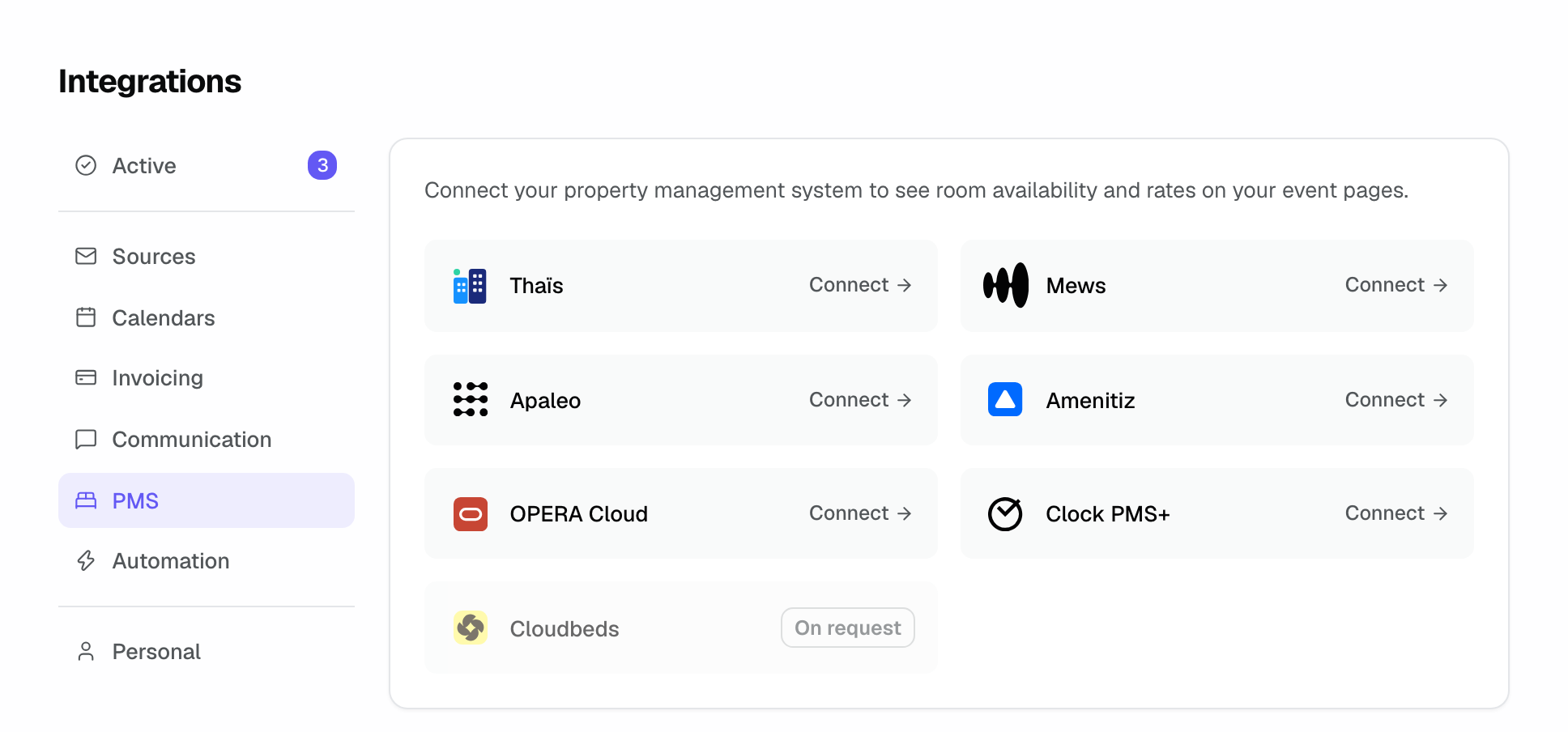
- In Joinways, open "Settings" > "Integrations", "PMS" tab, then click the "Clock PMS+" card. The "Connect Clock PMS+" window opens.
- Pick your "Clock server", then enter the "Subscription number" and the "Account number". Pasting the full API address fills the three fields at once.
- Enter the "API user" and the "API key".
- Under "Venue", pick the venue whose events will show the rooms, or leave "All venues" if this hotel covers your whole workspace.
- Click "Connect".
- "Clock PMS+ connected" shows.
Before saving anything, Joinways checks live the API user, the account, its room types and the access to occupancy. If an access is missing, you know right away, not on the first event page.
The key is stored encrypted and never shown again.
3. Read rooms on an event
As soon as a venue is linked to Clock PMS+, the right-hand column of its events shows an "Accommodation" block, collapsed. The whole team sees it, not only whoever connected the PMS.
- Open the event and expand "Accommodation".
- Click "Check availability". Joinways queries Clock PMS+ for the event's nights.
- Read, per room type, how many rooms are free on every night and the price of the stay. A type with no free room shows "Sold out".
- Click a room type to see the night-by-night detail: free rooms and price for each night.
"Refresh" reads again. Nights come from the event's dates: an event on a single day has no nights. Virtual room types in Clock PMS+ are not shown.
Important: Joinways only reads. Nothing is booked, held or changed in Clock PMS+. Room bookings are made in Clock PMS+.
4. Choose the prices shown
On connection, Joinways keeps one rate plan of your account when it can read one. To change it, click the gear on the "Clock PMS+" card: the "Clock PMS+ settings" window opens. In "Rate plan used for prices", pick the plan whose prices show on events, or "No prices, availability only".
Prices are read from the rates of this plan, for one adult, at the cheapest rate Clock PMS+ offers. The same window shows the connection date, an "Open Clock PMS+" link and the "Disconnect" button.
Example: a hotel with two meeting rooms
A forty-room hotel receives an inquiry for a residential seminar from Tuesday to Thursday. On the event page, the sales manager expands "Accommodation" and clicks "Check availability": fourteen doubles are free on both nights, with the price of the stay on the chosen rate plan. She answers the client with the meeting room and the guest rooms in the same message, then books the rooms in Clock PMS+ once the proposal is signed.
Troubleshooting
"Clock PMS+ rejected this API user and key"
Cause: one of the two is incomplete, or the API user was removed. Solution: copy both again in full, or ask Clock for a new API user.
"Clock PMS+ refuses this API user"
Cause: the API add-on is not on for your subscription, or the user may not read rooms, rates and occupancy. Solution: check both points with Clock, then reconnect.
"No Clock PMS+ account answers at these numbers on this server"
Cause: the server, the subscription number or the account number is wrong. Solution: take them again from the API address Clock gave you, or paste that address into the window.
"This Clock PMS+ account has no room type"
Cause: the account has no real room type. Solution: create your room types in Clock PMS+, then reconnect.
"This event spans no overnight stay."
Cause: the event starts and ends on the same day. Solution: check its start and end dates.
No prices are shown
Cause: no rate plan is picked in "Clock PMS+ settings", or the chosen plan has no price for these dates. Solution: pick another rate plan. Availability stays accurate.
"Clock PMS+ is limiting requests right now"
Cause: too many reads in a short time. Solution: try again in a few minutes.
Frequently asked questions
Does Joinways book rooms in Clock PMS+?
No. The integration reads room types, availability and rates. Bookings are made in Clock PMS+.
Do my teammates see the rooms?
Yes. Only the connection is reserved for the owner and admins; the "Accommodation" block is visible to the whole team.
Are prices updated continuously?
Joinways reads Clock PMS+ when you click "Check availability" or "Refresh". Nothing is copied ahead of time.
How do I disconnect Clock PMS+?
Open "Clock PMS+ settings" from the card's gear and click "Disconnect". The "Accommodation" block disappears from the venue's events.
See also
Try it on your next inquiries for 30 days, no credit card.