Connect Amenitiz: rooms and rates on your events
Link Amenitiz to Joinways to see free rooms and their prices on each event page, without leaving Joinways.
Updated
A client asks for an offsite with fifteen rooms for two nights. Without the PMS in view, you open Amenitiz, find the dates, count the free rooms, then come back to Joinways to reply.
With Amenitiz connected, the event page shows the available rooms and their prices for the event dates. Joinways reads Amenitiz on demand and writes nothing to it.
What you'll learn
- Create an API credential in Amenitiz.
- Connect Amenitiz to one venue or to the whole workspace.
- Choose the rate plan whose prices are shown.
- Read rooms and prices on an event.
Prerequisites
- Be an "Owner" or "Admin" of the Joinways workspace.
- Be the owner of the Amenitiz account, on a plan that gives access to API credentials (Advanced plan).
- An Amenitiz property with at least one room type.
1. Create the credential in Amenitiz
- In Amenitiz, signed in as the account owner, open Settings, then API credentials, then New credential.
- Name it Joinways.
- Tick at least room types, rates and availability.
- Copy the client ID and secret shown.
The Joinways connection window repeats these steps and offers an "Open Amenitiz" link.
2. Connect Amenitiz
- In Joinways, open "Settings" > "Integrations", then the "PMS" tab.
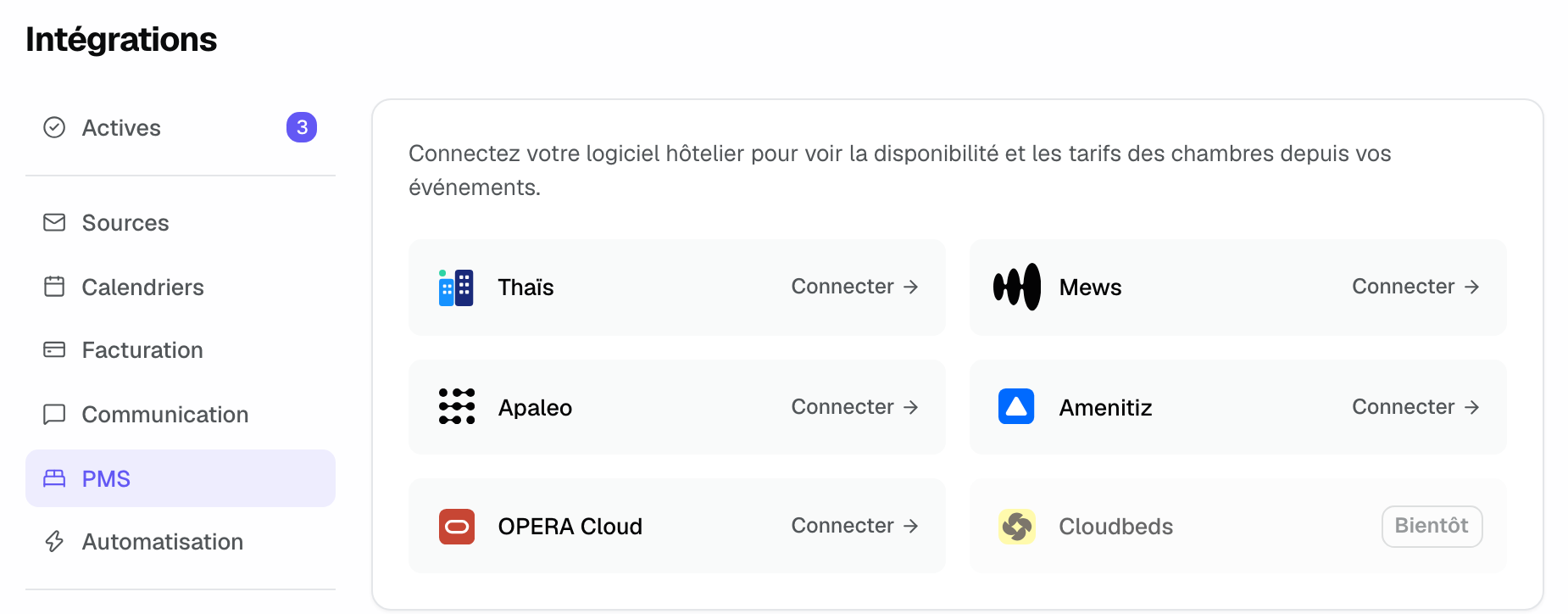
- On the "Amenitiz" card, click "Connect". The "Connect Amenitiz" window opens.
- Paste the "Client ID" and the "Client secret".
- If your workspace has several venues, pick the venue that matches this hotel in "Venue", or leave "All venues" if the property covers the whole workspace.
- Click "Connect".
Before saving anything, Joinways checks the credential, the property, its room types and access to availability live. The client ID and secret are stored encrypted and never shown again.
Two cases need one more detail:
- The credential covers several properties: a "Property" field appears. Pick the one whose rooms Joinways should show.
- Amenitiz does not say which property to read: a "Hotel ID" field appears. Enter the ID shown in Amenitiz next to the API credential.
Once connected, the card shows the property name, the "Active" badge and a gear button that opens its settings.
3. Choose the rate plan
Click the gear button on the card to open "Amenitiz settings". In "Rate plan used for prices", choose the rate whose prices appear on event pages, or "No prices, availability only".
Prices come from this rate plan, at the lowest occupancy Amenitiz quotes. The same window shows the connection date, an "Open Amenitiz" link and the "Disconnect" button.
4. Read rooms on an event
As soon as a venue is linked to Amenitiz, the right-hand column of its events shows the "Accommodation" block, collapsed. The whole team can see it.
- Expand "Accommodation".
- Click "Check availability". Joinways asks Amenitiz for the event's nights.
- Read, per room type, the number of free rooms and the price of the stay. A room type with no free room is marked "Sold out".
- Click "Refresh" to read again.
Nights are counted from the event's start and end dates, in the event's time zone. A single-day event has no nights.
Important: Joinways only reads. Nothing is booked, held or changed in Amenitiz. Room bookings happen in Amenitiz.
Example: an estate with ten rooms
An estate receives a wedding inquiry from Friday to Sunday. On the event page, the team expands "Accommodation": six doubles and two suites are free for both nights, with the price of the stay. They reply to the client right away, then hold the rooms in Amenitiz once the quote is signed.
Troubleshooting
Amenitiz rejected this client ID and secret
Cause: one of the two values is incomplete, or the credential was revoked. Solution: copy both again in full from Amenitiz, or create a new credential.
"This Amenitiz credential cannot read everything Joinways needs."
Cause: room types, rates or availability were not ticked. Solution: edit the credential in Amenitiz and tick all three.
"This Amenitiz credential covers no property" or "This Amenitiz property has no room type"
Cause: the Amenitiz setup is incomplete. Solution: create the property and its room types in Amenitiz, then connect again.
"This event spans no overnight stay."
Cause: the event starts and ends on the same day. Solution: check its start and end dates.
No prices are shown
Cause: no rate plan is selected, or the selected plan has no price for these dates. Solution: choose another plan in "Amenitiz settings".
"This event spans too many nights to check in one go."
Cause: the event is longer than 90 nights. Solution: check the event dates; check a longer stay in Amenitiz.
"Amenitiz refused the connection"
Cause: the credential was revoked in Amenitiz. Solution: a workspace owner or admin disconnects Amenitiz in the integration settings, then connects it again with a new credential.
Frequently asked questions
Does Joinways book rooms in Amenitiz?
No. The integration is read-only: availability, room types and rates. Bookings happen in Amenitiz.
Do I need a specific Amenitiz plan?
Yes. API credentials are created by the owner of the Amenitiz account, on the Advanced plan.
Who sees rooms on events?
Every member of the workspace. Only owners and admins connect, configure and disconnect Amenitiz.
Are prices updated continuously?
Joinways reads Amenitiz when you click "Check availability" or "Refresh". Nothing is copied in advance.
See also
Try it on your next inquiries for 30 days, no credit card.