Connect Thaïs: rooms, rates and eReservations
Link Thaïs to Joinways: rooms and prices on each event, and an eReservation created in Thaïs from the event page.
Updated
A hotel receives an offsite inquiry with accommodation. The sales team checks rooms in Thaïs, comes back to Joinways to reply, then types the group booking into Thaïs again once the client agrees.
With Thaïs connected, the event page shows the available rooms and their prices for the event dates. From the same page, you create an eReservation in Thaïs, as an option if needed. The hotel then validates it from its planning, and its status comes back to Joinways.
What you'll learn
- Set up a technical account in Thaïs.
- Connect Thaïs to one venue or to the whole workspace.
- Give Thaïs the address that keeps Joinways up to date.
- Read rooms and prices on an event.
- Create, follow and cancel an eReservation from the event.
Prerequisites
- Be an "Owner" or "Admin" of the Joinways workspace to connect Thaïs.
- A Thaïs user account dedicated to Joinways, with the "Joinways" rights profile.
- The address of your Thaïs instance, for example monhotel.thais-hotel.com.
- To create or cancel an eReservation: the "Owner", "Admin" or "Member" role.
1. Set up the technical account in Thaïs
- In Thaïs, create a user account reserved for Joinways.
- Give it the "Joinways" rights profile.
- Note its login, its password and the address of your instance.
The Joinways connection window repeats these steps and links to the "Thaïs partner documentation".
2. Connect Thaïs
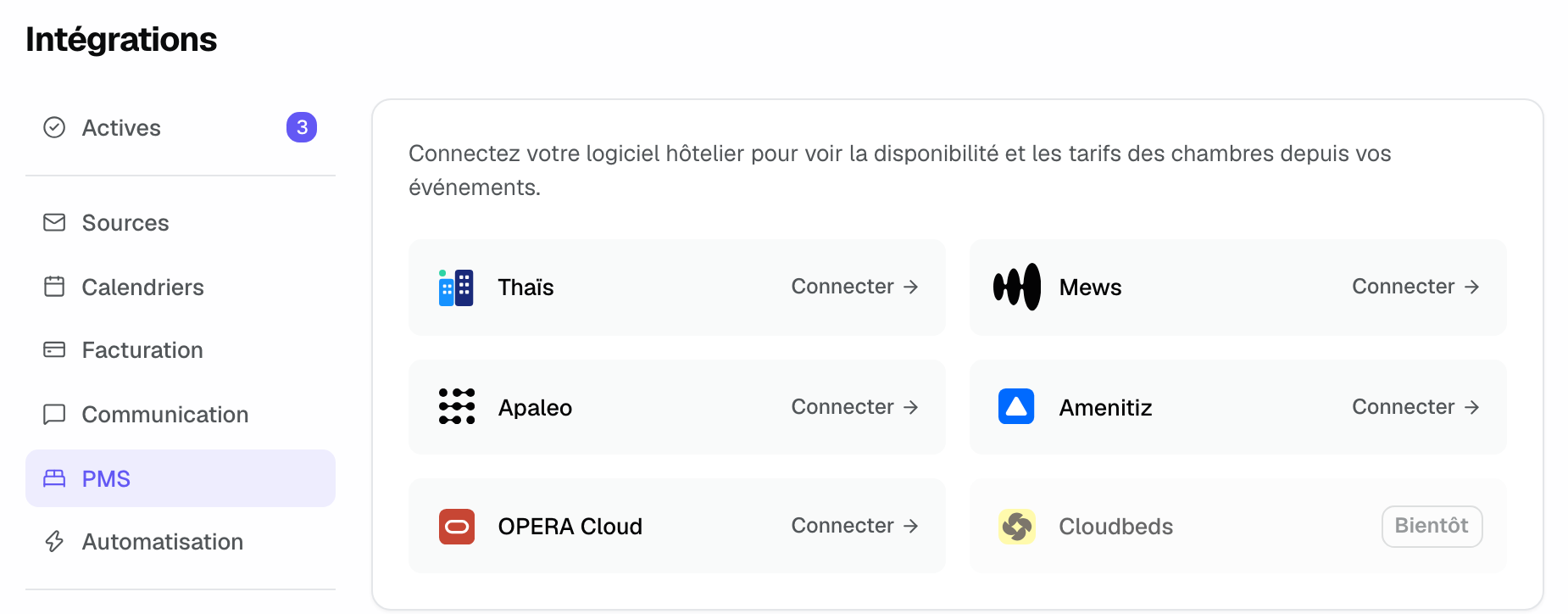
- In Joinways, open "Settings" > "Integrations", then the "PMS" tab.
- On the "Thaïs" card, click "Connect". The "Connect Thaïs" window opens.
- Enter the "Instance address", the "Login" and the "Password" of the technical account.
- If your workspace has several venues, pick the venue that uses this hotel in "Venue", or leave "All venues" if the instance covers the whole workspace.
- Click "Connect".
The password is encrypted and never shown again. Once connected, the card shows the hotel name and the instance address, with the "Active" badge.
3. Give the URL to Thaïs
Right after connecting, the "Thaïs settings" window opens. It shows the "URL to give to Thaïs": Thaïs calls this address on every booking change, and Joinways then updates the event page on its own.
- Copy the URL.
- Give it to Thaïs for your instance.
- Come back later to "Thaïs settings": the "Last event received" line confirms that Thaïs is calling it.
The same window lets you choose the "Rate used for prices" (or "No prices, availability only"), "Generate a new URL" if the old one was shared, and "Disconnect". Reopen it with the gear button on the card.
Tip: until Thaïs calls the URL, an eReservation's status updates with the "Refresh" button on the event page.
4. Read rooms on an event
As soon as a venue is linked to Thaïs, the right-hand column of its events shows the "Accommodation" block, collapsed. The whole team can see it.
- Expand "Accommodation".
- Click "Check availability". Joinways asks Thaïs for the event's nights.
- Read, per room type, the number of free rooms and the price of the stay. A room type with no free room is marked "Sold out".
Nights are counted from the event's start and end dates. A single-day event has no nights. "Refresh" reads again.
5. Create an eReservation
Below the "Accommodation" block, the "Book in Thaïs" button opens the window of the same name. An eReservation is created in Thaïs for the hotel, which then validates it from its planning.
- Click "Book in Thaïs".
- Check the "Arrival" and "Departure", prefilled from the event.
- In "Rooms", pick a "Room type" and the number of rooms. "+ Add a room type" adds a line.
- To hold the rooms without commitment, tick "Create as an option until" and pick a date before arrival. The box is ticked by default when the event is an option.
- Add a "Comment for the hotel" if needed. The event reference and its Joinways link are always added.
- Click "Create the reservation".
The event page then shows the "eReservation #…", the stay dates, its status and, for an option, "Option until …". An event has only one active eReservation at a time.
6. Follow and cancel the eReservation
The status follows what the hotel does in Thaïs: "Awaiting validation", "Option", "Confirmed", "Validated" or "Cancelled". "Open in Thaïs" opens the reservation in your instance.
- As long as the hotel has not validated it, "Cancel the reservation" cancels it in Thaïs from Joinways.
- Once "Validated", changes and cancellation happen in Thaïs.
- After a cancellation, the page says "The previous reservation was cancelled." and you can create a new one.
Example: a conference hotel
A company asks for a meeting room and twenty rooms for one night. On the event page, the team checks availability, then creates an eReservation as an option until fifteen days before arrival. The reservations desk sees it in its Thaïs planning. When the quote is signed, it validates it; the Joinways page switches to "Validated" with nothing to retype.
Troubleshooting
"This does not look like a Thaïs instance address"
Cause: the address entered does not have the expected form. Solution: enter the instance address, for example monhotel.thais-hotel.com.
"No Thaïs instance answers at this address"
Cause: the subdomain is wrong. Solution: check the address you use to open Thaïs.
"Thaïs rejected these credentials"
Cause: the technical account's login or password is wrong. Solution: check them in Thaïs and try again.
"This account cannot use the partner API"
Cause: the technical account does not have the right profile. Solution: in Thaïs, give it the Joinways rights profile.
The card says "Connection lost, reconnect the technical account"
Cause: Thaïs no longer accepts the technical account, for example after a password change. Solution: open "Thaïs settings" and click "Reconnect" with the current password.
"Thaïs rejected the reservation"
Cause: Thaïs does not accept the dates, the room types or the option date. Solution: check them; the option date must be before arrival.
The "Book in Thaïs" button is greyed out
Cause: your role cannot manage events, or the event is archived. Solution: ask an owner, admin or member to create the reservation.
Frequently asked questions
Can Joinways change a validated reservation?
No. Once the hotel validates the eReservation, changes and cancellation happen in Thaïs. Joinways keeps showing its status.
Do the prices shown commit the hotel?
No. They come from the rate chosen in "Thaïs settings" and help you reply to the client. The booking price is the one the hotel sets in Thaïs.
Who sees the rooms and the eReservation?
Every member of the workspace. Creating or cancelling an eReservation requires the right to manage events.
Can an event have several eReservations?
No. An event carries one active eReservation at a time. To create another, cancel the previous one first.
See also
Try it on your next inquiries for 30 days, no credit card.