Connect Apaleo: rooms and rates on your events
Link your Apaleo PMS to see, from an event page, the rooms available and their prices on the event's dates.
Updated
With Apaleo connected, an event page shows the rooms available and their prices on the event's dates. You answer a residential seminar request without leaving Joinways.
What you will learn
- Create the Joinways app in Apaleo.
- Connect Apaleo to one venue or to the whole workspace.
- Read rooms and prices on an event.
Before you start
- Be an owner of the Joinways workspace.
- Be able to create an app in your Apaleo account.
1. Create the app in Apaleo
- In Apaleo, open Apps, Connected apps, Add a new app, then Add custom app.
- Name it Joinways and tick these three scopes: availability.read, setup.read, offers.read.
- Copy the app's client ID and client secret.
2. Connect Apaleo
- In Joinways, open "Settings" > "Integrations", "PMS" tab, then click the "Apaleo" card.
- Paste the "Client ID" and the "Client secret".
- If your Apaleo account holds several properties, pick in "Property" the one whose rooms Joinways should show.
- In "Venue", pick the venue concerned, or leave "All venues". Then click "Connect".
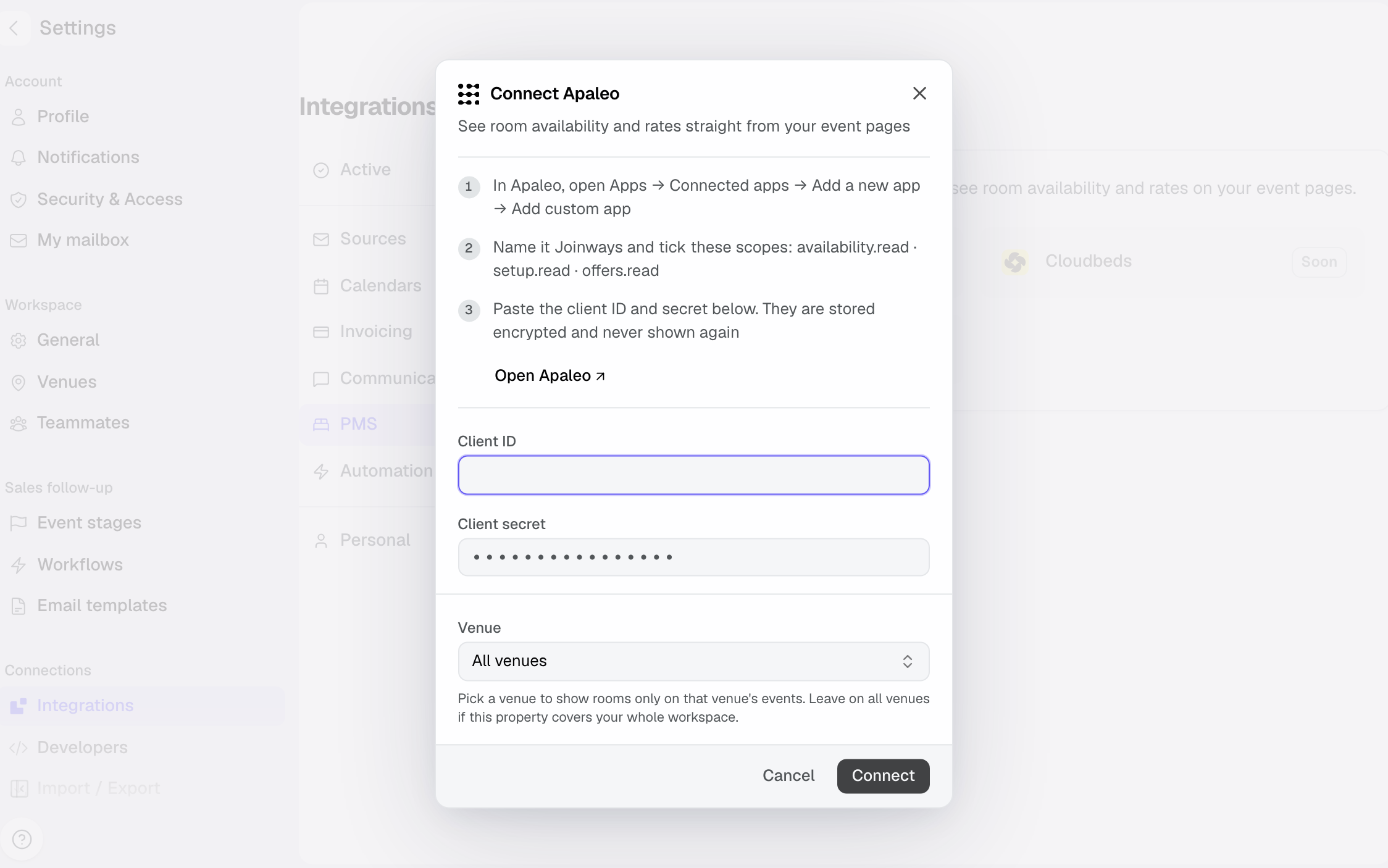
The credentials are stored encrypted and never shown again.
On an event: the "Accommodation" block
As soon as a venue is linked to Apaleo, the right-hand column of its events shows a collapsed "Accommodation" block. The whole team can see it.
- Expand "Accommodation".
- Click "Check availability". Joinways asks Apaleo for the event's nights.
- Read, per room category, the number of free rooms and the price of the stay. A category with no free room shows "Sold out".
"Refresh" reads again. Nights are computed from the event's dates: a single-day event has no overnight stay.
Joinways only reads. Nothing is booked, blocked or changed in Apaleo.
Choose the prices shown
Click the card's gear to open "Apaleo settings". In "Rate plan used for prices", pick the rate whose prices show on events, or "No prices, availability only".
Prices come from the chosen rate plan, for one adult, taxes included.
Troubleshooting
Apaleo rejected the client ID and secret
Cause: one of the two credentials is incomplete. Fix: copy both again in full from the Apaleo app.
The app is missing a scope
Cause: one of the three scopes was not ticked. Fix: edit the app in Apaleo and tick availability.read, setup.read and offers.read.
No property, no room category or no time zone
Cause: the Apaleo setup is incomplete. Joinways needs a property with room categories and a time zone. Fix: complete it in Apaleo, then reconnect.
"This event spans no overnight stay."
Cause: the event starts and ends on the same day. Fix: check its start and end dates.
No price is shown
Cause: no rate is chosen in the Apaleo settings, or the chosen rate has no price for these dates. Fix: pick another rate in the settings. Availability stays accurate.
"Apaleo refused the connection"
Cause: access was revoked on the PMS side. Fix: a workspace owner reconnects the PMS in the integration settings.
Frequently asked questions
Does Joinways book rooms in Apaleo?
No. The scopes requested are read-only. Bookings are made in Apaleo.
See also
Bring every event inquiry into one queue.