The BEO client form
Send the client a form with no account needed, pre-fill it from the BEO and carry their answers into the right section in one click.
Updated
Before each event, you need practical details from the client: when the group arrives, who to call on site, the planned run of the day, dietary requirements, room layout. They often arrive in scattered emails, and someone copies them by hand into the BEO.
The client form solves this. The venue writes its questions once; for each event, the client gets a link, answers without an account, and the answers show next to the BEO. One click carries them into the right section.
What you'll learn
- Create a venue's client form and write its questions.
- Set pre-filling, edits and the closing date.
- Send the form from the BEO, an email template or an automation.
- Carry the client's answers into the BEO.
Prerequisites
- Any role other than "Read-only". The "Member" and "Operations" roles can write the questions in the venue settings.
- A connected mailbox to send the form by email from Joinways. Without one, copy the link. See Manage your email connections.
- An event at a venue that has a client form: a venue has none until you create it.
1. Create the venue's form
- Go to "Settings" > "Venues" > your venue > "BEO", "Client form" tab.
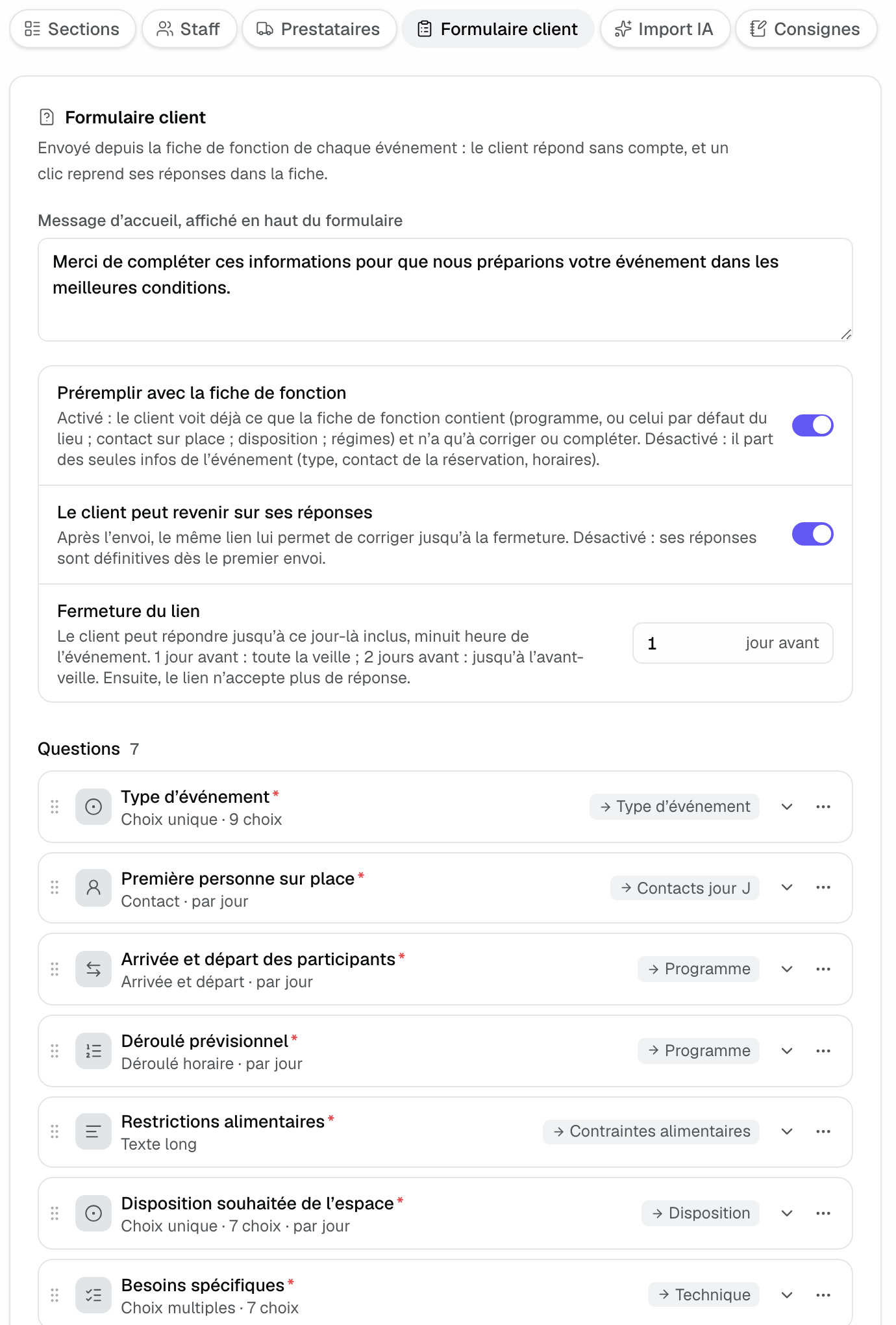
- Click "Create the form". Joinways suggests starting questions suited to what the venue hosts: event type, first person on site, guests' arrival and departure, planned schedule, dietary restrictions, preferred layout, specific needs.
- If another venue of the workspace already has its form, "Copy from another venue" takes its questions instead.
- Edit the "Welcome message, shown at the top of the form", then click "Create the form" at the bottom to save it.
To take a venue's form away, use "Remove the form". Links not yet filled stop opening; answers already received stay in the BEOs.
2. Write the questions
Each question fits on one line: its type, its title and the section its answer goes to. Click it to open it. The handle on the left reorders by drag and drop; the "⋯" menu offers "Duplicate" and "Delete". "Add a question" creates a new one.
- Answer type: "Short text", "Long text", "Single choice", "Multiple choice", "Time", "Arrival and departure", "Contact" or "Timed schedule".
- Carried into the BEO: the section that receives the answer ("Event type", "Day-of contacts", "Program", "Setup", "Catering", "Dietary requirements", "Technical", "Activities", "Remark"), or "No section (read-only answer)". Sections renamed by the venue show under their new name.
- Switches: "Required"; "Day by day" for one answer per day on a multi-day event; for a choice question, "add “Other”" opens a free answer; for a contact, "With arrival time".
The "Timed schedule" has two more switches. "Layout" lets the client pick the room layout for each moment, carried onto the program line. "Comment" lets them detail each moment; the comment goes into the line's notes.
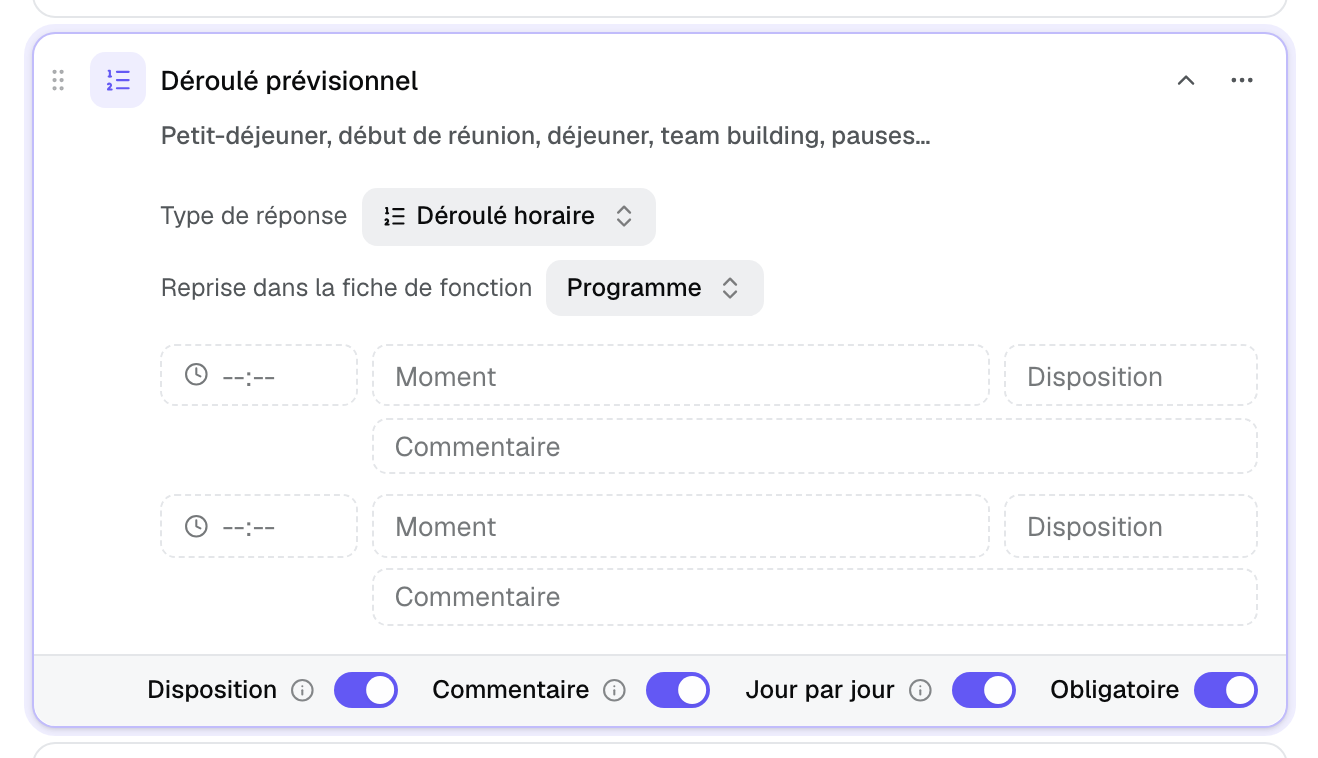
Click "Save the questions". Forms already filled keep the questions as the client read them; only the target section follows your new setting.
3. Set the link rules
Three rules at the top of the tab apply to every event of the venue:
- Pre-fill from the BEO: on, the client already sees what the BEO holds (schedule, or the venue's default one; on-site contact; layout; diets) and only corrects or completes it. Off, they start from the event details only: type, booking contact, hours.
- The client can go back to their answers: after sending, the same link lets them correct until it closes. Off, their answers are final after the first send.
- Link closes: from 1 to 90 days before the event. The client can answer until that day inclusive, midnight event time. "1 day before" leaves the whole day before.
4. Send the form to the client
Open the event, "BEO" tab. In the right column, pick the "Form" view.
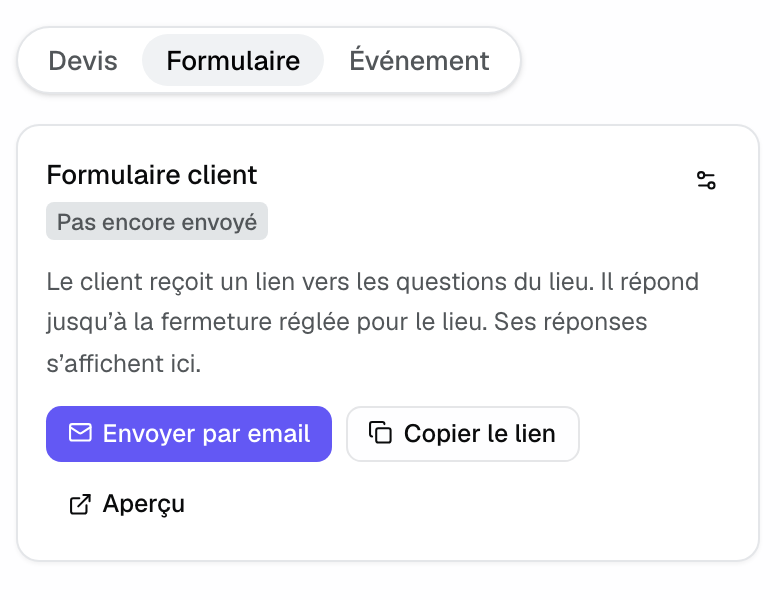
- "Send by email" opens a ready email, in a new thread, with the form link. Review it and send it from your mailbox.
- "Copy link" gives you the link to paste into your own message.
- "Preview" opens the page as the client will see it.
- The settings icon at the top of the panel leads to "Edit the questions".
The status follows the form: "Not sent yet", "Link created, waiting" (link copied or opened in preview), "Sent on …, waiting", "Answered on …", then "Updated on …" if the client changes their answers. An event has a single form link.
The link also goes into an email template or an automation with the {{beo_form_link}} variable ("Client form link (BEO)"). The link is created on first send, and the form is marked as sent. An automation can test the BEO client form (filled in or not) and its link (sent or not), for example to remind the client 10 days before. See Triggers, conditions and actions: the reference.
5. What the client sees
The page shows the venue's name, the contact's name and their company logo, the welcome message, then the dates, venue, headcount and deadline ("Form editable until").
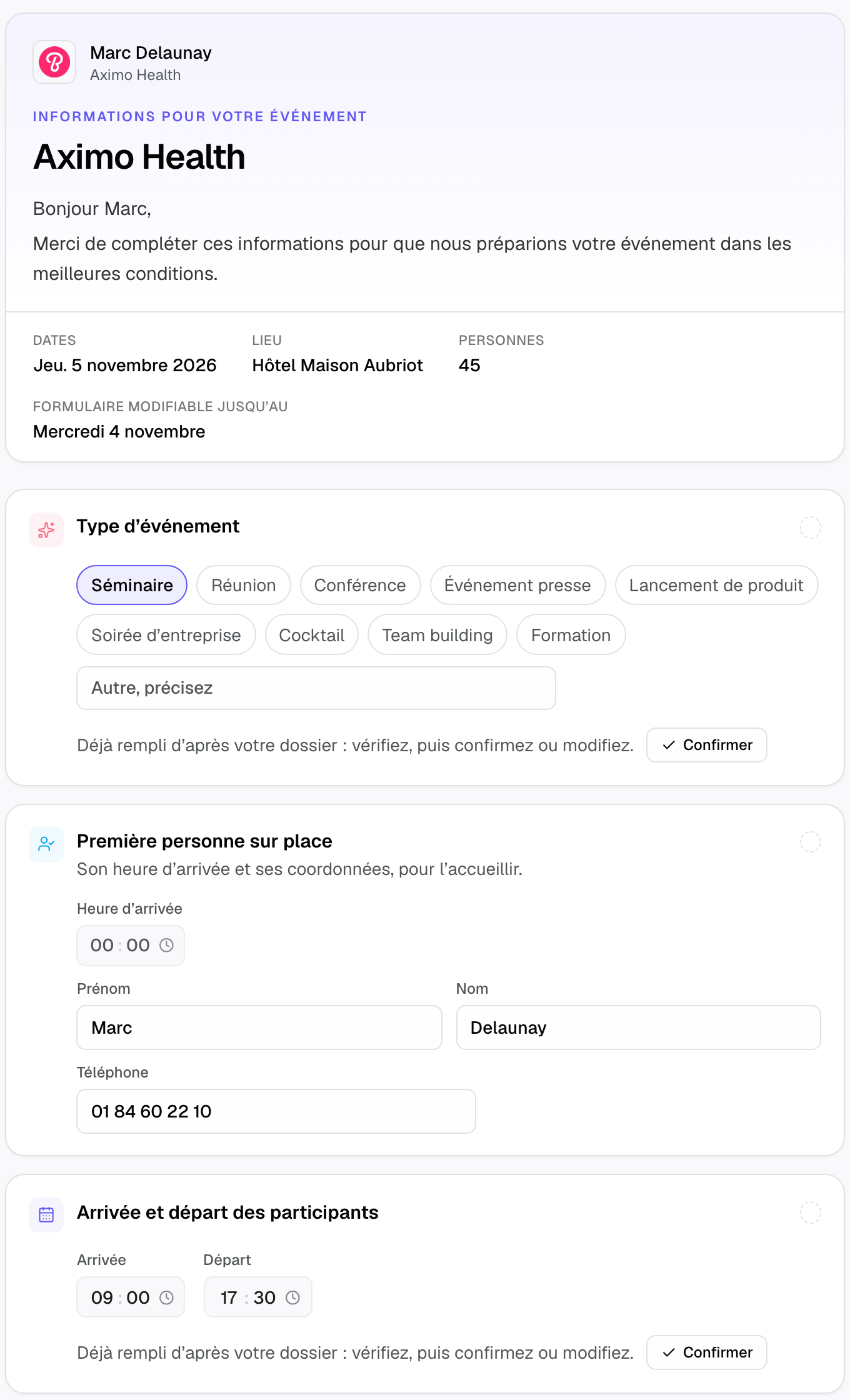
- A pre-filled answer carries "Filled in from your booking: check it, then confirm or edit." and a "Confirm" button. It counts as answered only once confirmed or edited.
- On a multi-day event, "Different for each day" gives one answer per day.
- In the schedule, "Add a line" adds a moment. Layouts only offer the setups for which the booked rooms have a capacity set.
- "Who is answering?" asks the name and email of the person filling in: the venue will write to them with any question. The email is required.
- The bottom bar counts answers ("3 of 7 answers · 2 to check") and holds "Send my answers".
After sending, the client can go back to their answers until the form closes, if the venue allows it ("Update my answers"). Once closed, the page tells them to contact the person who sent the form directly, with their name and email.
6. Carry the answers into the BEO
Answers arrive in the "Form" view, with the name and email of the person who answered. They never change the BEO on their own: you choose what goes in.
- Read the answers. The panel shows "N answers to carry over".
- Click "Carry over" under an answer, or "Carry over all". Each answer joins its section: an arrival time becomes a program line, a contact joins "Day-of contact", diets go to "Dietary requirements". A time given for "Lunch" completes the existing "Lunch" line instead of adding a second one.
- "Mark as handled" files an answer without carrying it over.
- If the client later changes an answer you already carried over, it shows "Changed" with the BEO's current value; "Update" replaces it in place.
While answers are waiting, the "BEO" tab and the events list flag it in orange. The event type is saved on the event as soon as it is carried over; the rest saves with the BEO.
Tip: the "BEO form filled out" notification alerts the whole workspace in the app, and by email the people on the event and whoever sent the form. Replying to that email writes to the person who filled in the form. Set it up in Set up your notifications.
Example: an estate that hosts seminars
The estate keeps the starting questions, adds "Shuttle from the station?" as a single choice carried into "Activities", and sets the link to close 7 days before. An automation sends the form with {{beo_form_link}} three weeks before each confirmed seminar, and reminds the client 10 days before if the form is not filled in.
The client's project lead answers from her phone: arrival at 08:45, plenary in theatre style, two vegetarians. The coordinator clicks "Carry over all": the program, layout and dietary requirements are up to date, without copying an email.
Troubleshooting
The "Form" view does not appear in the BEO
Cause: the event's venue has no client form. Solution: create it in "Settings" > "Venues" > your venue > "BEO" > "Client form".
"Send by email" shows a mailbox error
Cause: no mailbox is connected to the workspace. Solution: connect one in "Settings" > "Integrations", or use "Copy link".
The status stays on "Link created, waiting"
Cause: the link was copied or opened in preview, but no email with the link left Joinways. Solution: this is expected if you sent it another way. The status changes to "Answered on …" as soon as the client answers.
The client says the form is closed
Cause: the venue's closing date has passed. Solution: collect the changes directly, or lower the number of days in "Link closes" for future events if your clients answer late.
Frequently asked questions
Does the client need an account?
No. The link is enough, on a computer or a phone.
Do the answers change the BEO automatically?
No. They show next to the BEO, and you carry them over with one click. Only carried-over answers enter the BEO.
Can each venue have different questions?
Yes. Each venue has its own form. "Copy from another venue" gives you a starting point.
What happens if I change the questions after sending?
A form already filled in keeps the questions the client read. New forms use the new questions.
See also
Try it on your next inquiries for 30 days, no credit card.