Triggers, conditions and actions: the reference
Every trigger, delay, condition (BEO included), action and dynamic field available in your Joinways workflows.
Updated
A workflow reads like a sentence: when this happens, wait this long, check that, then do this. This article lists everything each building block offers, exactly as in the editor, so you know what is possible before you build.
What you'll learn
- The six triggers and the "Matching statuses".
- The delay and the run time.
- The eight condition fields, including the BEO state.
- The four actions and the dynamic fields.
- How to read a run in the history.
Prerequisites
- Pro plan or trial.
- Owner or Admin role to edit a workflow.
- For the email action: the event owner's mailbox connected in "Settings" > "My mailbox".
1. Where to build a workflow
"Settings" > "Workflows", "Workflows" tab. "New workflow" opens the editor; an existing workflow opens with a click in the list. In the editor, "+" ("Add a step") inserts a delay, a condition or an action between two steps, and clicking a step opens the "Configure step" panel.
2. Triggers
One trigger per workflow, always the first step. Five watch events, one watches quotes.
Event created
Fires when an event is created in Joinways, from a converted inquiry or entered by hand. It does not react to an inquiry arriving: an unconverted inquiry does not fire it.
Upcoming event
Fires before an event starts, at the distance set by the delay (required). For reminders, practical information or the BEO client form.
Event ended
Fires once the end date has passed. For thank-yous and feedback or review requests.
Status unchanged for
Fires when an event stays in the same status for the chosen number of days. Common use: following up on a hold that stalls.
Event confirmed
Fires as soon as an event moves to the chosen status (Confirmed by default), at the next pass, within the hour. It takes no delay and only handles status changes after activation. When "Confirm the event on signature" is off in the "Built-in" tab, signing no longer confirms the event: the workflow runs when you click "Validate the booking".
Proposal sent, no reply
Follows each sent quote still pending after the chosen delay (required). Follow-ups stop as soon as the quote is accepted, signed, declined or replaced by an amendment, or the event moves to Lost or Cancelled.
On the five event triggers, the "Matching statuses" (Confirmed, Hold, Lost, Cancelled) limit the workflow to events in one of those statuses.
3. The delay
A delay is set in "Days" (0 to 365) and "Hours" (0 to 23), with an optional "Preferred run time". The time zone is the event venue's. With no time set, an email only goes out between 8 am and 9 pm local time. The editor sums up the rule in plain words, for example that the email will be sent 2 days after the event ends, around 10:00.
Joinways reviews active workflows every hour: a delay in hours is therefore met to the hour.
4. Conditions
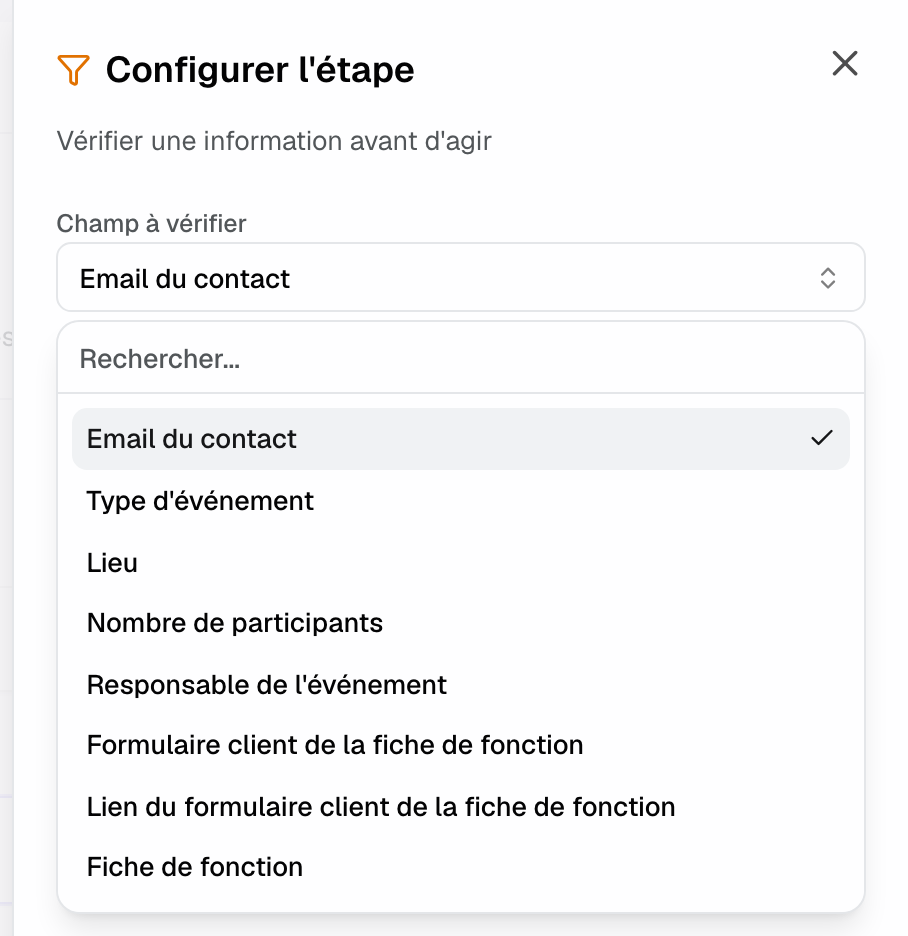
A condition compares a "Field to check" to a value. If it is not met, the workflow does nothing for that event. You can add several conditions: all must be met. There are eight fields:
- "Contact email": use it with "is filled in" on every workflow that sends an email.
- "Event type": wedding, seminar and the other types.
- "Venue": one of your venues.
- "Number of guests": the only numeric field, and the only one that accepts "is greater than" and "is less than".
- "Event owner": a team member.
- "BEO client form": "is not filled in yet" or "is filled in".
- "BEO client form link": "has not been sent yet" or "has been sent".
- "BEO": "has never been sent" or "has been sent at least once".
The other fields use "is filled in", "is empty", "equals", "is not equal to" and "contains". The three BEO fields are checked right before acting: if the client fills in their form or the BEO goes out between the trigger and the send, the workflow does nothing.
There is no condition on a quote amount, an event stage or an AI score.
5. Actions
Send an email
The email goes to the client contact, from the event owner's Gmail or Outlook mailbox. You write a subject and a message with dynamic fields, or turn on "AI drafting" with "Instructions for the AI": the subject and message you typed then serve as a fallback. On an inquiry from a platform whose terms forbid writing to the client directly (Kactus, Funbooker), no email goes out: the run is "Skipped".
Create a task
The task is created on the event and assigned to its owner: title, description, priority (Low, Medium, High, Urgent) and due date "In N days" (0 = the same day) or "Before the event" (20 = 20 days before).
Send a notification
An in-app notification, with a link to the event, for the "Event owner" or the "Whole team". Nothing goes to the client.
Call a webhook
A JSON POST with the event data to a public HTTPS URL (Zapier, Make, n8n, your own service). With a signing secret, each request carries the X-Joinways-Signature header (HMAC SHA-256 of the body).
No action changes an event's status or issues an invoice.
6. Dynamic fields
In an email, a task or a notification, these fields are replaced for each event (both {field} and {{field}} work):
- {client_name}, {client_first_name}, {client_last_name}, {client_email}, {company_name}: the client.
- {owner_name}, {event_title}, {venue_name}: the owner, the event, the venue.
- {event_date}: the event date, or its range if it spans several days ("April 1 – 3, 2026"), in the event's language.
- {beo_form_link}: the link to the BEO client form, created on first use.
- {beo_client_link}: the contact's personal link to the BEO, reused if it exists, created otherwise.
- {beo_team_link}: the full BEO, internal notes included. Team only: never use it in an email to the client.
- {quote_number}, {quote_link}: only with "Proposal sent, no reply"; elsewhere they stay empty and the picker hides them.
7. How a run is tracked
A workflow's "History" lists each run with its status and reason:
- "Sent": the action was done.
- "Pending": the delay is still running.
- "Failed": retried at the next pass, most often because of a disconnected mailbox.
- "Skipped": final for that event, for example a condition not met, a contact with no email address, a quote no longer pending, or a venue with no client form.
An event is handled only once per workflow, or a quote for the quote trigger.
Example: reminding the BEO client form
Trigger "Upcoming event", status Confirmed, delay 21 days before, at 9 am. Conditions: "Contact email" "is filled in", "BEO client form" "is not filled in yet". Action: an email with {beo_form_link} and {event_date}. A client who already filled in the form receives nothing, even if they did it the day before the send.
Troubleshooting
The history shows only "Skipped"
Cause: a condition is never met. Solution: open the condition and compare its value with a real event, or read the reason on each line.
The venue has no BEO client form
Cause: the workflow uses {beo_form_link} or a form condition, but the venue has no client form. Solution: create it in the venue settings, BEO section. See Prepare a function sheet (BEO).
Emails come out "Failed"
Cause: the event owner has no connected mailbox, or it needs reconnecting. Solution: they reconnect it in "Settings" > "My mailbox"; the send restarts at the next pass.
I cannot find the trigger I want
Cause: the list above is complete. There is no trigger on an invoice, a payment or an incoming email. Solution: handle a signature with "Event confirmed", a wait with "Status unchanged for", and the rest with a webhook to your tools.
Frequently asked questions
How many triggers and actions are there?
Six triggers, eight condition fields and four actions, all listed here.
Who does the email come from?
From the event owner's connected mailbox, so the client sees the person they already know.
Can I send the BEO link to the client?
Yes, with {beo_client_link} (their personal link) or {beo_form_link} (the form to fill in). {beo_team_link} is for the team only.
Which time zone applies to the run time?
The event venue's: a rule set to 9 am goes out at 9 am at each of your sites.
See also
Try it on your next inquiries for 30 days, no credit card.