Set up a venue's BEO
Section order and visibility, default program, AI import and instructions: the settings shared by every BEO of a venue.
Updated
Every venue has its habits: a reading order for the BEO, sections it never uses, door codes never to show the client, a standard program for its seminars. Setting these BEO by BEO would be slow and error-prone.
A venue's "BEO" settings apply to every BEO of that venue's events. This article goes through them tab by tab; working on a BEO is covered in Prepare a BEO.
What you'll learn
- Order, rename and turn on the BEO sections.
- Choose who sees each section: client, vendors, team.
- Set a default program for the venue.
- Set what AI writes on import, and the venue instructions.
Prerequisites
- Any role other than "Read-only". The "Member" and "Operations" roles can change these settings; the venue's other settings stay with owners and admins.
- Your rooms' capacities per layout, if you want seat counts on schedule lines. See Create your spaces.
1. Open the settings
Go to "Settings" > "Venues", open your venue, then "BEO" in the "Team & tools" group. With a single venue, "BEO" sits directly in the "My venue" group. The page has six tabs: "Sections", "Staff", "Vendors", "Client form", "AI import" and "Instructions".
2. Sections: order, name and readers
"BEO sections" lists the sections in the order they appear everywhere: in the editor, on shared links and in the PDF.
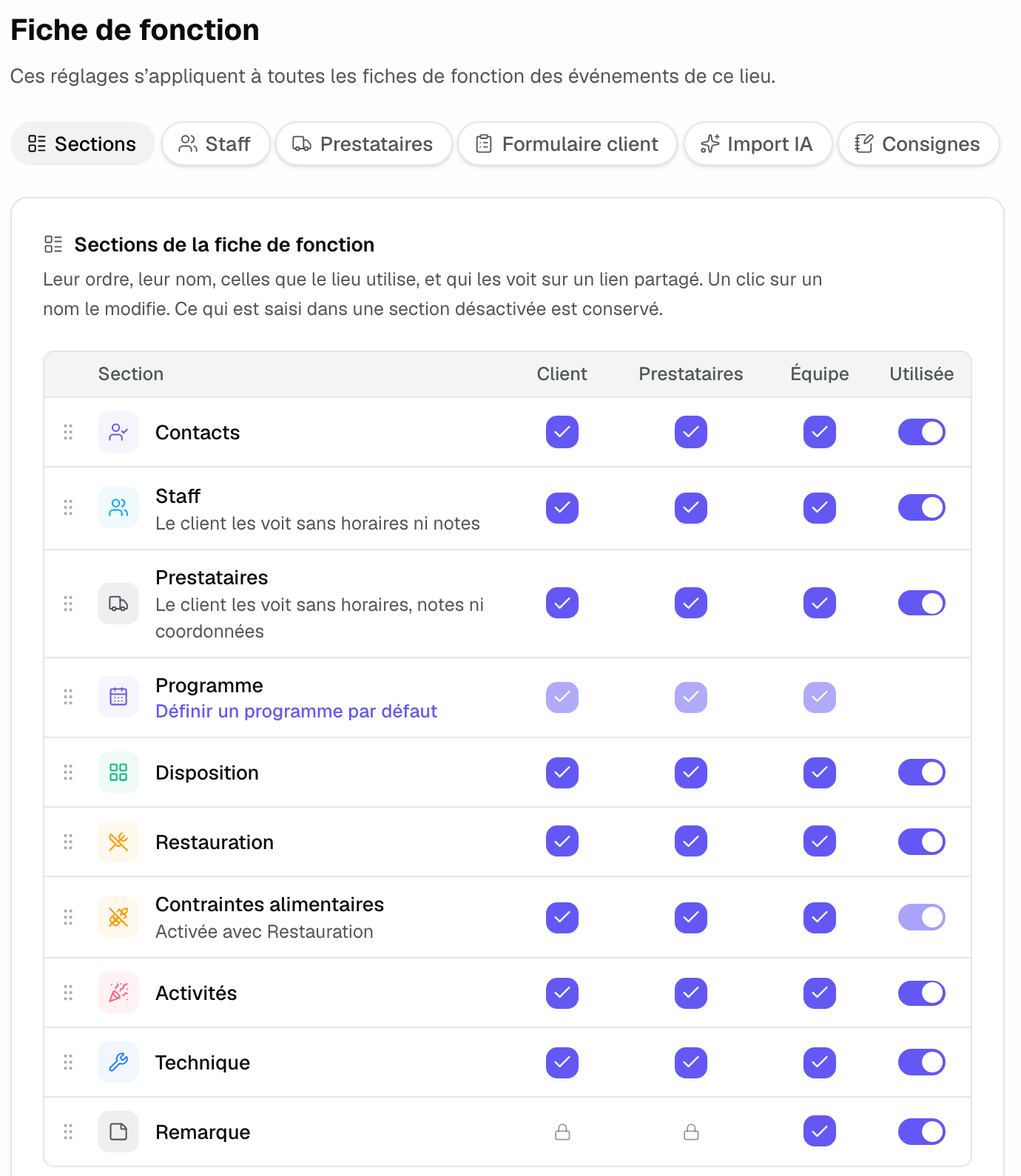
- Order: drag a row by its handle. The program moves like the other sections.
- Name: click a name to change it, for example "Activities" to "Entertainment". The new name shows as written in every language; cleared, the section goes back to its original name.
- Client, Vendors, Team: who sees the section on a shared link. "Remarks" is "Team only".
- In use: a turned-off section disappears from every BEO of the venue; what was entered in it is kept. "Dietary requirements" is on with "Catering".
Below the sections, the "Detail" table sets what else shows, per reader:
- "Quantities": the "×N" next to each program line, for the client.
- "Staff phone numbers": each staff member's number, for the client. On by default.
- "Vendor contact details": each vendor's phone and email, for the client. Off by default: the AV lead keeps the numbers, the client goes through the venue.
- "Prices": the price excl. tax of each line tied to the proposal, discount applied, for the team only. Never shown to the client or vendors.
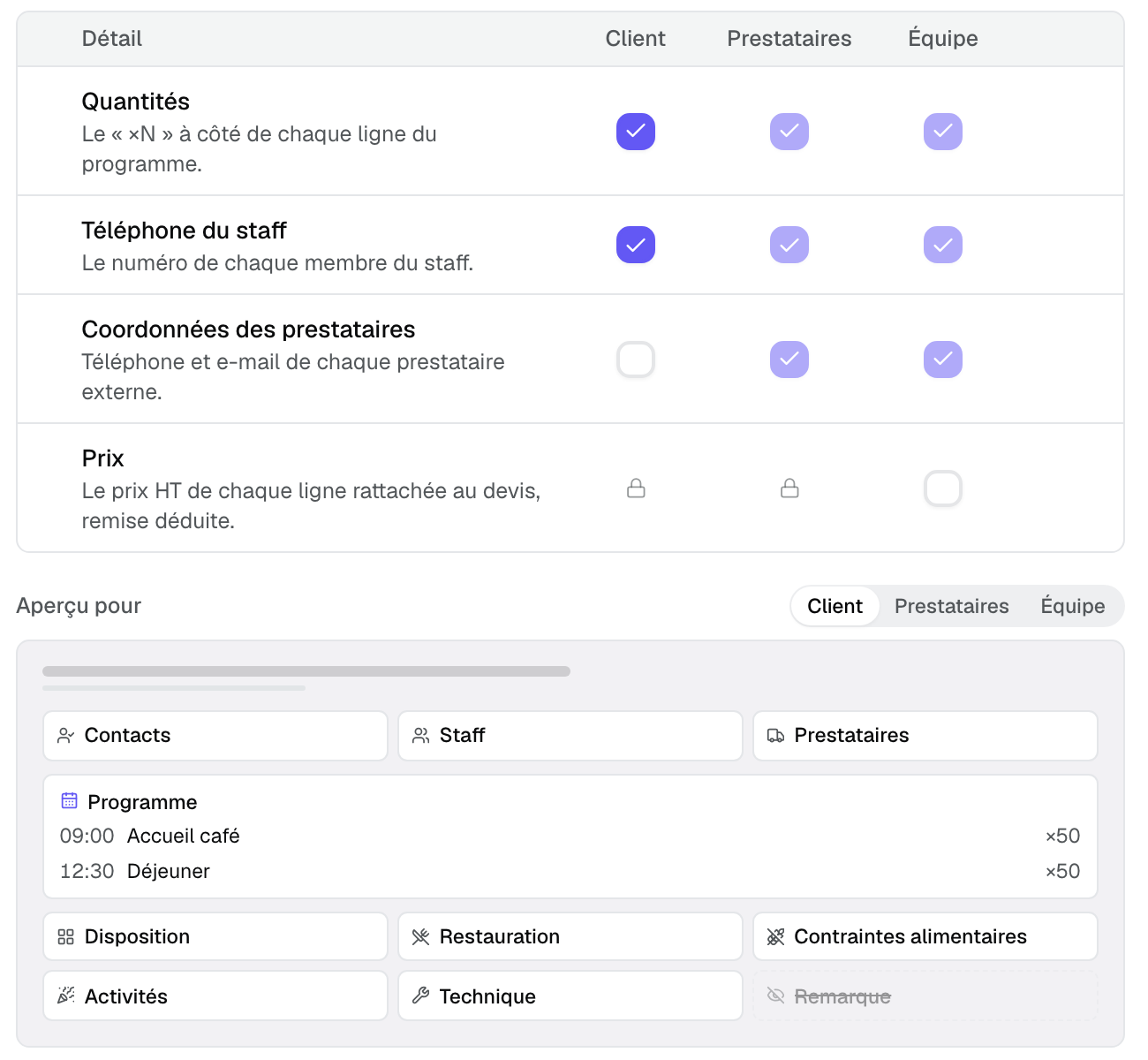
"Preview for" shows the BEO as the client, a vendor or the team reads it. The client never sees the internal remark, nor the hours and notes of staff and vendors.
3. Default program
On the "Program" row, click "Set a default program". Add the lines of your standard day: "Start", "End", "Title", and in each line's details a layout and a note. "Save" keeps them for the venue (30 lines at most).
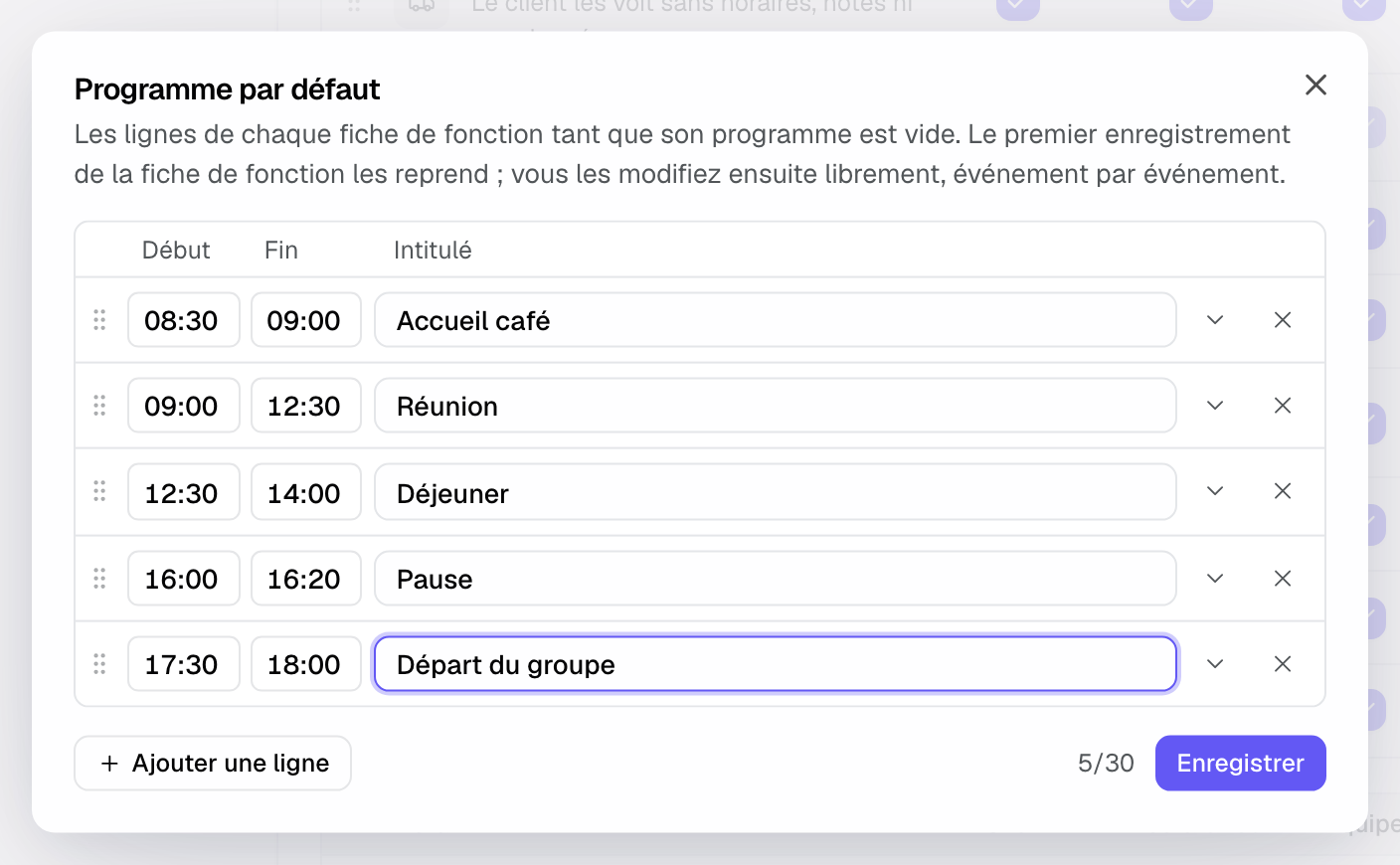
Any BEO with an empty schedule shows this program. It is copied into the BEO as soon as you change one of its lines; until then, the BEO follows changes to the venue's program. A line marked "Replaced by the quote" gives way, when the proposal is imported, to the line of the same category (the activity, the contract caterer). The client form can also start from this program.
4. Staff, Vendors, Client form
These three tabs have their own article:
- "Staff": your usual staff and the "Suggested roles", shared across the workspace. See Assign staff to an event.
- "Vendors": the workspace's vendor list and "Confirmed by default". See Work with vendors.
- "Client form": the questions sent to the client, and the link rules. See The BEO client form.
5. AI import
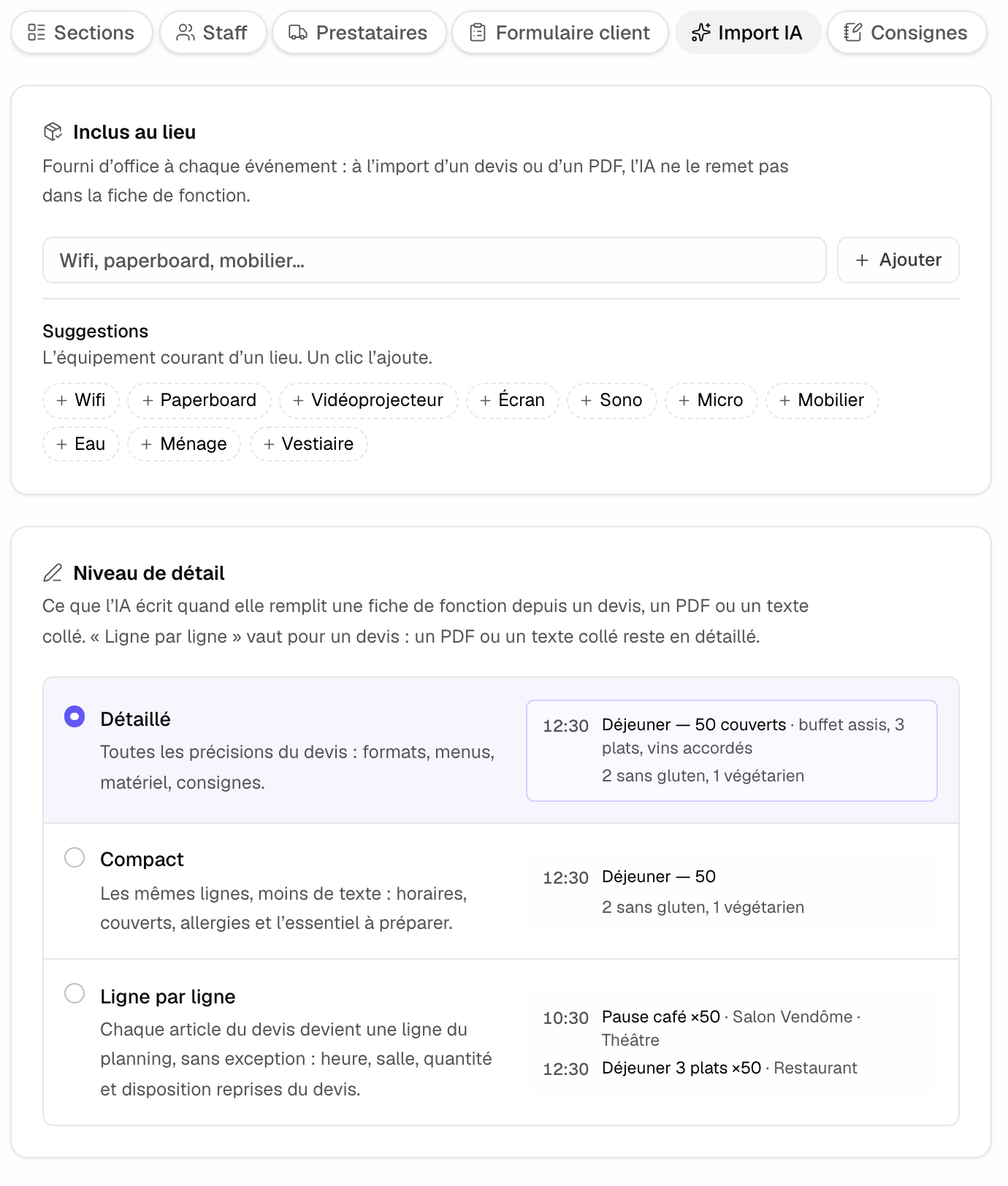
Two settings frame what AI writes when it fills a BEO from a proposal, a PDF or pasted text.
- Included at the venue: what the venue provides by default (wifi, flip chart, furniture). AI does not put it back in the BEO. Add items one by one, or in one click from "Often in your BEOs" (the number is how many events mention it) or "Suggestions". The list can also be edited from the "Included at the venue" line of a BEO.
- Detail level: "Detailed", "Compact" or "Line by line". "Line by line" applies to a proposal: each item becomes a schedule line, with time, room, quantity and layout. A PDF or pasted text stays detailed. Until the venue chooses, the question is asked on the first import from a proposal.
6. Venue instructions
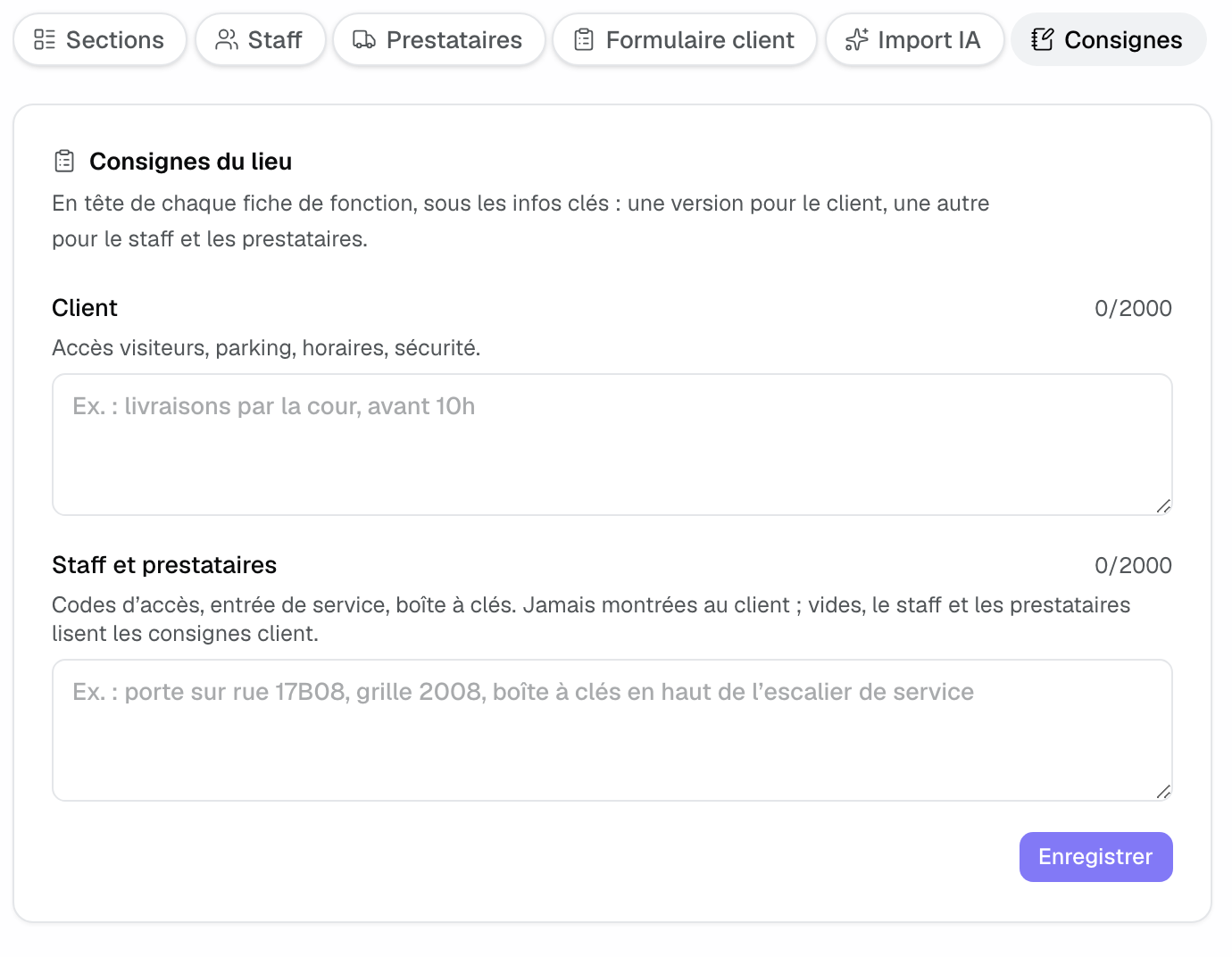
"Venue instructions" show at the top of every shared BEO, below the key facts. Two versions:
- Client: visitor access, parking, opening hours, security.
- Staff and vendors: door codes, service entrance, key box. Never shown to the client. Left empty, staff and vendors read the client instructions.
Each version holds 2,000 characters. Click "Save".
Example: a hotel with two meeting rooms
The hotel renames "Activities" to "Rooms and services", hides "Technical" from the client, and keeps staff phone numbers visible. It sets a default program (welcome coffee, meeting, lunch, break, departure), adds "Wifi" and "Projector" to "Included at the venue", and writes the service door code in the "Staff and vendors" instructions. All its BEOs follow, with nothing to redo.
Troubleshooting
The page shows "BEO settings restricted"
Cause: your role is "Read-only". Solution: ask a teammate who edits the workspace's events.
Seat counts do not show on schedule lines
Cause: the room has no capacity set for that layout. Solution: enter capacities per layout in the venue's spaces.
A change to the default program does not show on a BEO
Cause: a line of that BEO was already changed, and the program was copied into it. Solution: this is intended; adjust the BEO by hand.
Frequently asked questions
Do these settings apply to all my venues?
Sections, the default program, AI import, instructions and the client form are per venue. Staff, suggested roles and vendors are shared across the workspace.
Does the team see sections hidden from the client?
Yes, unless you untick the "Team" column. Hiding a section from the client does not remove it for the team.
Does turning off a section delete its content?
No. The content is kept and comes back if you turn the section on again.
See also
Try it on your next inquiries for 30 days, no credit card.