Process an incoming inquiry
Check the date and the calendar, reply, convert to an event or reject: what to do with each inquiry, platforms included.
Aktualisiert am
An inquiry is still just a message. Before turning it into an event, you need to know whether the date is free, whether the client followed up, and where to answer: by email from Joinways, on Instagram or WhatsApp, or on the platform that sent it.
This page follows an inquiry from start to finish: check what AI read, reply, convert, then prepare the proposal. For reading the list and the shortcuts, see Understanding Inquiries.
What you'll learn
- Check the date with the "Available" or "N conflicts" badge.
- Spot the client's follow-ups and duplicates.
- Reply by email, or on the platform with "Reply on".
- Convert to an event, then prepare the proposal from the inquiry.
- Reject, with or without an email to the client.
Prerequisites
- A role that can handle the workspace's inquiries.
- To reply by email from Joinways: a connected mailbox, yours or one shared by a teammate ("Settings" > "My mailbox").
- For Kactus, Naboo or Funbooker inquiries: the Chrome extension, recommended to read the platform page.
1. Check what AI read
Open the inquiry in "Inquiries". The original message is in the middle, the "Extracted data" on the right. First reread the date, headcount and budget: they decide what happens next. A budget can include or exclude tax, be a total or per person; a vague date ("sometime in June") is shown as a period.
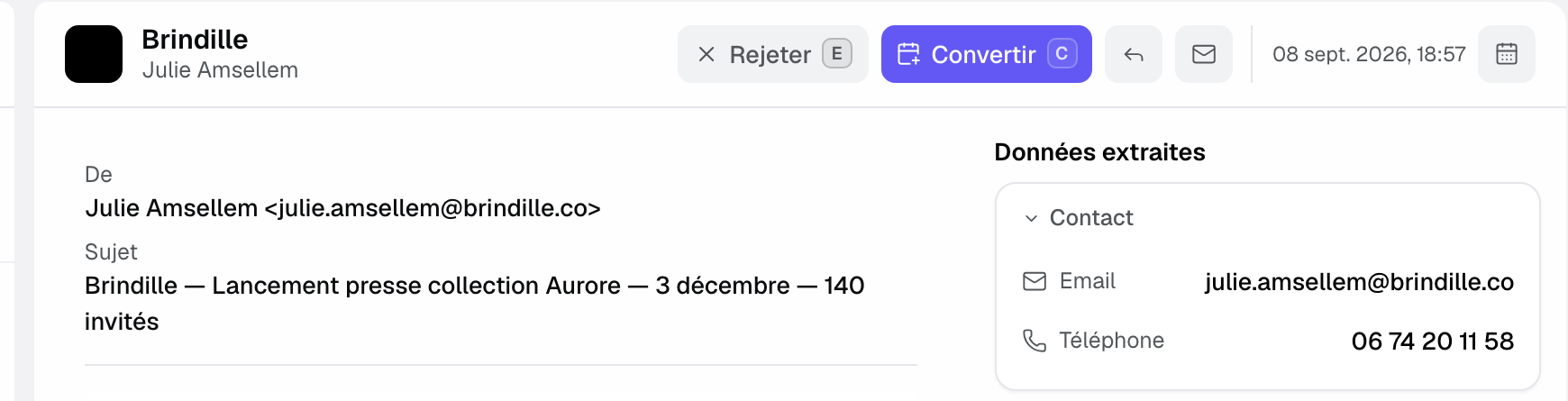
Next to the date, a badge compares the inquiry with your calendar, on the venue, days, times and requested spaces:
- "Available": no hold or confirmed event at this time.
- "1 conflict", "2 conflicts"…: hover the badge to see the conflicting events.
The badge only appears when the inquiry has a venue and a precise date, and disappears once the event is created. It is the same check as in the conversion form.
2. Spot follow-ups and duplicates
When the client sends the same request again, Joinways does not create a new inquiry: it records a follow-up. A line in the panel shows the number of follow-ups and the date of the latest, and the card in the list carries the "Follow-up" badge. Transfers between venues and manual merges do not count as follow-ups.
If the same request already exists at the same venue, the "Same request" block says so and offers "Merge into this one": the two are combined, nothing is deleted. If the inquiry concerns an event that is already open, it says so too, with "Open event".
3. Reply to the client
How you reply depends on the channel the inquiry came through.
Inquiry received by email
Click the reply arrow or press R. The composer opens under the message with two pills: "Reply" loads your default "Info request" template, "Reject" your default "Rejection" template. The sending address is shown next to "Send". Once sent, the inquiry moves to "Replied" and stays in "To process" until you decide.
Without a mailbox that can send, the composer shows "Connect your email to reply from the application.": connect your mailbox, or ask a teammate to share theirs (see Manage your email connections).
Platform inquiry (Kactus, Naboo, Funbooker…)
A platform inquiry is handled on the platform. The header shows "Reply on" followed by the platform name, for example "Reply on Kactus": the button opens the inquiry in a new tab. With the Chrome extension, the page you read comes back into Joinways (answer, quote, status). Once the inquiry is converted or rejected, the button becomes "Open on" followed by the platform name.
When the platform shows that you have already answered, the header says so ("Answer seen on" followed by the platform name) and offers "Mark as replied": nothing changes until you click.
Instagram and WhatsApp
"See conversation" (Instagram) or "Open conversation" (WhatsApp) opens the exchange in its own app.
4. Convert to an event
Click "Convert" or press C. The creation form opens, pre-filled with the "Option" status, the venue, dates and times, the client, headcount, type, budget and needs. Correct what needs correcting: this, not the panel, is where an extraction is fixed.
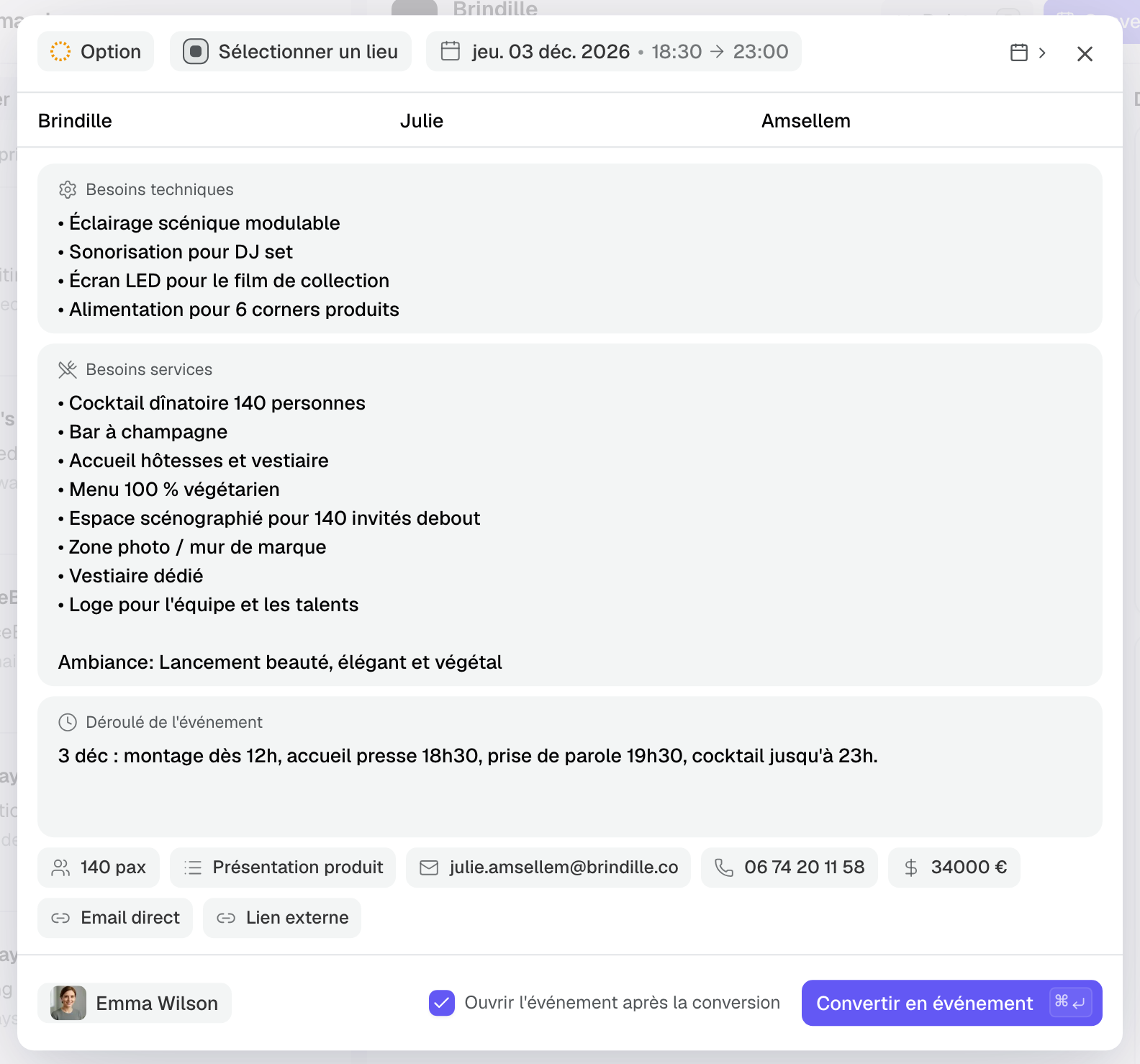
- Pick the venue if needed and check the date and times.
- Check the client and the assigned person, at the bottom left.
- Leave "Open the event after converting" ticked to land on the event, or untick it to stay in Inquiries: the next inquiry opens, and the notification offers to open the event. Your choice is remembered on this device.
- Click "Convert to event".
The inquiry's emails follow into the event's "Conversations" tab, and a contact with the same email or phone is reused instead of being created again.
5. Prepare the proposal
As long as no proposal has been sent, a converted inquiry shows a "Hold placed for" banner followed by the date, with "No proposal sent yet." or "A draft proposal is ready.". The "Prepare the proposal" button opens that draft if there is one, otherwise the event's "Proposals" tab. The banner disappears as soon as a proposal is sent.

Important: the banner does not appear for a platform whose terms require the proposal to be sent on the platform (Kactus, Funbooker). See Quotes sent through a booking platform.
6. Reject
- Without an email: "Reject" in the header, or E. The inquiry moves to "Rejected", the next one opens, and the notification offers an optional reason ("Date unavailable", "Not enough capacity", "Budget too low", "Not a fit for the venue", "Other", keys 1 to 5) and "Undo".
- With an email: open the composer, pick the "Reject" pill, reread the message from your "Rejection" template, then "Send and reject".
A rejected inquiry is restored from the "Rejected" tab with "Restore". A converted inquiry cannot be rejected: mark its event as lost or cancelled.
Let the Agent sort new inquiries
The Joinways Agent can do a first pass on new inquiries and propose a decision for each, which you confirm or correct. See Sort inquiries with the Agent.
Example: a product launch in December
Brindille asks for a press evening for 140 people on December 3, budget €34,000 including tax. The venue manager checks the extracted data and the availability badge, replies with the "Info request" template to suggest a visit and, once the visit is set, converts the inquiry. She unticks "Open the event after converting" to move on to the next inquiry, and comes back to Brindille later: the "Prepare the proposal" banner takes her to the draft.
Troubleshooting
No reply button on the inquiry
Cause: the inquiry did not come in by email (platform, Instagram, WhatsApp, call). Solution: use "Reply on" followed by the platform name, or the button that opens the original conversation.
No "Available" badge next to the date
Cause: the inquiry has no venue, its date is not precise ("sometime in June"), or the event already exists. Solution: the check also runs in the conversion form once the venue and date are chosen.
Cannot convert
Cause: a required field of the form is empty (dates and times, venue, assigned person, or neither company nor contact name). Solution: fill in the flagged field, then "Convert to event".
The "Prepare the proposal" banner does not appear
Cause: a proposal has already been sent, or the platform requires its own quote. Solution: open the event's "Proposals" tab.
Frequently asked questions
Should I reply before or after converting?
Both work. If the date is missing, reply first to get it; otherwise convert and continue the conversation from the event's "Conversations" tab.
Do my corrections change the inquiry?
No. They are saved on the event. The inquiry keeps the original message and AI reading.
Why "Reply on Kactus" rather than an email reply?
Because platforms expect the answer on their side, and their terms often require it. The button opens the right inquiry, for the right venue.
How do I undo a rejection made by mistake?
Click "Undo" in the notification or press Z. Later on, open the "Rejected" tab and click "Restore".
See also
Testen Sie es 30 Tage lang mit Ihren nächsten Anfragen, ohne Kreditkarte.