Notes and files of an event
Record what matters about an event and attach floor plans, contracts and photos, kept internal, up to 50 MB per file.
Aktualisiert am
A wedding is a thousand details: the tablecloth color, grandma's allergy, the seating plan. Between a site visit, a call and an email thread, this information easily gets lost in notebooks or personal inboxes.
The event's "Notes" and "Files" tabs keep everything in one place for the whole team: notes for what gets written (special requests, visit reports, instructions), files for documents (floor plans, contracts, photos, menus). None of it is shown to the client.
Notes or discussion? To coordinate day to day ("can you call the client back?"), use the team discussion, opened with the "Discussion" button in the header. Keep notes for what needs to last. An important discussion message can be pinned as a note.
What you'll learn
- Add, edit and delete a note.
- Mention a teammate in a note.
- Attach files to an event and view them.
- Know who can write and what stays private.
Prerequisites
Every role can see notes and files. To add, edit or delete them, you need a role other than "Read-only"; on an archived event, both tabs become read-only for everyone.
1. Add a note
- Open the event, then the "Notes" tab.
- Click "Add note" and write it in the "Write your note..." field.
- Type @ followed by a teammate's name to mention them: they get a notification in Joinways and an email that quotes the note.
- Click "Save" (or Cmd/Ctrl + Enter). The note shows with its author and date.
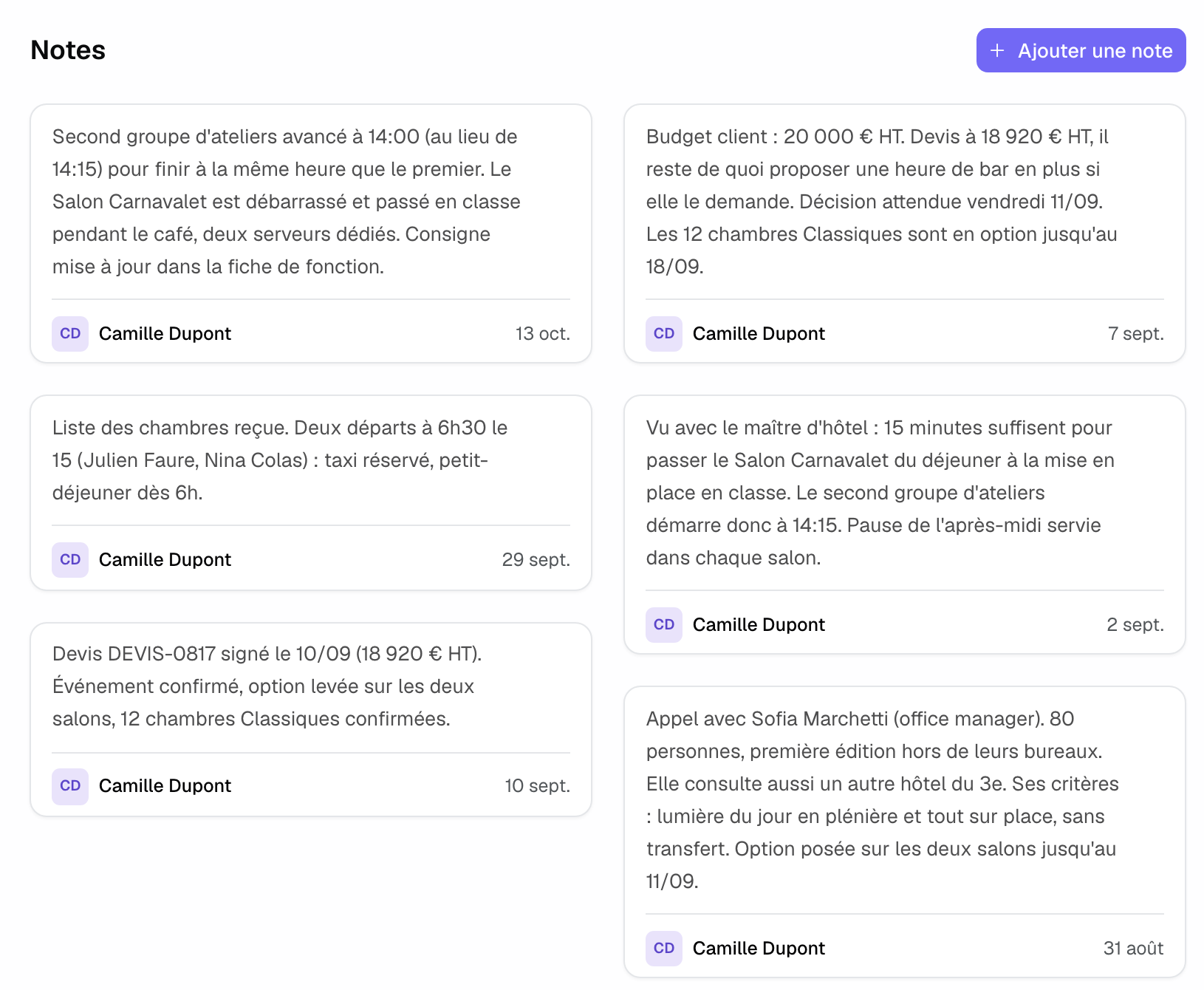
To fix a note, open its card menu and choose "Edit": any member who can write can edit it. "Delete" is only offered to the note's author.
Notes are plain text with mentions. Bold, highlighting and lists are reserved for BEO notes, which go out to the client and the team.
2. Attach files
- Open the "Files" tab.
- Click "Upload file".
- Drag and drop your documents into the window, or click to select them. You can send several at once.
- Click "Upload files".
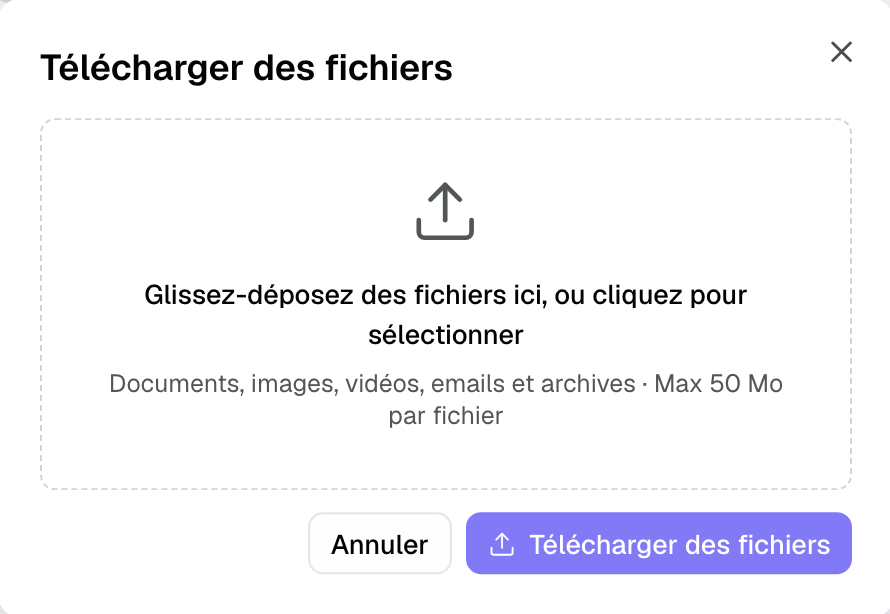
Accepted formats: documents (PDF, Word, Excel, PowerPoint, OpenDocument, Pages, Numbers, Keynote, text, CSV), emails and invitations (.eml, .msg, .ics, vCard), images (including HEIC and AVIF), video, audio and archives (ZIP, RAR, 7z). An unknown format, such as a CAD plan, is accepted and downloads as is. Web pages and SVG images are refused.
The file goes straight from your browser to storage: the limit is 50 MB per file, whatever the total size of the upload.
3. View and organize files
- Click a file to "Preview" it (PDFs and images), or use "Download".
- A file name can't be changed in Joinways: name it before uploading ("Floor plan v2", "Catering contract").
- If you upload a PDF recognized as a quote or an invoice, Joinways offers "Pre-fill the event from this document?": "Yes, extract" completes the event from the document.
- The signed rental contract also appears in "Files". Removing it from the list doesn't destroy the signed original, which Joinways keeps.
Tip: the signed quote stays in the "Proposals" tab and the BEO in its own tab, always up to date. Keep "Files" for documents that don't exist anywhere else: floor plans, external contracts, photos, menus.
Example: after a site visit
After a couple's visit, the sales manager adds a note ("would like a kids' corner near the terrace") mentioning the maître d', then attaches the annotated floor plan and the bride's inspiration photo. On the day, the team opens the event, reads the note and sets up the kids' corner using the plan.
Troubleshooting
The "Add note" or "Upload file" button is missing
Cause: your role is "Read-only", or the event is archived. Solution: ask an admin to change your role, or unarchive the event.
A file is refused
Cause: it is over 50 MB, its format isn't accepted (web page, SVG), or its name is longer than 255 characters. Solution: compress it or send it as a PDF, and shorten its name.
I can't delete a note
Cause: only a note's author can delete it. Solution: ask them to do it, or edit the note.
Frequently asked questions
Can the client see notes and files?
No. They stay internal to your team, including when you share the event's public access.
Can I use bold in a note?
No, event notes are plain text with mentions. Formatting is available in BEO notes.
Where should I keep the signed quote?
Nowhere else: it stays in the event's "Proposals" tab, with its signed PDF.
Do notes replace tasks?
No: notes record information, tasks carry the actions to do, with a due date and an assignee.
See also
Testen Sie es 30 Tage lang mit Ihren nächsten Anfragen, ohne Kreditkarte.