Connect Joinways to Claude (MCP)
Connect Claude, ChatGPT or Cursor to your workspace through the Joinways MCP server: one URL, one approval screen, then plain-language requests.
Aktualisiert am
On Monday morning, a sales manager wants to know how many events are confirmed this week, which quotes await a signature and whether the main hall is free on the 14th. With an AI assistant connected to Joinways, they ask in one sentence instead of opening three screens.
The Joinways MCP (Model Context Protocol) server gives that access to Claude, ChatGPT, Cursor or any compatible assistant. You paste a URL into the assistant, approve the connection in Joinways, and the assistant reads and acts in your workspace with your role's permissions. There is no key to copy.
What you'll learn
- Find the MCP server URL.
- Approve the connection on the consent screen.
- Know what the assistant can read and do.
- Track and revoke connected apps.
Prerequisites
- A workspace on the Pro plan or the free trial.
- Being a member of the workspace to connect. Any member can approve a connection; the "MCP" tab of the "Developers" page is reserved for the owner and admins.
- An assistant that accepts remote MCP connectors, such as Claude, ChatGPT or Cursor.
1. Copy the MCP server URL
- Open "Settings" > "Developers", "MCP" tab.
- In the "One-click connection" card, click "Copy" next to "MCP server URL":
https://mcp.joinways.app. - For Cursor or a command-line tool, click "Show" to the right of "Need a JSON snippet for Cursor / CLI? Show config": a ready-to-paste snippet appears, with its "Copy" button.
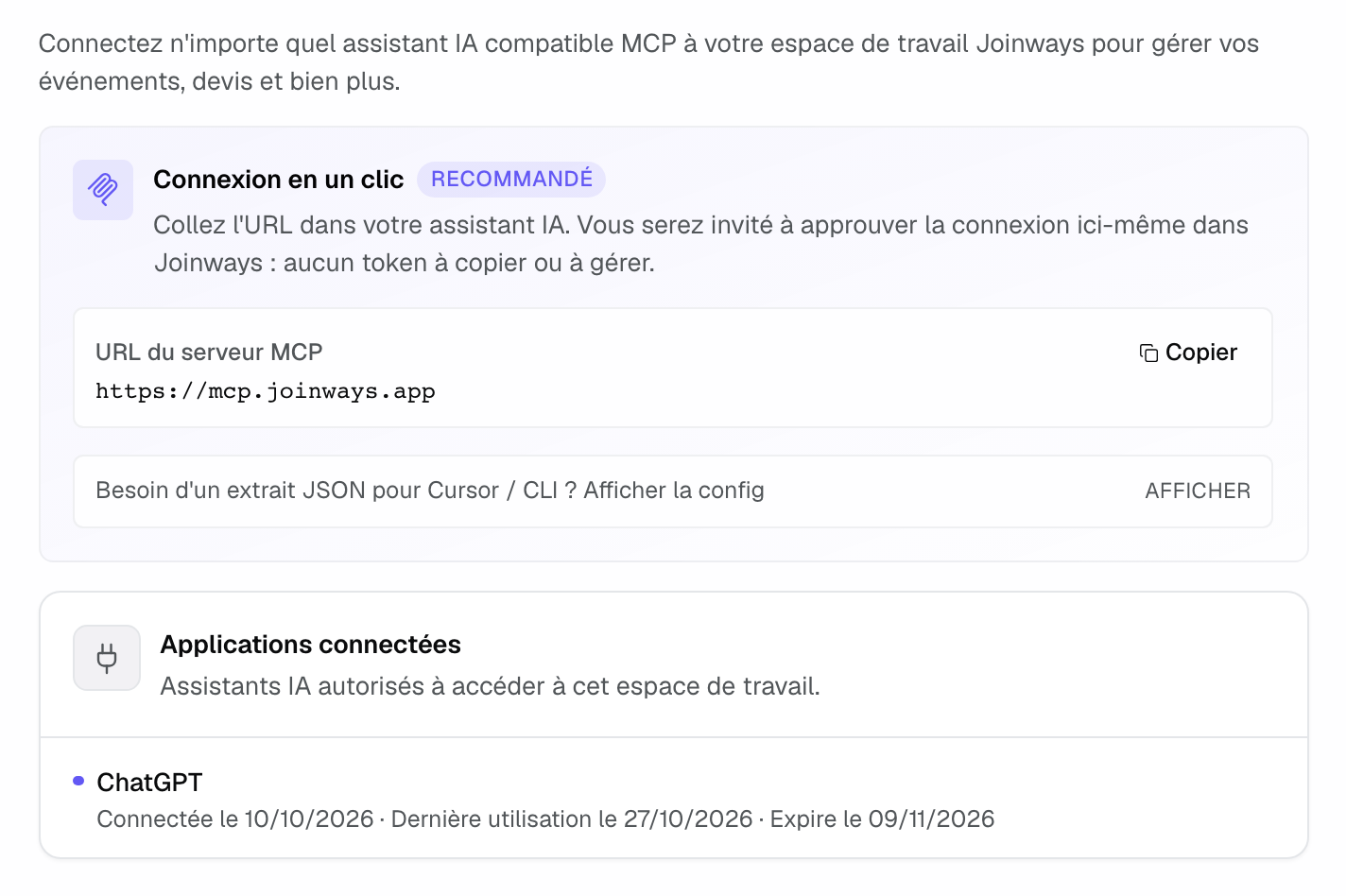
For Claude and ChatGPT, Joinways is also listed in their connector catalogs. In "Settings" > "Integrations", "Automation" tab, the "Claude" and "ChatGPT" cards open those pages in a new tab.
2. Add the connector in the assistant
In your assistant, add a custom connector and paste the URL https://mcp.joinways.app, or install Joinways from its catalog. The assistant then opens a Joinways window. If you are not signed in, Joinways asks you to sign in first.
3. Approve the connection
The "Connect Claude to Joinways" screen (the name follows the assistant's) shows the app and its site, here claude.ai.
- Under "Workspace to connect", choose the workspace. Each workspace shows your role.
- Read the "This will allow the app to:" list: "Read your events, inquiries, proposals and contacts" and "Create and update them on your behalf".
- Click "Approve and connect". "Cancel" closes the request without sharing anything.
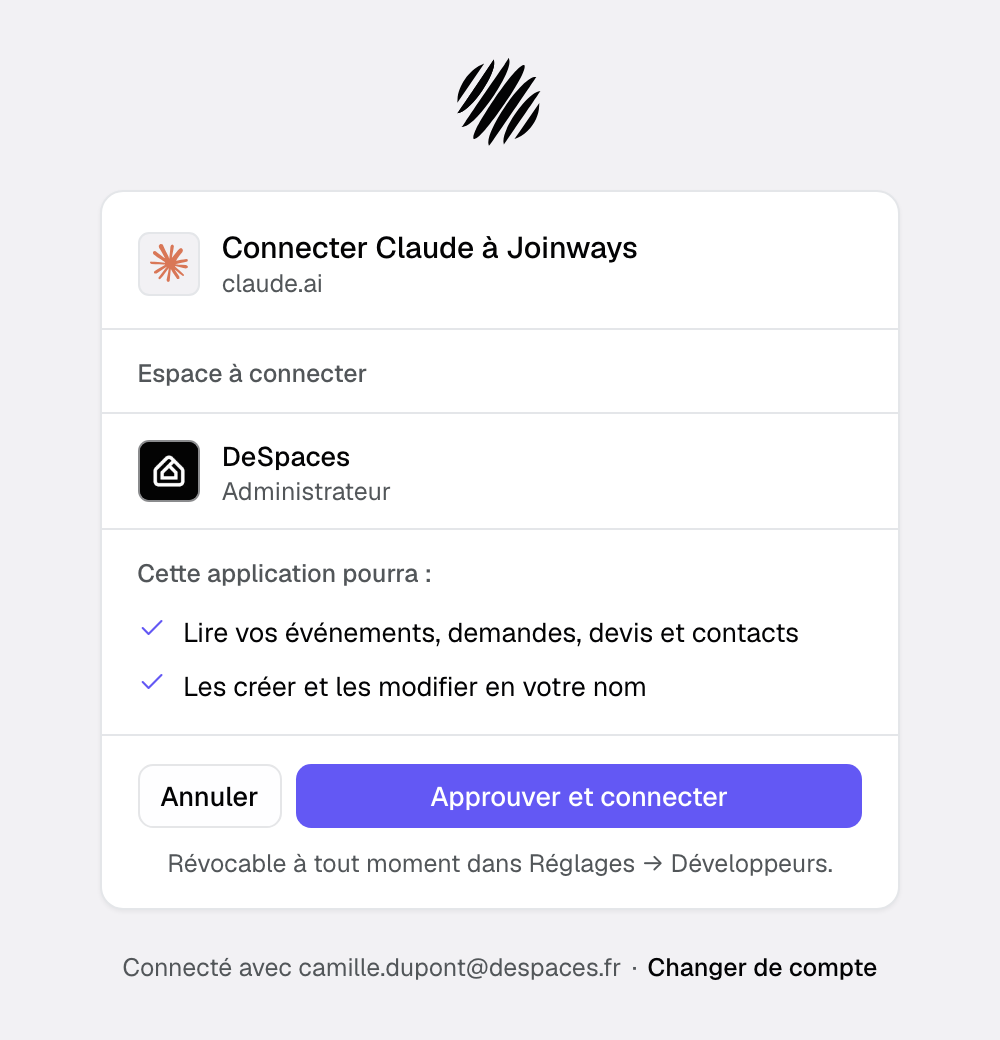
At the bottom of the screen, the Joinways account in use is shown, with a link to switch accounts. If the app's return address is on a domain other than its site, a warning says so: approve only if you trust it.
Go back to the assistant and test with a simple question, for example "How many confirmed events this month?".
4. What the assistant can read and do
The assistant has about a hundred tools, grouped as follows:
- Events: list, count, open, create, update, change the status or stage (with the loss or cancellation reason), archive and restore. A multi-day event can get different hours each day. Only an archived event can be deleted.
- Days, slots, staff and contacts of an event, plus its notes and files.
- BEO: read and update it. Each update creates a new version and, if the BEO is frozen, notifies the team.
- Inquiries: list, open, create, change the status, choose the requested spaces, merge two inquiries, create the event or link the inquiry to an existing event, read its emails and reply to the client. For a platform inquiry that requires an answer on its own page, the assistant gives you the text to paste.
- Quotes: list, open, create, duplicate, cancel, delete, download, import a signed quote, add, update or reorder lines, change the status. A signed quote or one that came from a platform stays read-only.
- Catalog and packages: manage items and bundled packages. A package is created through its composition and its price comes from its items. On a quote, it is added as a single line.
- Venues and availability: spaces, availability on a date, conflicts over a period, blocked or unblocked dates, public holiday import. Combined spaces, setup and teardown times, closures and per-day hours are taken into account.
- Emails: prepare a draft, send an email linked to an event. It leaves your connected mailbox after 30 seconds, time to cancel it from the event's "Conversations" tab.
- Companies, people and tasks, with company notes.
- Analytics: overview, inquiries, responsiveness, commercial and accounting metrics. They need a role that sees reports.
- Global search, notifications, team members, email templates and mailbox connections.
All these actions follow the app's rules and your role's permissions. As "Read-only", the assistant only reads; as "Operations", it sees neither inquiries nor quotes.
5. Track and revoke connected apps
In the "MCP" tab, the "Connected apps" card lists the assistants authorized on the workspace, with the connection date, the last use and the expiration.
- Click the revoke icon to the right of the app.
- In the "Revoke access for Claude?" window, confirm with "Revoke access".
The app loses access immediately. To use it again, reconnect it and approve again.
An assistant that can renew its access stays connected as long as it uses it; its connection expires after 90 days without use. For others, access lasts 30 days. The assistant then asks you to reconnect.
Example: the Monday review at a conference hotel
The sales director of a conference hotel asks Claude: "Which quotes over €5,000 await a signature, and is the Panorama room free on November 14?". Claude lists the quotes, checks availability including setup times, then offers: "Shall I create a follow-up task for each one?". She agrees, and the tasks appear in Joinways, assigned to her.
Troubleshooting
The screen shows "API access requires the Pro plan"
Cause: the chosen workspace has neither the Pro plan nor the trial. Solution: move the workspace to Pro, or choose another workspace under "Workspace to connect".
The screen shows "Unknown application" or "Redirect URL mismatch"
Cause: the app was revoked, or the connection request does not match what it registered. Solution: restart the connection from the assistant. If the message persists, contact the assistant's publisher.
The assistant no longer sees your data
Cause: access expired or was revoked, or the workspace is no longer on Pro. Solution: reconnect the connector in the assistant and approve again.
An action fails or does nothing
Cause: your role does not allow the action, or the record is locked (archived event, signed quote). Solution: rephrase the request, check your role in "Settings" > "Teammates", or restore the event before editing it.
Frequently asked questions
Do I need an API key?
No. The connection works by approval in Joinways, with no token to copy. API keys are for scripts and tools that call the REST API.
Can the assistant act in several workspaces?
No. A connection is bound to the workspace chosen at approval. For another workspace, add a second connection.
Can the assistant email a client without me?
It can send an email if you ask it to. The email leaves your connected mailbox after 30 seconds, and you can cancel it from the event's "Conversations" tab. Ask for a draft if you prefer to review first.
Who sees the connected apps?
The owner and admins, in the "MCP" tab of the "Developers" page. They can revoke any app of the workspace.
See also
Testen Sie es 30 Tage lang mit Ihren nächsten Anfragen, ohne Kreditkarte.