Connect Joinways to Claude (MCP)
Query and drive your Joinways data from Claude via the MCP connector: natural-language analysis, reports and actions on your inquiries, events and quotes.
Updated
The MCP (Model Context Protocol) connector lets an assistant like Claude access your Joinways data to answer questions and run actions in natural language. Instead of clicking through the interface, you ask « How many events this month? » or « Create a proposal for this client » and the assistant queries or acts on your workspace for you. It's an advanced feature, designed for users comfortable with AI tools.
This article explains what the connector concretely brings, how to set it up securely, what you can ask or have it do, and the precautions to take since it grants access to your data. The goal: get the most out of the assistant without ever losing control of your workspace.
Prerequisites
- A Joinways account with access to your workspace Settings.
- An MCP-compatible assistant (for example Claude) where you enter the connector configuration.
- A workspace on the Pro plan or in its trial. The "MCP" tab is reserved for the owner and admins, but any member can approve a connection for a workspace they belong to. The assistant then acts with the rights of that member's role: with "Read-only", it only reads; with "Operations", it sees neither requests nor proposals.
- Basic comfort with AI tools and the notion of a connector or integration.
What you'll learn
- Understand what the MCP connector brings.
- Set it up securely.
- Know the possible questions and actions.
- Disconnect the assistant when you no longer need it.
- Adopt the right uses and avoid the pitfalls.
What it is for
The connector turns your assistant into a natural-language control surface for Joinways. You ask a question or give an instruction; the assistant reads or modifies your data through the connector, then reports the answer back to you.
- Ask questions about your events and proposals in natural language.
- Prepare quick analyses without manual export.
- Trigger certain actions from your assistant.
Set up the connector
There is nothing to copy or manage: you give your assistant the Joinways MCP server URL, and the assistant opens a Joinways window where you approve the connection. No token passes through your hands.
- Go to "Settings" > "Developers", "MCP" tab.
- In the "One-click connection" card, copy the "MCP server URL": https://mcp.joinways.app. For Cursor or a CLI, the "Show" link gives a ready-to-use JSON snippet.
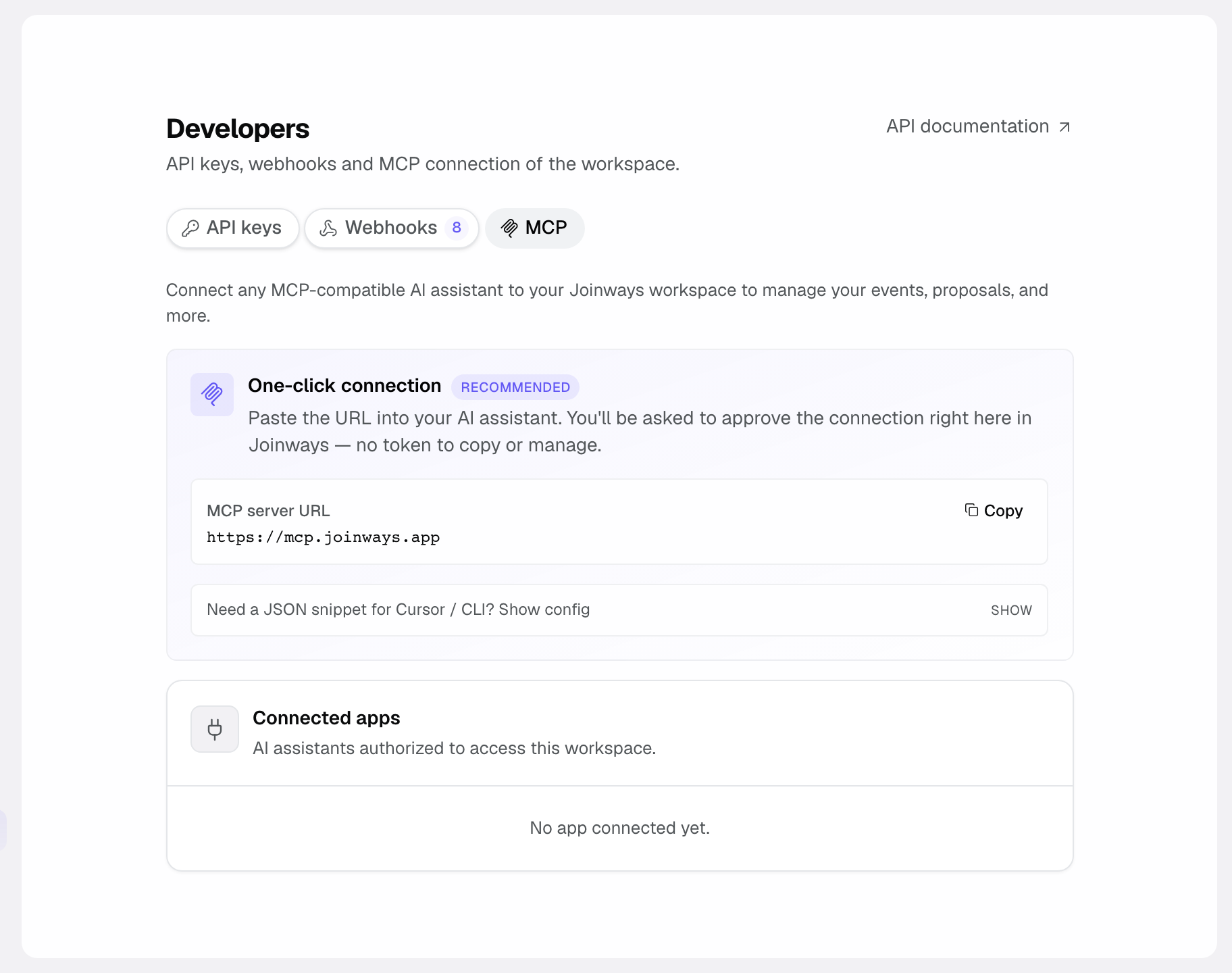
- Add this URL as a connector in your assistant (e.g. Claude).
- In the Joinways window your assistant opens, pick the "Workspace to connect", review what the app will be able to do (read, create and modify), then click "Approve and connect".
- Test the connection with a simple question, for example the number of upcoming events.
Note: this connector acts in your workspace with the rights of your role, for reading and writing alike. Only connect assistants you trust, and disconnect any you no longer use.
Reference: what you can ask and do
Here, one line each, are the main families of questions and actions the assistant can handle through the connector.
- View and count: events, proposals, companies, people, tasks and requests in your workspace.
- Search: find an item by keywords via a global search.
- Events: list, view, create, update, change the status or stage (with the loss or cancellation reason), archive and restore; manage days, space slots, staff and contacts; list files and emails. An archived event stays read-only, and only an archived event can be deleted.
- Proposals: list, view, create, duplicate, delete, download, import a signed proposal, edit and reorder its lines, change its status. A signed proposal or one that came from a platform stays read-only; for the latter, viewing it also returns the lines read from its PDF.
- Companies and people: list, search, view, create and update your contacts and companies, read and add notes on a company.
- Tasks: list, create, update and delete follow-up tasks.
- Requests: list, view, create, change status, merge two requests, pick the requested spaces, create the event for a request or link it to an existing event. A request only becomes "validated" once it is tied to an event.
- Venue availability: check availability, block or unblock dates, list conflicts. The check accounts for combined spaces, set-up and tear-down times, closures and opening hours.
- Analytics: overview, incoming requests, responsiveness, commercial, accounting and event indicators, without manual export. They require a role that can see reports.
- Emails: prepare a draft or send an email tied to an event. The email leaves your connected mailbox after 30 seconds, giving you time to cancel it from the event's Emails tab.
- Catalog: list, create, update and delete catalog items.
- Event notes: add and list notes attached to an event.
- Team and staff: list team members and the staff assigned to an event.
- Function sheet and days: view and edit the function sheet (BEO), view an event's days. An edit made by the assistant creates a new version of the sheet and, if it is frozen, notifies your team.
- Notifications: list your recent notifications.
- Email templates and connections: list available email templates and mailbox connections.
How it works
When you phrase a request, the assistant translates it into calls to the Joinways connector. For a question, it reads the data and composes an answer; for an action, it calls the matching tool (creating a proposal, updating a status, etc.). The connection is tied to one workspace: the assistant acts there with the rights of your role, and nothing outside it.
You remain the arbiter: re-read the answers and confirm sensitive actions before validating them, especially when they create or modify records.
Edge cases
- Shared assistant: if several people drive the same connected assistant, you lose track of who asked for what. Prefer one connection per person.
- Unintended action: an ambiguous instruction can trigger an unwanted creation; rephrase or undo the action on the Joinways side.
- Doubt about an assistant: revoke it in "Developers" > "MCP" > "Connected apps". Access stops immediately and you can reconnect it later.
- Sensitive data: the assistant sees what the connector exposes; limit its use to trusted contexts.
- Connection lifetime: an assistant that can renew its access stays connected as long as it uses it, and the connection expires after 90 days without use. For others, it expires after 30 days. The assistant then asks you to reconnect and approve again.
Best practices
- Limit access to trusted people.
- Immediately revoke any connected app you have doubts about.
- Test in read mode first (questions, analyses) before allowing write actions.
- Always re-read the summary of a write action before confirming it.
Troubleshooting
Problem: the assistant can't see your data. Cause: the connection was never approved, it expired, or the server URL is wrong. Solution: check the URL in "Settings" > "Developers", "MCP" tab, then reconnect and approve the Joinways window.
Problem: an action failed or did nothing. Cause: the request was ambiguous, your role does not allow this action (for example "Read-only" or "Operations"), the record is locked (archived event, signed proposal) or your workspace is no longer on the Pro plan. Solution: rephrase the request precisely, then check your role and the workspace plan.
Problem: you fear an access is compromised. Cause: shared assistant or unsecured device. Solution: revoke the app in "Connected apps", then reconnect it from a trusted device. For an API key, revoke it and create a new one.
Real-world example
A venue manager wants a quick check on Monday morning. From Claude connected to the connector, he asks « How many confirmed events this week and what revenue is expected? ». The assistant queries Joinways, counts the events and reports the commercial indicators, without his having to open the interface or export anything.
Right after, he asks « Create a follow-up task for the Martin wedding proposal ». The assistant creates the task in Joinways; he checks the confirmation before moving on.
Another example
While preparing a proposal, the manager asks the assistant to check the availability of the main hall for a given date. The connector queries the venue availability and reports it is free; the manager follows with « Create a proposal for this client with a hall rental ».
The assistant creates the proposal and its items through the connector; the manager then downloads it for review before sending.
FAQ
Do I need to be a developer?
Not necessarily, but comfort with AI tools and MCP configuration helps.
Which assistant can I connect?
Any MCP-compatible assistant, for example Claude, ChatGPT or Cursor, where you enter the server URL.
What can I ask the assistant?
View and count your events, proposals, companies, people, tasks and requests, and get analyses in natural language.
What actions can I trigger?
Create or update events, proposals, requests, contacts and tasks, check availability, prepare and send emails, within the rights of your role.
Can the connector modify my data?
Yes, for the write actions your role allows; re-read and confirm sensitive actions before validating.
How do I revoke access?
In "Settings" > "Developers", "MCP" tab, the "Connected apps" section lists the authorized assistants. Click "Revoke access": the app loses access immediately. An API key created for a non-MCP tool is revoked in the "API keys" tab.
Is there a secret to protect?
No token is handed to you: the connection is made by approving it in Joinways. Mostly protect access to the connected assistant, since anyone using it acts in your workspace. If in doubt, revoke the app in "Connected apps".
Does the assistant access several workspaces?
Access is limited to the workspace you approved, with the rights of your role in that workspace.
See also
- API keys
- Security and access
Bring every event inquiry into one queue.