Customize lists: columns, views and totals
Pick the columns, their width and which ones stay frozen, read totals at the foot of each column and save your views.
Aggiornato il
The event, company, people and task lists follow the same rules. You pick the columns, their order and width, freeze the ones that must stay visible while scrolling, read a total at the foot of a column and save your settings as views.
What you'll learn
- Show, hide and reorder columns.
- Set a column's width and freeze the leading columns.
- Read the columns specific to the events list.
- Read totals at the foot of a column.
- Save and recall a view.
Prerequisites
No special right: each member sets their own lists. In "Events", switch to the "List" view; in "Clients" ("Companies" and "People") and "Tasks", the list is the default view.
1. Pick the columns
- Click "View", at the top right of the list. The panel lists the displayed columns, in order.
- To add a column, click "Add attribute to view" and pick it. When everything is displayed, the panel says so: "All attributes are already displayed".
- To remove a column, click the cross next to its name.
- To change the order, drag a column by its handle in the panel, or drag its header in the table.
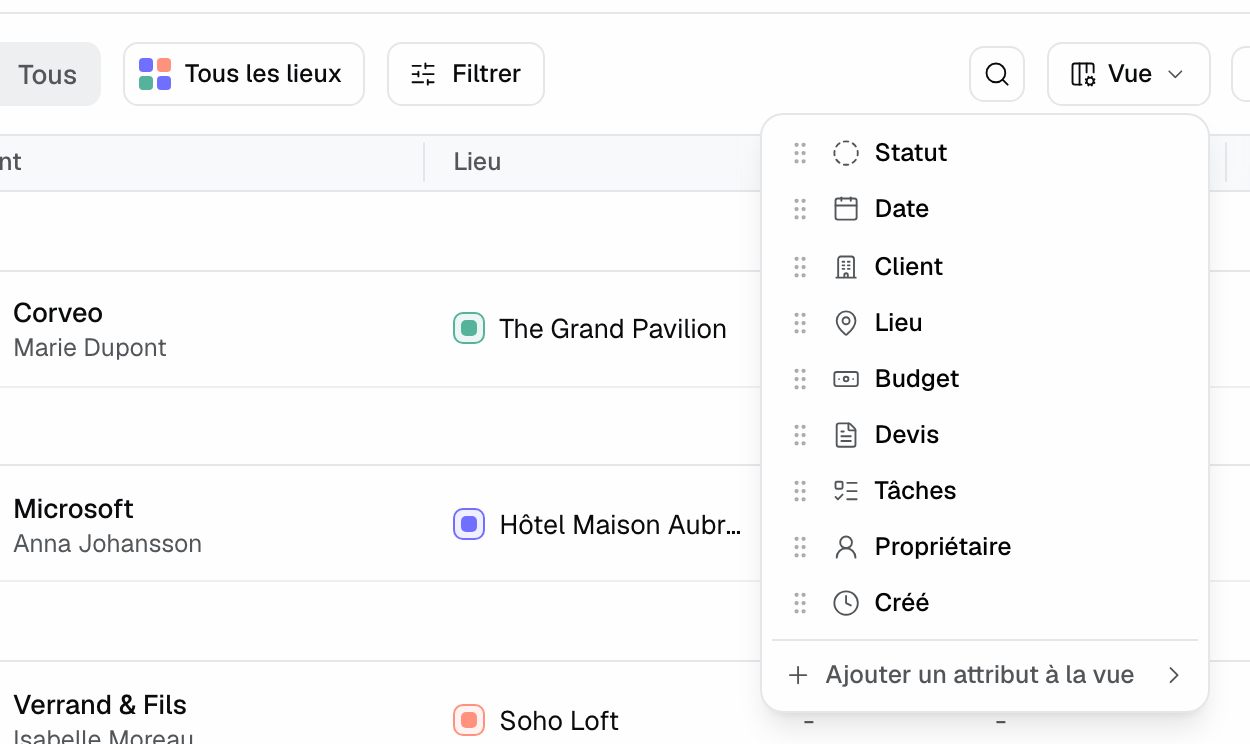
"Reset view" restores the original columns; "Reset column widths" gives every column its automatic width back. The main column (client, name, task title) can't be removed.
2. Set widths and freeze columns
As long as you haven't touched any width, the list lays itself out to fill the screen. As soon as you drag a header's edge, the width becomes exact: the column follows the mouse and the remaining space goes to the last column. A header's edge can also be set with the keyboard.
The ⋮ menu of each header, visible on hover, offers:
- "Sort ascending" and "Sort descending", for sortable columns.
- "Fit column width": the column takes the width of its header and the displayed cells.
- "Freeze up to this column": this column and those to its left stay in place when you scroll the table to the right. On the last frozen column, the option becomes "Unfreeze this column".
- "Remove column".
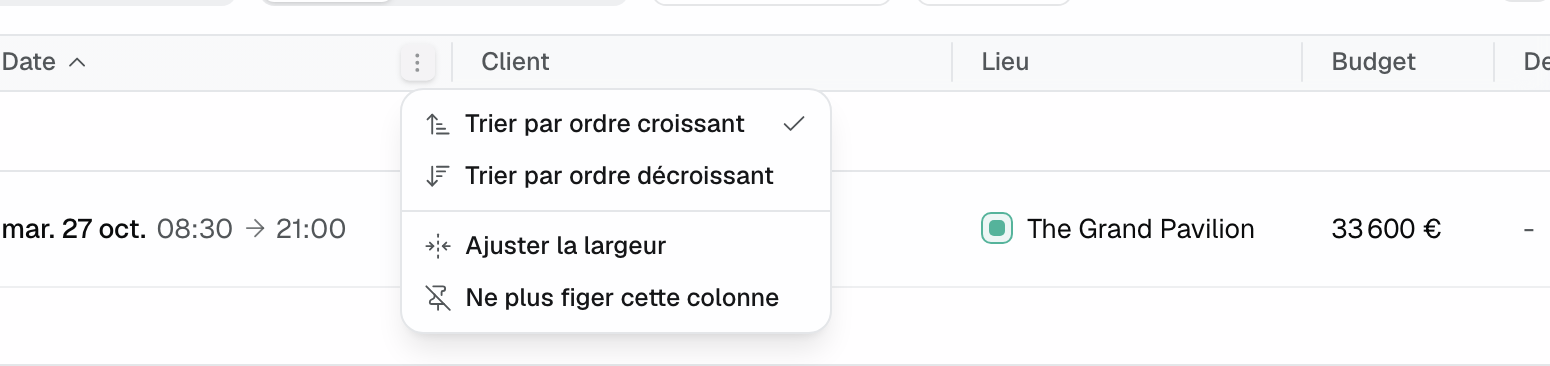
By default, "Status" and "Date" are frozen in the events list, the checkbox and title in the tasks list. You can freeze up to six columns, as long as they take less than 60% of the list's width. Headers and cells fit on one line: text that is too long ends with "…". On a phone, the main column comes first and stays frozen.
3. Read the events list columns
- "Status": the status pill, then the event's stage if it has one (see Track progress with event stages).
- "Date": dates and hours; an event with hours per day shows for example "3 days · hours per day".
- "Venue": hidden when the workspace has a single venue.
- "Proposals": a badge tinted by the quote's state (draft in gray, sent in violet, accepted or signed in green, declined in red), with the number of quotes when there are several.
- "BEO" (add it from "View"): "Filled" with a check mark, or in orange the number of items waiting on the team, for example "2 to handle": a request, an unavailable vendor, a proposal or answers from the client form. A click opens the BEO.
- Other available columns: "Revenue", "Pax", "Type", "Source", "Vendors".
The "Filter" button offers, in the "Amounts" group, the "Confirmed revenue excl. tax" filter: "Filled in", "Not filled in" (revenue at 0 counts as not filled in) or a minimum and maximum range. The list's chronological sections (Today, Tomorrow, This week…) are described in Calendar, list and kanban views.
4. Read totals at the foot of a column
Click the foot of a column to open the "Aggregations" menu and pick:
- For any column: "Count", "Count empty", "Count filled", "Percent empty", "Percent filled".
- For a numeric column (amount, number of guests): "Sum", "Average", "Minimum", "Maximum".
- "None" removes the calculation.
The calculation covers every result matching your filters, not only the rows loaded on screen.
5. Save a view
- Set your filters, sort, columns, widths and frozen columns.
- Click the bookmark icon button, then "Save current view".
- Give it a "View name", then save.
To apply it, open the bookmark menu and click its name: the active view's name shows on the button. In events, the view also keeps the statuses, the period, the venues and the display mode.
On each view of the menu, "Update filters" replaces its content with your current settings, the "Set as default" star makes it the view applied when the list opens, the pencil renames it and the bin deletes it.
What is personal
- Saved views are yours: your teammates don't see them and have their own.
- Columns, widths, frozen columns and totals are stored in your browser, separately for each workspace. On another computer, recall a saved view to get your columns back.
Example: the quarter's holds
A hotel sales manager tracks her holds for the quarter. She keeps "Hold" only, adds the "Revenue" and "BEO" columns, freezes up to "Client" to keep the name visible while scrolling, shows the budget "Sum" at the foot of the column and saves the view "Holds this quarter". Every Monday, one click brings back the list, the amount at stake and the BEOs waiting on the team.
Troubleshooting
The "View" button doesn't appear
Cause: in "Events", you are in the calendar or kanban. Solution: switch to the "List" view.
"Freeze up to this column" isn't offered
Cause: the frozen columns would take more than 60% of the list's width, six columns are already frozen, or you are on a phone. Solution: narrow the leading columns, or widen the window.
My columns are gone
Cause: you switched browser or workspace, or cleared the browser's data. Solution: recall a saved view, or redo the setting and save it as a view.
"Sum" isn't offered
Cause: the column isn't numeric. Solution: use a count, or pick an amount column.
Frequently asked questions
Do my settings change my teammates' list?
No. Columns, widths and saved views are personal.
How do I go back to automatic widths?
In the "View" panel, click "Reset column widths".
Does a saved view keep the frozen columns?
Yes. It keeps the columns, their order, their widths and the frozen columns, on top of the filters and sort.
See also
Provalo sulle tue prossime richieste per 30 giorni, senza carta.