Tasks and follow-up
Create tasks attached to your events, assign them to your team, and never let a follow-up slip again.
Updated
In events, deals are won on the follow-up. Between a couple's venue visit, sending a quote and confirming a corporate seminar, dozens of small commitments pile up, and a single forgotten one can push a client toward a competitor. Joinways tasks turn your "I need to call back" into dated, assigned actions that are impossible to forget, attached directly to the relevant event file.
Instead of a notepad or an overflowing inbox, you get a centralized task list where every action has a title, a due date, an owner, a priority and a link (event, person or company). The whole team sees who does what, and nothing slips through the cracks.
Prerequisites
Before creating your first tasks, make sure you have the following in place.
- An active Joinways account with access to your workspace.
- At least one event created, if you want to attach the task to a specific file.
- Your team members invited to the workspace, so you can assign tasks to them.
- Your notifications enabled if you want a reminder the day before the due date.
What you'll learn
- Create a task attached to an event
- Assign it to a team member and give it a due date
- Set a priority and tick the task once done
- Filter and find your tasks for the day
- Automate quote follow-ups
Create a task
A task can be created on its own or linked to an event, a person or a company, one at a time. Linked to an event, it appears in the event's "Tasks" tab, next to the quote, notes and files.
- Open the relevant event, "Tasks" tab, then click "Add task". From the "Tasks" page in the menu, the "Add a task" button lets you pick the link with "Attach to".
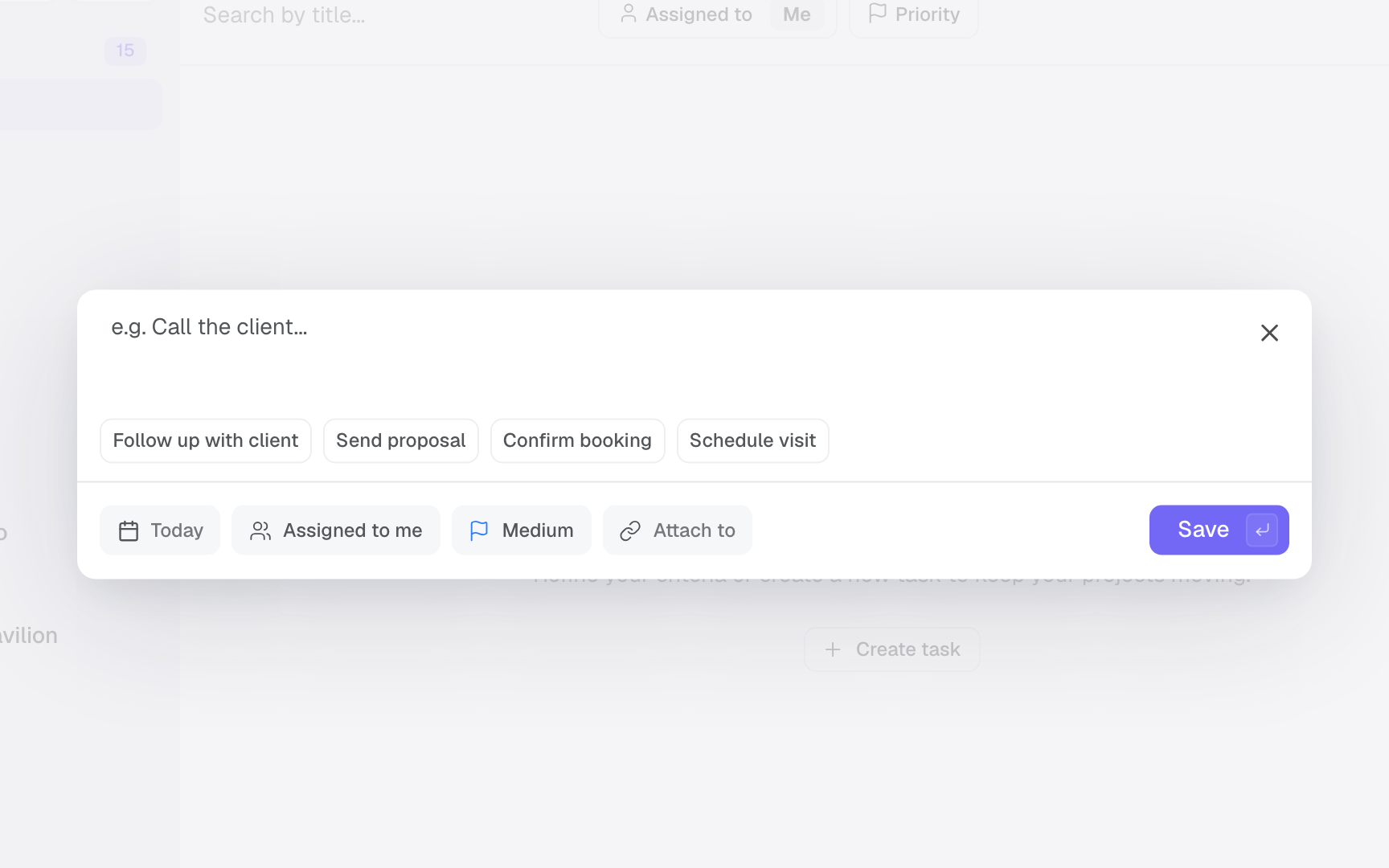
- Enter a clear title (for example "Follow up on the quote") or pick a suggestion: "Follow up with client", "Send proposal", "Confirm booking", "Schedule visit".
- Choose a due date: "Today", "Tomorrow", "Next week", a date in the calendar, or "No date".
- Assign an owner from your team members: by default, it's you.
- Set a priority: low, medium (default), high or urgent.
- Click "Save": the task appears in the list, with a checkbox to tick once the action is done.
Assign and prioritize
Assignment answers a simple question: who acts? Without a designated owner, a task risks being orphaned. Priority, in turn, tells the team the order in which to handle actions when a day is busy.
- Select the responsible member: they become the owner of the task.
- Choose the priority that matches the commercial stakes: a hot quote follow-up goes to high or urgent.
- The owner is notified as soon as the task is assigned to them, finds it on the "Tasks" page (filtered on their own tasks by default) and gets a reminder the day before the due date.
Mark a task as done
In the app, a task is either to do or done. The whole team sees at a glance what's left, what's overdue and what's done.
- Tick the box in front of the task once the action is done: it moves to the "Completed" group.
- Untick it to reopen it if the action isn't actually finished.
- For a task you no longer need, choose "Delete" from its row menu. A message lets you undo the deletion for a few seconds.
Reference: task fields and states
A Joinways task relies on a set of structured fields. Knowing them lets you fill in your tasks consistently and filter them effectively.
- Title: the name of the task, describing the expected action.
- Due date: the date by which the task must be done.
- Owner: the team member the task is assigned to.
- Link: an event, a person or a company (one at a time), to keep the task in context.
- Priority: low, medium, high or urgent.
- Status: to do or done, with the checkbox.
On the priority side, the full scale runs from lowest to highest.
- Low: no urgency, handle when time allows.
- Medium: the default priority, standard level.
- High: important action to handle as a priority within the day.
- Urgent: critical action not to be postponed, like a hot quote follow-up.
On the status side, the checkbox is all you need.
- To do: the task is waiting to be done. If its due date has passed, it moves to the top of the list under "Overdue".
- Done: the task is ticked and filed under "Completed".
- Canceled: Joinways automatically cancels the open tasks of an archived event (they come back if you unarchive it) and the follow-up tasks of a quote that is accepted, signed, declined or canceled. Canceled tasks no longer show in the list.
Find and filter your tasks
The "Tasks" page in the menu gathers the workspace's tasks. By default it shows only yours. Overdue tasks are grouped at the top under "Overdue", completed ones at the bottom under "Completed".
- "Assigned to": your tasks, a colleague's, or several people's.
- Search: "Search by title..." to find a task by its title.
- By priority: to surface urgent and high actions.
- By file: open the event's "Tasks" tab to see all its actions. Person and company records also have their own "Tasks" tab.
How it works
Each task is tied to your workspace and, most often, to an event. The owner gets a "Task assigned" notification as soon as a task is given to them, then a "Task due tomorrow" reminder the day before the due date, according to their notification preferences.
Ticking a task is instant and visible to the whole team: it leaves the to-do tasks for "Completed". Filters apply immediately to give you a targeted view of your workload.
Finally, automations can create tasks with the "Create a task" action, for example a follow-up when a quote gets no reply ("Proposal sent, no reply" trigger). The task is created on the event and assigned to the event owner. If the quote is accepted, signed or declined in the meantime, the follow-up task is canceled automatically.
Edge cases
A few situations deserve special attention when managing tasks.
- Unattached task: a task can exist without an event (internal or administrative action); it then stays in your general list.
- Task without a due date: it remains valid but won't trigger any reminder; remember to date important actions.
- Overdue task: an unfinished task whose date has passed moves to the top of the list, under "Overdue".
- Archived event: its open tasks are canceled automatically and come back unchanged if you unarchive the event.
Tip: create an automation on "Proposal sent, no reply" with the "Create a task" action, 2 days after sending. The follow-up is created without you thinking about it, and canceled if the quote is signed in the meantime.
Best practices
- Turn every client promise into a dated task, right at the end of the call or visit.
- Every morning, review the "Overdue" group and your tasks for the day.
- Always set an owner: a task without one is a forgotten task.
- Write action-oriented titles ("Follow up", "Confirm", "Send") rather than vague ones.
- Automate standard follow-ups to free your attention for complex cases.
- Tick your tasks as soon as they're done so the team keeps a reliable view.
Troubleshooting
Problem: I don't receive any reminders for my tasks.
Cause: the task has no due date or no owner, or the "Task due tomorrow" notification is turned off. The reminder goes out the day before the due date, not on the day.
Solution: add a due date and an owner, then check your notification preferences.
Problem: a task doesn't appear in the event file.
Cause: the task was created without being attached to the event.
Solution: edit the task to link it to the relevant event.
Problem: a colleague can't see the task I assigned to them.
Cause: the selected owner is the wrong member, or the colleague changed their "Assigned to" or "Priority" filters.
Solution: check the assigned owner and ask them to reset their filters.
Real-world example
After a visit, the planner creates 3 tasks linked to the file: send the quote (D+1, high priority, owner themselves), follow up (D+4, medium priority), confirm the menu with the caterer (D+10, medium priority, owner the head chef). Each owner gets a reminder the day before their due date, and no step falls through the cracks.
Another example
For a corporate seminar, the sales rep assigns a "Validate the floor plan" task to the technical manager, urgent priority, due D-3. The manager is notified on assignment and again the day before the due date. Once the plan is locked, they tick the task: the team sees it's done without chasing anyone.
FAQ
Do I get a reminder? Yes, the day before the due date, if the task has a date and an owner and the "Task due tomorrow" notification is on.
Must a task be linked to an event? No. It can be linked to an event, a person, a company, or nothing.
What priorities are available? Low, medium, high and urgent.
What statuses can a task take? To do or done: tick the box to complete it. Joinways also cancels some tasks automatically (archived event, settled quote).
Can I reassign a task? Yes, edit the task and change the owner at any time.
How do I find only my tasks for today? The "Tasks" page shows your tasks by default, with overdue ones at the top under "Overdue".
Can automations create tasks? Yes, you can set up rules that automatically generate dated follow-ups.
See also
- Create an event
- Create your first workflow
- Notification settings
Bring every event inquiry into one queue.