Set up your notifications
Choose, section by section, what notifies you by email, in the app or by push, including new inquiries, filtered by venue.
Aggiornato il
Reacting fast wins deals: a client who answers in the evening expects an answer in the evening. But a venue that receives thirty inquiries a day does not want thirty push notifications per member, and the coordinator does not need to know a proposal was signed.
The "Notifications" page files each alert under one of four sections and gives it three switches: "Email", "App" and "Push". Settings are personal and specific to each workspace. The same sections appear in the mobile app.
What you'll learn
- Turn on push on your devices and test it.
- Set each alert by email, in the app and by push.
- Receive new inquiries, grouped and filtered by venue.
- Know which alerts are always on.
Prerequisites
- A member account in the workspace. Everyone sets their own notifications.
- For browser push: allow Joinways notifications. On iPhone and iPad, first add Joinways to the home screen, or use the mobile app.
1. Open the settings
Go to "Settings" > "Notifications" ("Account" group). The page starts with "On your devices", then the "Notify me about" table.
2. Turn on push on your devices
Push is turned on device by device, in the "On your devices" card:
- Click "Enable" and accept the browser prompt.
- Under "Test on this device", click "Send test": a notification should appear.
- For your phone, the "Get your inquiries on your phone" line leads to the mobile app. Once installed, turn on new inquiry notifications in the app's profile.
If the browser blocks notifications, the card says so: allow them again in the browser settings, then reload the page.
3. Set each alert
The "Notify me about" table has three columns: "Email", "App" and "Push". Push is the app notification sent to your devices: it can only be on when the "App" switch of the same row is on. Each change is saved immediately.
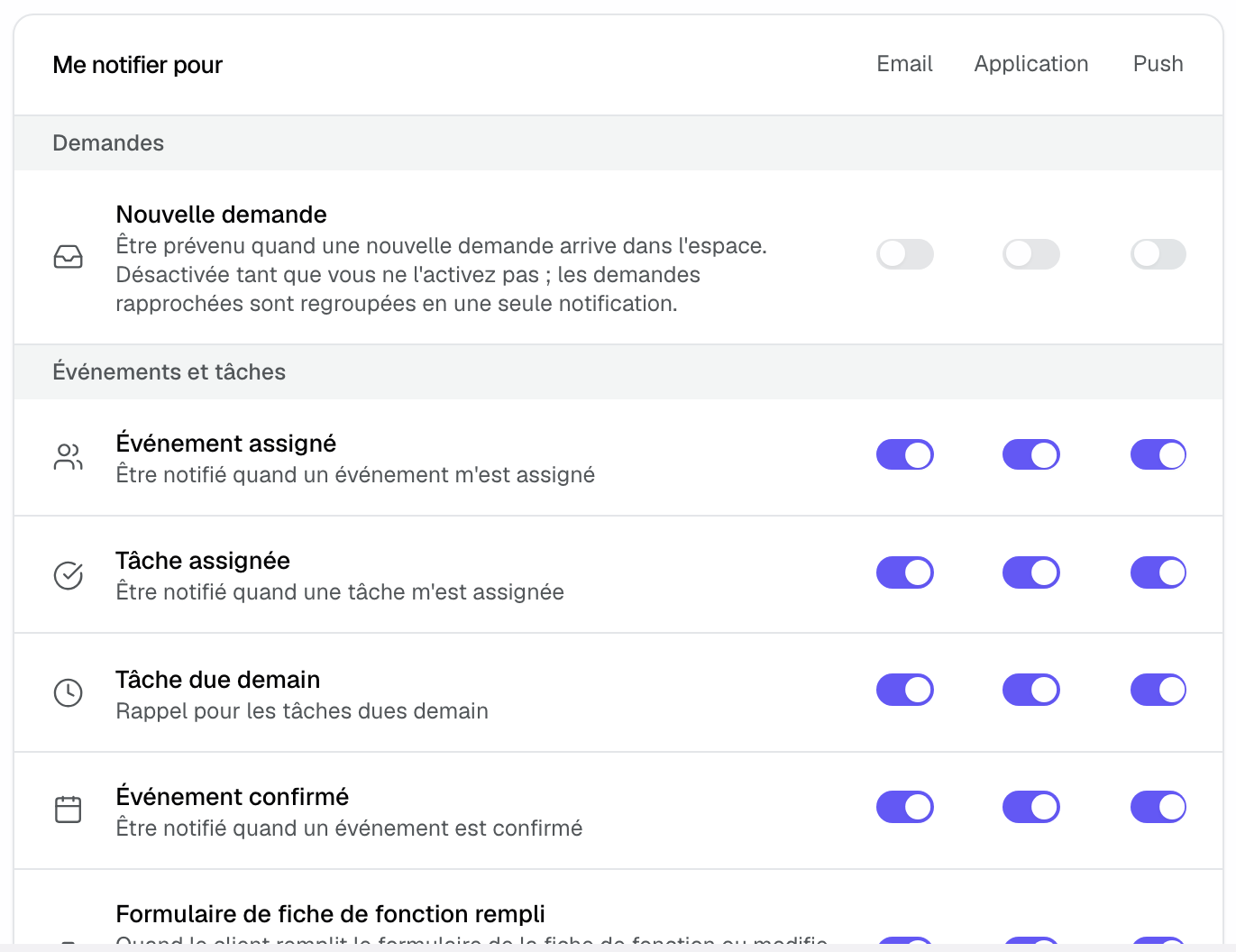
Alerts are filed under four sections:
- "Requests": "New request".
- "Events and tasks": "Event owned", "Task owned", "Task due tomorrow", "Event confirmed", "BEO form filled out" (the client fills in or changes the BEO form; the email goes to the event's people and to whoever sent the form), "BEO" (approval, change request, comments, vendor replies, change less than 48 hours before) and "Automations".
- "Conversations": "Mention (@)", "Event discussion" (new messages in a discussion you follow; the email recaps a discussion left unread for 10 minutes and requires the "App" switch) and "Inbound emails on my events".
- "Quotes and sales": "Proposal signed", "Proposal option chosen" and "Monthly report" (last month's summary by email, with sales details in Excel, for members who can access reports).
Some rows have no email: "Inbound emails on my events" (the email received is itself the notification), "BEO" (the live BEO link is the reference), "Proposal option chosen" (a client may tick and untick several times) and "Automations" (the automation picks its own channels). The "Monthly report" exists by email only.
4. Receive new inquiries
"New request" stays off until you turn it on: a venue can receive dozens of inquiries a day, and everyone chooses whether they want to hear about them.
- Grouping: the first inquiry after a quiet period is notified right away; the next ones are combined into a single notification at the end of a 30-minute window.
- Venue filter: as soon as you have access to two venues or more, a venue picker is added to the row. Tick the venues you follow; with all of them ticked, you follow the whole workspace. You can only follow venues you have access to.
- Small teams: when you join by invitation a workspace of five members or fewer with a role that handles inquiries, "New request" is turned on for you in the app and by email. You can turn it off here.
- Mobile app: accepting new inquiry notifications in the app turns the alert on for the workspace.
Alerts that are always on
You are never notified of your own actions. Alerts about something broken (mailbox disconnected, failed payment, email forwarding down) are always on and have no switch.
Example: three roles, three setups
In a four-person hotel team, the sales director turns on "New request" by push and filters it to the two venues she runs: on a busy Tuesday she gets one notification for the first inquiry, then a single one for the next five. The coordinator turns off "Proposal signed" and "Proposal option chosen", but keeps "BEO form filled out" by email. The manager keeps only the "Monthly report".
Troubleshooting
I receive no new inquiry alerts
Cause: the alert is off by default, or the venue filter excludes the venue in question. Solution: turn on "New request" and check the venues ticked on the row.
The "Push" switch is greyed out
Cause: the "App" switch of the same row is off. Solution: turn it on first; push depends on it.
Push notifications do not arrive
Cause: notifications blocked by the browser or phone, or push not enabled on this device. Solution: allow Joinways, click "Enable", then "Send test".
Too many new inquiry notifications
Cause: you follow every venue, or push is on. Solution: reduce the venues you follow, or keep the alert in the app only.
Frequently asked questions
Do my settings apply to all my workspaces?
No. They are specific to each workspace: set them in each one.
Are the mobile app settings the same?
Yes. The mobile app uses the same sections and the same preferences.
Why does the "Event discussion" email require the app?
Because it recaps the app notification left unread after 10 minutes. Without it, there is nothing to recap.
What happens if I turn everything off?
You only receive alerts about something broken. Everything stays available in Joinways and in the notification center.
See also
Provalo sulle tue prossime richieste per 30 giorni, senza carta.