Manage companies
Group contacts and events by organization, read the client relationship at a glance and spot your repeat accounts.
Aggiornato il
For a venue that works with companies, agencies or public bodies, a client is rarely a single person or a single event. Sales send a seminar, HR a team party, the executive assistant handles logistics: three contacts, several events, one organization.
The company record brings these contacts and events together, with what you need to know about the account at a glance: how many events, how many confirmed, the revenue earned, the next and the last event. On creation, Joinways completes the record by looking the company up on the web.
What you'll learn
- Create a company without duplicates.
- Read a record: the "Relationship" block, the details and the tabs.
- Link contacts and events.
- Track your accounts in the "Companies" list.
- Merge two records or delete one.
Prerequisites
- Every role can view companies. Creating or editing a record needs a role other than "Read-only".
- Merging or deleting a company is reserved for the "Owner" and "Admin" roles.
1. Create a company
- Open "Clients" in the menu, choose "Companies" at the top of the list, then click "New company".
- Type the name: suggestions appear to avoid typos and duplicates.
- Turn on "Continue by adding an event" if you want to create an event for this client right away.
- Click "Save".
The record is then completed in the background: Joinways looks the company up on the web from its name and website, and fills the fields that are still empty (website, phone, address, legal identifiers, description). It never overwrites a value you entered.
Tip: most companies are created without typing anything, when you convert an inquiry or import your mailbox. Always search the list for the name before creating one.
2. Read a company record
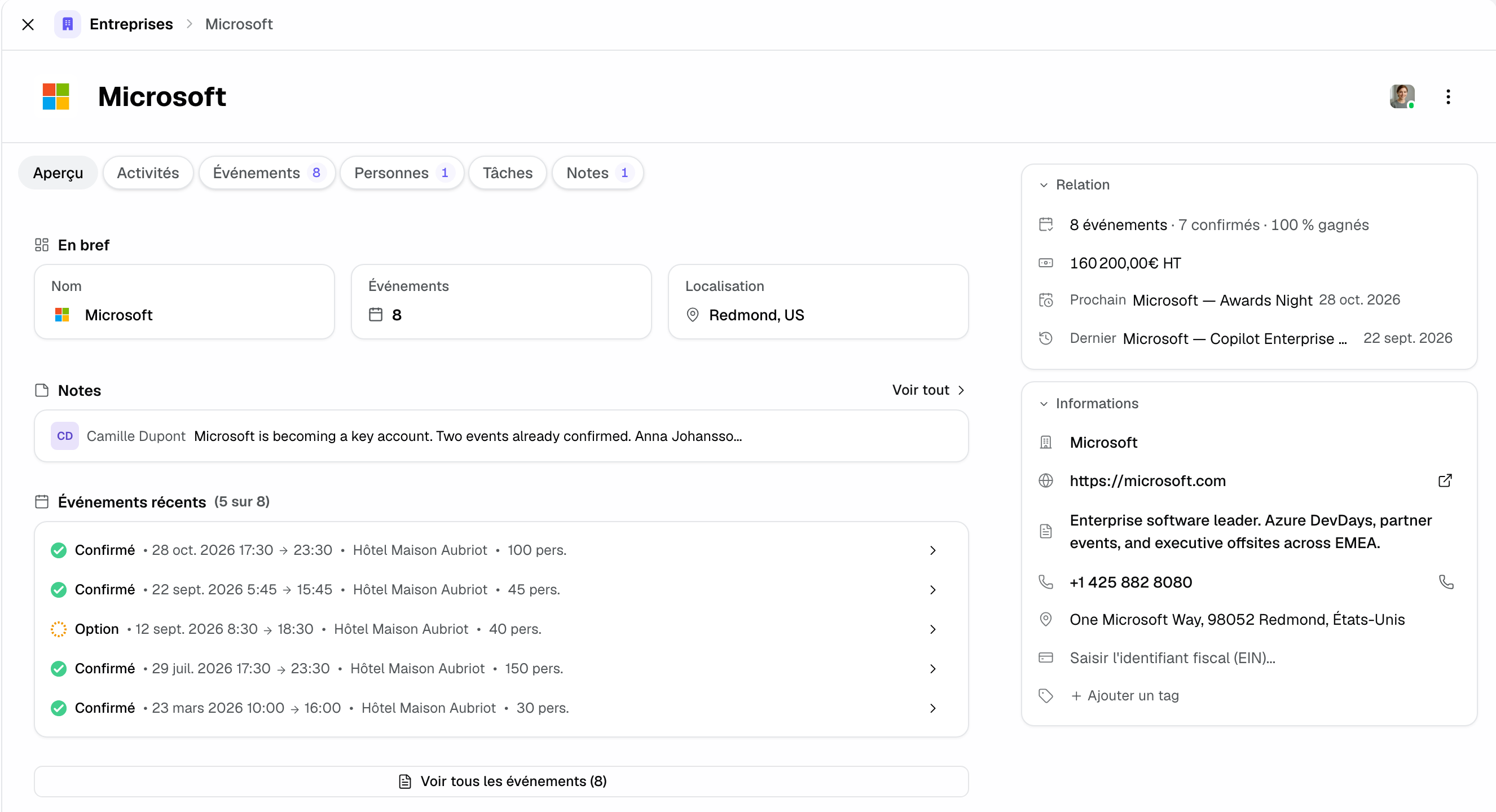
The right-hand column sums up the account:
- "Relationship": the number of events, of confirmed ones and the percentage won (confirmed out of confirmed and lost, shown from three decisions), the confirmed revenue excl. tax, the next event and the last event held. Click an event to open it.
- "Details": name, website, description, phone, address (summarized on one line, expandable), legal identifiers depending on the country (in the US, the Tax ID (EIN)) and tags.
Drag the column's left edge to resize it; double-click to go back to the automatic width. The setting applies to company, person and event records.
In the center, the "Overview" tab shows "Highlights" (name, number of events, location), the latest notes, "Recent events" and the latest activity. The other tabs:
- "Events": all events of the company and of its contacts.
- "People": the linked contacts, with their origin ("Direct contact", "Event", "Import", "Form", "API").
- "Tasks" and "Notes": always shown, even when empty, so you can create one directly.
- "Activities": the record's history. It stays hidden until there is something to show.
3. Link contacts and events
- Contact: from the "People" tab, "New people"; or from the contact's record, "Company" row of the "Details" block.
- New event: from the "Events" tab, "Add event" creates an event already linked to the company.
- Existing event: in the event's "Client" block, choose the company. The arrow next to its name opens the company record.
Revenue and the percentage won only count events billed to the company. An event of one of its contacts billed to another company appears in the "Events" tab without counting in these figures.
4. Track your accounts in the list
The "Companies" list sorts and filters like the other lists. Three columns help you prioritize:
- "Status": "Prospect" (no event and no revenue), "Active client" (revenue and activity in the last 180 days) or "Inactive client".
- "Revenue (excl. tax)": the confirmed revenue of confirmed events, plus cancellation fees of canceled events.
- "Events": the number of linked events.
The "Revenue generated" filter isolates your biggest accounts. Columns and views work as in the other lists.
5. Merge or delete a record
The ⋯ menu at the top right of the record offers "Copy page URL" to everyone, and "Merge with another company" and "Delete company" to owners and admins.
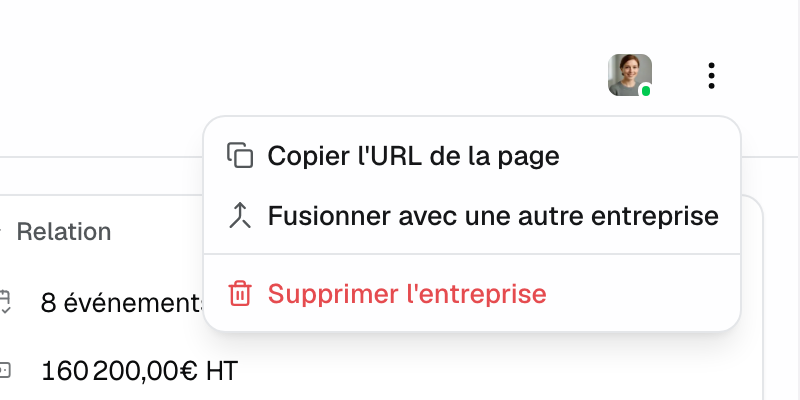
- Choose "Merge with another company".
- Select the duplicate, then the "Record to keep".
- Confirm: events, contacts, notes and history move to the kept record, and the other one is deleted. This can't be undone.
Example: a loyal agency
An agency books five events a year with you. Its record shows "8 events · 7 confirmed", €160,200 excl. tax of confirmed revenue and the date of the next event. When your contact changes jobs, her successor is added in the "People" tab and inherits the account's whole history.
Troubleshooting
The record wasn't completed
Cause: the name is too generic or shared by several companies, with no website to tell them apart. Solution: enter the website in "Details"; empty fields can also be filled by hand.
Merge and Delete are missing from the ⋯ menu
Cause: these actions are reserved for workspace owners and admins. Solution: ask one of them to do it.
An event doesn't count in the account's revenue
Cause: it isn't confirmed, or it is billed to another company. Solution: check its status and the company chosen in its "Client" block.
Frequently asked questions
How is the confirmed revenue in the "Relationship" block calculated?
Like the list's "Revenue (excl. tax)" column: the confirmed revenue excl. tax of the company's confirmed events, plus cancellation fees billed. If those events use several currencies, the amount isn't added up.
Why don't I see the "Activities" tab?
It stays hidden while the record has no activity. It shows up with the first one.
Can a contact belong to several companies?
No, a contact is linked to one company. They can, however, appear on events billed to another company.
How do I avoid duplicates?
Search for the name before creating, and merge duplicates as soon as you spot them.
See also
Provalo sulle tue prossime richieste per 30 giorni, senza carta.