Manage people (contacts)
Find each contact with their details, their company and their events, and keep a single record per person.
Aggiornato il
Behind every event there's a person: the bride, the HR manager, an agency's project lead. The person record gathers their contact details, their company and all their events, so any teammate can pick up the account without digging through emails.
Most records are created without typing anything, when you convert an inquiry or import your mailbox. This article shows how to read a record, complete it, link it to a company and keep a single record per person.
What you'll learn
- Create a person and avoid duplicates.
- Read a record: the "Relationship" block, the details and the tabs.
- Link a person to a company and to their events.
- Merge two records.
Prerequisites
- Every role can view people. Creating or editing a record, or writing an email from it, needs a role other than "Read-only".
- Merging or deleting a person is reserved for the "Owner" and "Admin" roles.
1. Create a person
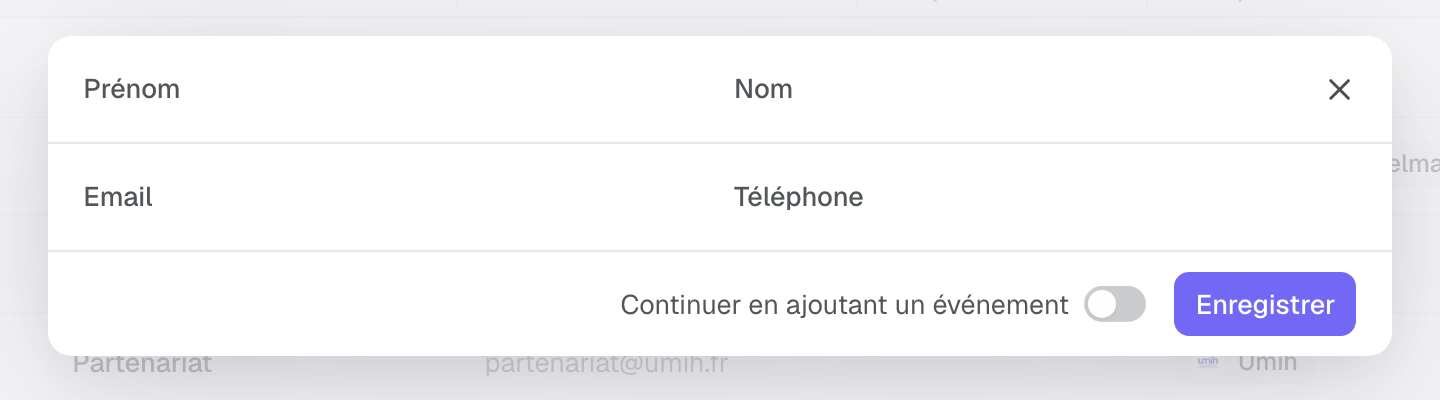
- Open "Clients" in the menu, choose "People" at the top of the list, then click "Add a person".
- Enter the first name, last name, email and phone.
- Turn on "Continue by adding an event" to create an event for this person right away.
- Click "Save".
If a record already exists with the same email or phone, Joinways reuses it instead of creating a second one: "Existing contact reused (same email or phone)".
Records are also created automatically: when you convert an inquiry, the client is matched to an existing record by email or phone, or a new one is created; when you import your mailbox, Joinways creates the people and companies you exchange with.
2. Read a person record
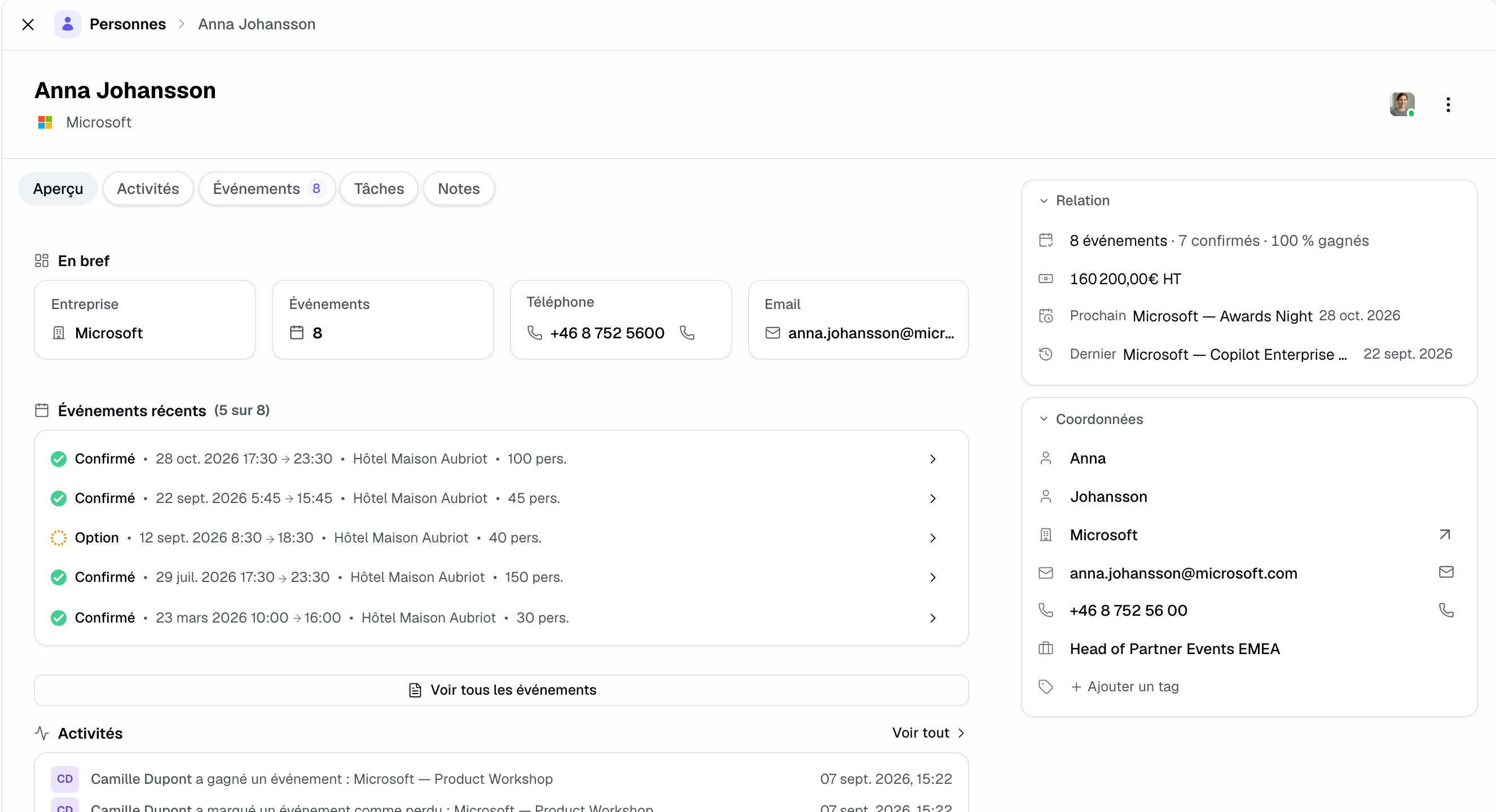
In the right-hand column:
- "Relationship": the person's number of events, confirmed ones and the percentage won, the confirmed revenue excl. tax, the next event and the last one held. Click an event to open it.
- "Details": first name, last name, company (the arrow opens the company record), email, phone, job title and tags. The icon next to the email offers "Write an email" and "Copy address"; the phone icon starts a call. While the job title is empty, "+ Job title" lets you enter it.
In the center, the "Overview" tab shows "Highlights" (company, number of events, phone, email), "Recent events" and the latest activity. "Events", "Tasks" and "Notes" are always shown; "Activities" stays hidden while the record has no activity.
Emails and quotes live in each event: open it from the "Events" tab, then its "Conversations" and "Proposals" tabs.
3. Link a company and events
- In the "Details" block, click the "Company" row and choose the company, or create it.
- If the person already has events, Joinways offers to update them: "Yes, synchronize events" or "No, keep events as they are".
- For a new event, click "Add event" in the "Events" tab: it is created already linked to the person and their company, with no duplicate contact.
To link an existing event, open the event and choose the person in its "Client" block.
4. Merge two records
- Open one of the two records, then the ⋯ menu at the top right.
- Choose "Merge with another contact", select the duplicate, then the "Record to keep".
- Confirm: events, notes and history move to the kept record, and the other one is deleted. This can't be undone.
The same menu offers "Copy page URL" to everyone, and "Delete" to owners and admins.
5. Two people, one address
An assistant sometimes writes for several colleagues from the same mailbox. In an event's "Client" block, when you type an email already used by another contact, the list offers "Keep [name] on this address": the address becomes shared and each contact keeps their own details, instead of switching the event to the other record.
Example: a loyal client
A software publisher's partner events manager comes back every quarter. Her record shows "8 events · 7 confirmed", the total confirmed revenue and the date of the next event. Before calling her, the sales manager reads the "Relationship" block and opens the last event held to pick up the preferences noted there.
Troubleshooting
A person appears twice
Cause: an email received from a slightly different address created a second record. Solution: merge the two records with "Merge with another contact".
The record doesn't show one of the person's events
Cause: the event is linked to another contact. Solution: open the event and choose this person in its "Client" block.
I can't edit the record
Cause: your role is "Read-only". Links, calling and copying the address still work. Solution: ask an admin to change your role.
Frequently asked questions
What's the difference between a person and a company?
The person is your contact; the company groups the people and events of one organization.
Do I need to create contacts by hand?
Rarely. They are created when you convert inquiries and import your mailbox; manual creation is mostly for contacts met outside email.
Does a person need a company?
No. For a private client, such as a wedding couple, the "Company" row stays empty.
Where do I find a person's emails?
In the "Conversations" tab of each of their events, reachable from the record's "Events" tab.
See also
Provalo sulle tue prossime richieste per 30 giorni, senza carta.