Create your spaces
Set up your rooms and their combinations in "Venue & spaces", define capacities, layouts and hours, and book them slot by slot.
Aggiornato il
Your spaces are what you sell: the main hall, the orangery, the garden, a meeting room. In Joinways, a space belongs to a venue. It is what you book on an event, what you see on the planner and what appears on the quote and the BEO.
Everything is set on the venue's "Venue & spaces" page: the booking mode, the list of rooms, their combinations, then one page per space with its details, photos and availability. A name is enough to create a space; you can fill in the rest whenever you like.
What you'll learn
- Read the "Venue & spaces" page and pick the venue's booking mode.
- Add a space and a room combination.
- Fill in a space's page: capacity per layout, set-up, prices, photos and availability.
- Order and delete your spaces.
- Book a room on an event, with its layout, slot by slot.
Prerequisites
- An existing venue: a space is always created inside a venue.
- Being an owner or admin of the workspace: a venue's settings are reserved to them.
- Room on your plan: on Free, a venue has 2 spaces at most. On Pro and during the trial, the number of spaces is not limited in practice, and the venue's price follows its number of base rooms. See Plans, pricing and subscription.
1. Open "Venue & spaces"
In the left menu, open "Venues", then your venue. If your workspace has only one venue, the entry is called "My venue" and opens its page directly. In the venue menu, click "Venue & spaces".
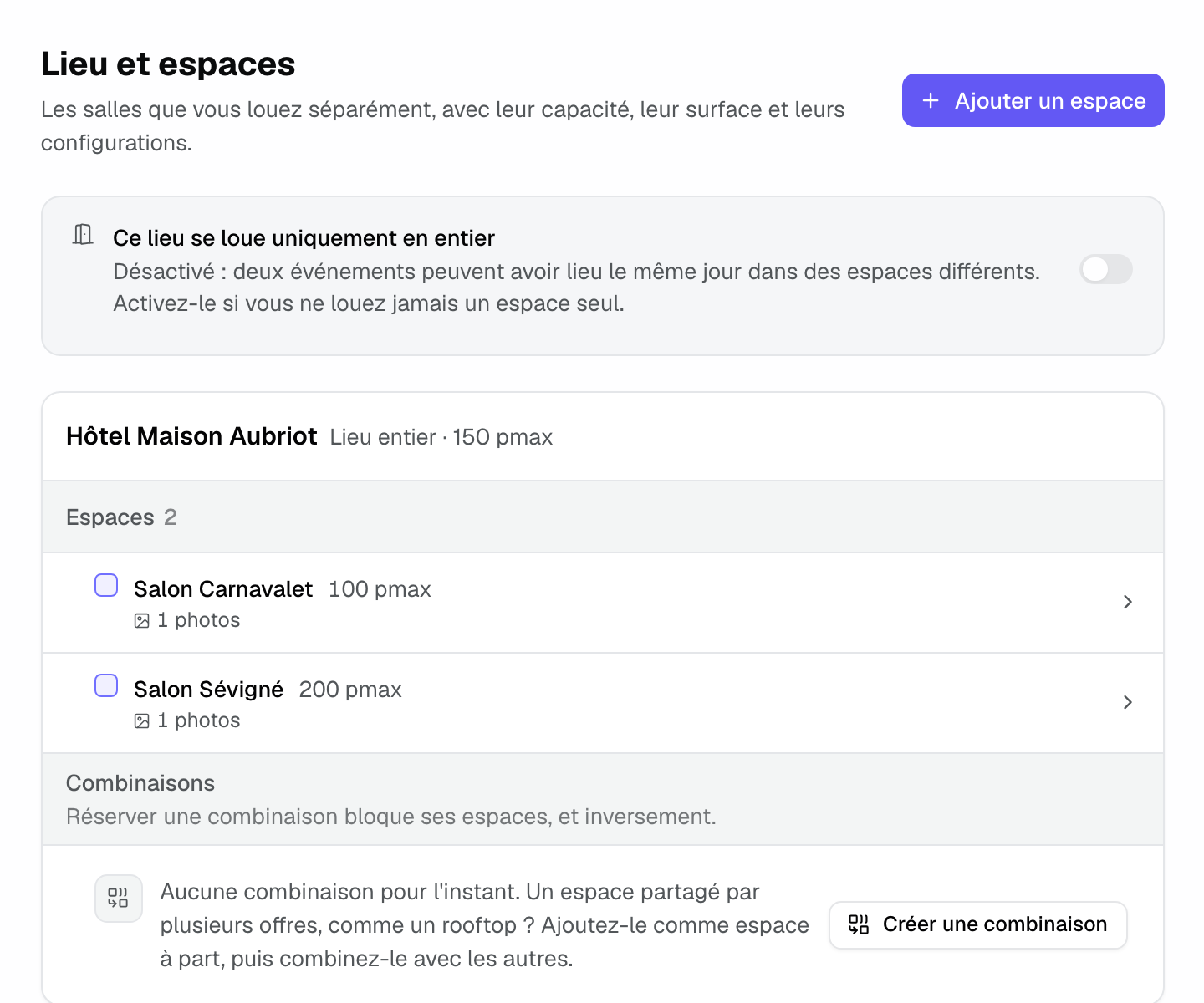
- At the top, "This venue is only rented whole". Off, two events can take place the same day in different spaces. On, every event blocks the whole venue for its hours and no space is picked; the venue is then billed as a 1-space venue.
- The card starts with the venue itself: "Whole venue" and its maximum capacity.
- The "Spaces" group lists the rooms you rent separately: name, capacity, area, then the details (capacity per layout, prices, photos, own hours, upcoming closure).
- The "Combinations" group appears as soon as the venue has two spaces. It recalls the rule: "Booking a combination blocks its spaces, and the other way round."
Each venue and each space wears a mark in the venue's color: a square with a solid core for the venue, the same square without the core for its spaces. When the workspace has only one venue, its spaces are solid squares.
2. Add a space
- Click "Add space".
- Enter the "Name". The swatch to the left of the name sets the space's color on the planner; by default, the venue's.
- If you like, fill in "Pmax" (the maximum number of people), "Area", "Description (optional)", "Capacity per layout", "Set-up and tear-down" and "Prices (excl. tax)".
- Click "Create space". You stay on the list, and the space is offered on your events right away.
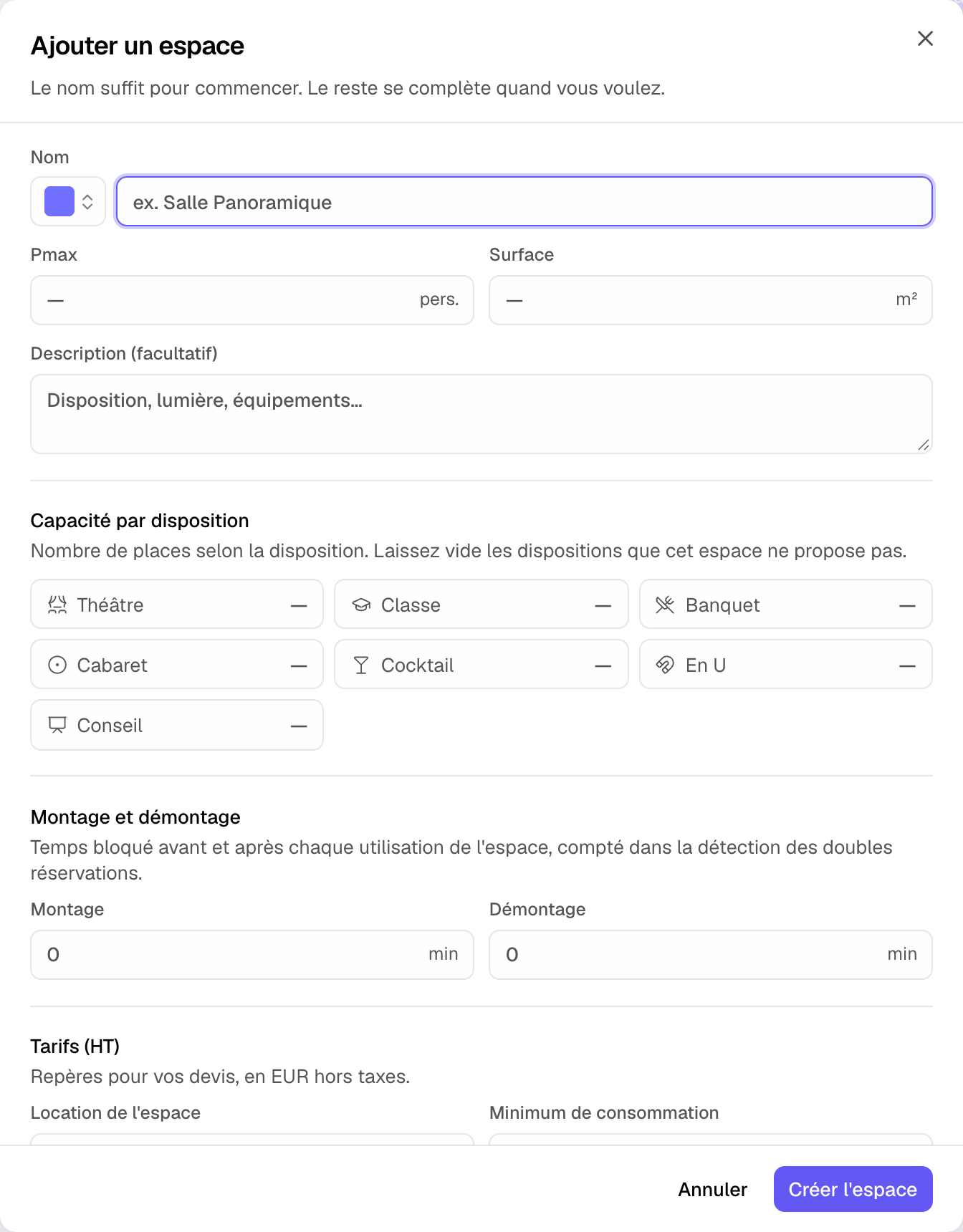
- "Capacity per layout": the number of seats for each layout ("Theatre", "Classroom", "Banquet", "Cabaret", "Reception", "U-shape", "Boardroom"). Leave empty the ones the room does not offer.
- "Set-up and tear-down": the minutes blocked before and after each use of the space (24 h at most). They count in the double-booking checks.
- "Prices (excl. tax)": "Space hire" and "Minimum spend", references for your quotes in the venue's currency. When a quote's total excl. tax stays below the minimum of the booked spaces, the quote editor says so, without blocking.
- The area shows in m², or in square feet for a venue in the United States or Canada. Time zone, currency and country come from the venue.
3. Create a combination
A combination joins rooms you also rent together: two rooms that open into one, a room and its terrace. Booking the combination blocks its rooms, and booking one of them blocks the combination.
- In the "Combinations" group, click "Create a combination".
- Under "Spaces rented together", tick at least two spaces. The name "Room A + Room B" fills in on its own; change it if the combination has a commercial name.
- Fill in its capacity and layouts, then click "Create the combination".
In the list, the combination wears the marks of its rooms and a "Joins" line; each room involved shows "Part of". A space that is already part of a combination cannot join others.
Tip: a space shared by several offers, like a rooftop? Add it as a space of its own, then combine it with the others.
4. Fill in a space's page
Click a space's row to open its page. It has three tabs: "Details", "Photos & Plans" and "Availability". The chips on a row (photos, own hours, closure) open the right tab directly.
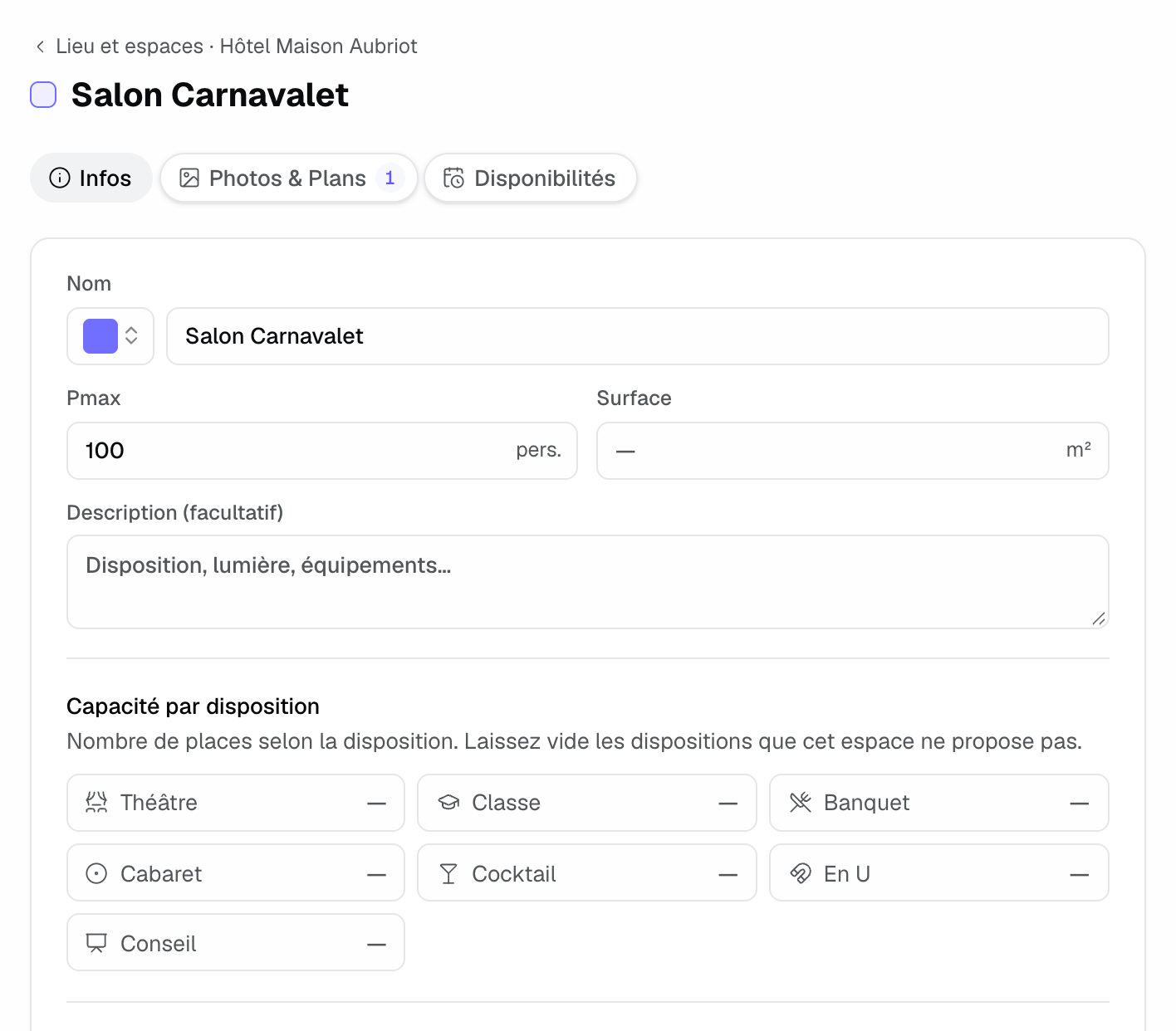
- "Details" holds every field of the creation window. "Save" turns on as soon as a field changes.
- "Photos & Plans" holds photos and floor plans. When the space is picked on an event, its photos replace the venue gallery on the client page.
- "Availability" gives the space its own hours and closures, or lets it follow the venue's. See the next step.
5. Set a space's availability
By default, a space follows its venue's hours and closures. In the space's "Availability" tab:
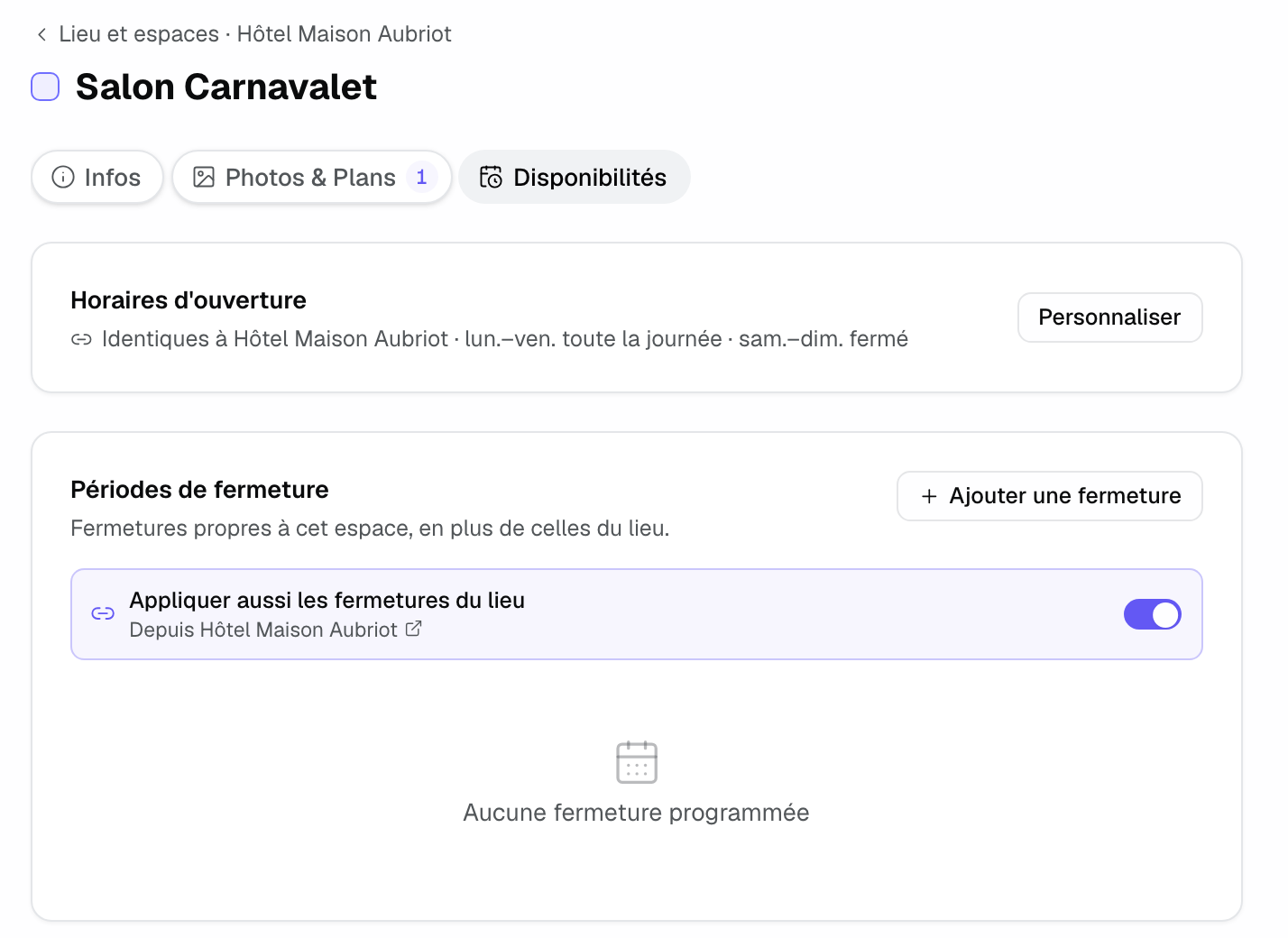
- "Customize" copies the venue's hours so you can change them; "Use the venue's hours" goes back to the shared setting.
- "Add closure" closes this space only. Turn off "Also apply the venue's closures" to keep it open during the venue's closures.
- At a venue that is only rented whole, this tab points to the venue's availability: only that counts.
All the detail on hours, closures and conflicts is in Manage availability and avoid double-bookings.
6. Order and delete your spaces
- Drag a row by its handle on the left to change the order ("Drag to reorder the spaces"). The order is saved on drop and used everywhere: space picker, planner, quotes. Spaces and combinations each keep to their group.
- A row's ⋮ menu offers "Move up" and "Move down" (handy with a keyboard or on a tablet) and "Delete".
- Before a deletion, Joinways lists what still uses the space: upcoming and past events, inquiries, catalog items, combinations. Events that booked it lose it, with its slots; an event left with no space books the whole venue.
7. Book a space on an event
On the event, the "Spaces" field lists the venue's rooms with their capacity. Left empty, it means "Entire venue": the event takes the whole site. Then, in the details column:
- "Space layouts" gives the layout of each booked room ("Layout" menu) and its number of seats, with a warning when guests exceed it.
- "Room schedule" books a room per day, "All day" or on set hours, with "Add a slot". The block shows when the venue has at least two spaces and is not only rented whole.
- Each slot can have its own "Layout": a seminar in "Theatre" in the morning and "Banquet" in the evening in the same room. With no choice, the slot uses the room's layout. An overflow shows on the slot, for example "100 / 70 seats · Theatre". The same list exists on the quote line linked to the slot.
- Slots follow the event's days: shift an event as a whole and they shift with it. For a one-day event, click the new day then the old one in the date picker: the slot moves to the new day. Adding or removing a day moves nothing, and a slot left outside the dates is flagged in "Room schedule".
- The chosen layout appears on the quote, the BEO and the client page.
On the planner, only base rooms have a row: a combination reads on the rooms it joins. See Calendar, list and kanban views.
What counts in the venue's price
- Each base room counts as one space. Combinations are not counted: two rooms and their combination make 2 spaces.
- The number of spaces gives the venue size: 1 to 5, "Small venue"; 6 to 12, "Medium venue"; 13 to 25, "Large venue"; beyond that, a custom plan.
- A venue set to "This venue is only rented whole" counts as 1 space, whatever its number of rooms. Since this setting changes the price, only members who manage settings can change it.
- On a paid venue, if adding or deleting a space changes the venue size, the "Change the venue's size?" window shows the new monthly price before saving. The difference until the renewal is charged at once, prorated.
Example: a hotel with two modular rooms
A Paris hotel has two rooms, Carnavalet (100 people) and Sévigné (200 people), which open into one for galas. It creates both spaces, then a "Carnavalet + Sévigné" combination for 300 people in "Banquet".
A seminar books Carnavalet in "Theatre" in the morning, then the combination in "Banquet" for dinner. On the planner, the dinner shows on both rooms, and nobody can sell Sévigné alone that evening without seeing the conflict. For billing, the hotel counts 2 spaces, not 3.
Troubleshooting
A space is missing from an event's picker
Cause: the event is on another venue, or the venue is only rented whole. Solution: check the event's venue; create the space under the right venue, or turn off "This venue is only rented whole".
The "Add space" button is greyed out
Cause: the venue has reached the 2 spaces of the Free plan, or it is locked by the plan limit. Solution: click "Move to Pro" under the button, or free up a space.
The "Room schedule" block does not show on the event
Cause: the venue has fewer than two spaces, or it is only rented whole. Solution: add a second space, or turn off whole-venue renting if you also rent room by room.
I can't find my combination's row on the planner
Cause: combinations have no row on the planner. Solution: read their booking on the rows of the rooms they join, where it shows as a solid block.
Frequently asked questions
What's the difference between a venue and a space?
The venue is the site, with its address; a space is a room on that site that you rent separately. A venue holds spaces, a space holds none.
Can an event use several spaces?
Yes. Pick every room used in "Spaces"; if the set is often sold under one name, create a combination instead.
Can a space have its own hours?
Yes. In the space's "Availability" tab, click "Customize". Otherwise, the space follows its venue's hours.
Are combinations billed?
No. Only base rooms count in the venue size.
What happens to an event if I delete its space?
It loses the room and its slots; if it has no space left, it books the whole venue. Rename the space rather than delete it when a room changes use.
See also
Provalo sulle tue prossime richieste per 30 giorni, senza carta.