Create your spaces
Define your rooms and their capacities to attach each event to the right space and keep availability reliable.
Updated
Your spaces are what you actually sell: the main hall, the orangery, the garden, a meeting room. In Joinways a space belongs to a venue, and it is the unit you attach to an event, place on the calendar and show on a quote. The more your spaces match the physical reality of your site, the more readable your planning becomes.
This article covers creating a space, what you can set on it (color, capacity per layout, combination, set-up, prices), how it inherits from its venue, and how it is used across events, quotes and the calendar. A name is enough to get going: every other field is optional.
Prerequisites
- A venue already created: a space is always created inside one.
- Be an owner or admin of the workspace, or “Owner” of the venue: a regular teammate does not see the “Venue & spaces” section.
- The maximum capacity of each room, in people.
- Room left on your plan: on Free a venue holds 2 spaces at most. On Pro and during the trial the number of spaces is not limited in practice (100 per venue at most), and the venue's price follows its number of spaces.
What you'll learn
- Create a space inside a venue and give it its capacity.
- Set its color, capacity per layout, set-up time and prices.
- Understand what a space inherits from its venue.
- Set up a combined space and know when two events are in conflict.
- Use spaces in your events and on the calendar.
Create a space
Spaces live inside their venue, so there is no separate section: you open the venue, then its “Venue & spaces” section.
- Go to Settings then Venues and open the venue concerned.
- Open “Venue & spaces”. The venue itself appears on the first row with its overall capacity, followed by the spaces already created.
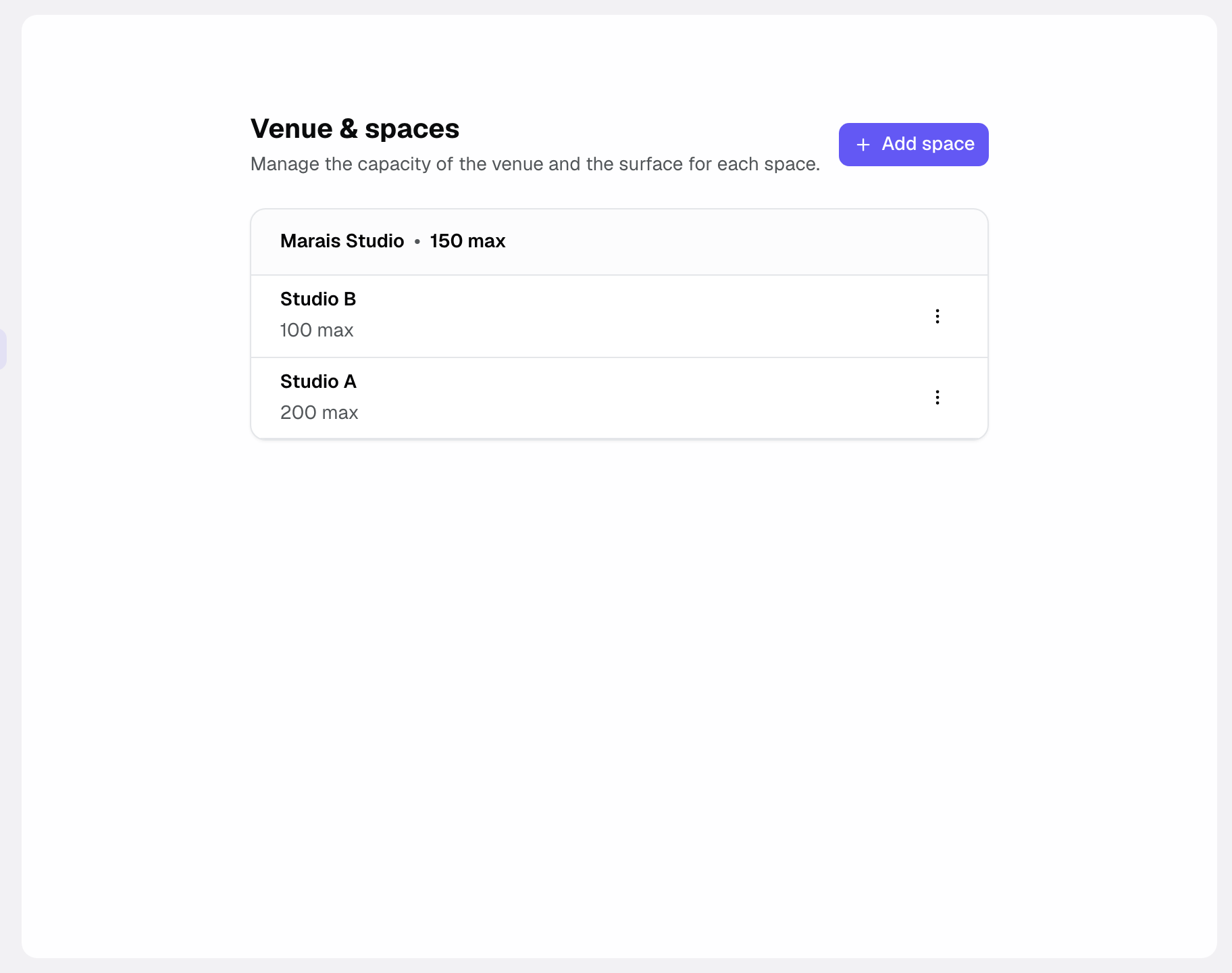
- Click Add space.
- Enter the Name and, if you know it, the Pmax, the maximum number of people the room holds. The Color defaults to the venue's (“Venue color”); pick another one from the palette to tell the room apart on the calendar.
- Click Create space. It is immediately selectable on your events.
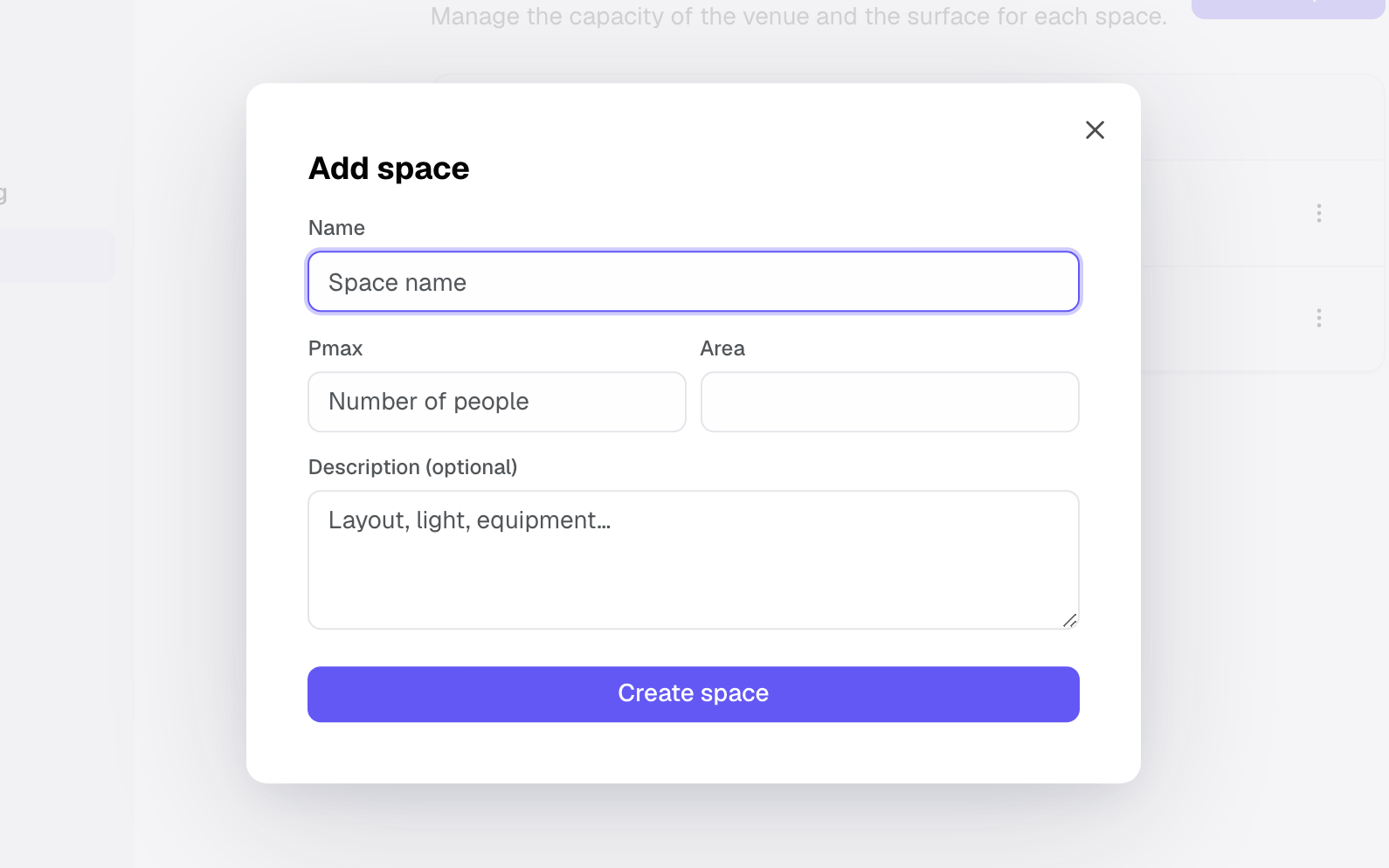
The venue is not something you pick: it is the one you are already in. A space is always a room of that site, and it cannot itself contain other spaces.
Complete a space
The create form and the edit form have the same fields. You can fill in everything at creation, or come back later from the space's own menu in the list.
- “Edit” reopens every field of the space: name, Pmax, area, description, capacities, combination, set-up and prices.
- “Photos & Plans” opens the space's photos and floor plans, so a quote or a client page can show the right room.
- Opening hours, closure periods and the out-of-hours policy are set in the venue's “Availability” tab and apply to all its spaces.
Field reference
- Name: how the room appears in lists, on events, on the calendar and on quotes. Use the name your clients already know.
- Pmax: the maximum number of people. It applies when no layout is chosen, or when the chosen layout has no capacity of its own.
- Area: the room's surface in square metres (square feet for a venue in the United States or Canada).
- Color: the space's color on the calendar, the events list and the event page. “Venue color” (the default) uses the venue's color.
- Description (optional): free text about the room, such as its layout, light or equipment.
- Capacity per layout: the number of guests for each layout (Theatre, Classroom, Banquet, Cabaret, Reception, U-shape, Boardroom). Leave empty the layouts the room does not offer.
- Combined space: tick at least two plain spaces of the same venue. Booking the combination blocks them, and booking one of them blocks the combination. A space that is already part of a combination cannot combine others.
- Set-up and tear-down: the minutes blocked before and after each timed use of the space (24 h at most). They count in the double-booking checks.
- Prices (excl. tax): “Space hire” and “Minimum spend”, references for your quotes in the venue's currency. When a quote's total excluding tax stays below the minimum of the booked spaces, the quote editor says so, without blocking.
- Time zone, currency and country: taken from the venue at creation, never set on the space.
How it works
On an event you pick the venue, then the spaces it uses in the “Spaces” field. Left empty, the field means “Entire venue”: the event takes the whole site. An event can occupy several spaces at once: a reception spread over the barn and the garden holds both.
The calendar then places each event on the rows of the spaces it occupies, in the space's color. An event that takes the entire venue shows shaded on every space row. That is where you read the real occupancy of your site day by day.
Availability is a separate matter: it comes from the venue's opening hours and closure periods, public holidays included. When a date falls outside them, Joinways warns you or refuses the event, depending on the “Out-of-hours policy” in the “Availability” tab. School holidays are only shaded on the calendar and never block a slot.
When two events are in conflict
Joinways applies the same rule everywhere: the create form, the event page, the calendar, the API and MCP. Only “Hold” and “Confirmed” events count.
- An event with no space chosen takes the entire venue: it conflicts with any other event at the venue on the same dates.
- Two events that each have their own spaces only conflict if they share a space. A combined space counts for the spaces it joins.
- With time slots, the comparison is made by the hour, set-up and tear-down included. A space booked without times is taken all day.
- If the venue is always rented as a whole, turn on “This venue is always privatised whole” in the “Availability” tab: every event there takes the entire venue, whatever spaces it lists.
Create one space per room that can genuinely be sold separately. Splitting further adds noise to the calendar; splitting too little hides the fact that two clients can be hosted the same day.
Edge cases
- Modular rooms: if a large room divides into halves that are rented apart, create one space per half, then a combined space for the full room. Booking the full room then blocks both halves.
- Areas rented together once in a while: select all of them on the event. If the set sells regularly under its own name, create a combined space instead.
- Outdoor areas: a garden or terrace is a space in its own right, with its own capacity.
- Limit reached: on Free, past 2 spaces, the Add space button is greyed out and a “Move to Pro” link appears below it. Moving to Pro lifts the limit.
- Paid venue changing size: if the new space moves the venue up a size, a confirmation shows the new monthly price before the space is created. The difference until renewal is billed right away, prorated.
- Locked venue: a venue locked by the Free plan limit accepts no new spaces until it is unlocked.
Best practices
- Name your spaces the way your clients name them: the name travels onto quotes.
- Enter a realistic Pmax, the one you would actually accept, not the theoretical maximum.
- Add a photo to each space: it is what clients recognise on a quote.
- Rename rather than delete when a room changes use, so your history stays intact.
Troubleshooting
A space is missing when I create an event
Cause: the event points to another venue. Spaces are only offered for the venue selected on the event. Solution: check the venue on the event, or create the space under the right one.
I cannot add a space
Cause: this venue has reached the number of spaces your plan allows, or it is locked. Solution: change plan, free up a space, or create a separate venue.
I cannot delete the venue
Cause: a venue that still contains spaces cannot be deleted. Solution: delete its spaces first, then the venue.
An old event no longer shows its space
Cause: the space was deleted. Before deleting, Joinways shows what still uses the space: upcoming and past events, open requests, catalog items, combinations. Events that booked it lose it, along with its slots; an event left without any space books the entire venue. Solution: recreate the space and reassign it on the events concerned, and prefer renaming next time.
Real-world example
An estate creates three spaces under its venue: the barn at 120, the orangery at 60 and the garden at 200. A wedding takes the barn and the garden; a corporate lunch the same day takes the orangery. On the calendar the three rows show exactly that, and nobody has to remember which room is still free.
Another example
A seminar centre on the Pro plan sets up five spaces: an auditorium at 300 and four meeting rooms at 30. Five clients can be hosted the same day, each event holding only its own room, and each quote showing the photo of the room that was sold.
FAQ
What is the difference between a venue and a space?
The venue is the site; the space is a room of that site. A venue holds several spaces, and a space holds none.
Can I set a different capacity per layout?
Yes. In “Capacity per layout”, enter the number of guests for each layout the room offers (Theatre, Classroom, Banquet, Cabaret, Reception, U-shape, Boardroom). On the event, the layout chosen for each room gives its capacity, and it appears on the quote and the function sheet.
How many spaces can I create?
Per venue: 2 on Free. On Pro and during the 30-day trial the number of spaces is not limited in practice (100 per venue at most); the venue's price depends on its number of spaces.
Can one event use several spaces?
Yes. Select every room the event occupies; the calendar marks them all.
Can a space be booked twice in one day?
Joinways flags it without forbidding it. At creation, the form lists the “Hold” or “Confirmed” events that use the same space, or the entire venue, on the same dates. On the event page, a banner shows the same conflicts. Two time slots in the same room that do not overlap are not in conflict.
Can I book a room for just a few hours?
Yes. On the event page, the “Room schedule” block adds slots: one room, one day, and start and end times, or “All day”. The room is then only taken during its slots. Slots are offered when the venue has at least two spaces and is not always privatised whole.
Does a space have its own opening hours?
No. A space follows the opening hours and closures of its venue, set in the venue's “Availability” tab. If one room closes earlier, add a partial-day closure on the venue or take it into account when booking.
What happens if I delete a space in use?
Joinways first shows what still uses it. If you confirm, events lose the room and its slots, requests drop it from their requested spaces, and catalog items no longer have a default room. Rename the space instead whenever you can.
See also
- Manage your venues
- Create an event
- Plans and pricing
Bring every event inquiry into one queue.