Connect Outlook
Connect your Outlook or Microsoft 365 mailbox: your client conversations land on their events and you reply from Joinways.
Aggiornato il
If your venue runs on Microsoft 365, your conversations with clients go through Outlook, while your quotes and schedule live in Joinways. Without a link between the two, every email has to be searched for and copied over.
Connect your Outlook or Microsoft 365 mailbox in "My mailbox": your emails with a client land in the "Conversations" tab of their event, you reply from Joinways with your own address and signature, and your contacts are created from the people you write to.
What you'll learn
- Connect your Outlook mailbox in "My mailbox".
- Know what Joinways syncs, and what it does not do.
- Share the mailbox with the team and set your signature.
- Unblock a connection refused by your Microsoft 365 organization.
Prerequisites
- An Outlook.com or Microsoft 365 account with its own mailbox: the address you write to your clients from.
- Access to the workspace, whatever your role: "My mailbox" is open to every member.
- On a company Microsoft 365 account, an organization that allows Joinways. Some only let an administrator approve new apps.
1. Connect your mailbox
Go to "Settings" > "My mailbox". The page opens on the "Personal" tab of the integrations.
- Click "Connect an account", or "Add another account" if a mailbox is already connected.
- In the "Connect Email Account" window, click "Connect Microsoft Account".
- Sign in in the Microsoft window and accept the requested access: reading and sending emails.
- Back in Joinways, the message "Your Microsoft account is now connected and syncing." appears and the mailbox shows the "In Sync" badge.
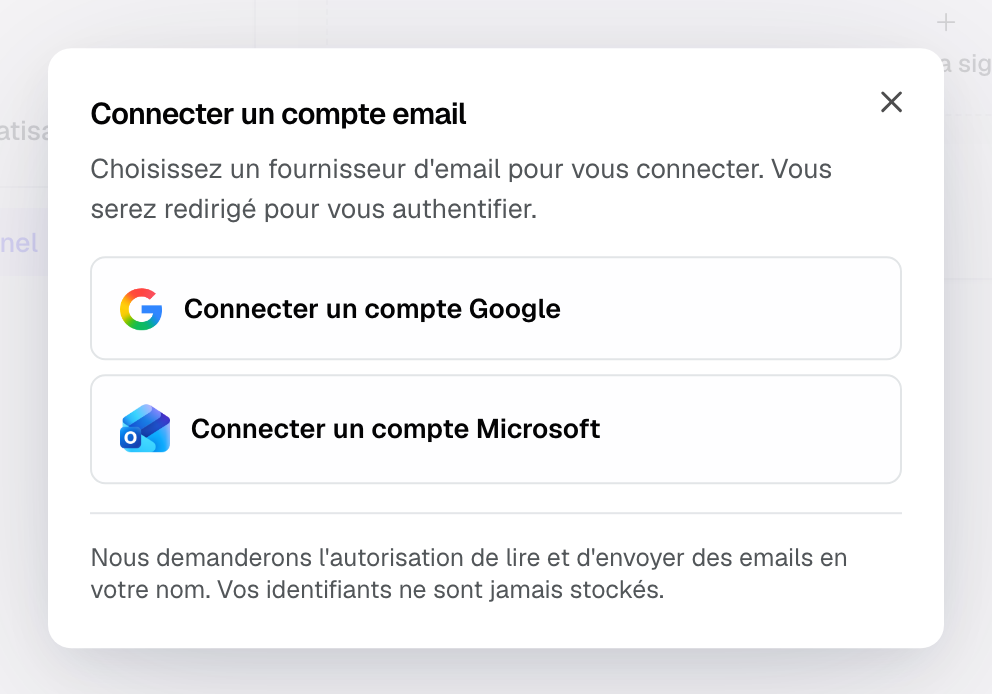
Joinways never sees your password: access goes through Microsoft (OAuth) and can be revoked at any time, on Microsoft's side or by disconnecting the mailbox.
Important: a Microsoft 365 shared mailbox (contact@, events@…) has no account of its own and does not connect here. Connect it as the "Inquiries mailbox", in the "Sources" tab, signing in with your own account that has access to it. See Connect your business email (contact@, info@…).
2. What gets synced
- Your conversations with clients: every email received or sent is filed on the right event, found through the contact, the thread or the platform reference. You read it in the event's "Conversations" tab.
- Sending from Joinways: you reply from an event, an inquiry or a quote. The message leaves from your Outlook address, with your signature.
- Your contacts: on connection, Joinways creates the contacts and companies you wrote to over the last 12 months, then adds the new people you write to. See Import your contacts from your mailbox.
The first sync picks up your latest emails, then each new email arrives as it comes. Joinways also checks every hour that no email slipped past the live sync, and catches up on any that did.
Your personal mailbox does not create inquiries: that is the job of the "Inquiries mailbox" card. The Outlook calendar connects separately, in the "Calendars" tab. See Connect the Outlook calendar.
3. Share the mailbox and set your signature
On the card of a mailbox you connected:
- The ⋮ menu offers "Sync Now", which runs a sync right away, and "Disconnect".
- "Share with the team" lets every member of the workspace send emails from this address. You remain the only one who can disconnect it.
- "Email signature" sets the signature added to your emails. You can copy it from Outlook and paste it with its formatting.
On a mailbox a teammate shared, the card reads "Shared by a teammate: you can send from this address.". The "My signature" block lets you add your own signature with "Add my signature": it applies to the emails you send from this address, and only you see it. Without it, the mailbox signature is used.
Example: a conference center on Microsoft 365
At the Pavillon des Congrès, the account manager clicks "Connect Microsoft Account". Microsoft replies that the organization only lets an administrator approve new apps. IT approves Joinways, she starts the connection again, and her conversations with organizers show up on their events a few minutes later. She replies from the "Conversations" tab, without reopening Outlook.
Troubleshooting
"Your Microsoft 365 organization only lets an administrator approve new apps."
Cause: your organization requires an administrator to approve Joinways. Solution: ask your IT administrator to approve Joinways, then connect again.
"This Microsoft account has no active mailbox."
Cause: the account has no mailbox of its own, often because the address is a shared mailbox. Solution: connect it as the "Inquiries mailbox" in "Settings" > "Integrations", "Sources" tab, signing in with your own account that has access to it.
"This email address is already connected by another teammate."
Cause: a teammate already connected this address. Solution: ask them to turn on "Share with the team" so you can send from it, or to disconnect it if it is now yours.
The mailbox shows "Disconnected"
Cause: Microsoft withdrew the authorization, after a password change or an organization rule that limits how long authorizations last. Solution: click "Reconnect" and approve access in the Microsoft window. Only the person who connected the mailbox sees this button. If it keeps happening, check the authorization lifetime with your administrator.
An email does not show on the event
Cause: the sender's or recipient's address is not linked to any contact of the event, or the sync has just started. Solution: check that the client's address is among the event's contacts, then run "Sync Now" from the card's ⋮ menu.
Frequently asked questions
Can I connect Outlook and Gmail at the same time?
Yes. Add each mailbox with "Add another account"; their conversations land on the same events.
Does Joinways know my Microsoft password?
No. You authorize access in the Microsoft window; Joinways neither sees nor stores your password.
Can my teammates see my emails?
They see the emails filed on an event, in its "Conversations" tab. They cannot send from your address unless you turn on "Share with the team".
Should I connect the Outlook calendar too?
It is optional and separate: the mailbox handles your conversations, the calendar shows your events in Outlook. An owner or admin connects it in the "Calendars" tab.
See also
Provalo sulle tue prossime richieste per 30 giorni, senza carta.